Thinkific integration
Интеграция с Thinkific
Step 1: Copy the JavaScript code provided by SEATEXT AI, which can be found in the section below.
Стъпка по стъпка интеграция
1
Интеграция с Thinkific
Step 1: Copy the JavaScript code provided by SEATEXT AI, which can be found in the section below.
Стъпка по стъпка интеграция
1
SEATEXTCODEINTEGRATION
Стъпка 2: Поставете JavaScript кода от Seatext на вашия уебсайт
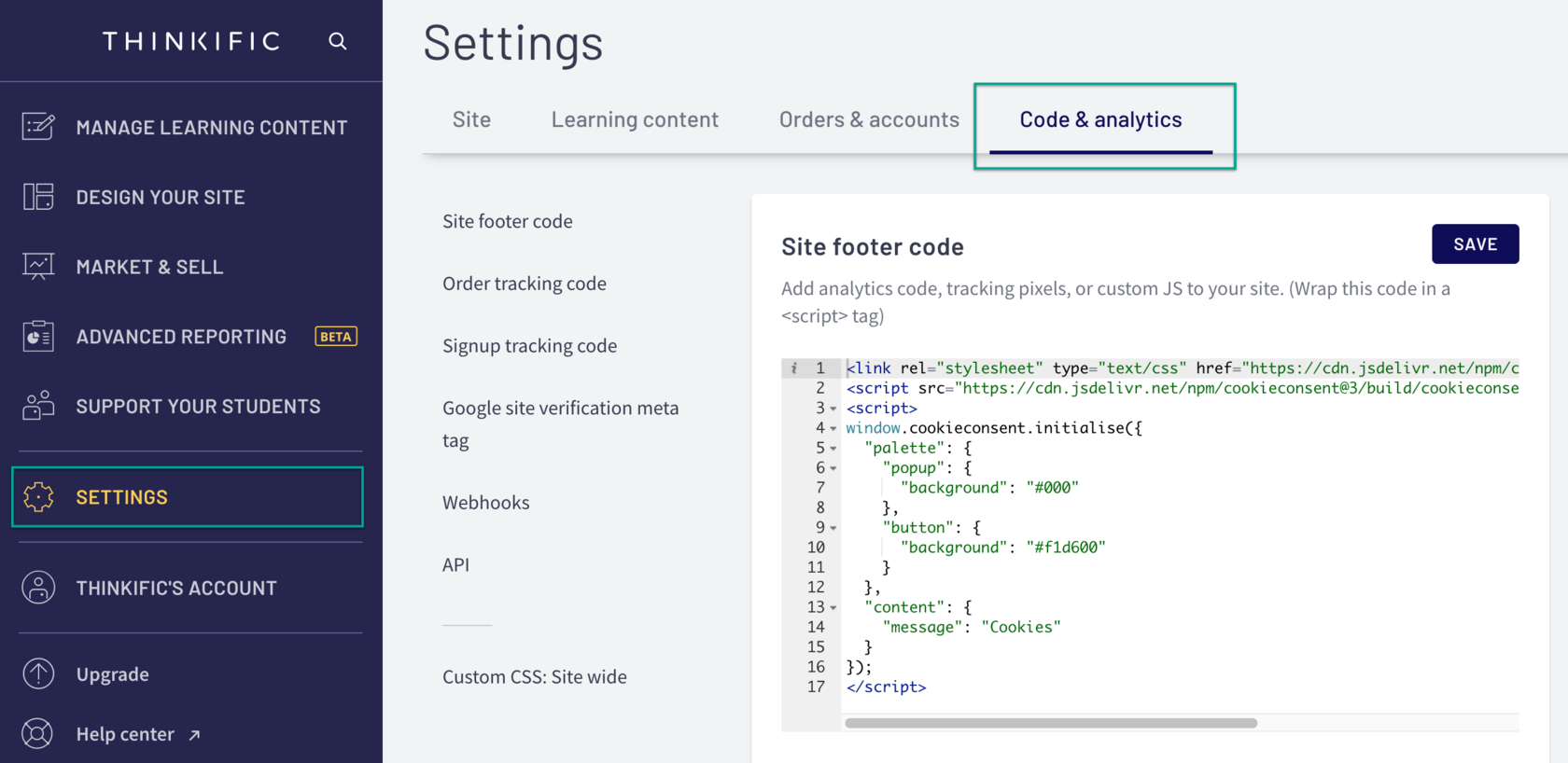
Go to your Admin Dashboard: Select Settings Then select the Code & Analytics tab In the Site Footer Code field, paste the code Click Save
Вече сте инсталирали успешно SEATEXT AI на вашия уебсайт, използвайки JavaScript.
Стъпка 2: Поставете JavaScript кода от Seatext на вашия уебсайт
Go to your Admin Dashboard: Select Settings Then select the Code & Analytics tab In the Site Footer Code field, paste the code Click Save
Вече сте инсталирали успешно SEATEXT AI на вашия уебсайт, използвайки JavaScript.
Свързване на SEATEXT AI с вашия уебсайт
2
Свързване на SEATEXT AI с вашия уебсайт
2
a. Use the form below to add your website address in the format (www.example.com). SEATEXTURLPUSH
в. Изчакайте поне пет минути, докато не видите името на вашия уебсайт, показано до логото на SEATEXT в горната част на тази страница. Това показва, че вашият уебсайт е свързан и готов да продължи към следващата стъпка. Ако не го видите в горната част на страницата след 10 минути, моля, свържете се с екипа ни за поддръжка веднага. Това може да показва проблем по време на инсталирането на вашата платформа и може да ви трябва нашата помощ.
IMPORTANT b. Visit your website once and stay on your page for at least 40 seconds—this will activate the AI and link it to your account.
a. Use the form below to add your website address in the format (www.example.com). SEATEXTURLPUSH
IMPORTANT b. Visit your website once and stay on your page for at least 40 seconds—this will activate the AI and link it to your account.
в. Изчакайте поне пет минути, докато не видите името на вашия уебсайт, показано до логото на SEATEXT в горната част на тази страница. Това показва, че вашият уебсайт е свързан и готов да продължи към следващата стъпка. Ако не го видите в горната част на страницата след 10 минути, моля, свържете се с екипа ни за поддръжка веднага. Това може да показва проблем по време на инсталирането на вашата платформа и може да ви трябва нашата помощ.

Активиране на ИИ
3
Активиране на ИИ
3
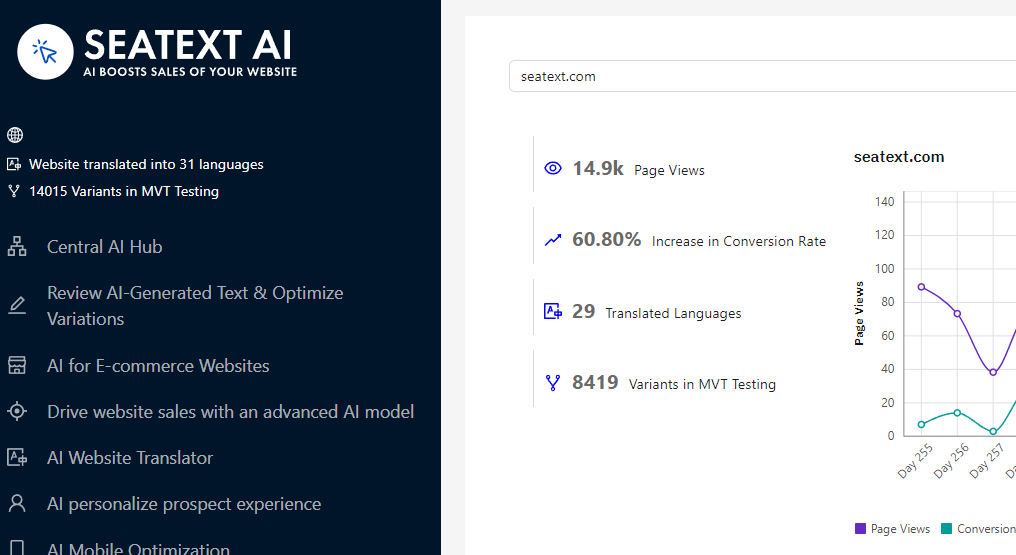
Proceed to the Main AI Hub to activate the necessary AI on your preferred pages. Click on "Configuration" to adjust the AI parameters. Optional Editing: SEATEXT AI provides your initial round of automatic translations and variants for testing. Log in to your SEATEXT AI account, navigate to "Variants Edit" in the left panel, and select the URL and language you wish to edit. Here, you can review, create, or manually edit translations for your variants.
Proceed to the Main AI Hub to activate the necessary AI on your preferred pages. Click on "Configuration" to adjust the AI parameters. Optional Editing: SEATEXT AI provides your initial round of automatic translations and variants for testing. Log in to your SEATEXT AI account, navigate to "Variants Edit" in the left panel, and select the URL and language you wish to edit. Here, you can review, create, or manually edit translations for your variants.