Integrace Thinkific
Integrace Thinkific
Krok 1: Zkopírujte kód JavaScript poskytnutý SEATEXT AI, který naleznete v části níže.
Integrace krok za krokem
1
Integrace Thinkific
Krok 1: Zkopírujte kód JavaScript poskytnutý SEATEXT AI, který naleznete v části níže.
Integrace krok za krokem
1
SEATEXTCODEINTEGRATION
Krok 2: Vložte JavaScriptový kód ze Seatext na svůj web
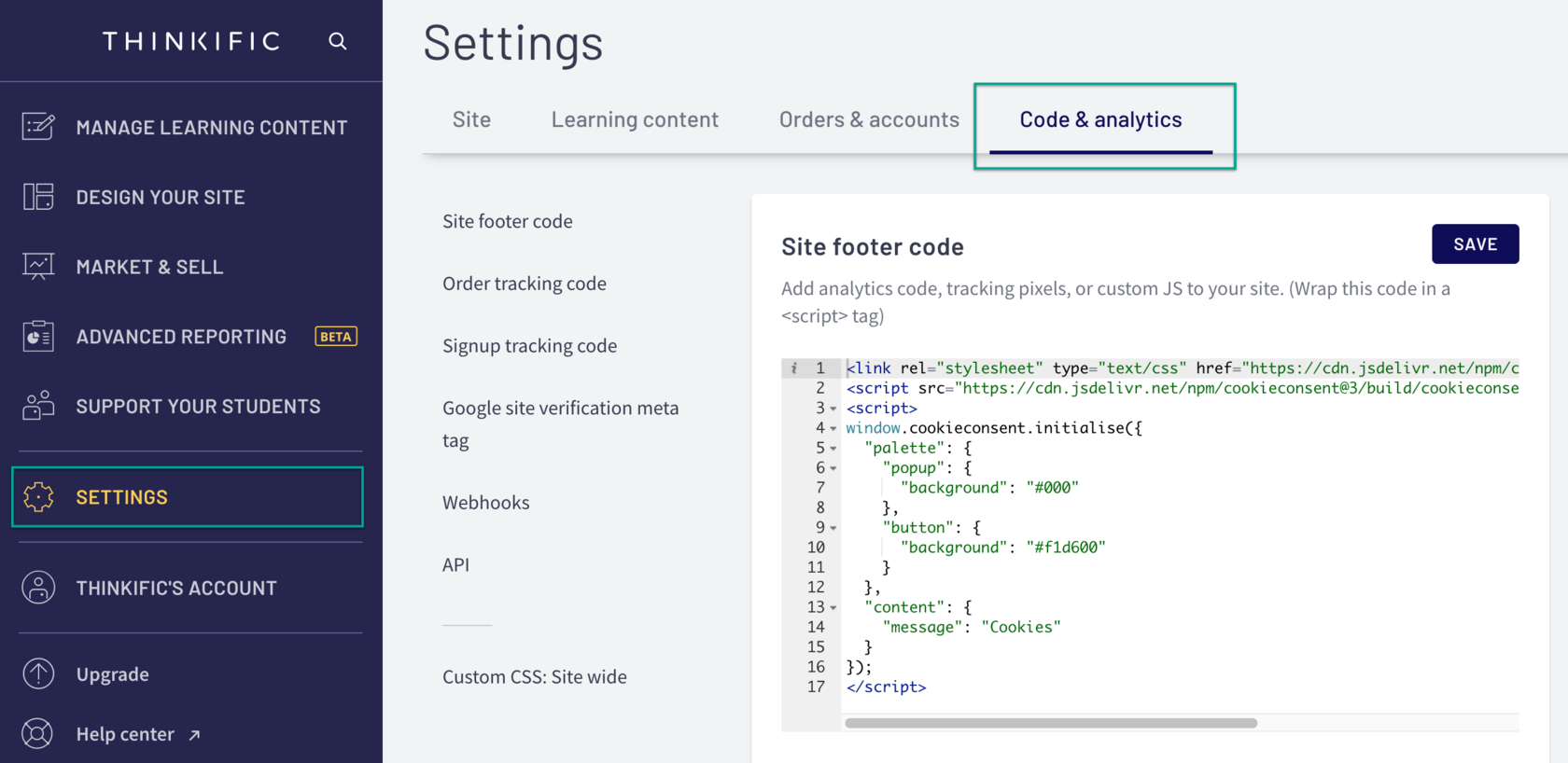
Přejděte do svého Admin Dashboard: Vyberte Nastavení, poté záložku Kód & Analytika. Do pole Kód v patičce webu vložte kód a klikněte na Uložit.
Nyní jste úspěšně nainstalovali SEATEXT AI na svůj web pomocí JavaScriptu.
Krok 2: Vložte JavaScriptový kód ze Seatext na svůj web
Přejděte do svého Admin Dashboard: Vyberte Nastavení, poté záložku Kód & Analytika. Do pole Kód v patičce webu vložte kód a klikněte na Uložit.
Nyní jste úspěšně nainstalovali SEATEXT AI na svůj web pomocí JavaScriptu.
Propojení SEATEXT AI s vaším webem
2
Propojení SEATEXT AI s vaším webem
2
a. Pomocí formuláře níže přidejte adresu svého webu ve formátu (www.example.com). SEATEXTURLPUSH
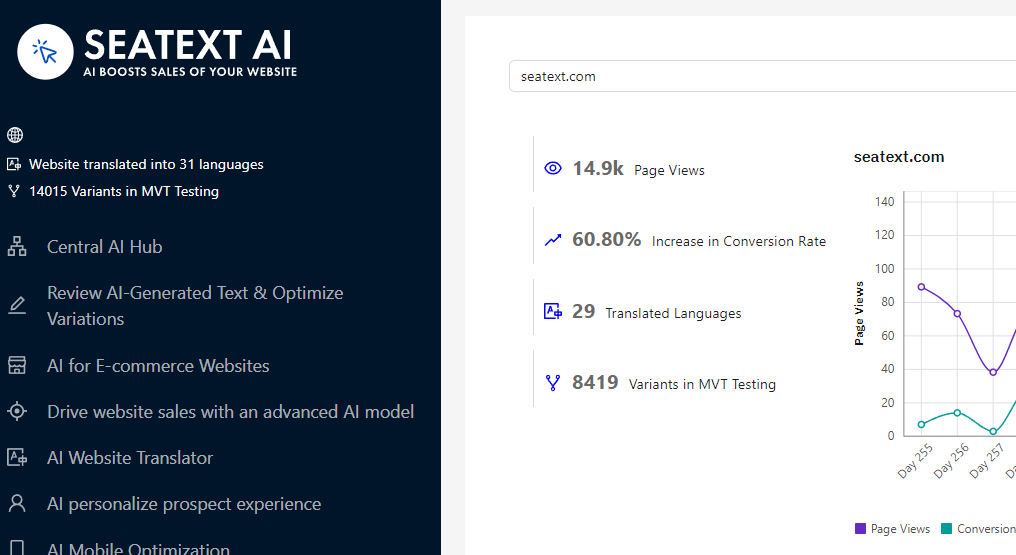
c. Počkejte alespoň pět minut, dokud se v horní části této stránky vedle loga SEATEXT nezobrazí název vašeho webu. To znamená, že je váš web propojen a připraven k dalšímu kroku. Pokud se nezobrazí do 10 minut, okamžitě kontaktujte náš tým podpory. Mohlo by to znamenat problém během instalace na vaší platformě a možná budete potřebovat naši pomoc.
DŮLEŽITÉ b. Navštivte svůj web jednou a zůstaňte na stránce alespoň 40 sekund – tím se aktivuje AI a propojí se s vaším účtem.
a. Pomocí formuláře níže přidejte adresu svého webu ve formátu (www.example.com). SEATEXTURLPUSH
DŮLEŽITÉ b. Navštivte svůj web jednou a zůstaňte na stránce alespoň 40 sekund – tím se aktivuje AI a propojí se s vaším účtem.
c. Počkejte alespoň pět minut, dokud se v horní části této stránky vedle loga SEATEXT nezobrazí název vašeho webu. To znamená, že je váš web propojen a připraven k dalšímu kroku. Pokud se nezobrazí do 10 minut, okamžitě kontaktujte náš tým podpory. Mohlo by to znamenat problém během instalace na vaší platformě a možná budete potřebovat naši pomoc.

Aktivace AI
3
Aktivace AI
3
Přejděte do Hlavního rozbočovače AI a aktivujte potřebnou AI na svých preferovaných stránkách. Klikněte na „Konfigurace“ pro úpravu parametrů AI. Volitelné úpravy: SEATEXT AI poskytuje první kolo automatických překladů a variant pro testování. Přihlaste se ke svému účtu SEATEXT AI, přejděte na „Úpravy variant“ v levém panelu a vyberte URL a jazyk, který chcete upravit. Zde můžete zkontrolovat, vytvořit nebo ručně upravit překlady svých variant.
Přejděte do Hlavního rozbočovače AI a aktivujte potřebnou AI na svých preferovaných stránkách. Klikněte na „Konfigurace“ pro úpravu parametrů AI. Volitelné úpravy: SEATEXT AI poskytuje první kolo automatických překladů a variant pro testování. Přihlaste se ke svému účtu SEATEXT AI, přejděte na „Úpravy variant“ v levém panelu a vyberte URL a jazyk, který chcete upravit. Zde můžete zkontrolovat, vytvořit nebo ručně upravit překlady svých variant.
