Optimizely- integration
Optimizely-Integration
Step 1: Copy the Javascript code from SEATEXT AI which appear in this section below.
Schritt-für-Schritt-Integration
1
Optimizely-Integration
Step 1: Copy the Javascript code from SEATEXT AI which appear in this section below.
Schritt-für-Schritt-Integration
1
SEATEXTCODEINTEGRATION
Schritt 2: Fügen Sie den Javascript-Code von Seatext auf Ihrer Website ein
Step 3: It’s done! You’ve now successfully installed SEATEXT AI on your website using JavaScript.
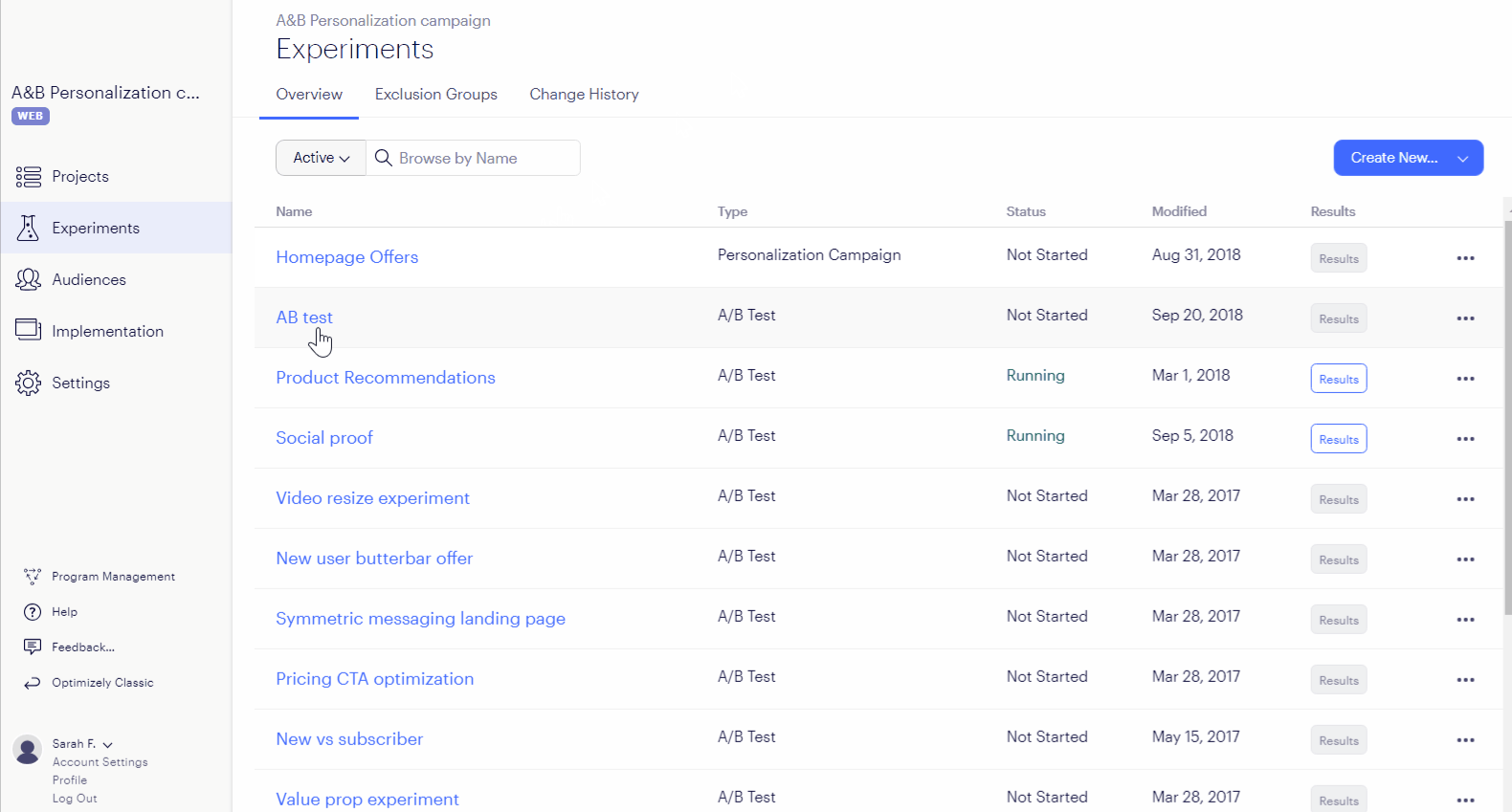
From the Experiments dashboard, click the name of the experiment.
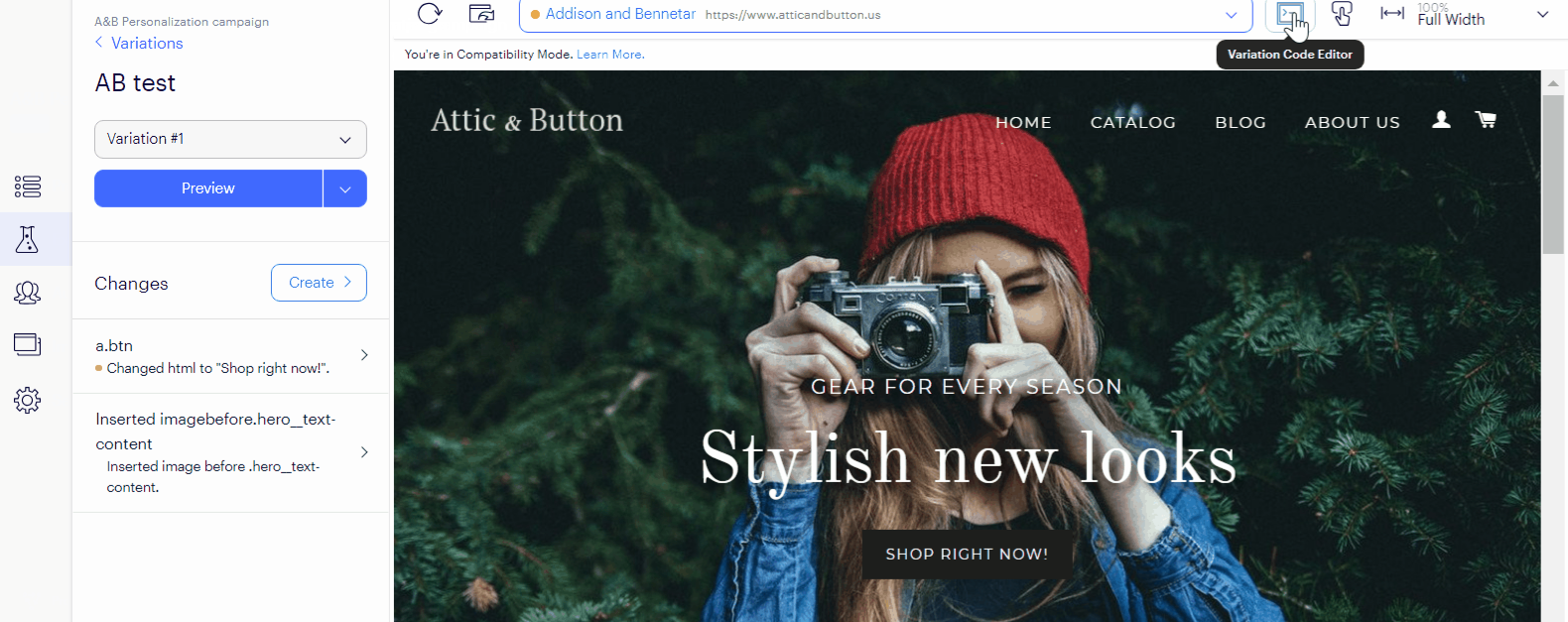
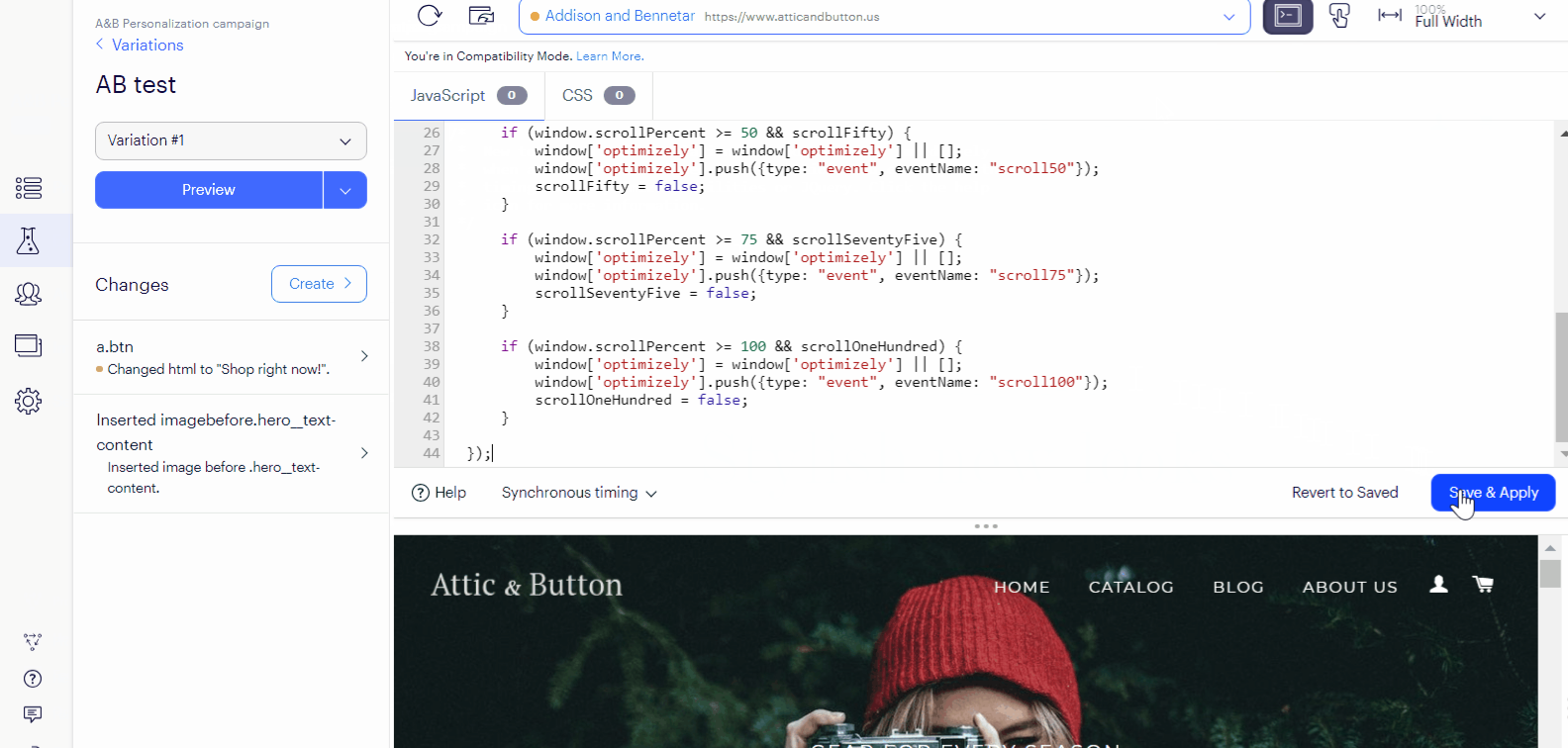
Click the Variation Code Editor icon in the top-right of the Editor window to begin adding custom code.
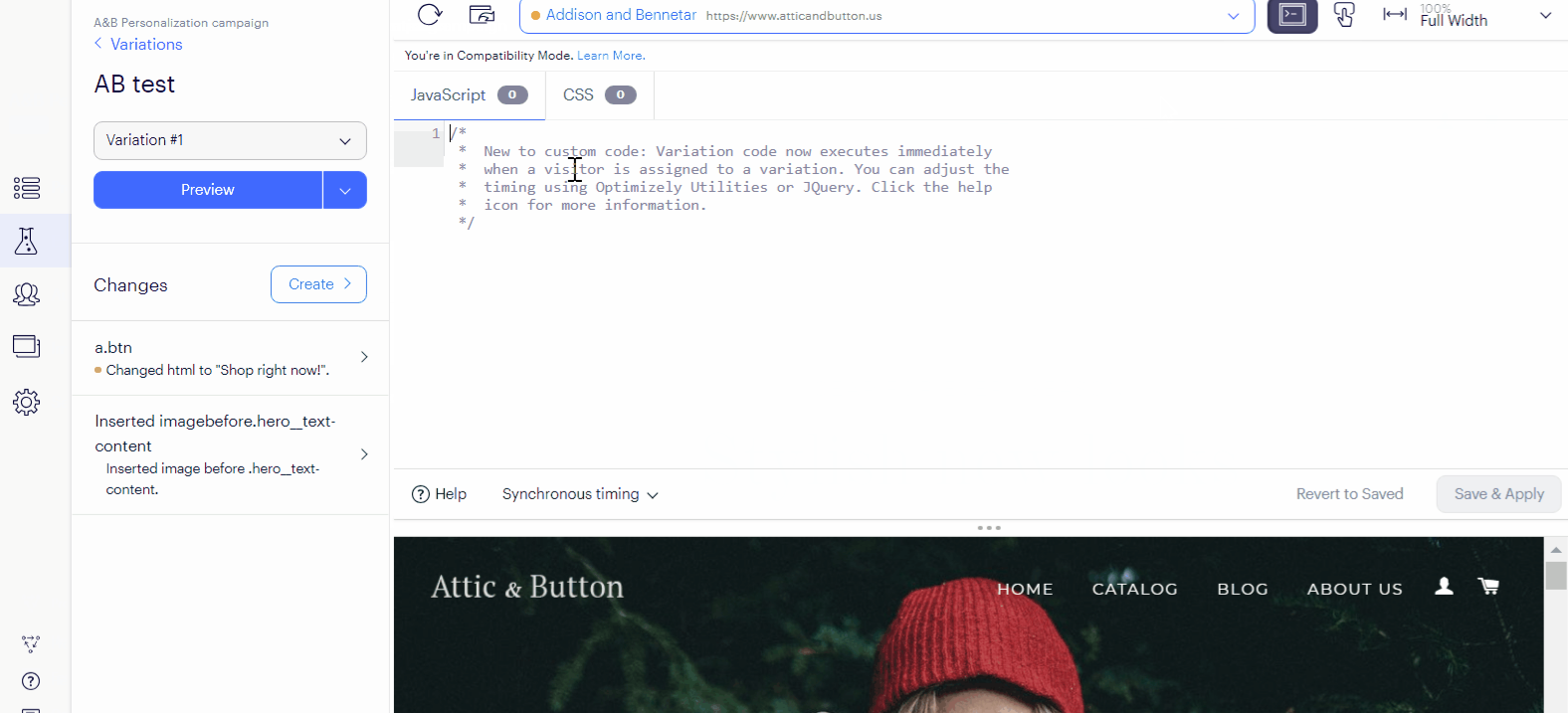
The Variation Code Editor window opens to the JavaScript tab. Paste the code snniped into the Variation Code Editor text box.
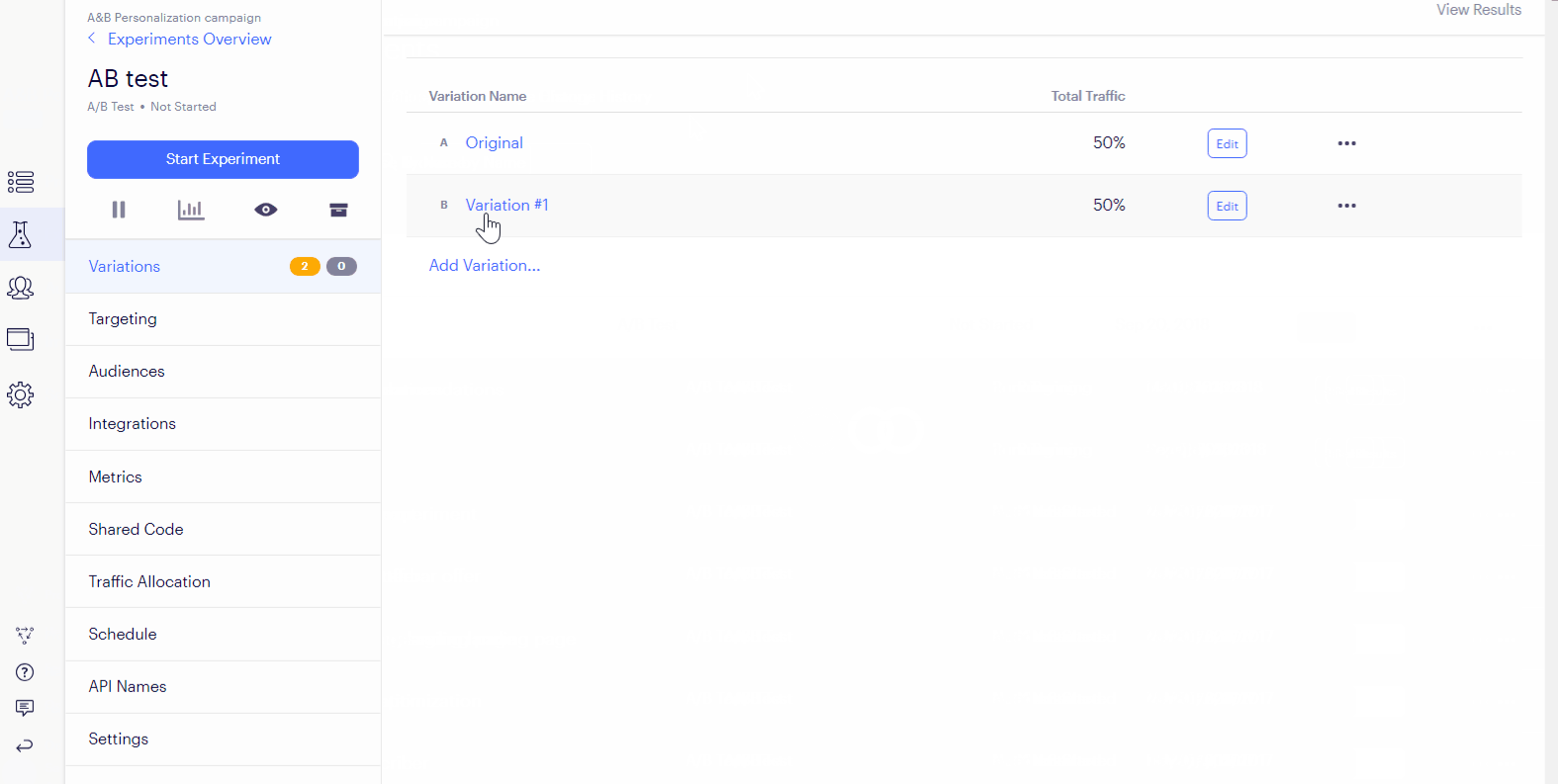
Wählen Sie die Variante aus, auf die Sie die Seatext-Übersetzung anwenden möchten. Dadurch wird der Editor geöffnet.
Click Save & Apply.
Schritt 2: Fügen Sie den Javascript-Code von Seatext auf Ihrer Website ein
From the Experiments dashboard, click the name of the experiment.
Step 3: It’s done! You’ve now successfully installed SEATEXT AI on your website using JavaScript.
Wählen Sie die Variante aus, auf die Sie die Seatext-Übersetzung anwenden möchten. Dadurch wird der Editor geöffnet.
Click the Variation Code Editor icon in the top-right of the Editor window to begin adding custom code.
The Variation Code Editor window opens to the JavaScript tab. Paste the code snniped into the Variation Code Editor text box.
Click Save & Apply.
SEATEXT AI mit Ihrer Website verknüpfen
2
SEATEXT AI mit Ihrer Website verknüpfen
2
a. Use the form below to add your website address in the format (www.example.com). SEATEXTURLPUSH
c. Warten Sie mindestens fünf Minuten, bis Sie den Namen Ihrer Website neben dem SEATEXT-Logo oben auf dieser Seite sehen. Dies zeigt an, dass Ihre Website verbunden ist und bereit für den nächsten Schritt ist. Wenn Sie sie nach 10 Minuten nicht oben auf der Seite sehen, kontaktieren Sie bitte sofort unser Support-Team. Dies könnte auf ein Problem bei der Installation auf Ihrer Plattform hindeuten, und Sie benötigen möglicherweise unsere Unterstützung.
IMPORTANT b. Visit your website once and stay on your page for at least 40 seconds—this will activate the AI and link it to your account.
a. Use the form below to add your website address in the format (www.example.com). SEATEXTURLPUSH
IMPORTANT b. Visit your website once and stay on your page for at least 40 seconds—this will activate the AI and link it to your account.
c. Warten Sie mindestens fünf Minuten, bis Sie den Namen Ihrer Website neben dem SEATEXT-Logo oben auf dieser Seite sehen. Dies zeigt an, dass Ihre Website verbunden ist und bereit für den nächsten Schritt ist. Wenn Sie sie nach 10 Minuten nicht oben auf der Seite sehen, kontaktieren Sie bitte sofort unser Support-Team. Dies könnte auf ein Problem bei der Installation auf Ihrer Plattform hindeuten, und Sie benötigen möglicherweise unsere Unterstützung.

KI aktivieren
3
KI aktivieren
3
Proceed to the Main AI Hub to activate the necessary AI on your preferred pages. Click on "Configuration" to adjust the AI parameters. Optional Editing: SEATEXT AI provides your initial round of automatic translations and variants for testing. Log in to your SEATEXT AI account, navigate to "Variants Edit" in the left panel, and select the URL and language you wish to edit. Here, you can review, create, or manually edit translations for your variants.
Proceed to the Main AI Hub to activate the necessary AI on your preferred pages. Click on "Configuration" to adjust the AI parameters. Optional Editing: SEATEXT AI provides your initial round of automatic translations and variants for testing. Log in to your SEATEXT AI account, navigate to "Variants Edit" in the left panel, and select the URL and language you wish to edit. Here, you can review, create, or manually edit translations for your variants.