Zendesk-Integration
Zendesk-Integration
Schritt 1: Kopieren Sie den JavaScript-Code von SEATEXT AI, den Sie im untenstehenden Abschnitt finden.
Schritt‑für‑Schritt‑Integration
1
Zendesk-Integration
Schritt 1: Kopieren Sie den JavaScript-Code von SEATEXT AI, den Sie im untenstehenden Abschnitt finden.
Schritt‑für‑Schritt‑Integration
1
SEATEXTCODEINTEGRATION
Schritt 2: Fügen Sie den JavaScript‑Code von Seatext auf Ihrer Website ein.
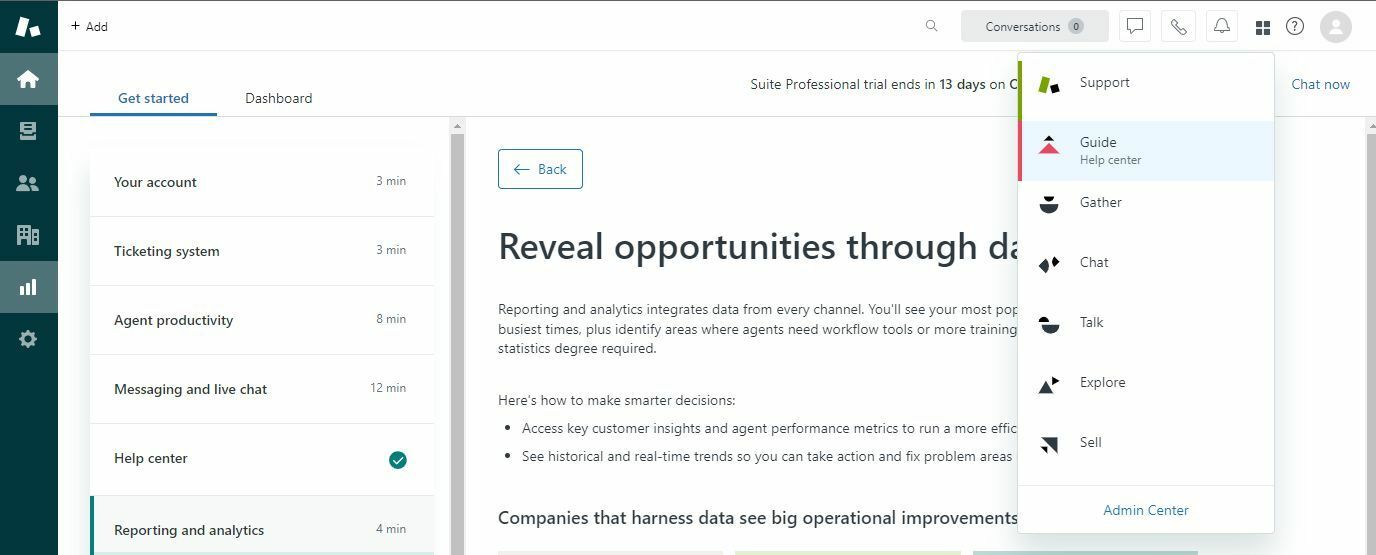
Rufen Sie den Bereich „Guide“ in Ihrem Zendesk-Dashboard auf. Klicken Sie dort auf das Symbol mit den vier kleinen Quadraten und wählen Sie dann „Guide“ aus den angezeigten Optionen.
Sie haben SEATEXT AI nun erfolgreich per JavaScript auf Ihrer Website installiert.
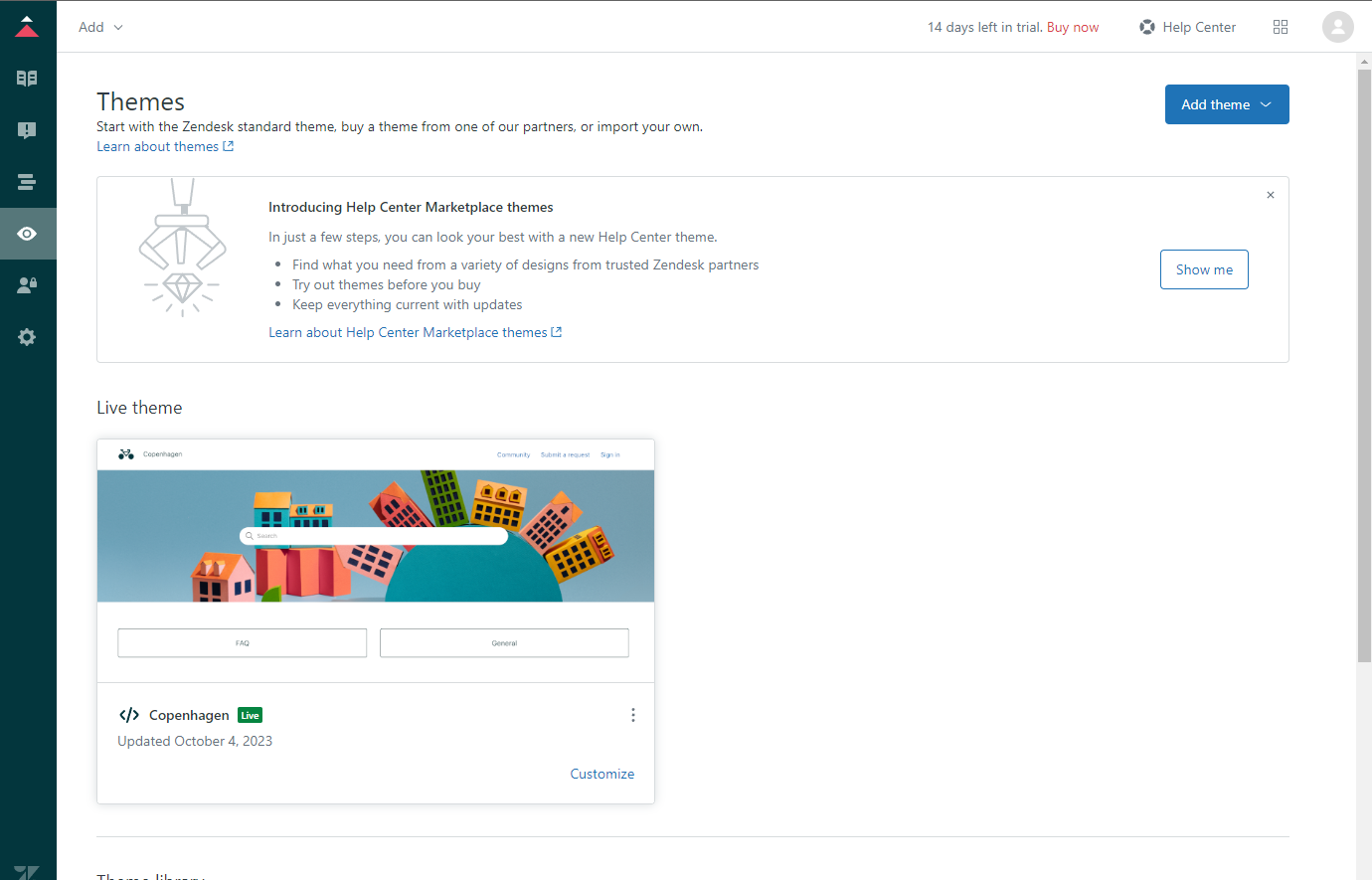
Wechseln Sie zum Tab „Custom Design“. Klicken Sie in der Seitenleiste auf „Custom Design“ und wählen Sie „Customize“, um die Einstellungen zu öffnen.
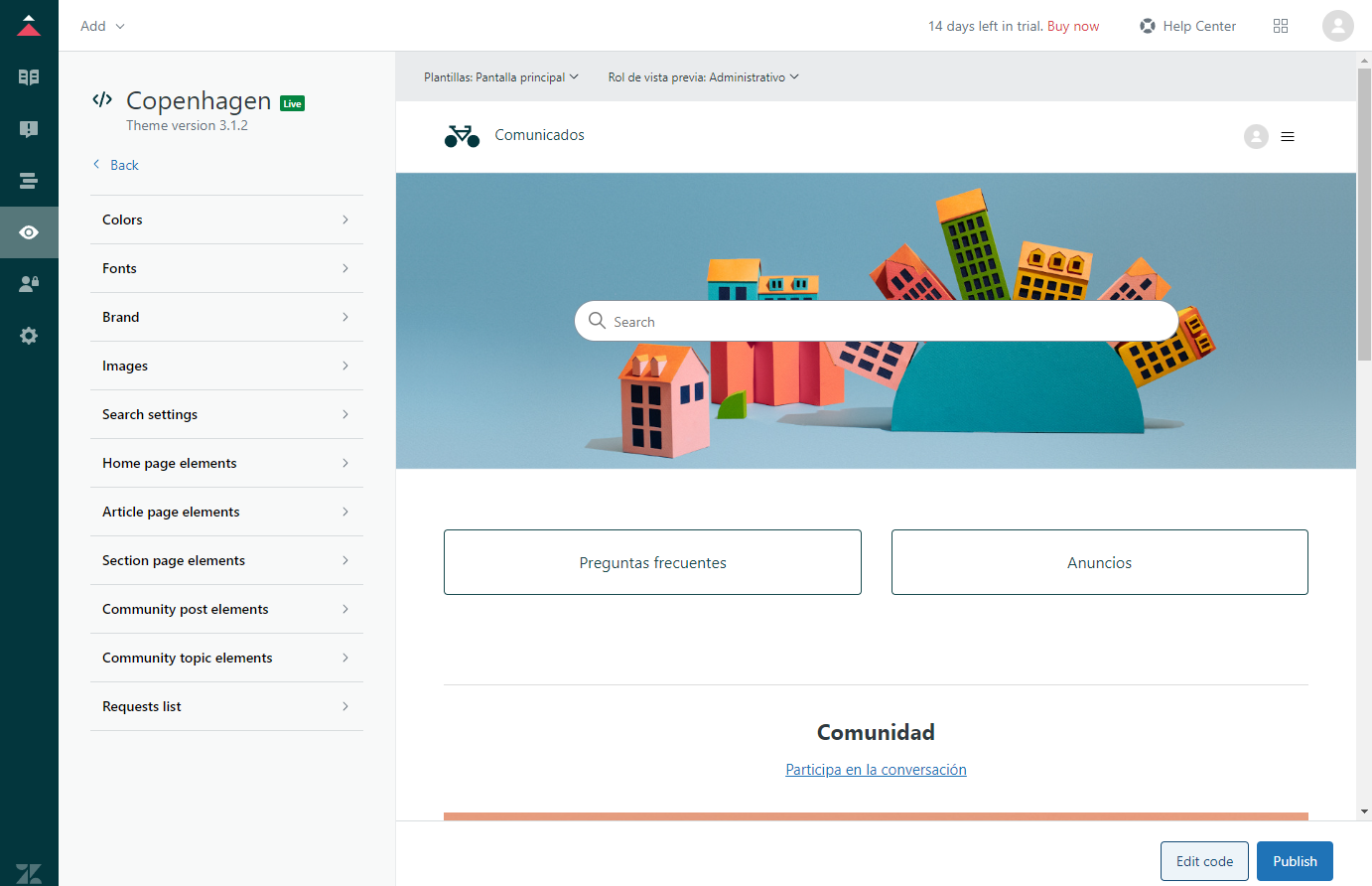
Select "Edit code" from the customization options.
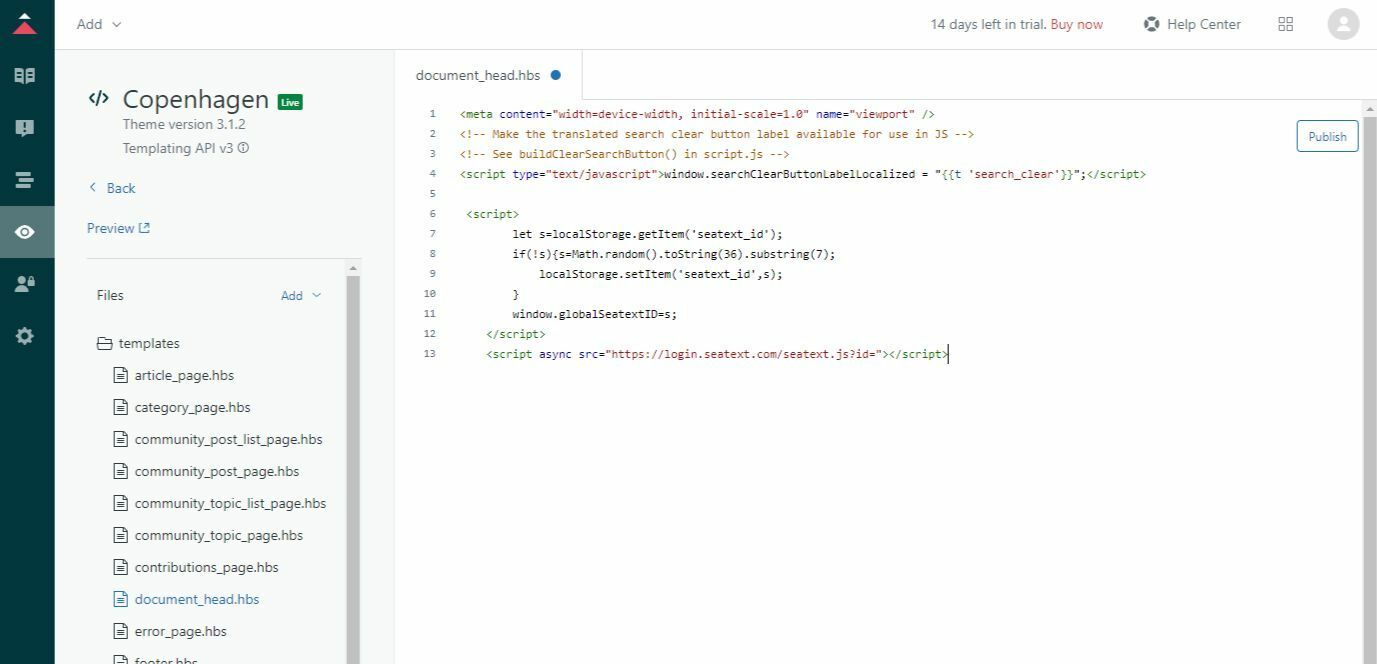
Navigieren Sie im linken Bereich zum Abschnitt „Files“ und wählen Sie die Datei „document_head.hbs“ aus. Fügen Sie den von SEATEXT AI bereitgestellten Code-Snippet in das dafür vorgesehene Feld in der Datei „document_head.hbs“ ein. Klicken Sie abschließend auf „Publish“, um die Änderungen zu übernehmen und SEATEXT AI in Ihre Zendesk-Plattform zu integrieren.
Schritt 2: Fügen Sie den JavaScript‑Code von Seatext auf Ihrer Website ein.
Rufen Sie den Bereich „Guide“ in Ihrem Zendesk-Dashboard auf. Klicken Sie dort auf das Symbol mit den vier kleinen Quadraten und wählen Sie dann „Guide“ aus den angezeigten Optionen.
Sie haben SEATEXT AI nun erfolgreich per JavaScript auf Ihrer Website installiert.
Wechseln Sie zum Tab „Custom Design“. Klicken Sie in der Seitenleiste auf „Custom Design“ und wählen Sie „Customize“, um die Einstellungen zu öffnen.
Select "Edit code" from the customization options.
Navigieren Sie im linken Bereich zum Abschnitt „Files“ und wählen Sie die Datei „document_head.hbs“ aus. Fügen Sie den von SEATEXT AI bereitgestellten Code-Snippet in das dafür vorgesehene Feld in der Datei „document_head.hbs“ ein. Klicken Sie abschließend auf „Publish“, um die Änderungen zu übernehmen und SEATEXT AI in Ihre Zendesk-Plattform zu integrieren.
Verknüpfung von SEATEXT AI mit Ihrer Website
2
Verknüpfung von SEATEXT AI mit Ihrer Website
2
a. Verwenden Sie das Formular unten, um Ihre Website‑Adresse im Format (www.example.com) einzugeben. SEATEXTURLPUSH
c. Warten Sie mindestens fünf Minuten, bis Ihr Webseiten‑Name neben dem SEATEXT‑Logo oben auf dieser Seite angezeigt wird. Das bedeutet, dass Ihre Website verbunden ist und Sie mit dem nächsten Schritt fortfahren können. Wenn Sie ihn nach zehn Minuten nicht oben auf der Seite sehen, kontaktieren Sie bitte umgehend unser Support‑Team. Dies könnte auf ein Problem bei der Installation auf Ihrer Plattform hinweisen, und Sie benötigen möglicherweise unsere Unterstützung.
WICHTIG b. Besuchen Sie Ihre Website einmal und bleiben Sie mindestens 40 Sekunden auf der Seite – das aktiviert die KI und verknüpft sie mit Ihrem Konto.
a. Verwenden Sie das Formular unten, um Ihre Website‑Adresse im Format (www.example.com) einzugeben. SEATEXTURLPUSH
WICHTIG b. Besuchen Sie Ihre Website einmal und bleiben Sie mindestens 40 Sekunden auf der Seite – das aktiviert die KI und verknüpft sie mit Ihrem Konto.
c. Warten Sie mindestens fünf Minuten, bis Ihr Webseiten‑Name neben dem SEATEXT‑Logo oben auf dieser Seite angezeigt wird. Das bedeutet, dass Ihre Website verbunden ist und Sie mit dem nächsten Schritt fortfahren können. Wenn Sie ihn nach zehn Minuten nicht oben auf der Seite sehen, kontaktieren Sie bitte umgehend unser Support‑Team. Dies könnte auf ein Problem bei der Installation auf Ihrer Plattform hinweisen, und Sie benötigen möglicherweise unsere Unterstützung.

KI aktivieren
3
KI aktivieren
3
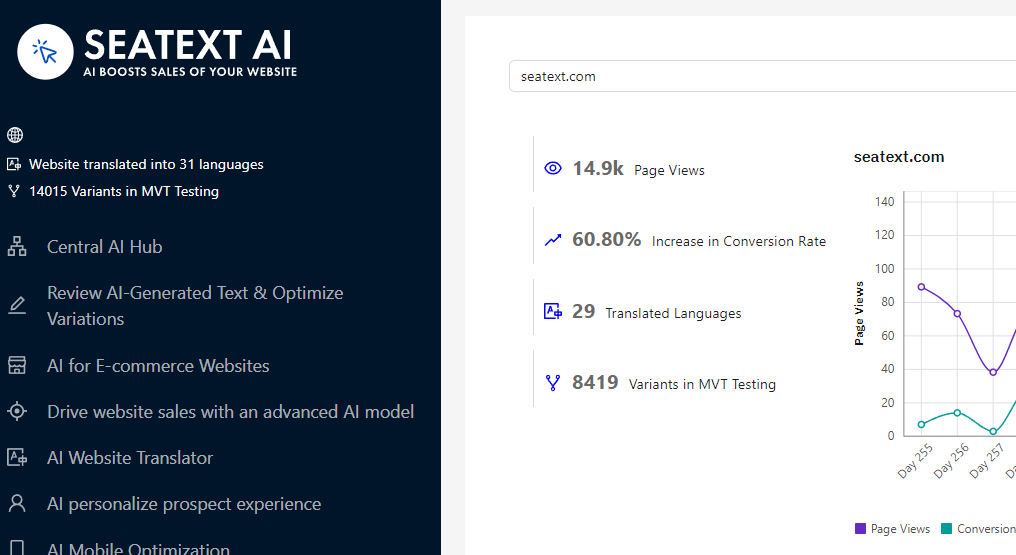
Gehen Sie zum Main AI Hub, um die erforderliche KI auf den gewünschten Seiten zu aktivieren. Klicken Sie auf „Konfiguration“, um die KI‑Parameter anzupassen. Optionales Bearbeiten: SEATEXT AI liefert Ihnen die erste Runde automatischer Übersetzungen und Varianten zum Testen. Melden Sie sich in Ihrem SEATEXT AI‑Konto an, öffnen Sie im linken Menü „Varianten bearbeiten“ und wählen Sie die URL sowie die Sprache, die Sie bearbeiten möchten. Dort können Sie Übersetzungen Ihrer Varianten prüfen, erstellen oder manuell bearbeiten.
Gehen Sie zum Main AI Hub, um die erforderliche KI auf den gewünschten Seiten zu aktivieren. Klicken Sie auf „Konfiguration“, um die KI‑Parameter anzupassen. Optionales Bearbeiten: SEATEXT AI liefert Ihnen die erste Runde automatischer Übersetzungen und Varianten zum Testen. Melden Sie sich in Ihrem SEATEXT AI‑Konto an, öffnen Sie im linken Menü „Varianten bearbeiten“ und wählen Sie die URL sowie die Sprache, die Sie bearbeiten möchten. Dort können Sie Übersetzungen Ihrer Varianten prüfen, erstellen oder manuell bearbeiten.
