Carrd installation
Carrd Integration
Para instalar código personalizado en tu sitio web de Carrd, necesitas un plan Pro Standard o superior.
Carrd Integration
Para instalar código personalizado en tu sitio web de Carrd, necesitas un plan Pro Standard o superior.
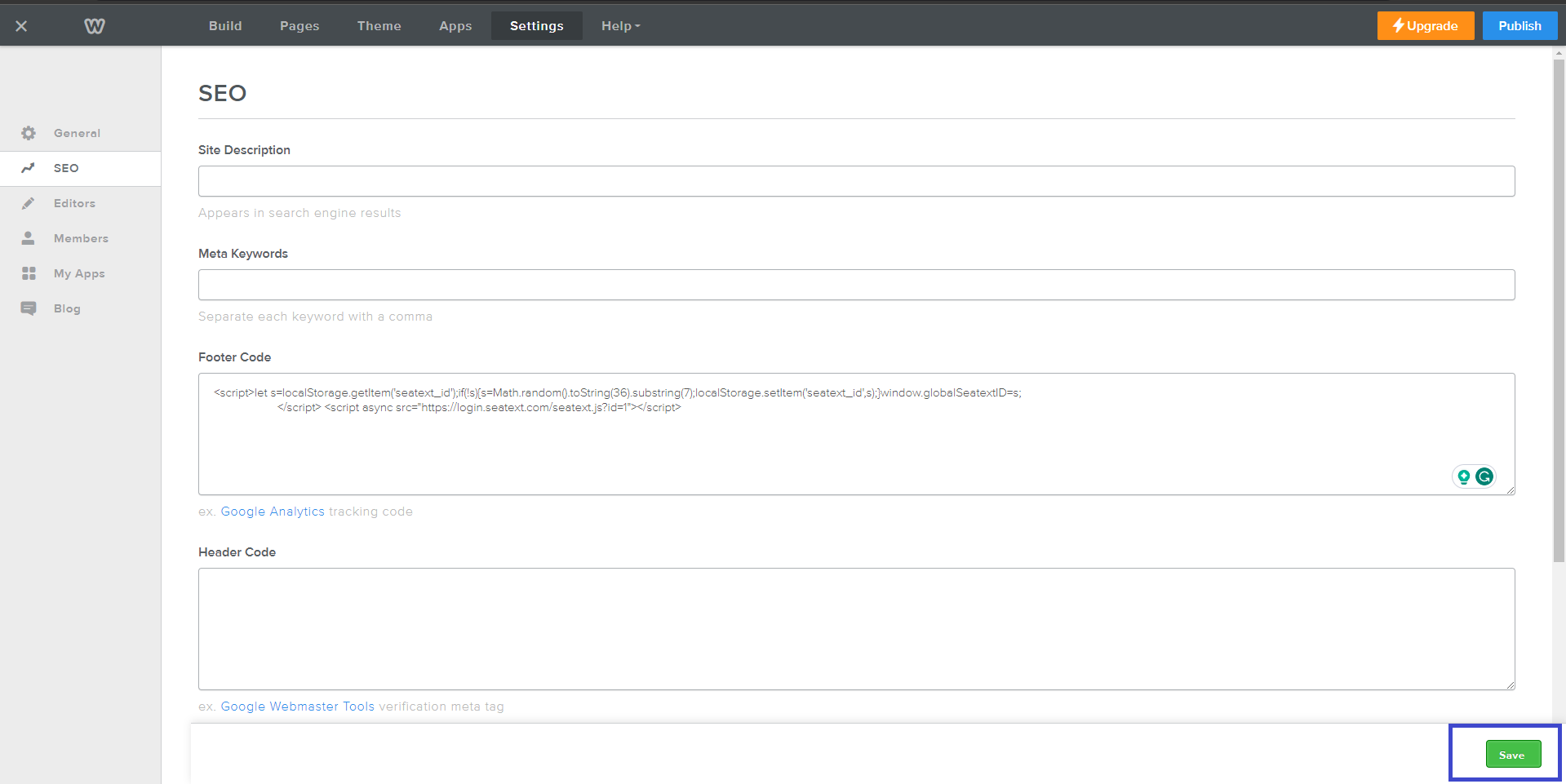
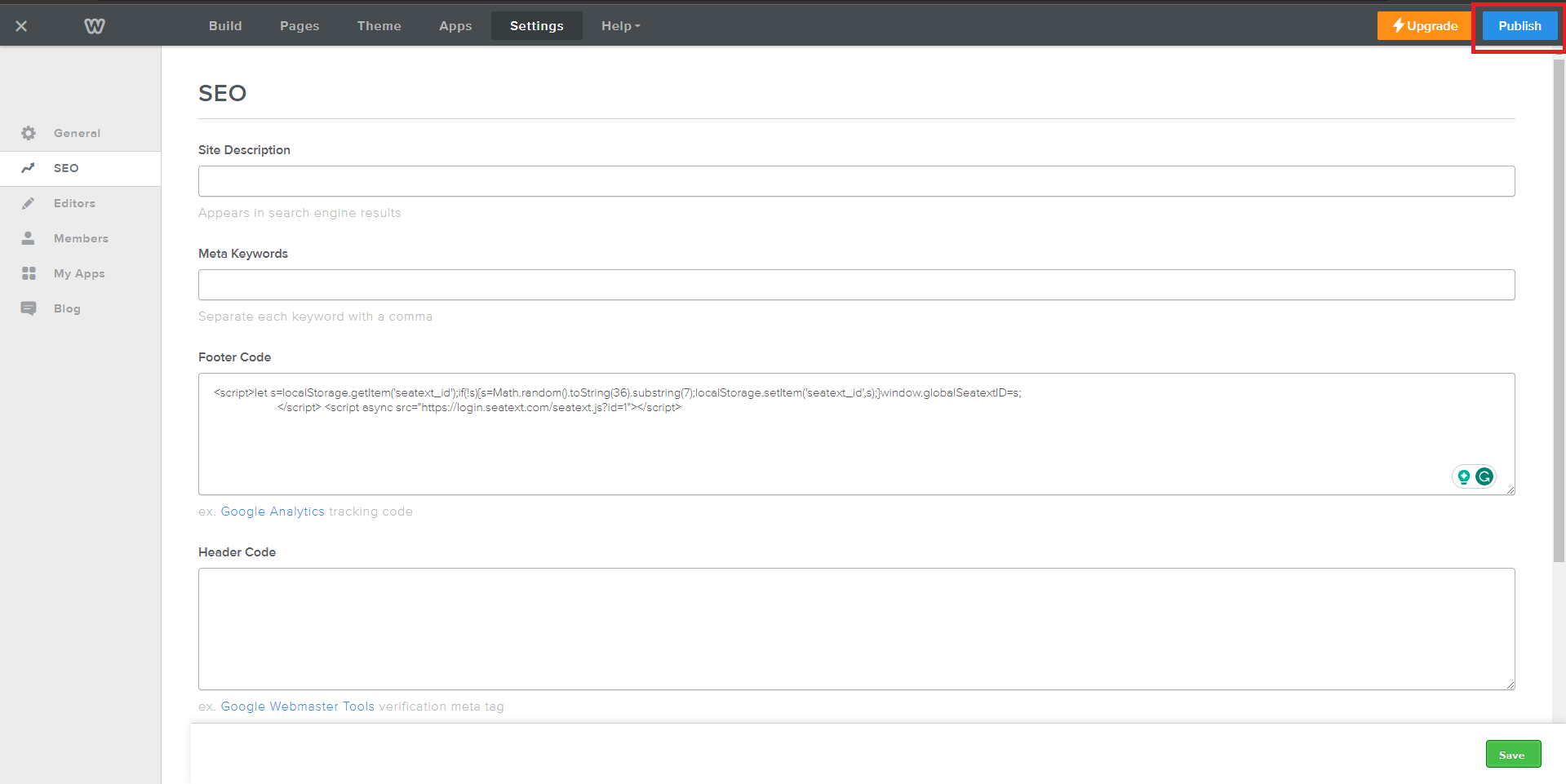
Copy the JavaScript code provided by SEATEXT AI, which can be found in the section below .
Integración paso a paso
1
Copy the JavaScript code provided by SEATEXT AI, which can be found in the section below .
Integración paso a paso
1
SEATEXTCODEINTEGRATION
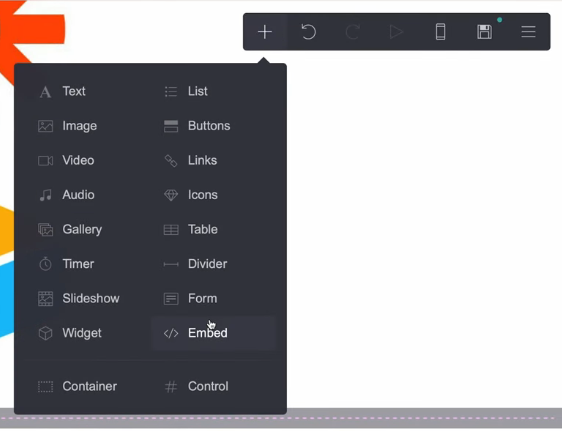
Access your website editor and navigate to the desired page where you wish to integrate SEATEXT AI. Click on "+ Add Element" and select " Embed" from the options provided.
Ahora has instalado SEATEXT AI con éxito en tu sitio web utilizando JavaScript.
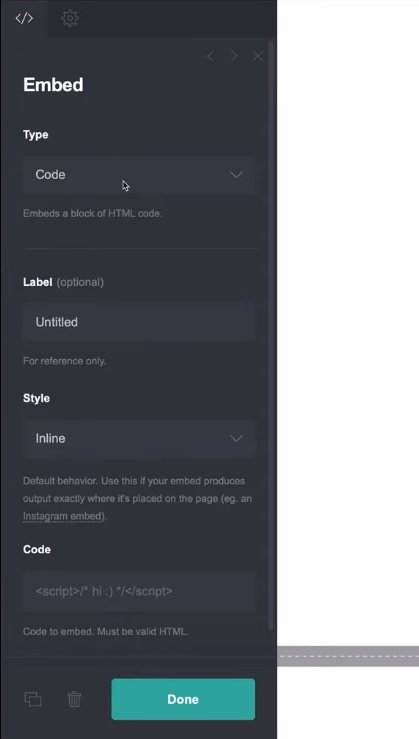
In the left panel, locate the "Type" option and choose "Code" from the dropdown menu. Adjust the embed's "Style" setting to "Hidden" to ensure seamless integration. Paste the code snippet provided by SEATEXT AI into the designated "Code" section. Once the code is inserted, click on "Done" to save your changes.
Finalmente, haz clic en "Save" para aplicar la integración e incorporar SEATEXT AI a tu sitio web de Carrd.
Access your website editor and navigate to the desired page where you wish to integrate SEATEXT AI. Click on "+ Add Element" and select "</> Embed" from the options provided.
Ahora has instalado SEATEXT AI con éxito en tu sitio web utilizando JavaScript.
Finalmente, haz clic en "Save" para aplicar la integración e incorporar SEATEXT AI a tu sitio web de Carrd.
In the left panel, locate the "Type" option and choose "Code" from the dropdown menu. Adjust the embed's "Style" setting to "Hidden" to ensure seamless integration. Paste the code snippet provided by SEATEXT AI into the designated "Code" section. Once the code is inserted, click on "Done" to save your changes.

Vincular SEATEXT AI a tu sitio web
2
Vincular SEATEXT AI a tu sitio web
2
a. Use the form below to add your website address in the format (www.example.com). SEATEXTURLPUSH
c. Espera al menos cinco minutos hasta que veas el nombre de tu sitio web mostrado junto al logotipo de SEATEXT en la parte superior de esta página. Esto indica que tu sitio web está conectado y listo para pasar al siguiente paso. Si no lo ves en la parte superior de la página después de 10 minutos, por favor contacta con nuestro equipo de soporte inmediatamente. Esto podría indicar un problema durante la instalación en tu plataforma, y es posible que necesites nuestra asistencia.
IMPORTANT b. Visit your website once and stay on your page for at least 40 seconds—this will activate the AI and link it to your account.
a. Use the form below to add your website address in the format (www.example.com). SEATEXTURLPUSH
IMPORTANT b. Visit your website once and stay on your page for at least 40 seconds—this will activate the AI and link it to your account.
c. Espera al menos cinco minutos hasta que veas el nombre de tu sitio web mostrado junto al logotipo de SEATEXT en la parte superior de esta página. Esto indica que tu sitio web está conectado y listo para pasar al siguiente paso. Si no lo ves en la parte superior de la página después de 10 minutos, por favor contacta con nuestro equipo de soporte inmediatamente. Esto podría indicar un problema durante la instalación en tu plataforma, y es posible que necesites nuestra asistencia.

Activar la IA
3
Activar la IA
3
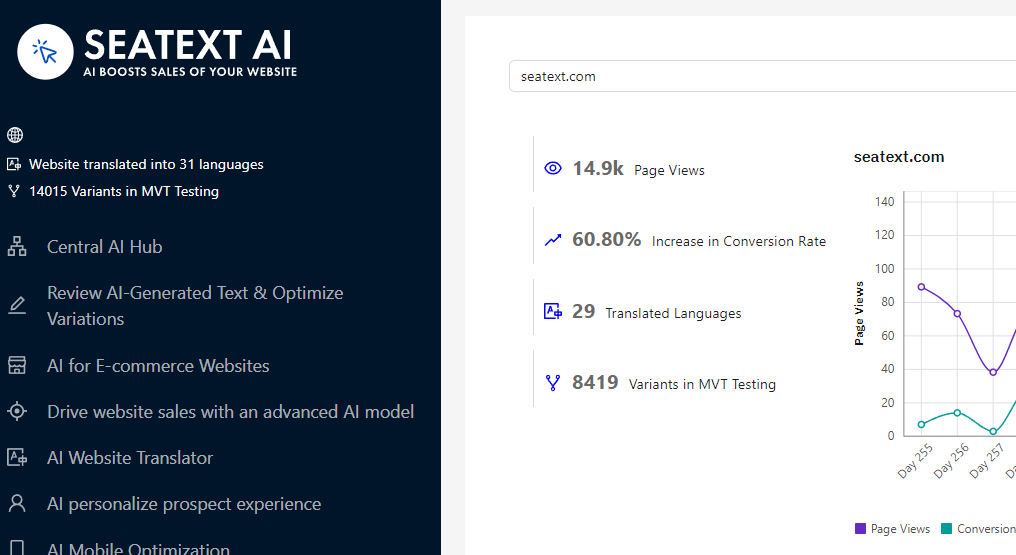
Proceed to the Main AI Hub to activate the necessary AI on your preferred pages. Click on "Configuration" to adjust the AI parameters. Optional Editing: SEATEXT AI provides your initial round of automatic translations and variants for testing. Log in to your SEATEXT AI account, navigate to "Variants Edit" in the left panel, and select the URL and language you wish to edit. Here, you can review, create, or manually edit translations for your variants.
Proceed to the Main AI Hub to activate the necessary AI on your preferred pages. Click on "Configuration" to adjust the AI parameters. Optional Editing: SEATEXT AI provides your initial round of automatic translations and variants for testing. Log in to your SEATEXT AI account, navigate to "Variants Edit" in the left panel, and select the URL and language you wish to edit. Here, you can review, create, or manually edit translations for your variants.