Integración con Wix
Instala Seatext en tu sitio web siguiendo las instrucciones a continuación. El proceso de instalación es seguro y la IA permanece inactiva hasta que la actives, garantizando la integridad del contenido de tu sitio. Para poder instalar el script necesitas una cuenta de SEATEXT AI. Si aún no tienes una, puedes crearla AQUÍ
Integración con Wix
*Nota: Para instalar código personalizado, se requiere un plan de pago en Wix.
Integración paso a paso
Copia el código JavaScript de SEATEXT AI que aparece en la sección siguiente.
SEATEXTCODEINTEGRATION
Pega el código Javascript de Seatext en tu sitio web.
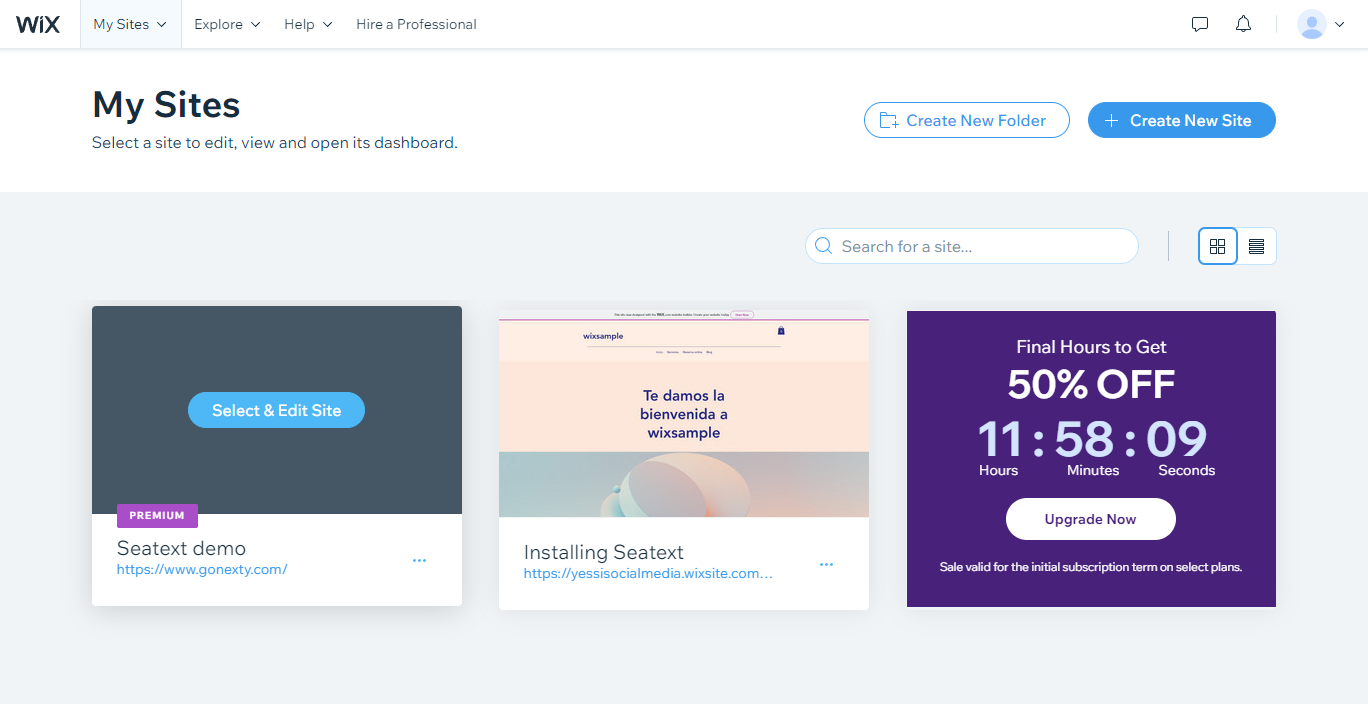
Accede a tu cuenta de Wix y navega hasta el proyecto que deseas traducir.
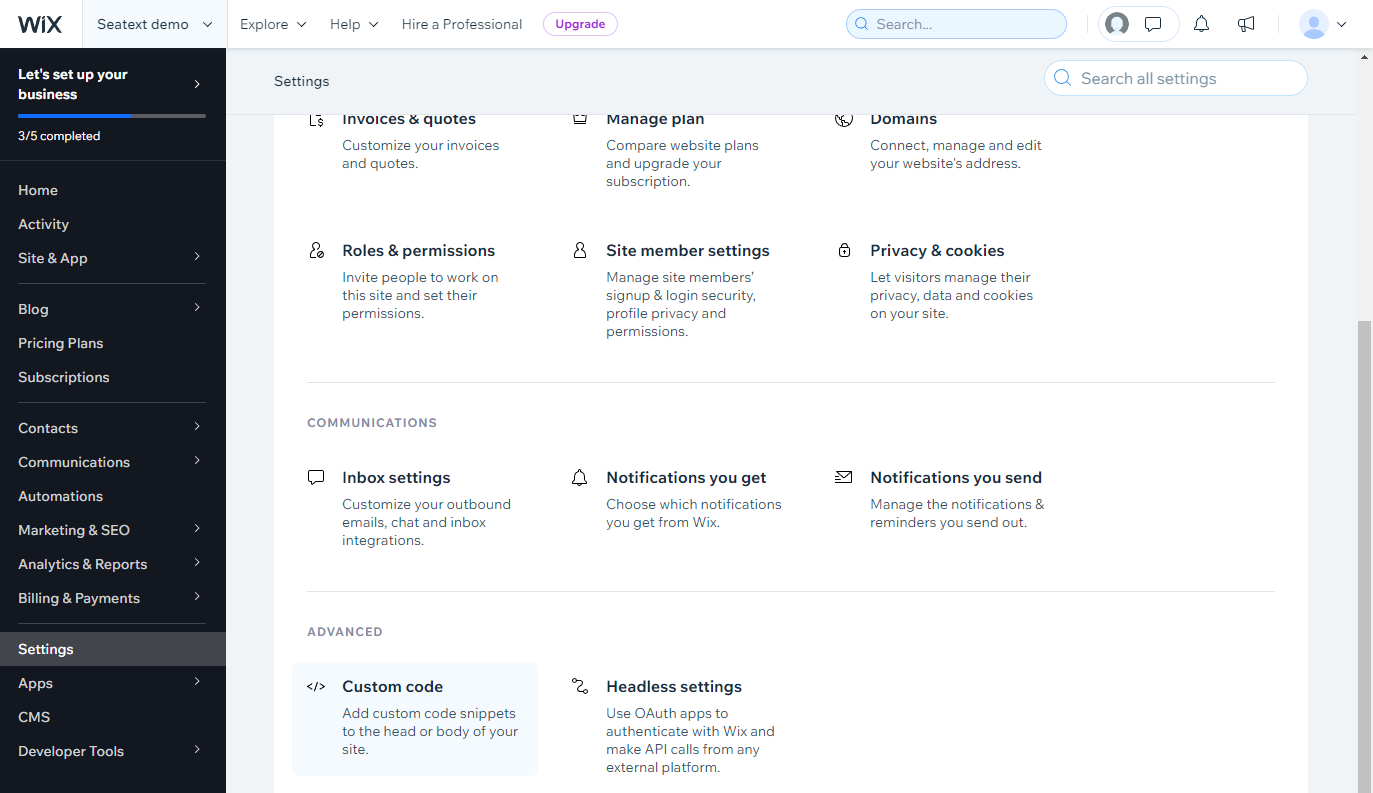
En el panel de Wix, ve a Ajustes y busca > Código personalizado (al final de la página, en la sección Avanzado).
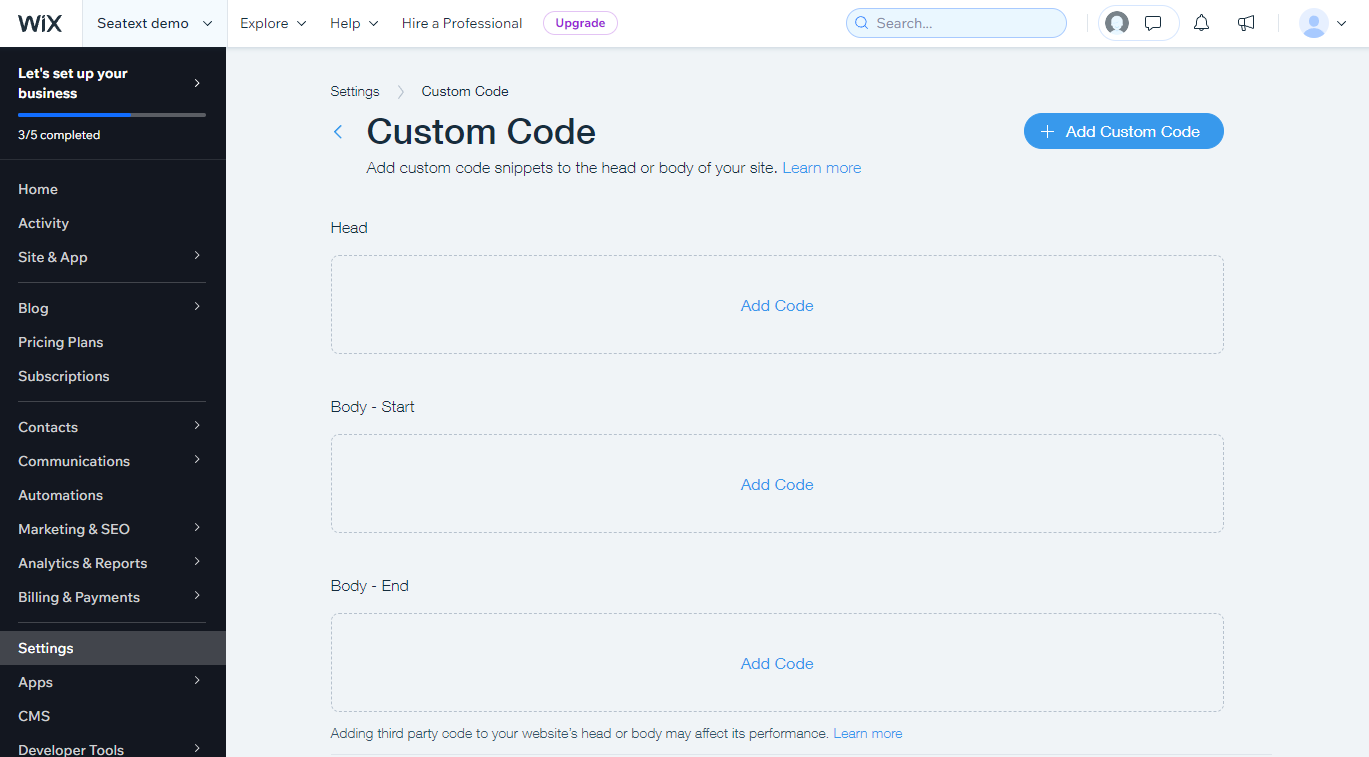
En la sección Código personalizado, haz clic en Agregar código bajo Encabezado.
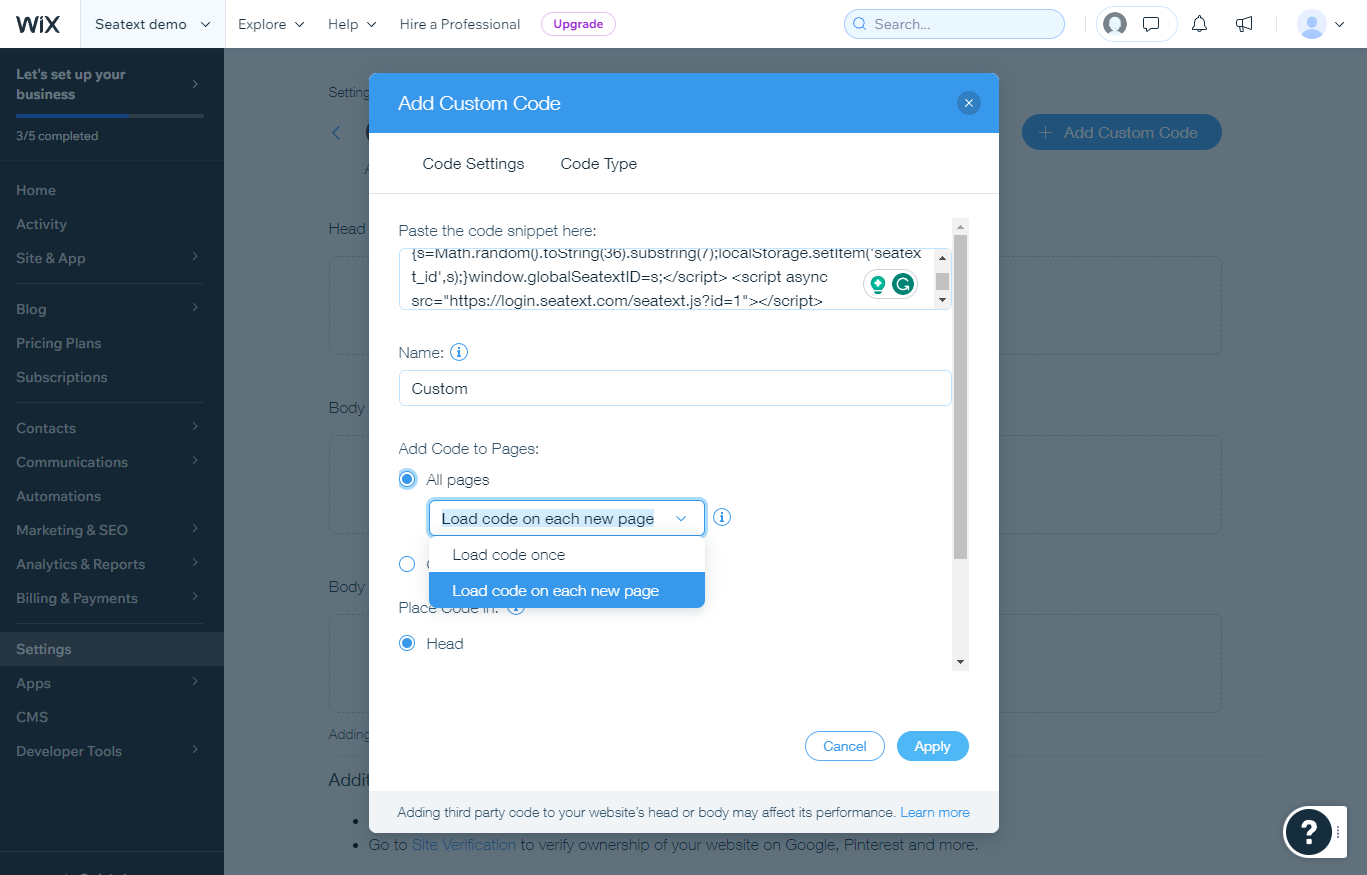
Aparecerá una ventana emergente. Pega el fragmento de código JavaScript copiado en el área de texto designada etiquetada como 'Pega el fragmento de código aquí:'. En la sección 'Agregar código a páginas', selecciona 'Todas las páginas' del menú desplegable. Luego, elige 'Cargar código en cada página nueva' y haz clic en Aplicar.
Múltiples dominios: si necesitas usar SEATEXT AI en varios dominios (por ejemplo, uno de desarrollo y otro de producción), debes crear una cuenta independiente para cada dominio. Cada cuenta de SEATEXT AI está vinculada a una única URL principal. Las URLs de desarrollo, como localhost, están restringidas por motivos de seguridad; asegúrate de usar un dominio real y válido. Los dominios de desarrollo dinámicos pueden no funcionar correctamente, ya que SEATEXT AI podría no asociar el tráfico de forma fiable a tu cuenta. Uso en varios sitios web: para usar SEATEXT AI en varios sitios, crea una cuenta para cada uno.
Importante: visita o recarga tu sitio varias veces y permanece en la página al menos 40 segundos; así activarás la IA y la vincularás a tu cuenta.
Importante: espera al menos cinco minutos hasta que veas el nombre de tu sitio web junto al logotipo de SEATEXT en la parte superior de esta página. Eso indica que tu sitio está conectado y listo para pasar al siguiente paso. Si no lo ves tras 10 minutos, contacta de inmediato a nuestro equipo de soporte; podría ser un problema de instalación y necesitaremos asistirte.
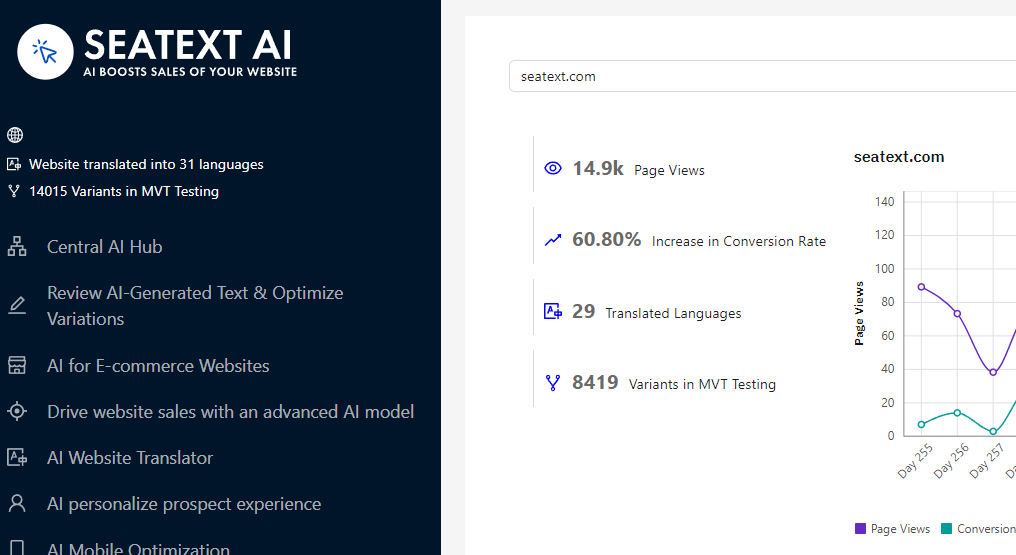
Activación de la IA: Accede al Centro principal de IA para activar la IA necesaria en tus páginas preferidas. Haz clic en “Configuración” para ajustar los parámetros de la IA. Edición opcional: SEATEXT AI ofrece una primera ronda de traducciones y variantes automáticas para pruebas. Inicia sesión en tu cuenta de SEATEXT AI, ve a “Edición de variantes” en el panel izquierdo y selecciona la URL y el idioma que deseas editar. Aquí podrás revisar, crear o editar manualmente las traducciones de tus variantes.
