Odoo Integration
התקן את Seatext באתר שלך לפי ההוראות שלהלן. תהליך ההתקנה מאובטח, וה-AI נשאר לא פעיל עד להפעלתו, מה שמבטיח את שלמות התוכן של האתר שלך. לפני שתוכל להתקין את הסקריפט, עליך להיות בעל חשבון SEATEXT AI. אם עדיין אין לך חשבון, תוכל ליצור אחד כאן
Odoo Integration
שילוב שלב אחר שלב
העתק את קוד ה-JavaScript מ-SEATEXT AI שמופיע בסעיף זה למטה.
SEATEXTCODEINTEGRATION
Log in to your Odoo account and access the “Website” module from the dashboard. Within the Website module, navigate to the page you wish to edit and click on the "Edit" button to open the editing panel. In the editing panel, scroll through the "Blocks" panel until you reach the "Dynamic Content" section.
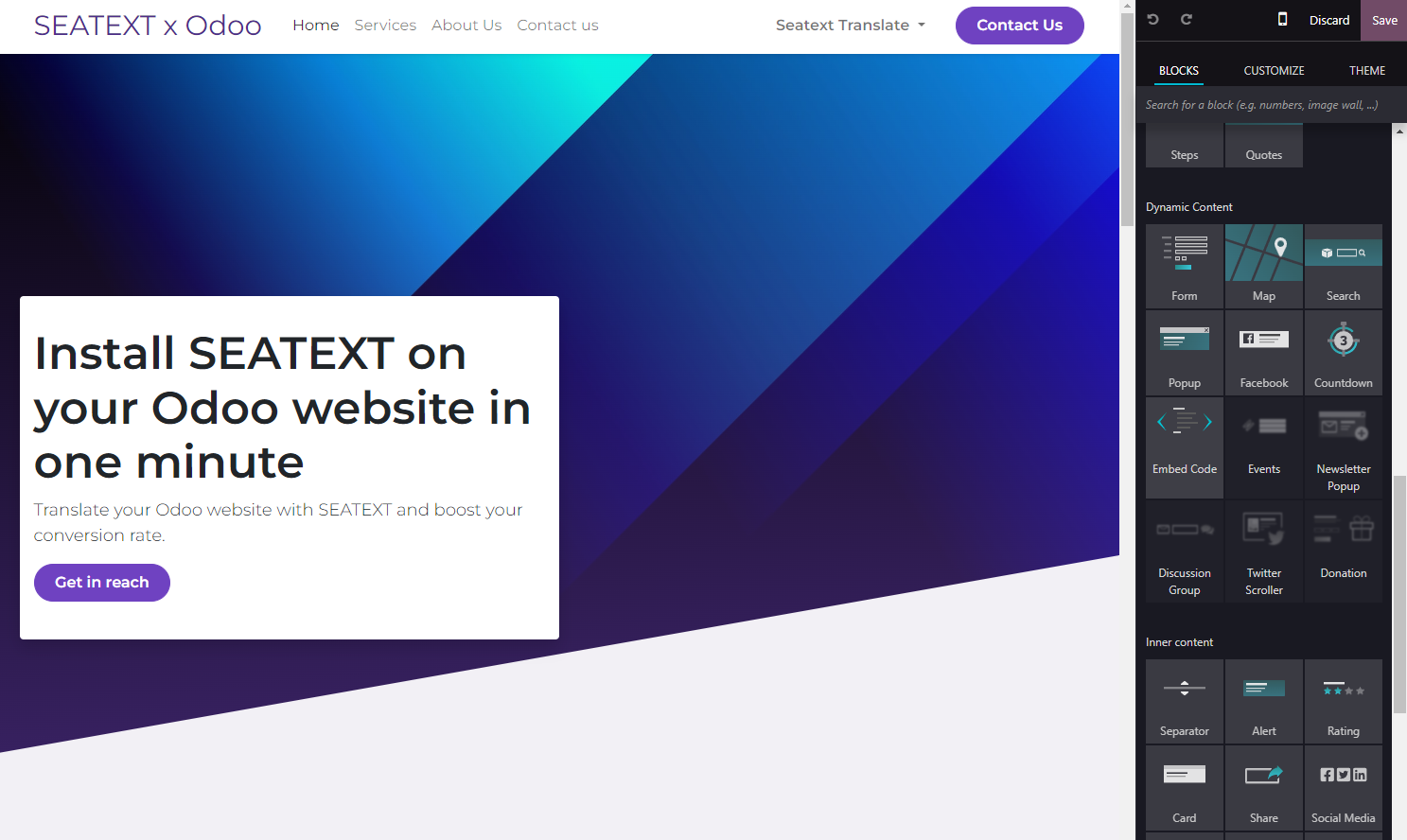
Locate the "Embed Code" module within the "Dynamic Content" section and drag it into the desired location on your website editor.
התקנתם בהצלחה את SEATEXT AI באתר שלכם באמצעות JavaScript.
Step 4: Once the module is placed, click on the "Edit" button located in the right panel to input the code.
Step 5: In the pop-up window that appears, paste the code snippet provided by SEATEXT AI into the designated area, then click "Save" to apply the changes.
Step 6: To ensure the block is hidden from view on desktop devices, select the "Hide on Desktop" option in the "Visibility" section. After making this adjustment, click on "Save" once more to finalize your changes.
התקנתם בהצלחה את SEATEXT AI באתר שלכם באמצעות JavaScript.
Step 6: To ensure the block is hidden from view on desktop devices, select the "Hide on Desktop" option in the "Visibility" section. After making this adjustment, click on "Save" once more to finalize your changes.
Step 5: In the pop-up window that appears, paste the code snippet provided by SEATEXT AI into the designated area, then click "Save" to apply the changes.
Step 4: Once the module is placed, click on the "Edit" button located in the right panel to input the code.
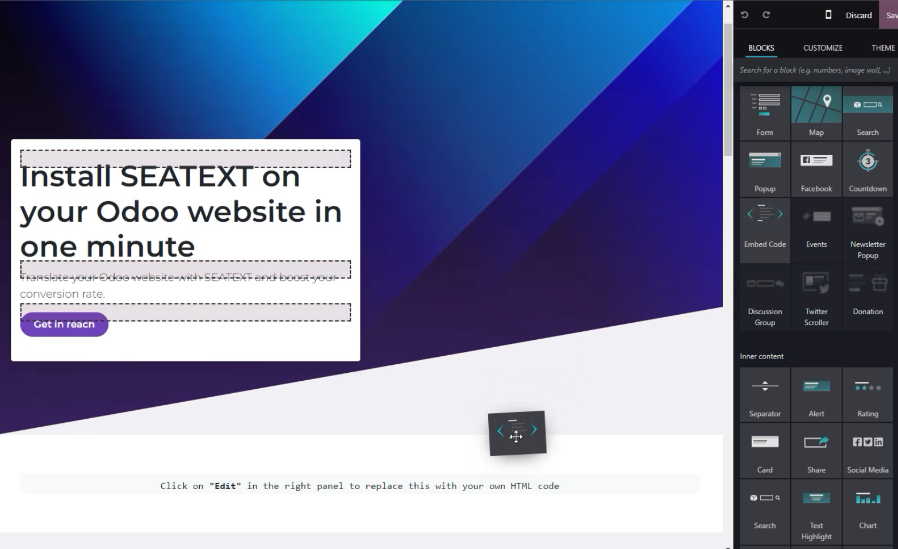
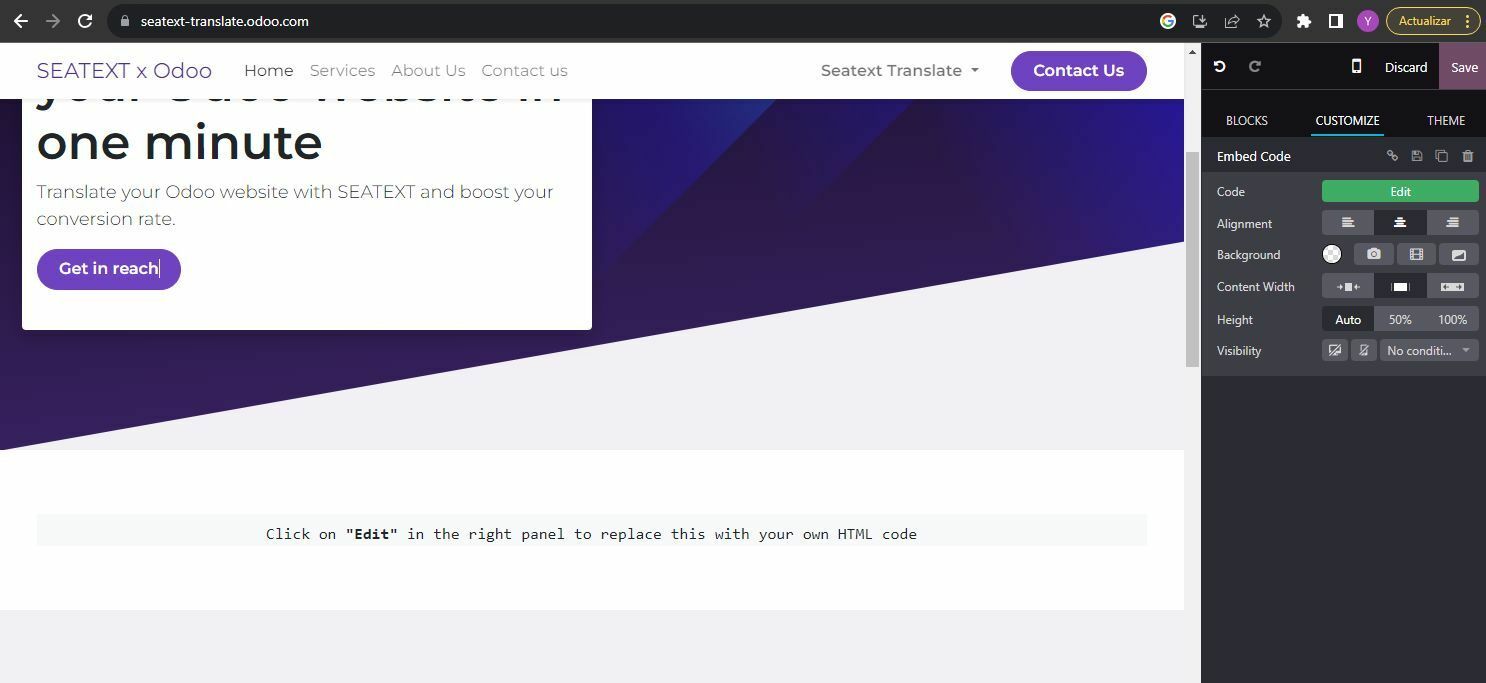
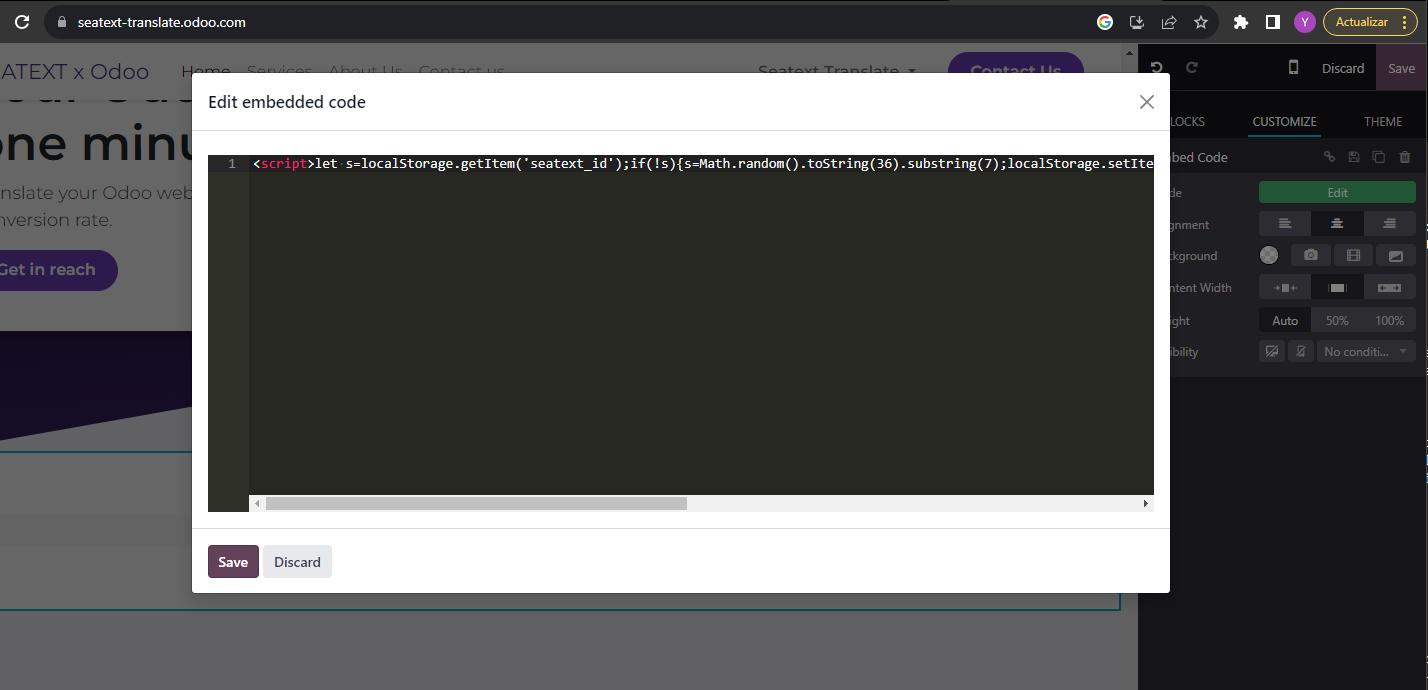
Once the module is placed, click on the "Edit" button located in the right panel to input the code.
In the pop-up window that appears, paste the code snippet provided by SEATEXT AI into the designated area, then click "Save" to apply the changes.
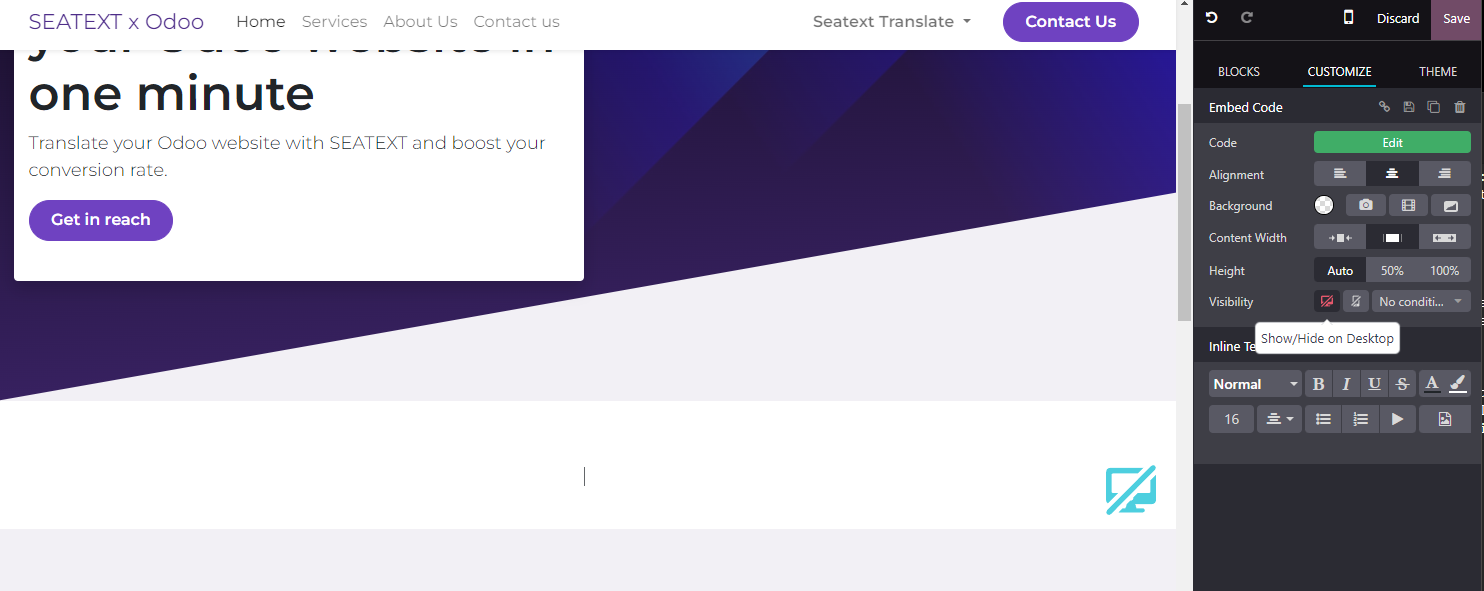
To ensure the block is hidden from view on desktop devices, select the "Hide on Desktop" option in the "Visibility" section. After making this adjustment, click on "Save" once more to finalize your changes.
דומיינים מרובים: אם עליך להשתמש ב-SEATEXT AI במספר דומיינים (למשל, דומיין פיתוח ודומיין ייצור), עליך ליצור חשבונות נפרדים עבור כל דומיין. כל חשבון SEATEXT AI מקושר לכתובת URL ראשית אחת. הגבלות ואבטחה: כתובות URL לפיתוח, כגון localhost, מוגבלות מסיבות אבטחה. ודא שאתה משתמש בדומיין אמיתי ותקין במקרים אלה. דומיינים דינמיים לפיתוח עשויים שלא לפעול כראוי, מכיוון ש-SEATEXT AI עשוי שלא להיות מסוגל לשייך תעבורה לחשבונך באופן אמין. שימוש ב-SEATEXT AI במספר אתרים: כדי להשתמש ב-SEATEXT AI במספר אתרים, צור חשבון אחד עבור כל אתר.
חשוב: בקר או רענן את האתר שלך מספר פעמים והישאר בעמוד שלך לפחות 40 שניות—פעולה זו תפעיל את ה-AI ותקשר אותו לחשבונך.
חשוב: המתן לפחות חמש דקות עד שתראה את שם האתר שלך מוצג לצד הלוגו של SEATEXT בראש עמוד זה. זה מצביע על כך שהאתר שלך מחובר ומוכן להמשיך לשלב הבא. אם אינך רואה אותו בראש העמוד לאחר 10 דקות, צור קשר עם צוות התמיכה שלנו מיד. זה עשוי להצביע על בעיה במהלך ההתקנה בפלטפורמה שלך, וייתכן שתזדקק לעזרתנו.
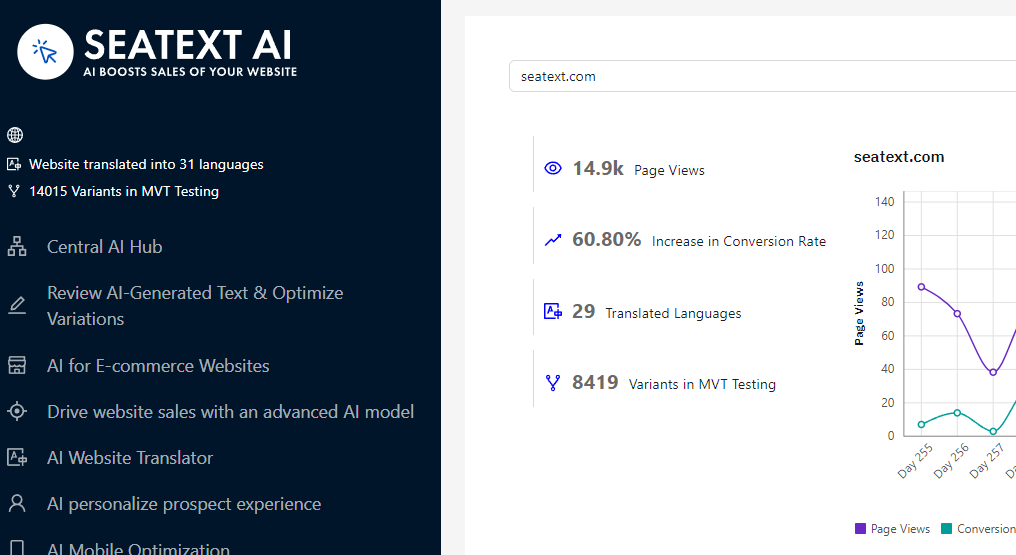
הפעלת AI: עבור למרכז ה-AI הראשי כדי להפעיל את ה-AI הדרוש בעמודים המועדפים עליך. לחץ על "תצורה" כדי להתאים את פרמטרי ה-AI. עריכה אופציונלית: SEATEXT AI מספק את סבב התרגומים האוטומטיים והגרסאות הראשוני שלך לבדיקה. התחבר לחשבון SEATEXT AI שלך, נווט אל "עריכת גרסאות" בלוח השמאלי, ובחר את כתובת ה-URL והשפה שברצונך לערוך. כאן תוכל לסקור, ליצור או לערוך ידנית תרגומים עבור הגרסאות שלך.
