Shopify Integration
Instalirajte Seatext na svoju web stranicu slijedeći upute u nastavku. Postupak instalacije je siguran, a AI ostaje neaktivan dok se ne aktivira, čime se osigurava cjelovitost sadržaja vaše web stranice. Prije nego što možete instalirati skriptu, trebate SEATEXT AI račun. Ako još nemate račun, možete ga izraditi OVDJE
Shopify Integration
Integracija korak po korak
Kopirajte JavaScript kod sa SEATEXT AI koji se nalazi u nastavku.
SEATEXTCODEINTEGRATION
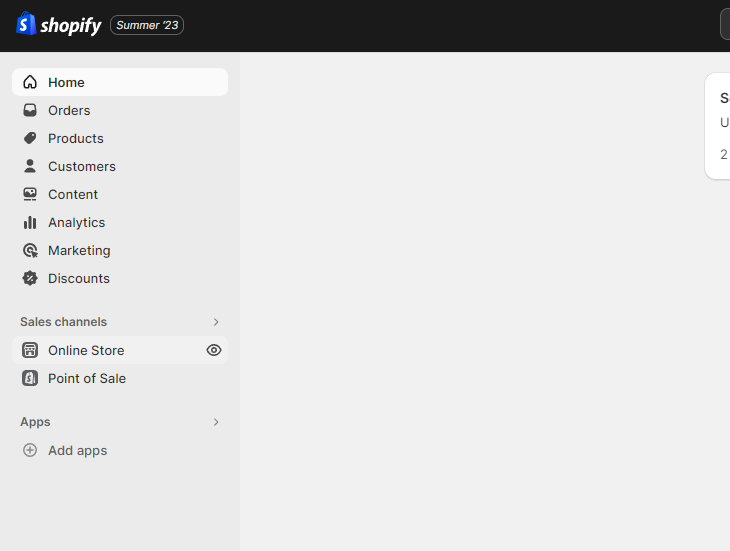
Access your Shopify account and navigate to the “Online Store” section. From there, select “Themes”.
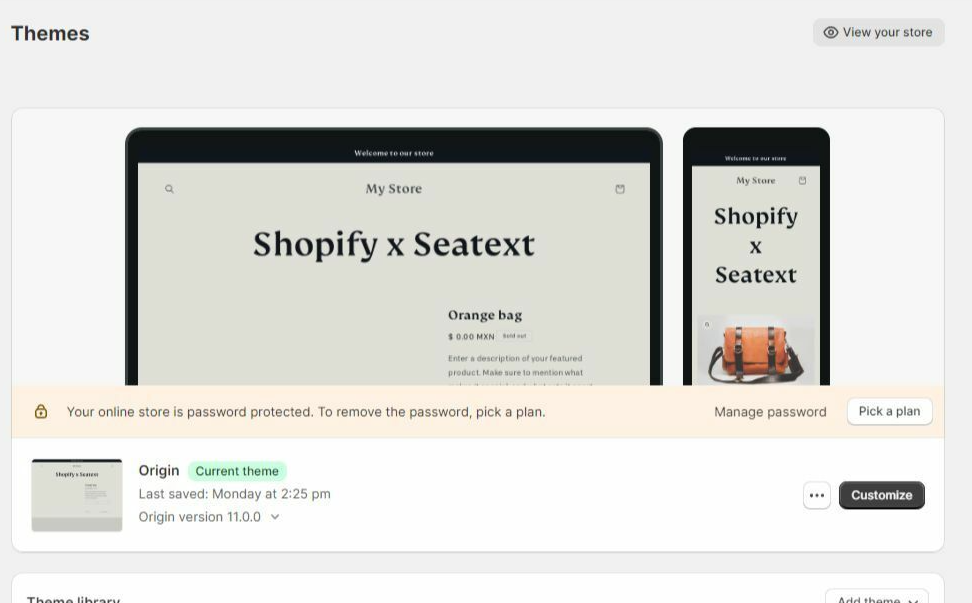
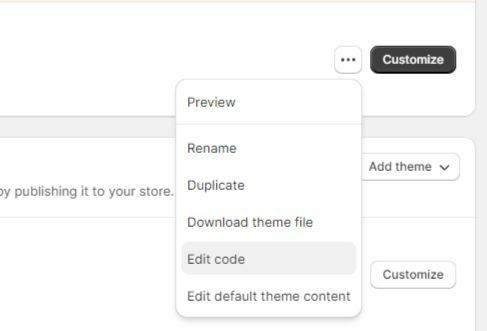
Within the Themes section, locate the theme you wish to translate. Click on the three dots icon located next to the desired theme and select “Edit code”.
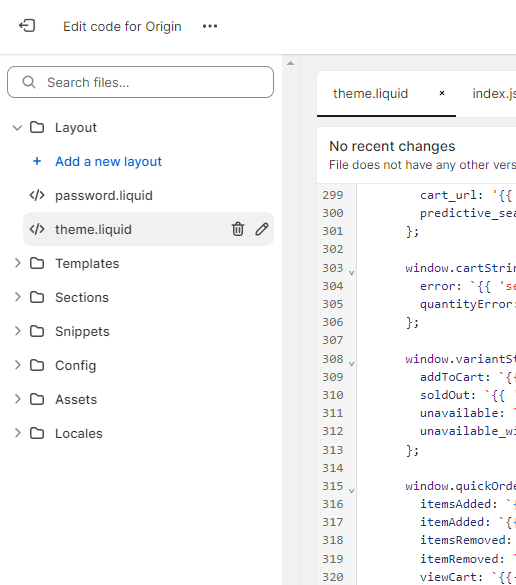
On the Edit Code page, you will be presented with a list of files on the left side of the screen. Navigate to the “Layout” folder and locate the file named “theme.liquid”.
Within the theme.liquid file, scroll down to the bottom of the code. Here, you will find the closing </body> tag. Paste the JavaScript code snippet provided by SEATEXT AI directly above the closing </body> tag.


Once the code snippet has been successfully pasted, click on the “Save” button to preserve your changes.
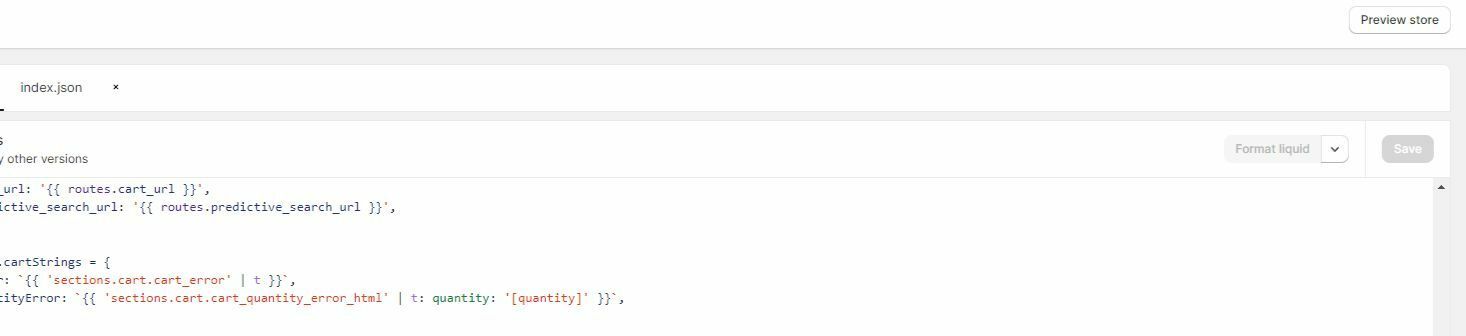
Više domena Ako trebate koristiti SEATEXT AI na više domena (npr. razvojna i produkcijska domena), morate izraditi zasebne račune za svaku domenu. Svaki SEATEXT AI račun povezan je s jednom glavnom URL adresom. Ograničenja i sigurnost Razvojne URL adrese, poput localhosta, ograničene su iz sigurnosnih razloga. U tim slučajevima koristite valjanu, stvarnu domenu. Dinamičke razvojne domene možda neće ispravno funkcionirati jer SEATEXT AI možda neće moći pouzdano povezati promet s vašim računom. Korištenje SEATEXT AI na više web stranica Za korištenje SEATEXT AI na nekoliko web stranica izradite jedan račun za svaku web stranicu.
Važno: Posjetite ili osvježite svoju web stranicu nekoliko puta i ostanite na stranici najmanje 40 sekundi – to će aktivirati AI i povezati ga s vašim računom.
Važno: Pričekajte najmanje pet minuta dok ne vidite naziv svoje web stranice prikazan pored SEATEXT logotipa na vrhu ove stranice. To znači da je vaša web stranica povezana i spremna za sljedeći korak. Ako ga ne vidite na vrhu stranice nakon 10 minuta, odmah kontaktirajte naš tim za podršku. To bi moglo ukazivati na problem tijekom instalacije na vašoj platformi i možda će vam trebati naša pomoć.
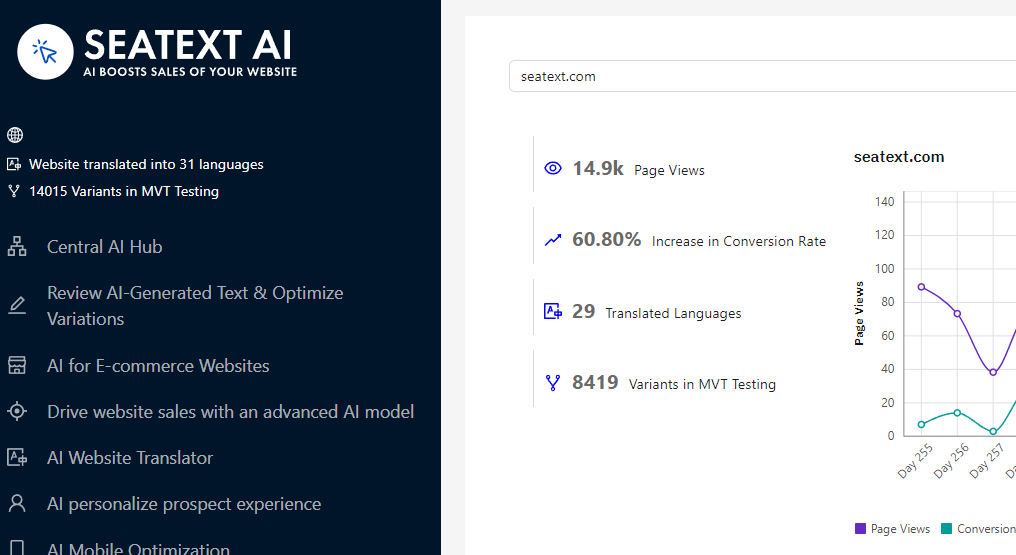
Aktivacija AI-ja Idite na glavno AI središte kako biste aktivirali potreban AI na željenim stranicama. Kliknite na „Konfiguracija” za prilagodbu AI parametara. Neobavezno uređivanje: SEATEXT AI pruža početni krug automatskih prijevoda i varijanti za testiranje. Prijavite se na svoj SEATEXT AI račun, idite na „Uređivanje varijanti” u lijevom panelu i odaberite URL i jezik koje želite urediti. Ovdje možete pregledati, izraditi ili ručno urediti prijevode za svoje varijante.
Implement the seatextonly Tag in Your Product Descriptions To optimize your product descriptions effectively, please follow these steps: Step 1: Access Your Shopify Theme Code Log in to your Shopify admin and navigate to Online Store > Themes . Click on Actions > Edit Code for your active theme. Step 2: Locate the Product Template Identify the file that renders the product description (typically named product.liquid or located within product-template.liquid ). Step 3: Wrap the Product Description Find the product description output code, which usually appears as:
{{ product.description }}
Modify this code to wrap it in a <div> with the data-seatextonly attribute as follows:
<div data-seatextonly> {{ product.description | raw }} </div>
Step 4: Test Your Changes Save your changes and preview a product page to ensure the description is displayed correctly. Verify that the data-seatextonly attribute is present in the HTML source (you can inspect this using your browser’s developer tools). For additional details, please refer to our documentation here: https://seatext.com/documentation-ai-scope
