Tilda integration
Pasang Seatext di website Anda dengan mengikuti petunjuk di bawah. Proses pemasangan aman, dan AI tetap nonaktif hingga diaktifkan, menjaga integritas konten website Anda. Sebelum memasang skrip, Anda memerlukan akun SEATEXT AI. Jika belum punya akun, buat di SINI
Tilda integration
Integrasi langkah demi langkah
Salin kode JavaScript SEATEXT AI yang tersedia di bagian bawah ini.
SEATEXTCODEINTEGRATION
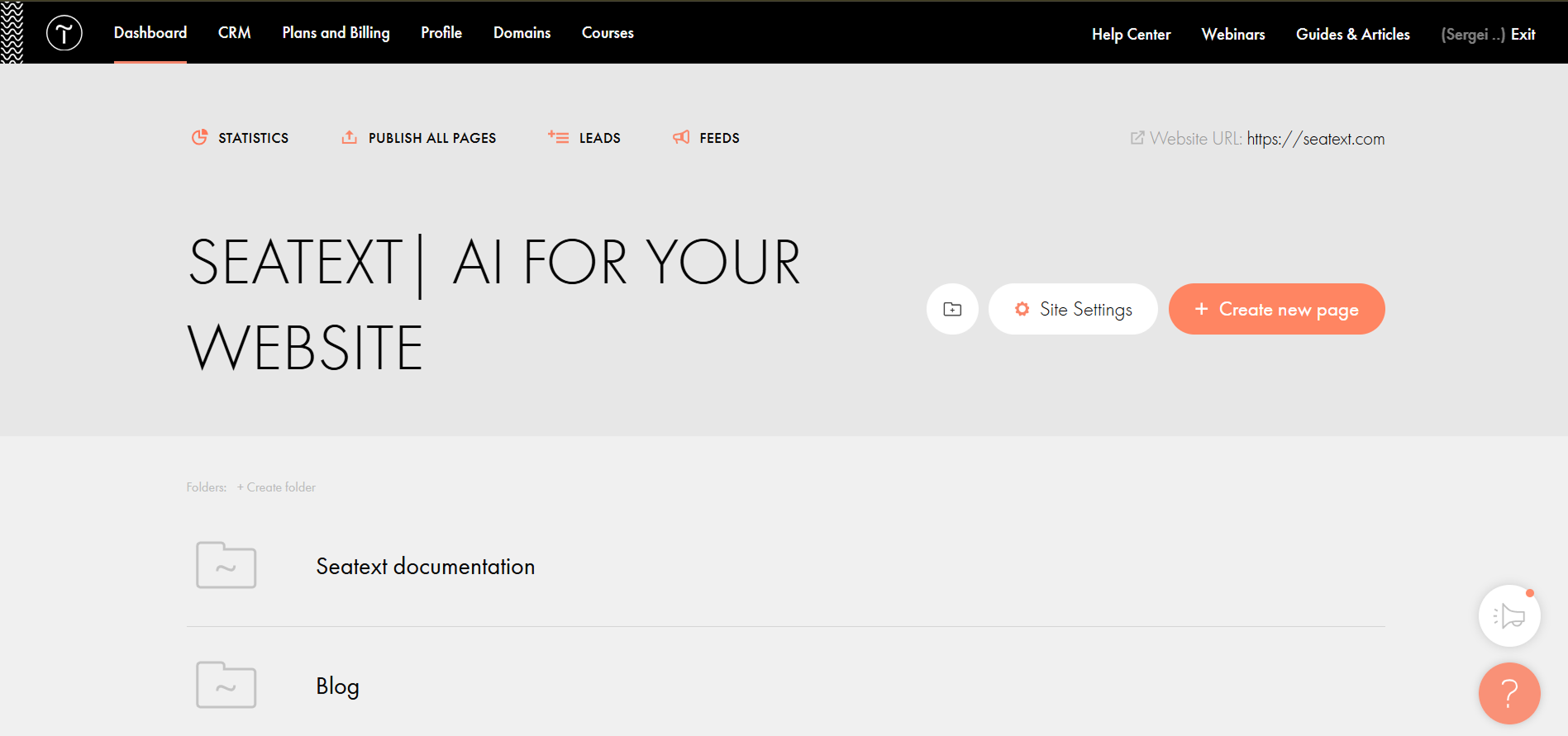
Paste the Javascript code from Seatext on your website To insert code in the head of all website pages, go to the Site Settings.
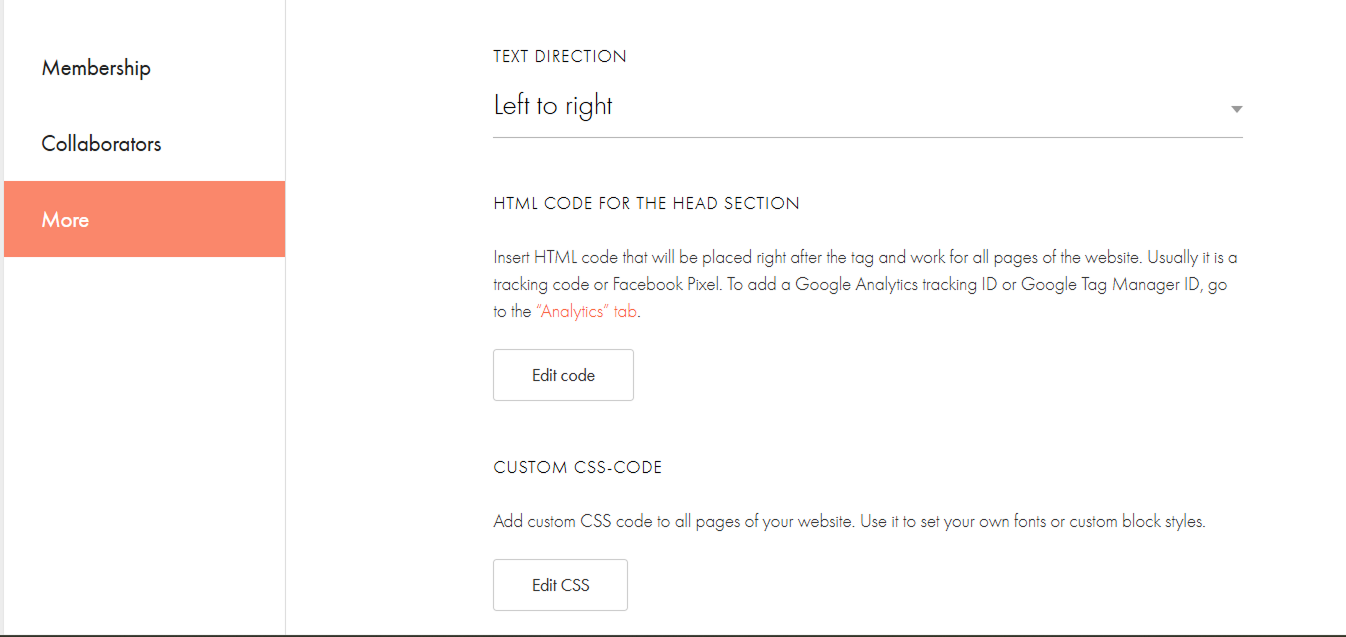
Click on More → HTML code for the head section → Edit code.
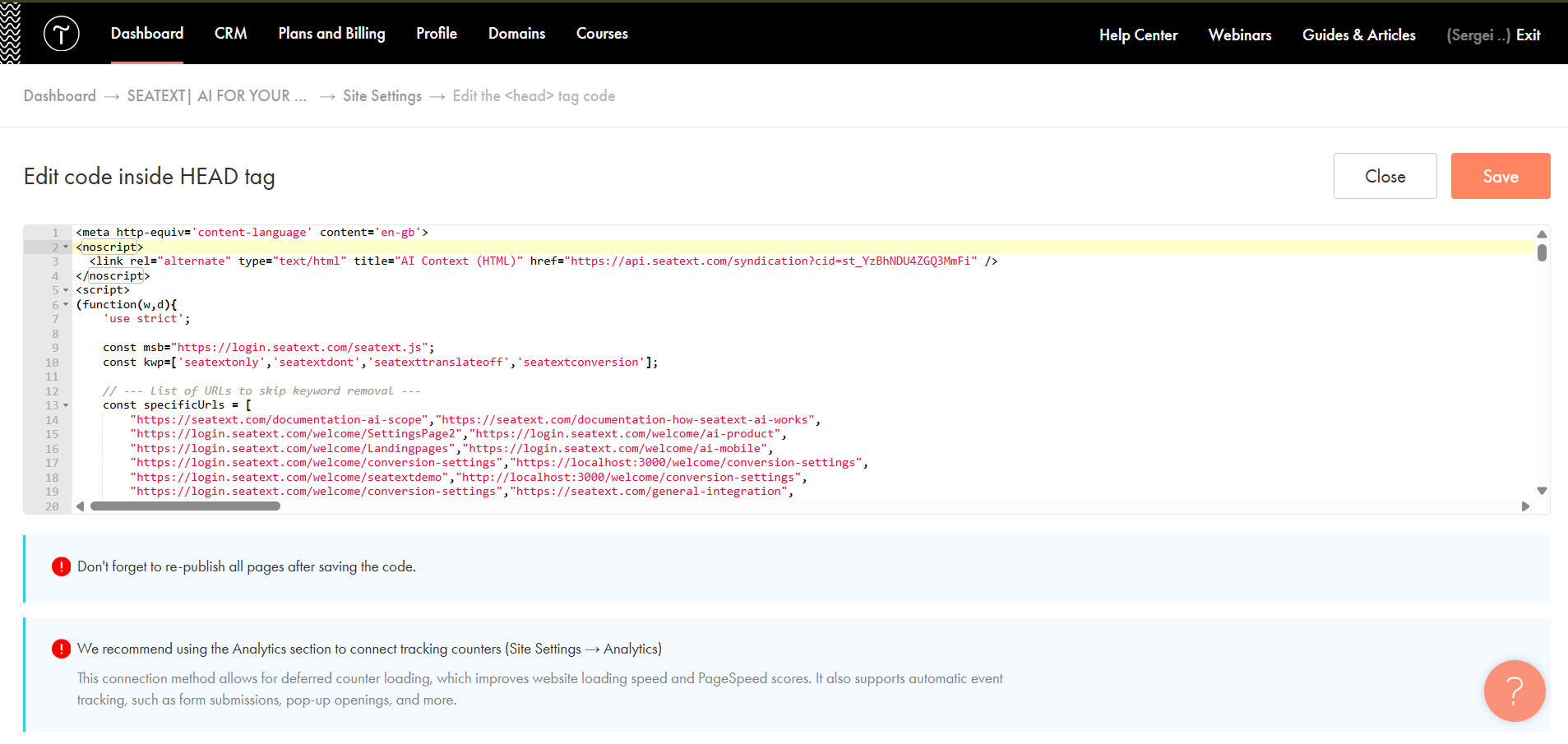
Paste the code into the field labeled 'Edit code inside HEAD tag' , then save and publish your site.
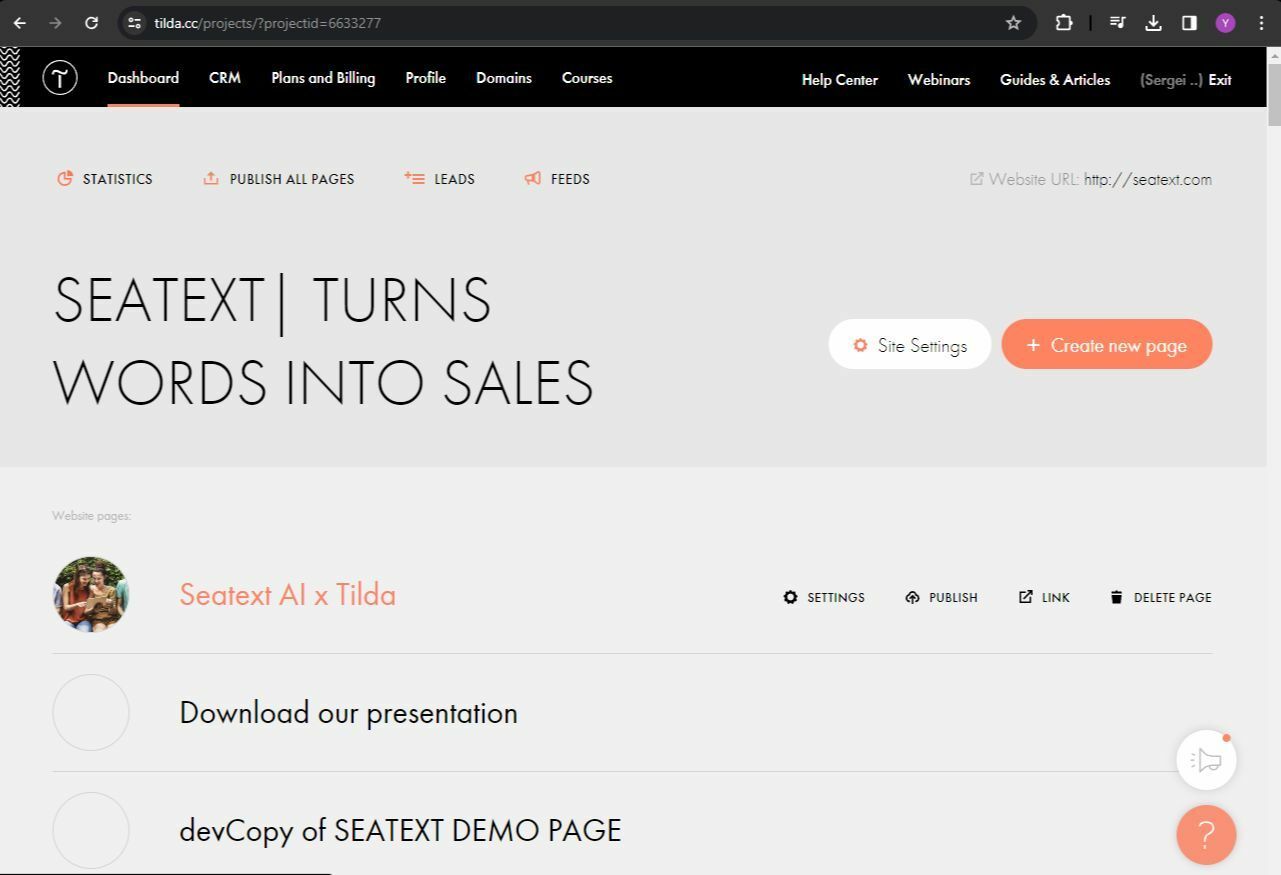
If you want to insert code in the head of a particular page: Access your Tilda dashboard and navigate to the page that you wish to translate.
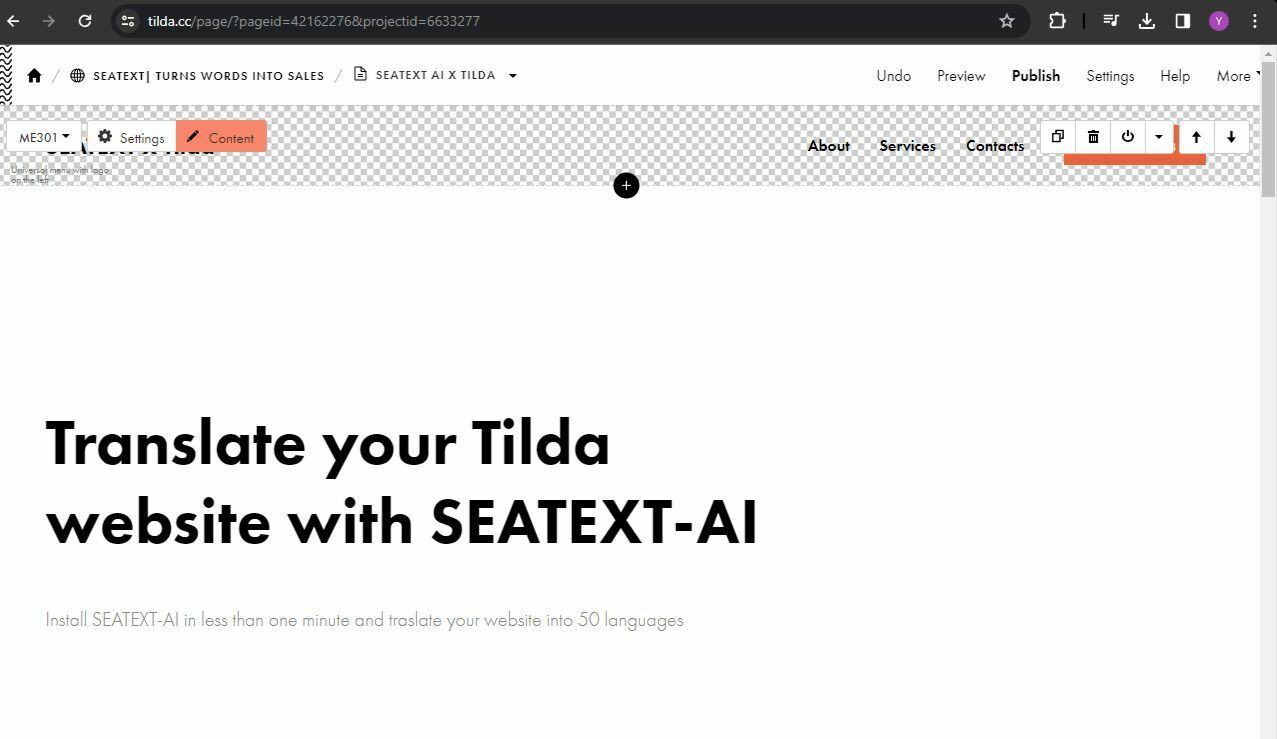
Click on the "+" icon to add a new block to the page. Choose the block named T123 from the options provided.
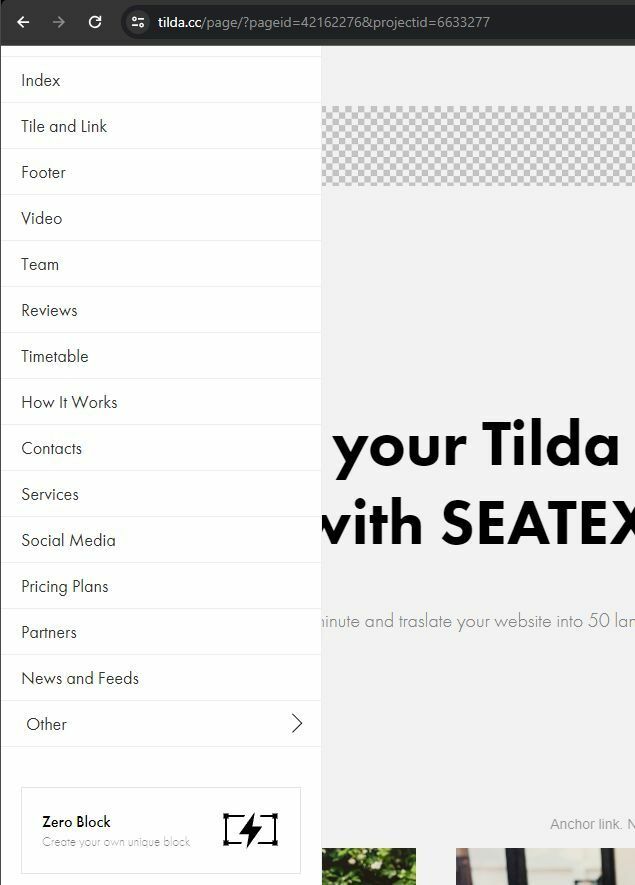
Scroll down and select "Other" from the block options.
Anda telah berhasil menginstal SEATEXT AI di situs web Anda menggunakan JavaScript.
Locate and select the block named T123, which enables the addition of embedded HTML code.
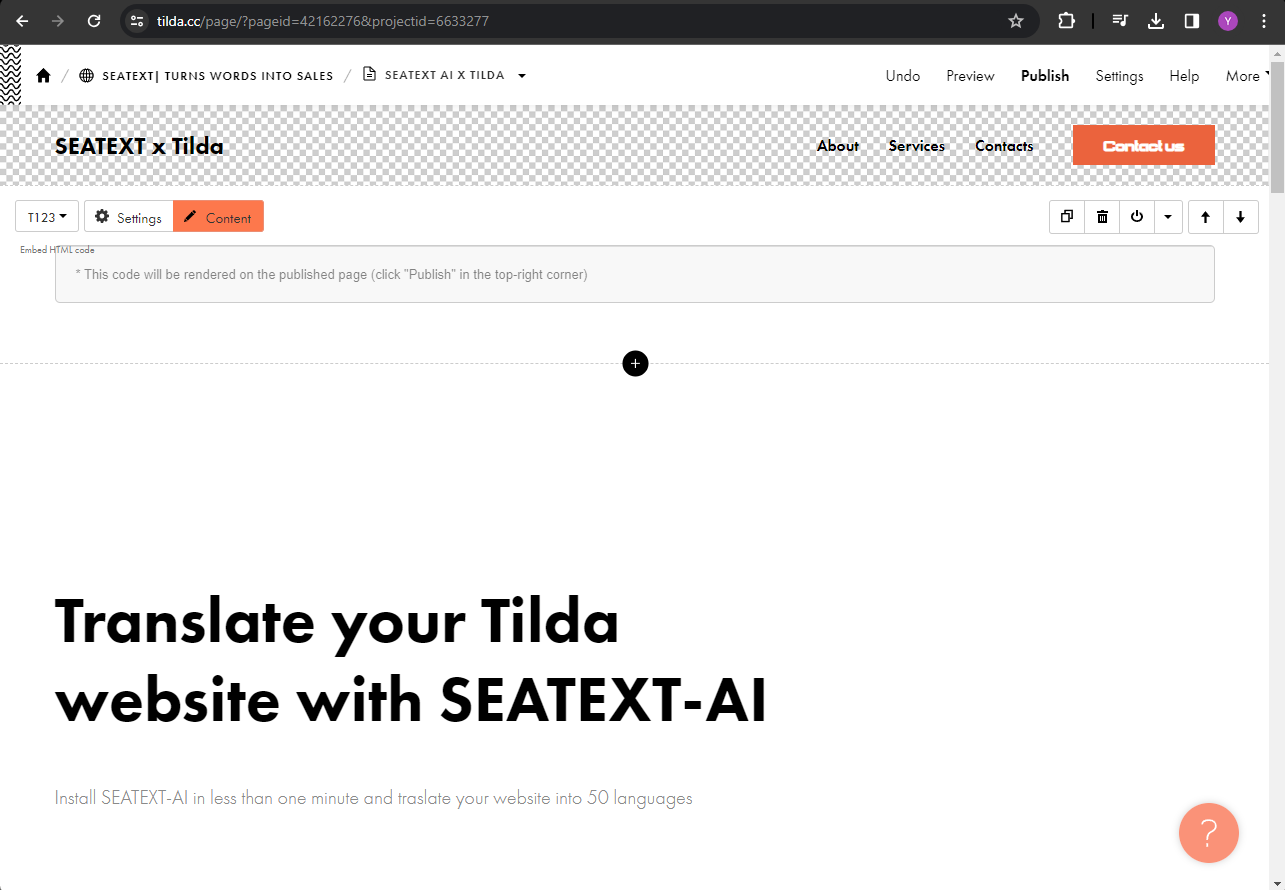
Once the block is added to the page, click on "Content" to access the HTML editor.
Paste the code snippet provided by SEATEXT AI into the HTML editor. Then, click on "Save and Close" to apply the changes.
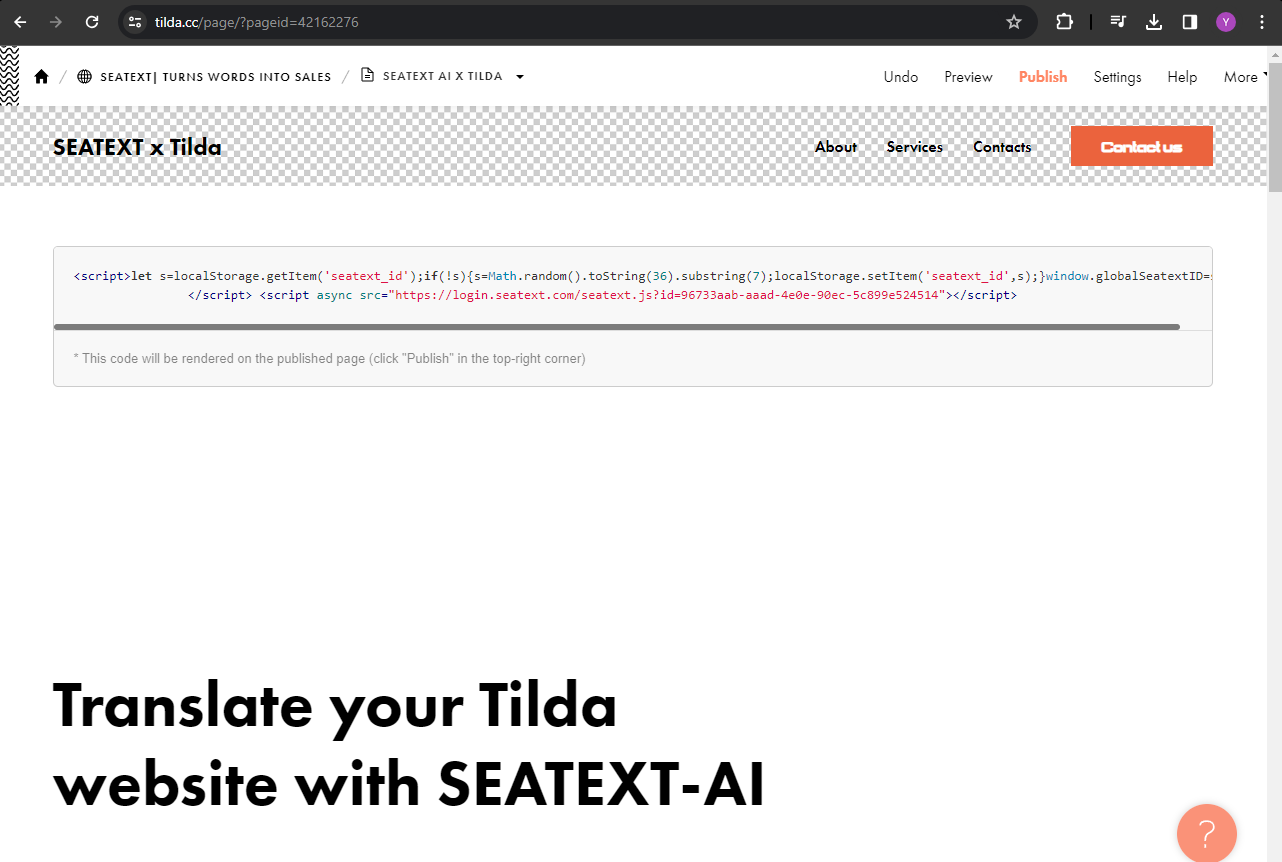
You will see the code successfully added to the page. Finally, click on "Publish" to make the changes live on your website.
Anda telah berhasil menginstal SEATEXT AI di situs web Anda menggunakan JavaScript.
You will see the code successfully added to the page. Finally, click on "Publish" to make the changes live on your website.
Paste the code snippet provided by SEATEXT AI into the HTML editor. Then, click on "Save and Close" to apply the changes.
Once the block is added to the page, click on "Content" to access the HTML editor.
Locate and select the block named T123, which enables the addition of embedded HTML code.
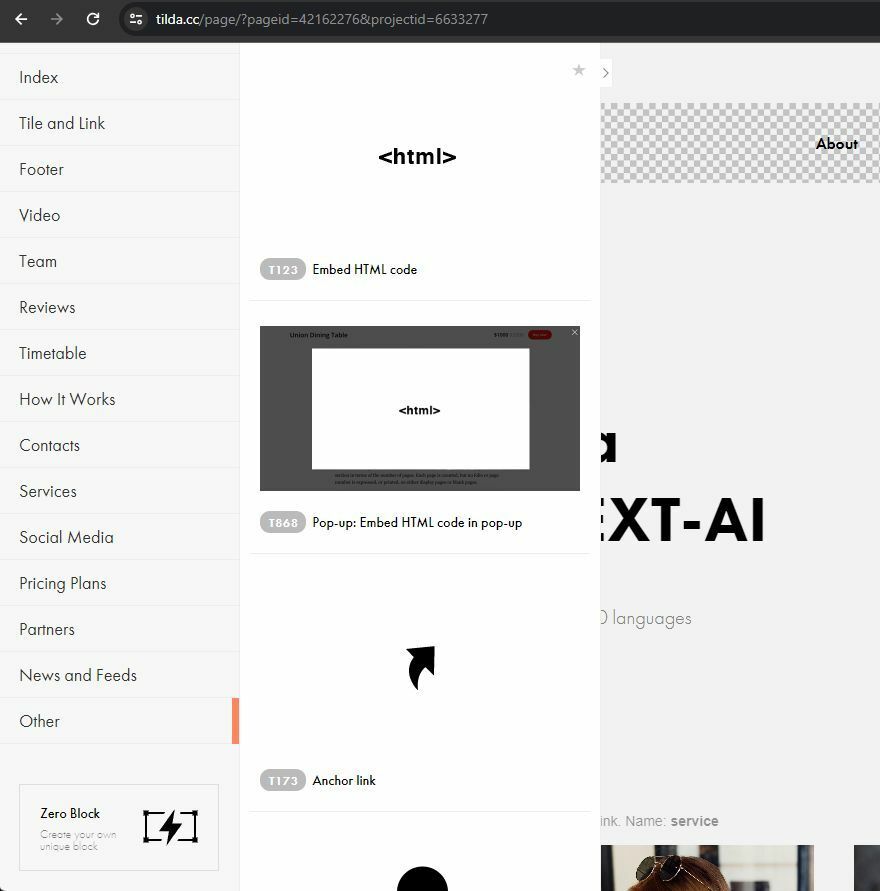
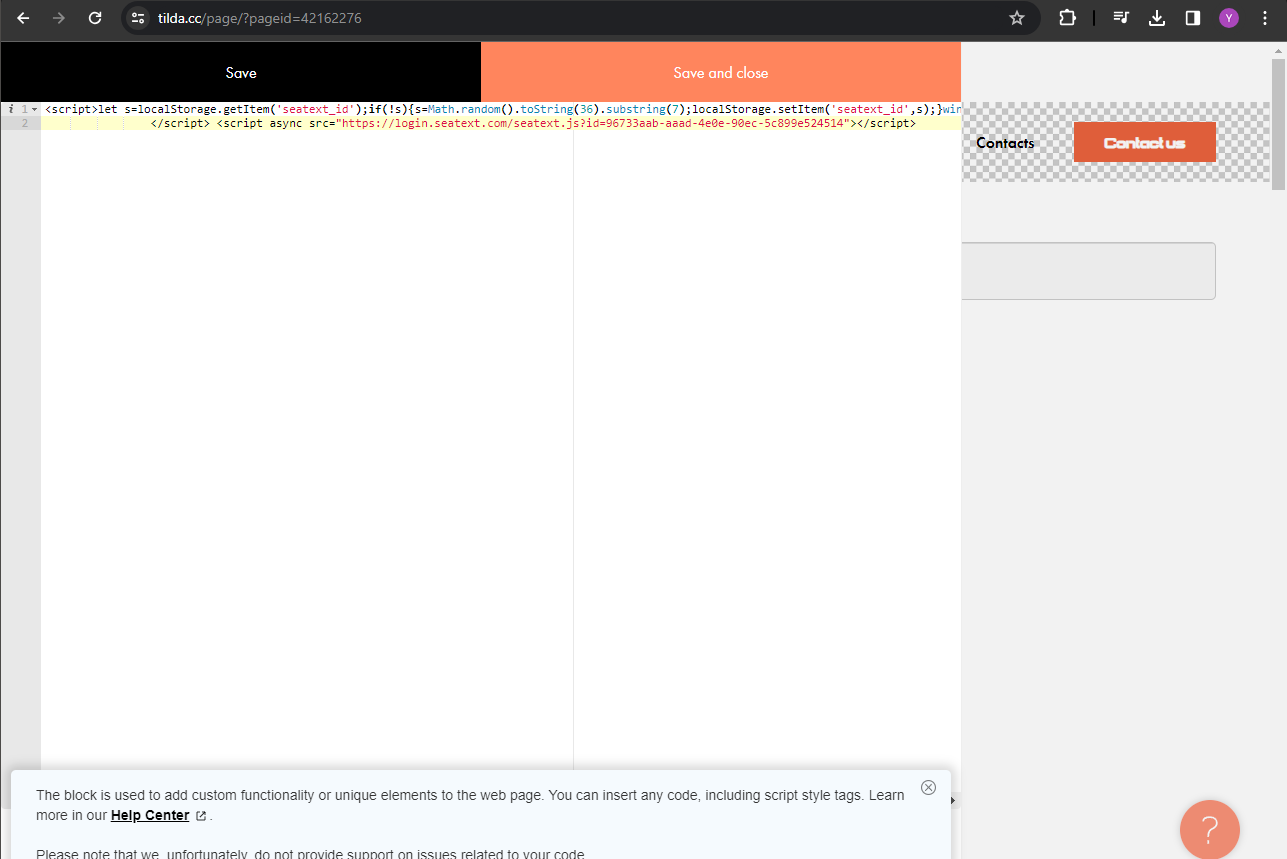
Locate and select the block named T123, which enables the addition of embedded HTML code.
Once the block is added to the page, click on "Content" to access the HTML editor.
Paste the code snippet provided by SEATEXT AI into the HTML editor. Then, click on "Save and Close" to apply the changes.
You will see the code successfully added to the page. Finally, click on "Publish" to make the changes live on your website.
Beberapa Domain: Jika Anda perlu menggunakan SEATEXT AI pada beberapa domain (misalnya domain pengembangan dan domain produksi), Anda harus membuat akun terpisah untuk setiap domain. Setiap akun SEATEXT AI terhubung ke satu URL utama. Batasan dan Keamanan: URL pengembangan seperti localhost dibatasi demi keamanan. Pastikan Anda menggunakan domain yang valid dan nyata untuk kasus ini. Domain pengembangan dinamis mungkin tidak berfungsi dengan baik, karena SEATEXT AI mungkin tidak dapat mengaitkan lalu lintas dengan akun Anda secara andal. Menggunakan SEATEXT AI di Beberapa Website: Untuk menggunakan SEATEXT AI di beberapa website, buat satu akun untuk setiap website.
Penting: Kunjungi atau segarkan website Anda beberapa kali dan tetap di halaman tersebut minimal 40 detik—ini akan mengaktifkan AI dan menghubungkannya ke akun Anda.
Penting: Tunggu minimal lima menit hingga nama website Anda muncul di samping logo SEATEXT di bagian atas halaman ini. Hal ini menandakan website Anda terhubung dan siap untuk langkah selanjutnya. Jika tidak terlihat setelah 10 menit, segera hubungi tim dukungan kami. Ini mungkin mengindikasikan masalah saat pemasangan di platform Anda, dan Anda mungkin memerlukan bantuan kami.
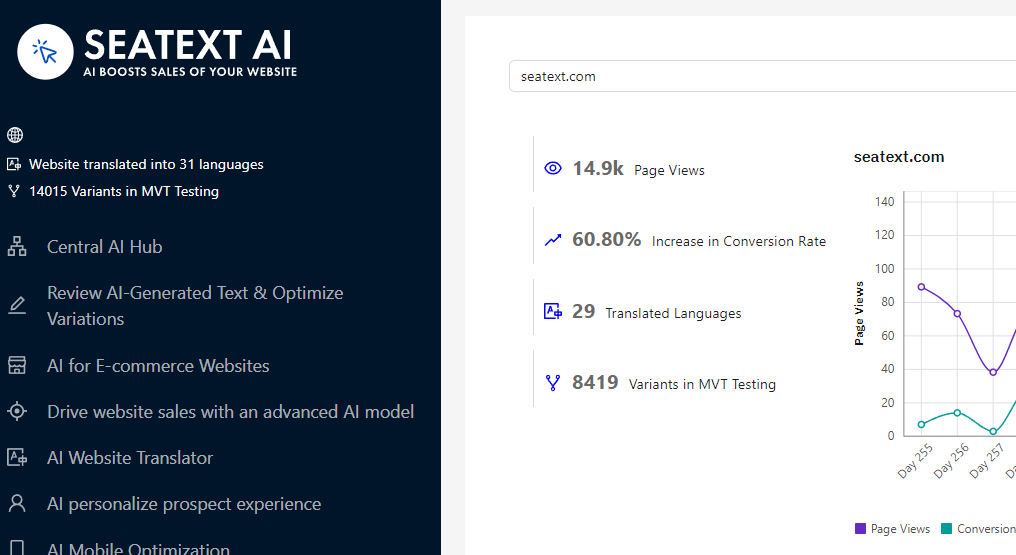
Activating AI Proceed to the Main AI Hub to activate the necessary AI on your preferred pages. Click on "Configuration" to adjust the AI parameters. Optional Editing: SEATEXT AI provides your initial round of automatic translations and variants for testing. Log in to your SEATEXT AI account, navigate to "Variants Edit" in the left panel, and select the URL and language you wish to edit. Here, you can review, create, or manually edit translations for your variants.
