Odoo Integration
ຕດຕງ SEATEXT AI ໃສເວບໄຊຂອງທານໂດຍປະຕບດຕາມຄຳແນະນຳຂາງລມນ. ຂະບວນການຕດຕງມຄວາມປອດໄພ ແລະ AI ຈະຍງບທນເຮດວຽກຈນກວາຈະຖກເປດໃຊງານ ເພອຮບປະກນຄວາມປອດໄພຂອງເນອຫາໃນເວບໄຊຂອງທານ. ກອນທທານຈະສາມາດຕດຕງສະຄຣບໄດ ທານຈຳເປນຕອງມບນຊ SEATEXT AI. ຖາທານຍງບມບນຊ ທານສາມາດສາງບນຊໄດທນ
Odoo Integration
ຂນຕອນການເຊອມຕ
ຄດລອກລະຫດ Javascript ຈາກ SEATEXT AI ທປາກດຢໃນພາກສວນຂາງລມນ.
SEATEXTCODEINTEGRATION
Log in to your Odoo account and access the “Website” module from the dashboard. Within the Website module, navigate to the page you wish to edit and click on the "Edit" button to open the editing panel. In the editing panel, scroll through the "Blocks" panel until you reach the "Dynamic Content" section.
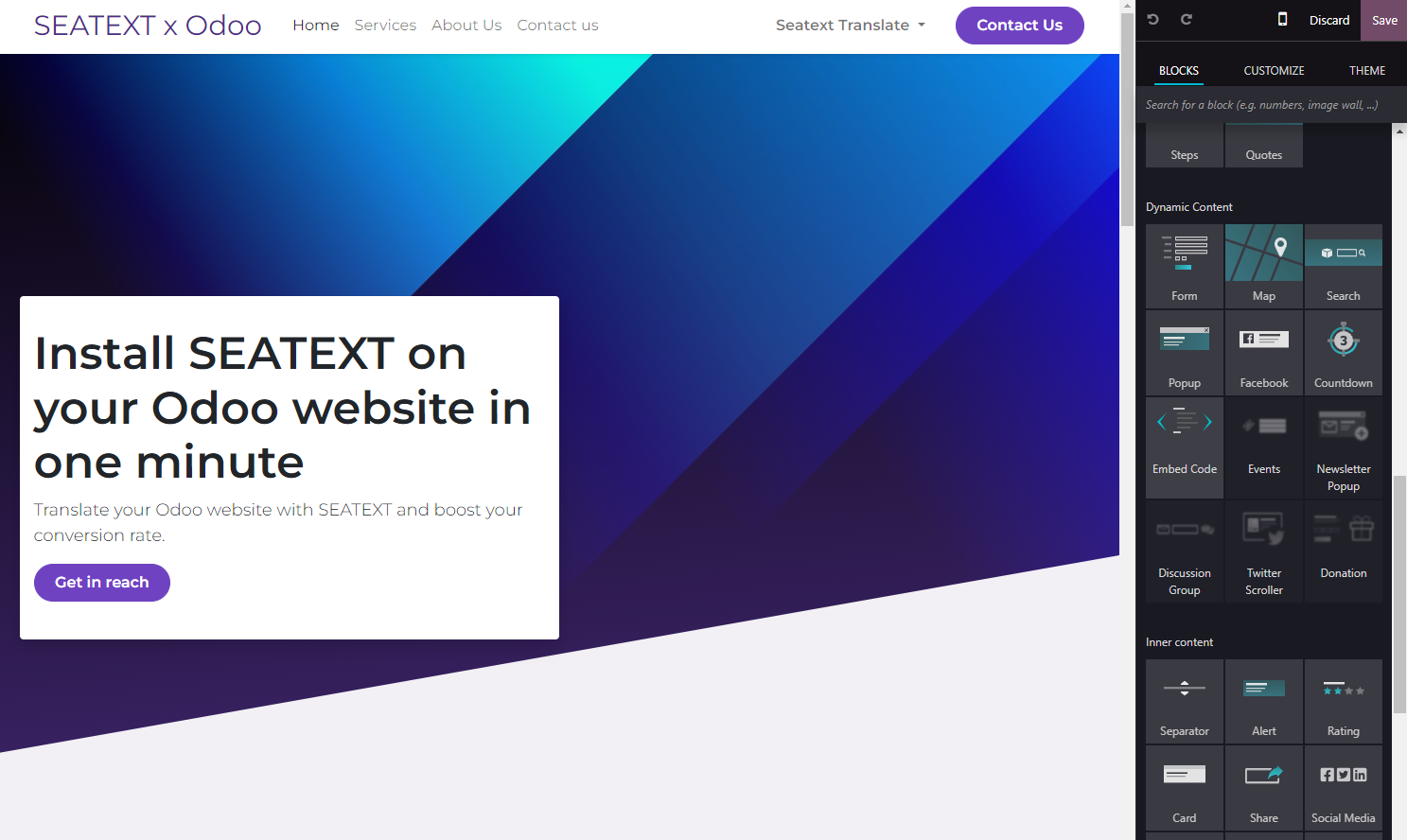
Locate the "Embed Code" module within the "Dynamic Content" section and drag it into the desired location on your website editor.
You have now successfully installed SEATEXT AI on your website using JavaScript.
Step 4: Once the module is placed, click on the "Edit" button located in the right panel to input the code.
Step 5: In the pop-up window that appears, paste the code snippet provided by SEATEXT AI into the designated area, then click "Save" to apply the changes.
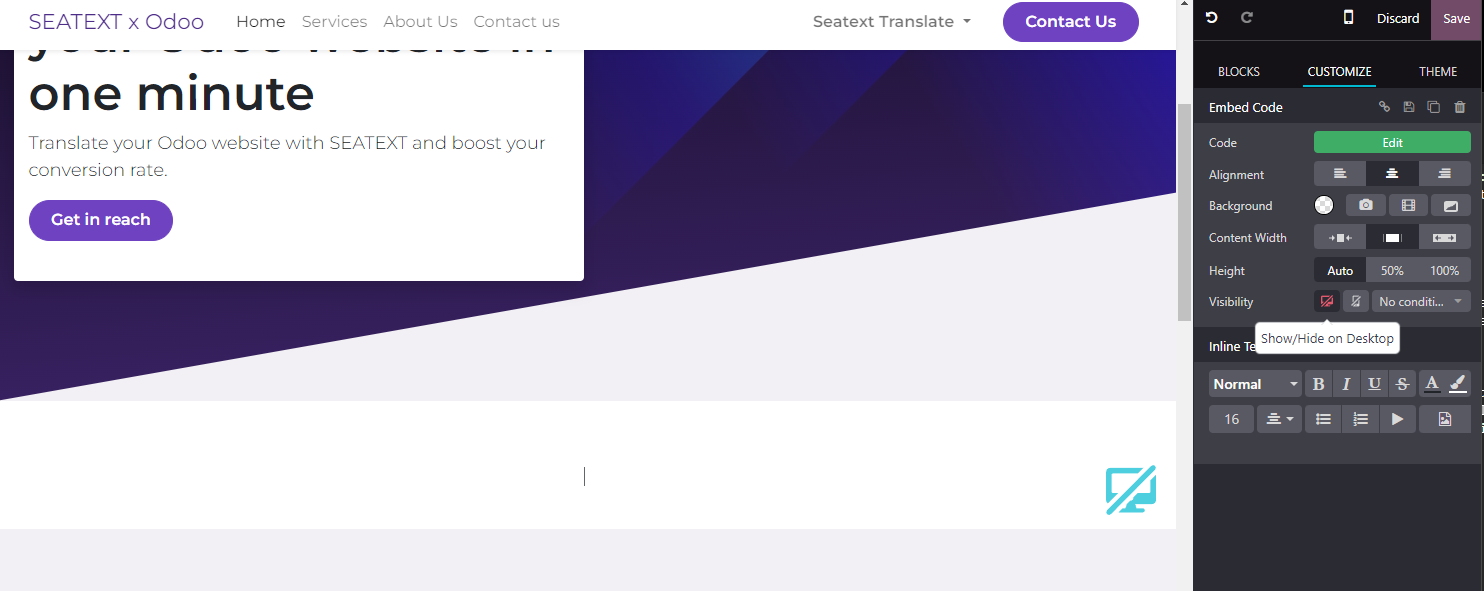
Step 6: To ensure the block is hidden from view on desktop devices, select the "Hide on Desktop" option in the "Visibility" section. After making this adjustment, click on "Save" once more to finalize your changes.
You have now successfully installed SEATEXT AI on your website using JavaScript.
Step 6: To ensure the block is hidden from view on desktop devices, select the "Hide on Desktop" option in the "Visibility" section. After making this adjustment, click on "Save" once more to finalize your changes.
Step 5: In the pop-up window that appears, paste the code snippet provided by SEATEXT AI into the designated area, then click "Save" to apply the changes.
Step 4: Once the module is placed, click on the "Edit" button located in the right panel to input the code.
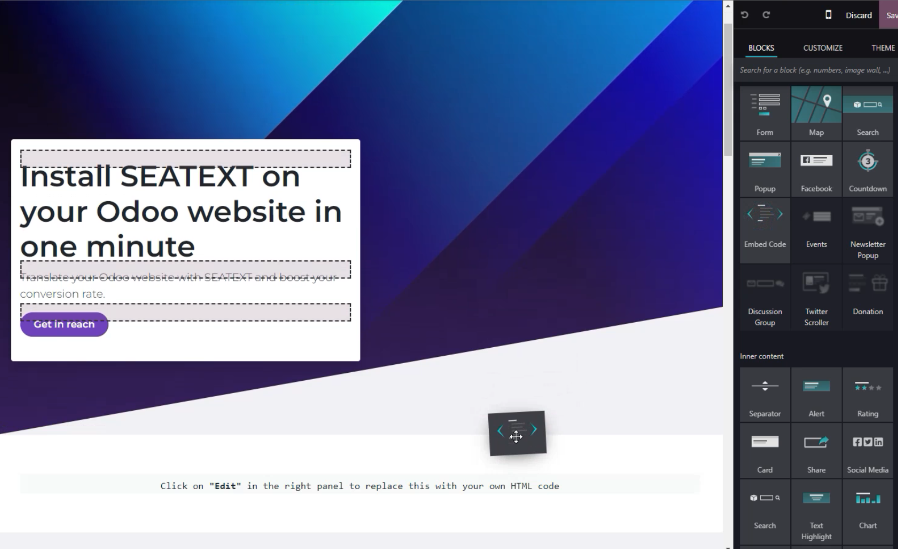
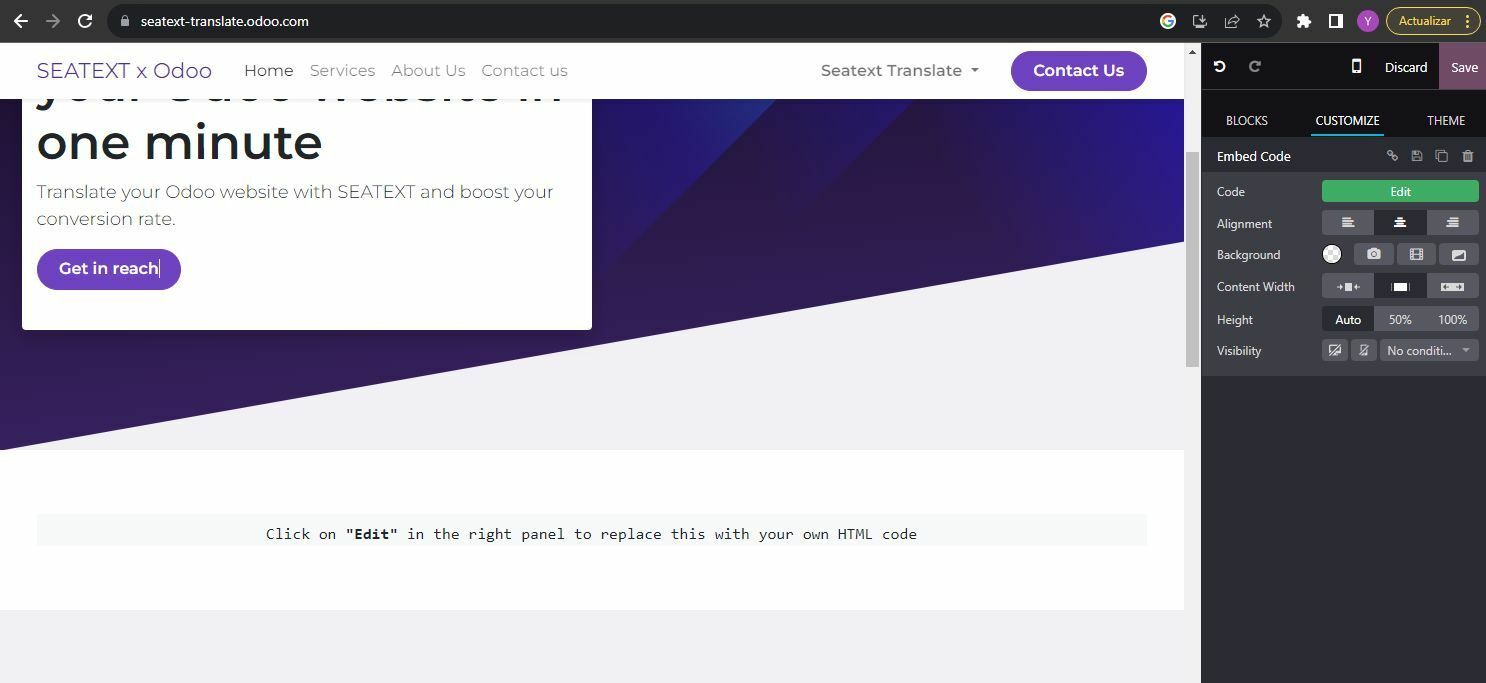
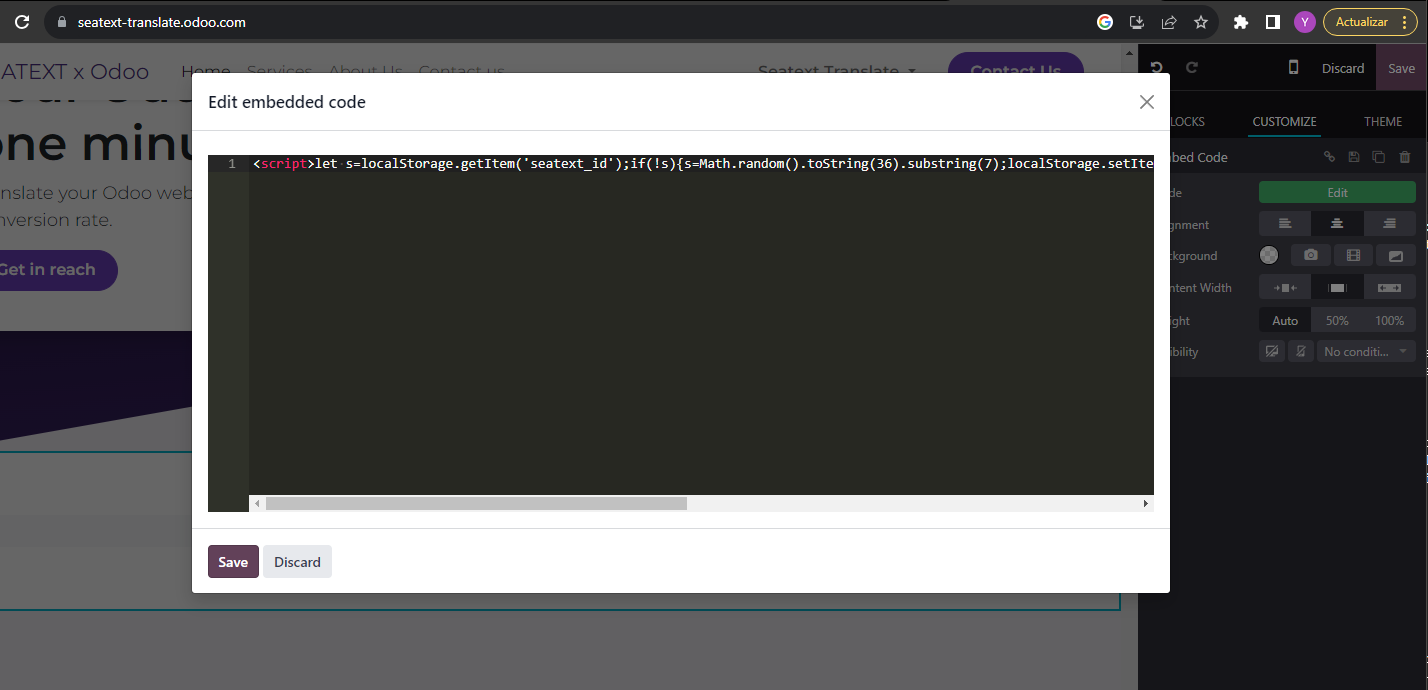
Once the module is placed, click on the "Edit" button located in the right panel to input the code.
In the pop-up window that appears, paste the code snippet provided by SEATEXT AI into the designated area, then click "Save" to apply the changes.
To ensure the block is hidden from view on desktop devices, select the "Hide on Desktop" option in the "Visibility" section. After making this adjustment, click on "Save" once more to finalize your changes.
ຫາຍໂດເມນ: ຖາທານຕອງການໃຊ SEATEXT AI ໃນຫາຍໂດເມນ (ເຊນ: ໂດເມນສຳລບພດທະນາ ແລະ ໂດເມນສຳລບໃຊງານຈງ), ທານຕອງສາງບນຊແຍກຕາງຫາກສຳລບແຕລະໂດເມນ. ແຕລະບນຊ SEATEXT AI ຈະເຊອມຕກບ URL ຫກພຽງອນດຽວເທານນ. ຂຈຳກດ ແລະ ຄວາມປອດໄພ: URL ສຳລບການພດທະນາ ເຊນ localhost ຈະຖກຈຳກດດວຍເຫດຜນດານຄວາມປອດໄພ. ກະລນາໃຊໂດເມນທແທຈງສຳລບກລະນເຫານ. ໂດເມນພດທະນາແບບໄດນາມກອາດຈະເຮດວຽກບສມບນ ເນອງຈາກ SEATEXT AI ອາດບສາມາດເຊອມໂຍງການເຂາຊມກບບນຊຂອງທານໄດຢາງຖກຕອງ. ການໃຊ SEATEXT AI ໃນຫາຍເວບໄຊ: ເພອໃຊ SEATEXT AI ໃນຫາຍເວບໄຊ, ໃຫສາງໜງບນຊຕໜງເວບໄຊ.
ສຳຄນ: ເຂາເບງ ຫ ຣເຟຣດເວບໄຊຂອງທານຫາຍໆຄງ ແລະ ຢໃນໜາເວບຢາງໜອຍ 40 ວນາທ—ນຈະເປນການເປດໃຊງານ AI ແລະ ເຊອມຕມນກບບນຊຂອງທານ.
ສຳຄນ: ລຖາຢາງໜອຍ 5 ນາທ ຈນກວາທານຈະເຫນຊເວບໄຊຂອງທານສະແດງຂນຢຂາງໂລໂກ SEATEXT ທດານເທງຂອງໜານ. ນສະແດງວາເວບໄຊຂອງທານໄດເຊອມຕແລວ ແລະ ພອມທຈະດຳເນນການໃນຂນຕອນຕໄປ. ຖາທານບເຫນຊເວບໄຊຢດານເທງຂອງໜາຫງຈາກຜານໄປ 10 ນາທ, ກະລນາຕດຕທມງານຊວຍເຫອຂອງພວກເຮາທນທ. ນອາດຈະໝາຍເຖງມບນຫາໃນລະຫວາງການຕດຕງເທງແພລດຟອມຂອງທານ ແລະ ທານອາດຈະຕອງການຄວາມຊວຍເຫອຈາກພວກເຮາ.
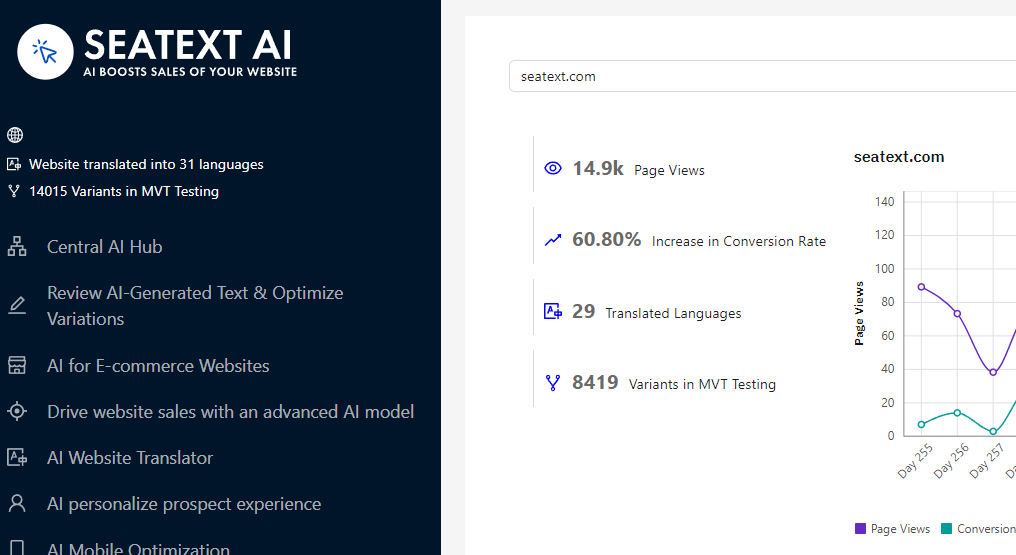
ການເປດໃຊງານ AI: ໄປທ Main AI Hub ເພອເປດໃຊງານ AI ທຈຳເປນໃນໜາທທານຕອງການ. ຄລກທ "Configuration" ເພອປບແຕງພາຣາມເຕຂອງ AI. ການແກໄຂເພມເຕມ: SEATEXT AI ຈະສະໜອງການແປພາສາອດຕະໂນມດຮອບທຳອດ ແລະ ຕວເລອກຕາງໆສຳລບການທດສອບ. ເຂາສລະບບບນຊ SEATEXT AI ຂອງທານ, ໄປທ "Variants Edit" ໃນແຖບດານຊາຍ, ແລະ ເລອກ URL ແລະ ພາສາທທານຕອງການແກໄຂ. ທນ, ທານສາມາດກວດສອບ, ສາງ, ຫ ແກໄຂການແປພາສາສຳລບຕວເລອກຕາງໆຂອງທານໄດດວຍຕນເອງ.
