Shopify Integration
ຕດຕງ SEATEXT AI ໃສເວບໄຊຂອງທານໂດຍປະຕບດຕາມຄຳແນະນຳຂາງລມນ. ຂະບວນການຕດຕງມຄວາມປອດໄພ ແລະ AI ຈະຍງບທນເຮດວຽກຈນກວາຈະຖກເປດໃຊງານ ເພອຮບປະກນຄວາມປອດໄພຂອງເນອຫາໃນເວບໄຊຂອງທານ. ກອນທທານຈະສາມາດຕດຕງສະຄຣບໄດ ທານຈຳເປນຕອງມບນຊ SEATEXT AI. ຖາທານຍງບມບນຊ ທານສາມາດສາງບນຊໄດທນ
Shopify Integration
ຂນຕອນການເຊອມຕ
ຄດລອກລະຫດ Javascript ຈາກ SEATEXT AI ທປາກດຢໃນພາກສວນຂາງລມນ.
SEATEXTCODEINTEGRATION
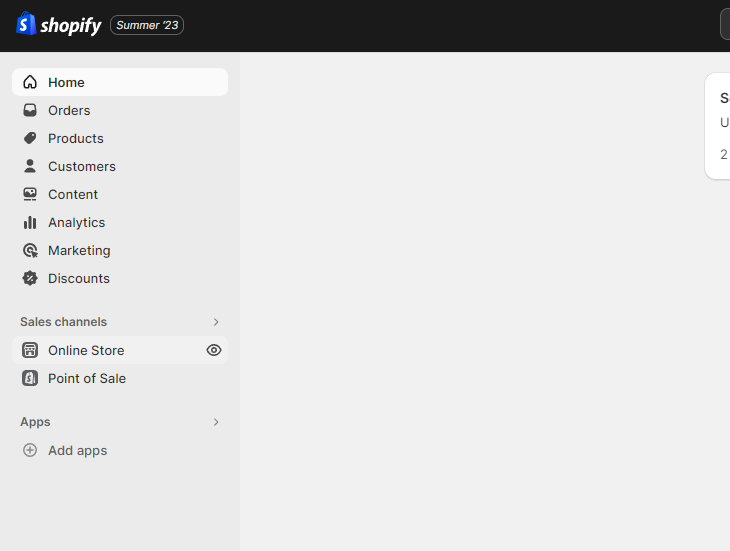
Access your Shopify account and navigate to the “Online Store” section. From there, select “Themes”.
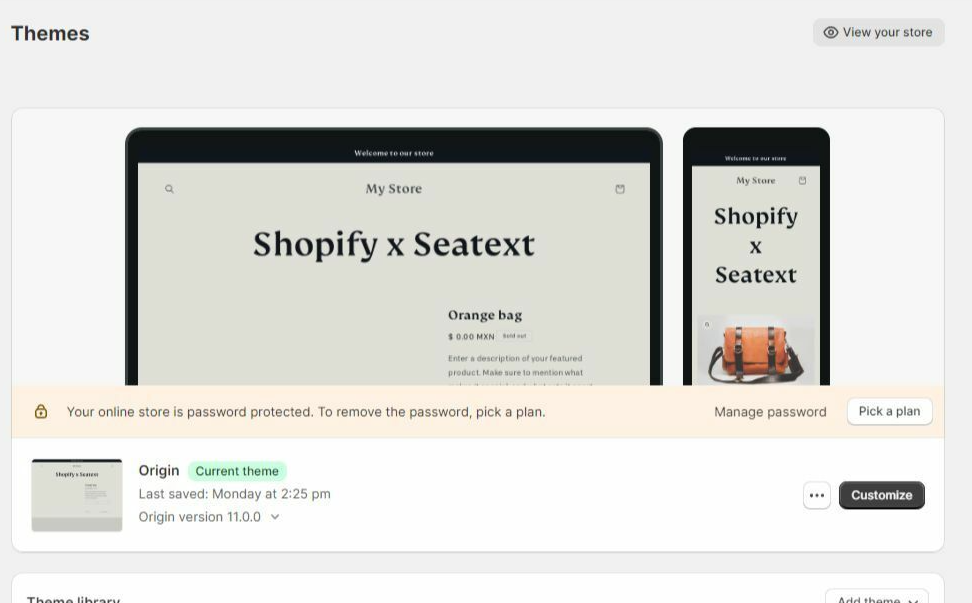
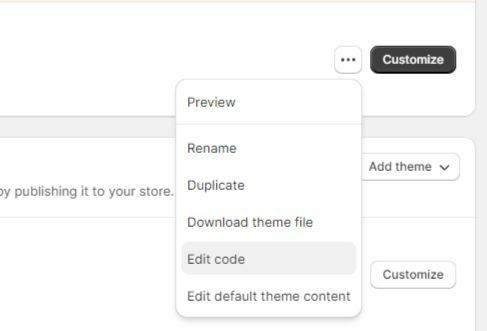
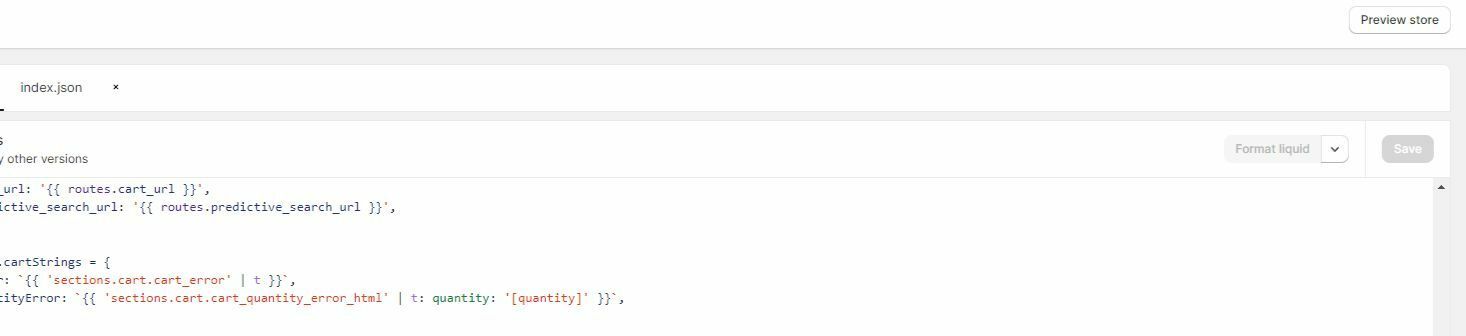
Within the Themes section, locate the theme you wish to translate. Click on the three dots icon located next to the desired theme and select “Edit code”.
On the Edit Code page, you will be presented with a list of files on the left side of the screen. Navigate to the “Layout” folder and locate the file named “theme.liquid”.
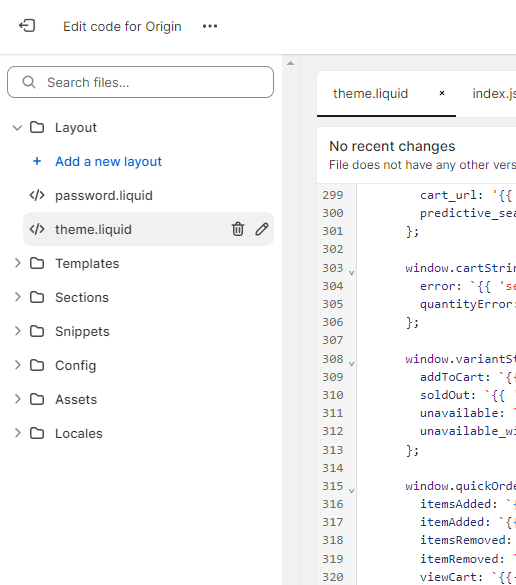
Within the theme.liquid file, scroll down to the bottom of the code. Here, you will find the closing </body> tag. Paste the JavaScript code snippet provided by SEATEXT AI directly above the closing </body> tag.


Once the code snippet has been successfully pasted, click on the “Save” button to preserve your changes.
ຫາຍໂດເມນ: ຖາທານຕອງການໃຊ SEATEXT AI ໃນຫາຍໂດເມນ (ເຊນ: ໂດເມນສຳລບພດທະນາ ແລະ ໂດເມນສຳລບໃຊງານຈງ), ທານຕອງສາງບນຊແຍກຕາງຫາກສຳລບແຕລະໂດເມນ. ແຕລະບນຊ SEATEXT AI ຈະເຊອມຕກບ URL ຫກພຽງອນດຽວເທານນ. ຂຈຳກດ ແລະ ຄວາມປອດໄພ: URL ສຳລບການພດທະນາ ເຊນ localhost ຈະຖກຈຳກດດວຍເຫດຜນດານຄວາມປອດໄພ. ກະລນາໃຊໂດເມນທແທຈງສຳລບກລະນເຫານ. ໂດເມນພດທະນາແບບໄດນາມກອາດຈະເຮດວຽກບສມບນ ເນອງຈາກ SEATEXT AI ອາດບສາມາດເຊອມໂຍງການເຂາຊມກບບນຊຂອງທານໄດຢາງຖກຕອງ. ການໃຊ SEATEXT AI ໃນຫາຍເວບໄຊ: ເພອໃຊ SEATEXT AI ໃນຫາຍເວບໄຊ, ໃຫສາງໜງບນຊຕໜງເວບໄຊ.
ສຳຄນ: ເຂາເບງ ຫ ຣເຟຣດເວບໄຊຂອງທານຫາຍໆຄງ ແລະ ຢໃນໜາເວບຢາງໜອຍ 40 ວນາທ—ນຈະເປນການເປດໃຊງານ AI ແລະ ເຊອມຕມນກບບນຊຂອງທານ.
ສຳຄນ: ລຖາຢາງໜອຍ 5 ນາທ ຈນກວາທານຈະເຫນຊເວບໄຊຂອງທານສະແດງຂນຢຂາງໂລໂກ SEATEXT ທດານເທງຂອງໜານ. ນສະແດງວາເວບໄຊຂອງທານໄດເຊອມຕແລວ ແລະ ພອມທຈະດຳເນນການໃນຂນຕອນຕໄປ. ຖາທານບເຫນຊເວບໄຊຢດານເທງຂອງໜາຫງຈາກຜານໄປ 10 ນາທ, ກະລນາຕດຕທມງານຊວຍເຫອຂອງພວກເຮາທນທ. ນອາດຈະໝາຍເຖງມບນຫາໃນລະຫວາງການຕດຕງເທງແພລດຟອມຂອງທານ ແລະ ທານອາດຈະຕອງການຄວາມຊວຍເຫອຈາກພວກເຮາ.
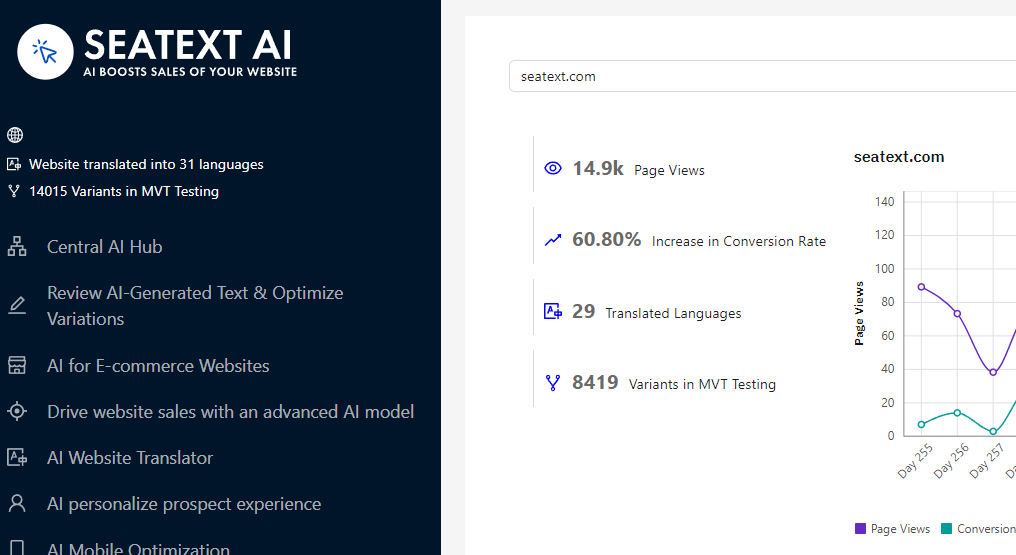
ການເປດໃຊງານ AI: ໄປທ Main AI Hub ເພອເປດໃຊງານ AI ທຈຳເປນໃນໜາທທານຕອງການ. ຄລກທ "Configuration" ເພອປບແຕງພາຣາມເຕຂອງ AI. ການແກໄຂເພມເຕມ: SEATEXT AI ຈະສະໜອງການແປພາສາອດຕະໂນມດຮອບທຳອດ ແລະ ຕວເລອກຕາງໆສຳລບການທດສອບ. ເຂາສລະບບບນຊ SEATEXT AI ຂອງທານ, ໄປທ "Variants Edit" ໃນແຖບດານຊາຍ, ແລະ ເລອກ URL ແລະ ພາສາທທານຕອງການແກໄຂ. ທນ, ທານສາມາດກວດສອບ, ສາງ, ຫ ແກໄຂການແປພາສາສຳລບຕວເລອກຕາງໆຂອງທານໄດດວຍຕນເອງ.
Implement the seatextonly Tag in Your Product Descriptions To optimize your product descriptions effectively, please follow these steps: Step 1: Access Your Shopify Theme Code Log in to your Shopify admin and navigate to Online Store > Themes . Click on Actions > Edit Code for your active theme. Step 2: Locate the Product Template Identify the file that renders the product description (typically named product.liquid or located within product-template.liquid ). Step 3: Wrap the Product Description Find the product description output code, which usually appears as:
{{ product.description }}
Modify this code to wrap it in a <div> with the data-seatextonly attribute as follows:
<div data-seatextonly> {{ product.description | raw }} </div>
Step 4: Test Your Changes Save your changes and preview a product page to ensure the description is displayed correctly. Verify that the data-seatextonly attribute is present in the HTML source (you can inspect this using your browser’s developer tools). For additional details, please refer to our documentation here: https://seatext.com/documentation-ai-scope
