Shopify Integration
Įdiekite „Seatext“ savo svetainėje vadovaudamiesi toliau pateiktomis instrukcijomis. Diegimo procesas yra saugus, o dirbtinis intelektas išlieka neaktyvus, kol jį įjungsite, todėl jūsų svetainės turinio vientisumas išlieka nepakitęs. Prieš diegdami scenarijų, turite turėti SEATEXT AI paskyrą. Jei jos dar neturite, susikurkite ČIA
Shopify Integration
Integracija po žingsniais
Nukopijuokite „JavaScript“ kodą iš SEATEXT AI, kuris rodomas žemiau esančiame skyriuje.
SEATEXTCODEINTEGRATION
Access your Shopify account and navigate to the “Online Store” section. From there, select “Themes”.
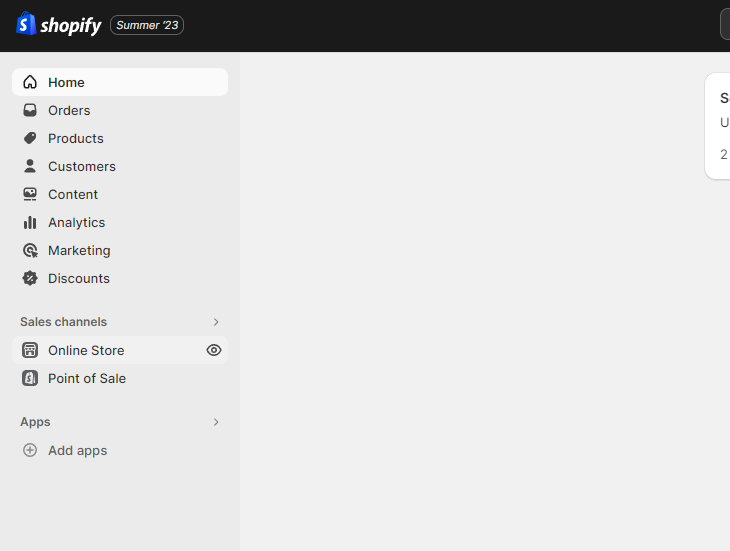
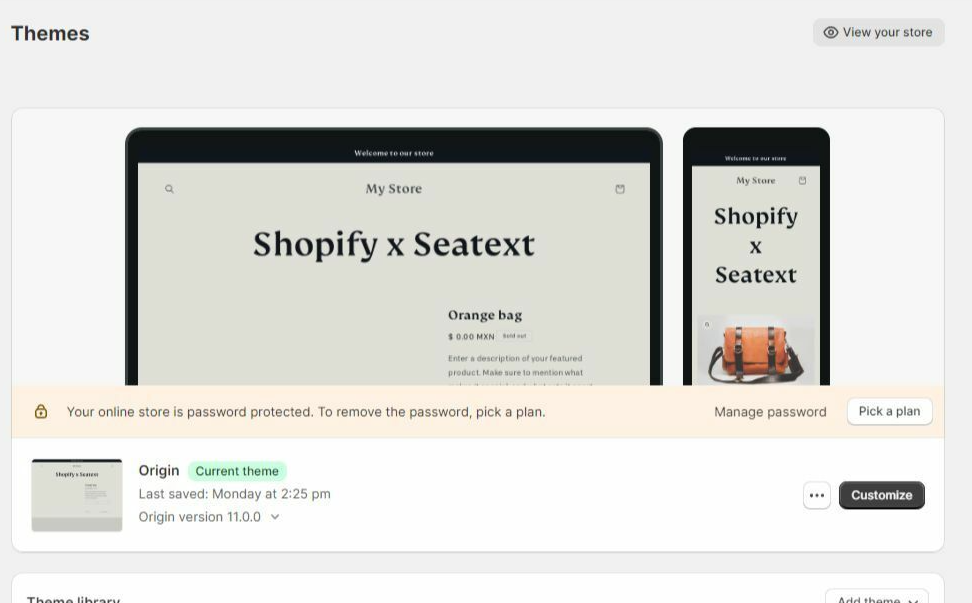
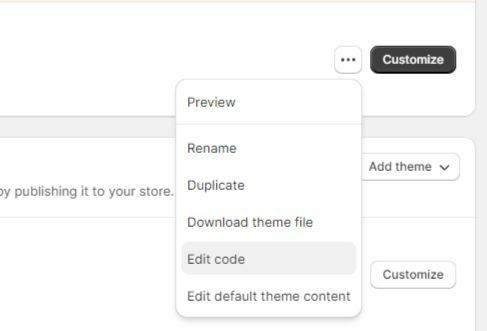
Within the Themes section, locate the theme you wish to translate. Click on the three dots icon located next to the desired theme and select “Edit code”.
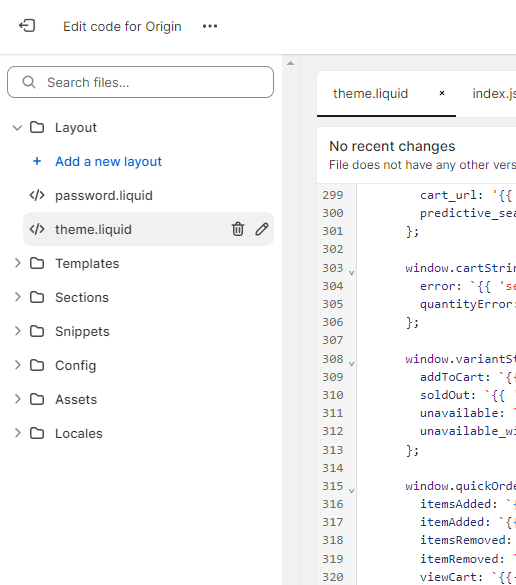
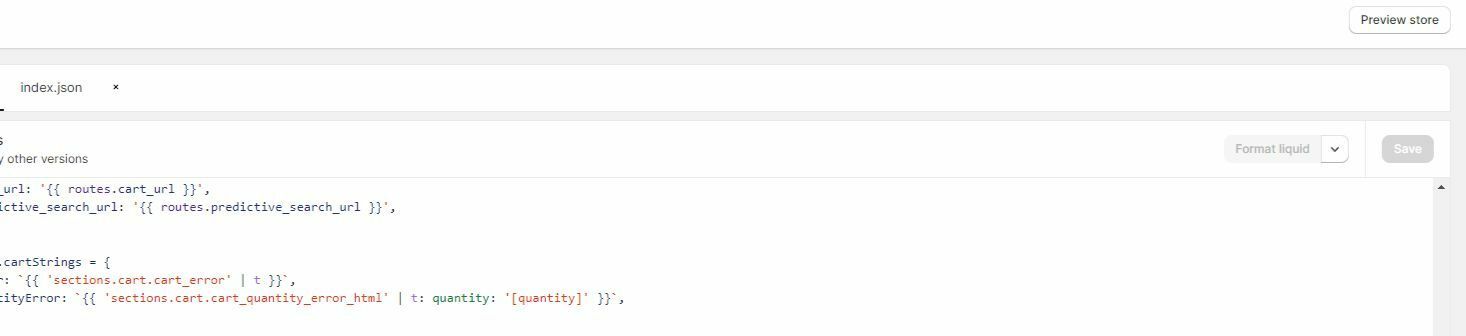
On the Edit Code page, you will be presented with a list of files on the left side of the screen. Navigate to the “Layout” folder and locate the file named “theme.liquid”.
Within the theme.liquid file, scroll down to the bottom of the code. Here, you will find the closing </body> tag. Paste the JavaScript code snippet provided by SEATEXT AI directly above the closing </body> tag.


Once the code snippet has been successfully pasted, click on the “Save” button to preserve your changes.
Keli domenai: jei „SEATEXT AI“ reikia naudoti keliuose domenuose (pvz., kūrimo ir produkcijos), kiekvienam domenui turite sukurti atskiras paskyras. Kiekviena „SEATEXT AI“ paskyra yra susieta su vienu pagrindiniu URL. Apribojimai ir saugumas: kūrimo URL, tokie kaip „localhost“, yra ribojami saugumo sumetimais. Šiais atvejais naudokite galiojantį, tikrą domeną. Dinaminiai kūrimo domenai gali veikti netinkamai, nes „SEATEXT AI“ gali nepavykti patikimai susieti srauto su jūsų paskyra. „SEATEXT AI“ naudojimas keliose svetainėse: kiekvienai svetainei sukurkite atskirą paskyrą.
Svarbu: kelis kartus apsilankykite arba atnaujinkite savo svetainę ir likite puslapyje bent 40 sekundžių – tai aktyvuos AI ir susies jį su jūsų paskyra.
Svarbu: palaukite bent penkias minutes, kol šio puslapio viršuje šalia SEATEXT logotipo pamatysite savo svetainės pavadinimą. Tai reiškia, kad jūsų svetainė sėkmingai prijungta ir galite pereiti prie kito veiksmo. Jei po 10 minučių puslapio viršuje nieko nematote, nedelsdami susisiekite su mūsų palaikymo komanda. Tai gali reikšti, kad diegimo metu kilo problemų, ir jums gali prireikti mūsų pagalbos.
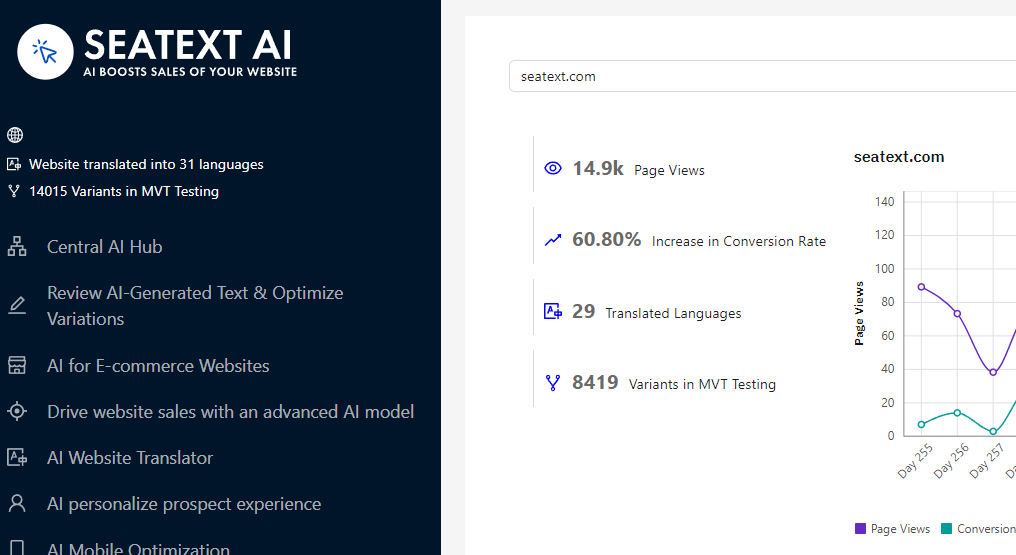
Dirbtinio intelekto aktyvavimas: eikite į pagrindinį „AI Hub“, kad suaktyvintumėte reikiamą dirbtinį intelektą pasirinktuose puslapiuose. Spustelėkite „Configuration“, kad sureguliuotumėte dirbtinio intelekto parametrus. Papildomas redagavimas: SEATEXT AI pateikia pradinį automatinio vertimo ir variantų rinkinį testavimui. Prisijunkite prie savo SEATEXT AI paskyros, kairiajame skydelyje eikite į „Variants Edit“ ir pasirinkite URL bei kalbą, kurią norite redaguoti. Čia galite peržiūrėti, kurti arba rankiniu būdu koreguoti savo variantų vertimus.
Implement the seatextonly Tag in Your Product Descriptions To optimize your product descriptions effectively, please follow these steps: Step 1: Access Your Shopify Theme Code Log in to your Shopify admin and navigate to Online Store > Themes . Click on Actions > Edit Code for your active theme. Step 2: Locate the Product Template Identify the file that renders the product description (typically named product.liquid or located within product-template.liquid ). Step 3: Wrap the Product Description Find the product description output code, which usually appears as:
{{ product.description }}
Modify this code to wrap it in a <div> with the data-seatextonly attribute as follows:
<div data-seatextonly> {{ product.description | raw }} </div>
Step 4: Test Your Changes Save your changes and preview a product page to ensure the description is displayed correctly. Verify that the data-seatextonly attribute is present in the HTML source (you can inspect this using your browser’s developer tools). For additional details, please refer to our documentation here: https://seatext.com/documentation-ai-scope
