GoDaddy-integratie
Installeer Seatext op uw website met de onderstaande instructies. Het installatieproces is veilig en de AI blijft inactief tot hij geactiveerd wordt, zodat de inhoud van uw website behouden blijft. Voordat u het script kunt installeren, heeft u een SEATEXT AI‑account nodig. Als u nog geen account heeft, kunt u er hier één aanmaken.
GoDaddy-integratie
Stapsgewijze integratie
Kopieer de JavaScript‑code van SEATEXT AI die hieronder in deze sectie wordt weergegeven.
SEATEXTCODEINTEGRATION
Stap 2: Log in op uw GoDaddy-account met uw inloggegevens. Stap 3: Ga naar uw producten en selecteer de website die u wilt vertalen. Stap 4: Klik op “Edit Site” om de Website Builder-tool te openen. Stap 5: Zoek binnen de interface van de Website Builder de pagina op waar u de vertaalfunctie wilt toevoegen. Stap 6: Klik op “Add Section” om de vertaalfunctie op de gewenste pagina in te voegen.
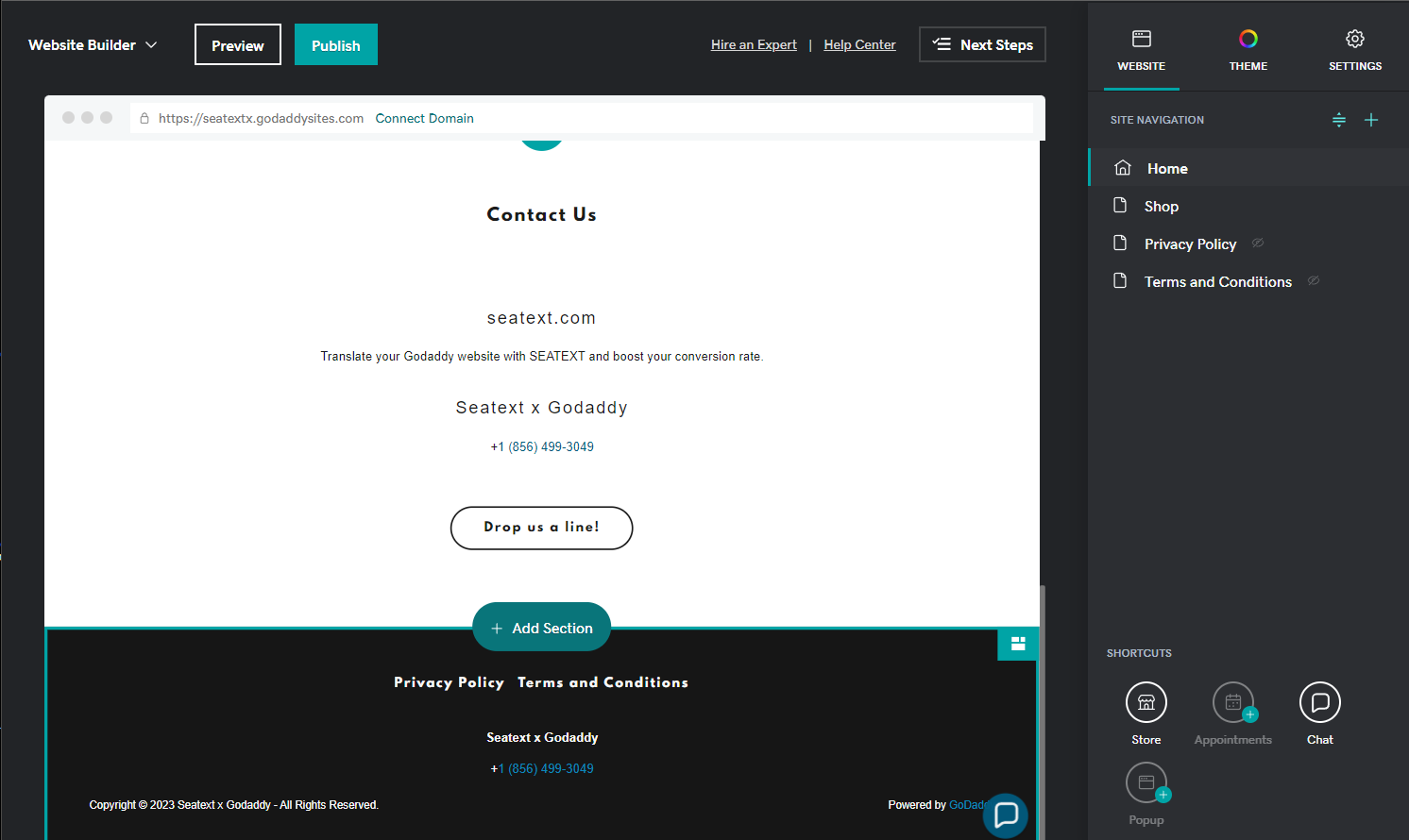
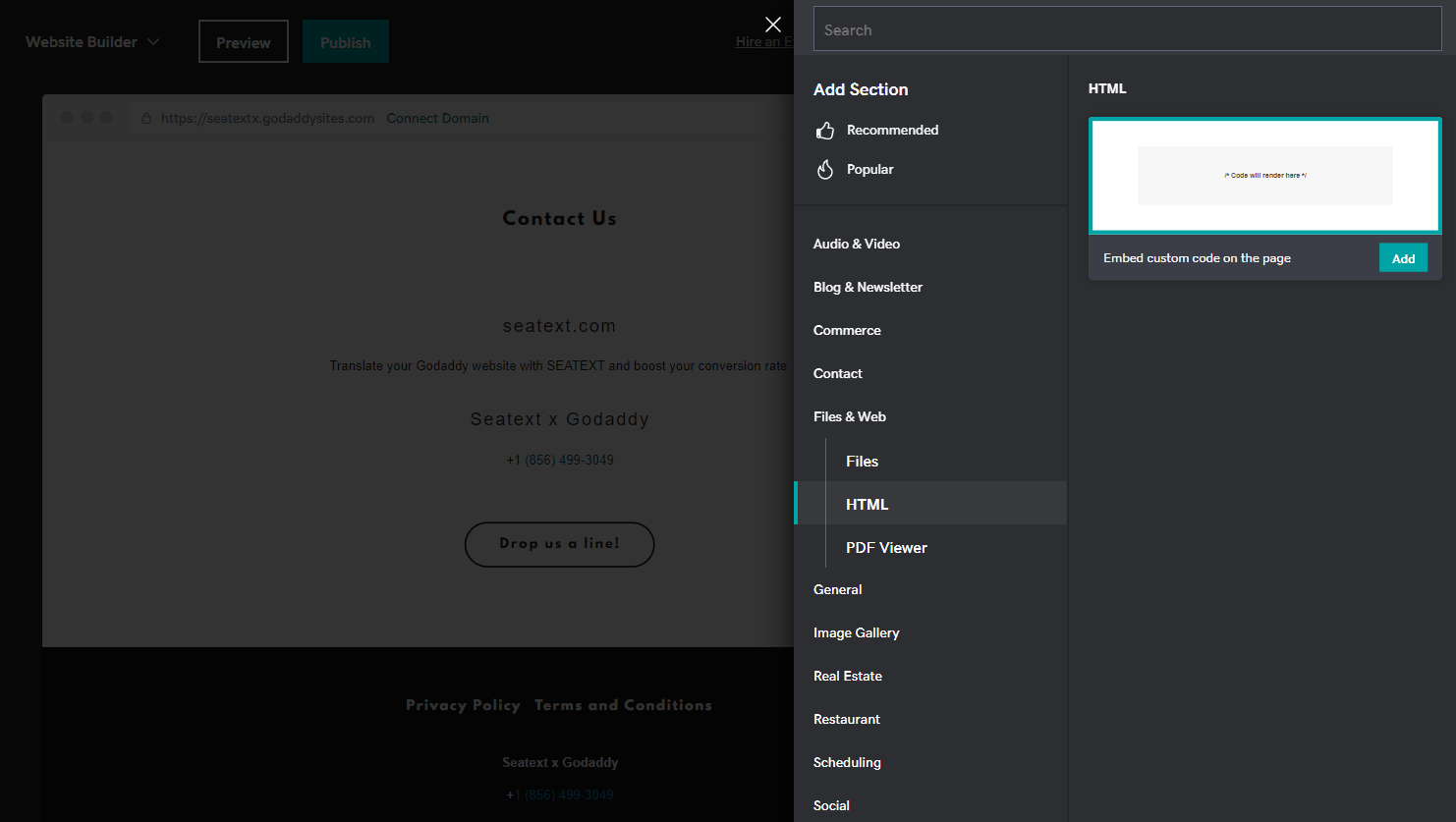
Stap 7: Klik in het rechterpaneel op “ Files & Web ”. Stap 8: Zoek naar de sectie “ HTML ” en voeg deze toe aan uw pagina.
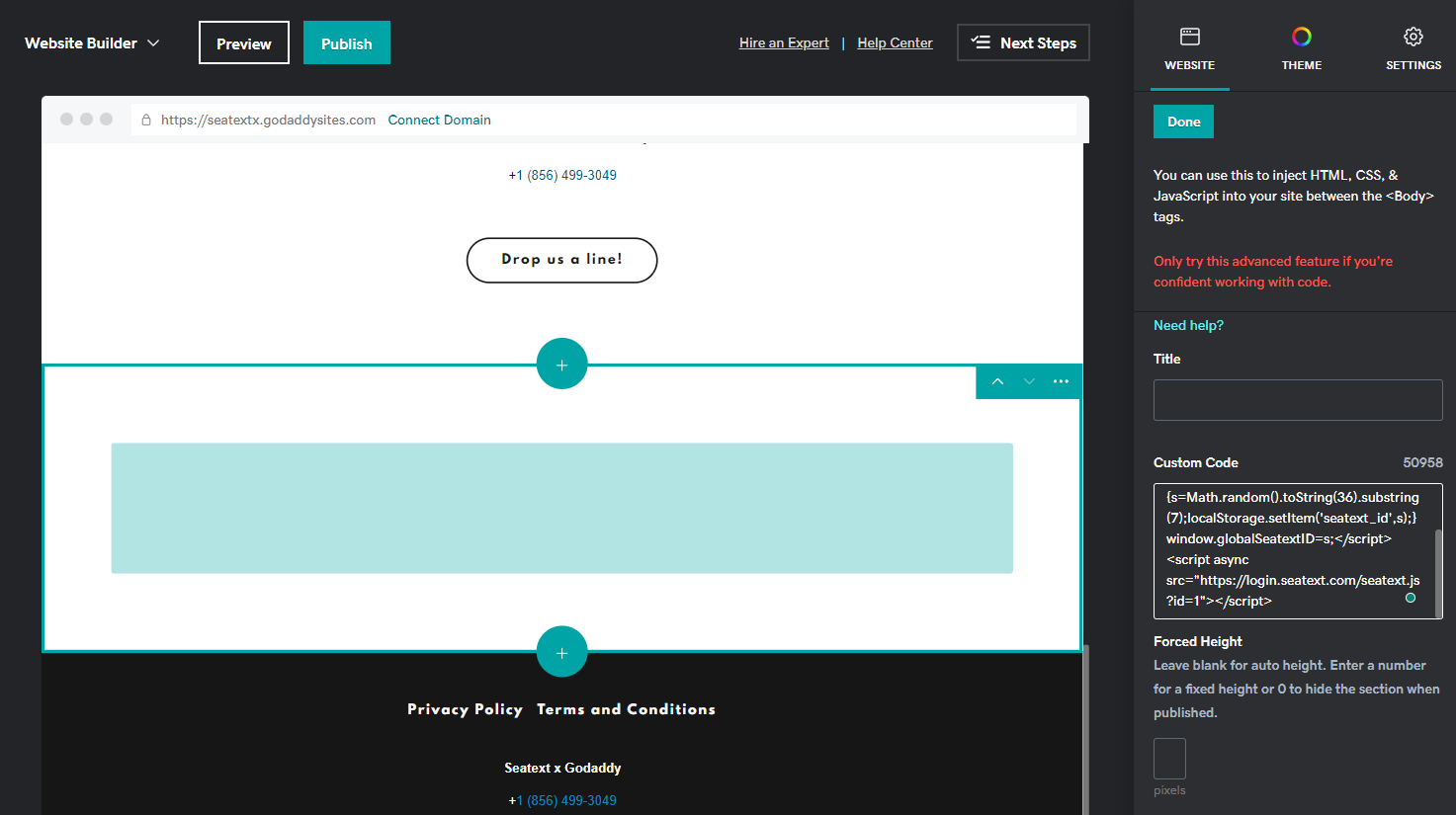
Stap 9: Plak de code die wordt verstrekt in de sectie Custom Code in het rechterpaneel.
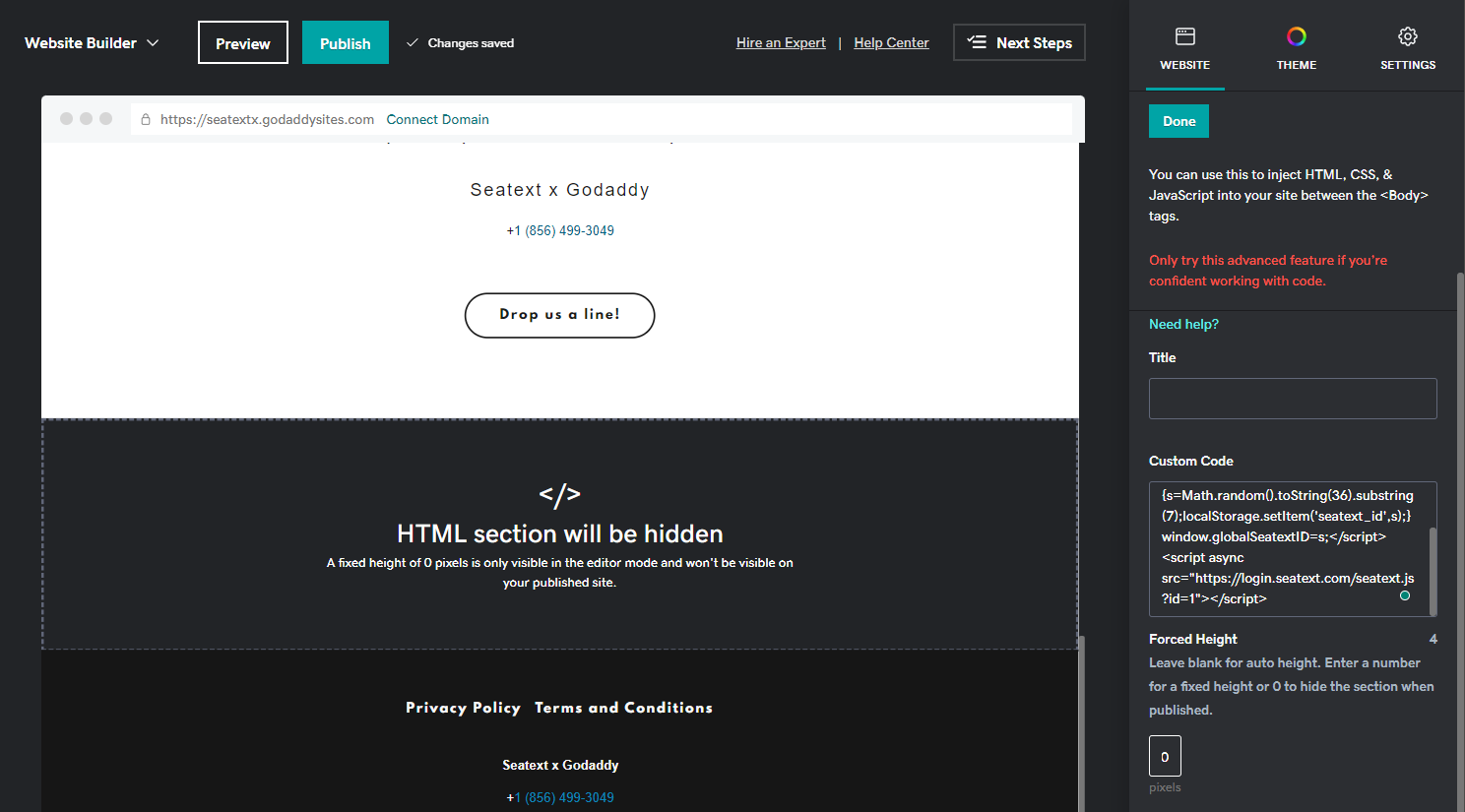
Stap 10: Stel in de sectie Forced Height de waarde in op 0. Klik ten slotte op Done en Publish om de wijzigingen op te slaan.
Belangrijk: Volg deze instructies om SEATEXT AI wereldwijd aan uw website toe te voegen.
Adding SEATEXT AI to the header section of your site: Access the Header HTML Section In the left panel, click Settings . Click Head HTML . Head HTML . Add content to the head section Content Field. Body End HTML . Add custom HTML/Javascript just before the closing tag of the </body> element for each page in the site. Click Save .
Meerdere domeinen: als u SEATEXT AI op meerdere domeinen wilt gebruiken (bijv. een ontwikkel‑ en een productiedomein), moet u voor elk domein een apart account aanmaken. Elk SEATEXT AI‑account is gekoppeld aan één primaire URL. Ontwikkel‑URL’s zoals localhost zijn om veiligheidsredenen geblokkeerd; gebruik een geldig, echt domein. Dynamische ontwikkel‑domeinen werken mogelijk niet goed, omdat SEATEXT AI het verkeer niet betrouwbaar kan koppelen aan uw account. SEATEXT AI op meerdere websites: maak voor elke website een eigen account aan.
Belangrijk: bezoek of vernieuw uw website meerdere keren en blijf minimaal 40 seconden op de pagina – dit activeert de AI en koppelt deze aan uw account.
Belangrijk: wacht minimaal vijf minuten tot de naam van uw website naast het SEATEXT‑logo bovenaan deze pagina verschijnt. Dit betekent dat uw site is gekoppeld en klaar voor de volgende stap. Als u dit na tien minuten nog niet ziet, neem dan direct contact op met ons supportteam. Dit kan duiden op een probleem tijdens de installatie op uw platform; wij staan klaar om u te helpen.
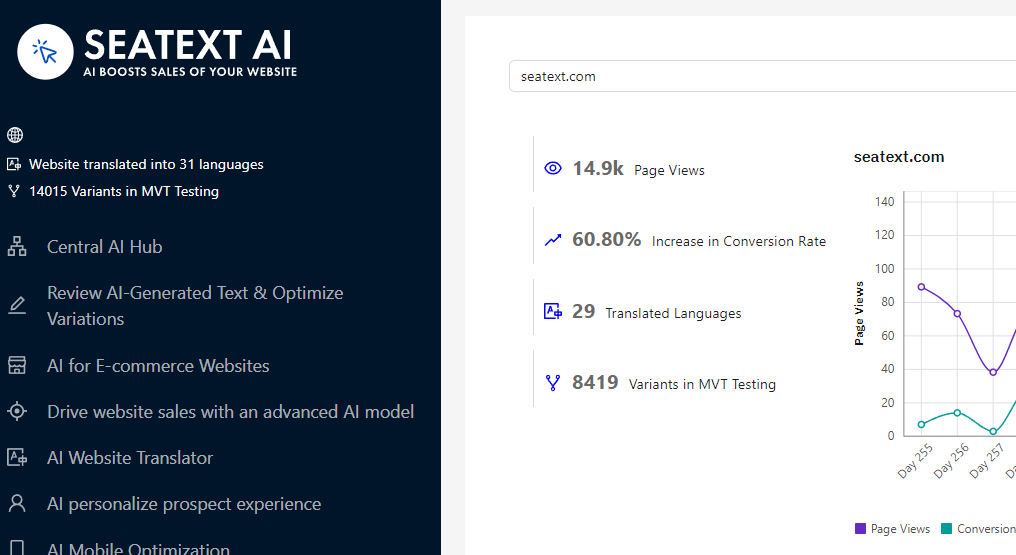
AI activeren Ga naar de Main AI Hub om de benodigde AI op jouw gewenste pagina's te activeren. Klik op "Configuratie" om de AI-parameters aan te passen. Optioneel bewerken: SEATEXT AI voorziet in een eerste reeks automatische vertalingen en varianten om te testen. Log in op je SEATEXT AI-account, ga naar "Varianten bewerken" in het linkerpaneel en selecteer de URL en taal die je wilt bewerken. Hier kun je vertalingen voor je varianten bekijken, aanmaken of handmatig bewerken.
