Shopify Integration
Installeer Seatext op uw website met de onderstaande instructies. Het installatieproces is veilig en de AI blijft inactief tot hij geactiveerd wordt, zodat de inhoud van uw website behouden blijft. Voordat u het script kunt installeren, heeft u een SEATEXT AI‑account nodig. Als u nog geen account heeft, kunt u er hier één aanmaken.
Shopify Integration
Stapsgewijze integratie
Kopieer de JavaScript‑code van SEATEXT AI die hieronder in deze sectie wordt weergegeven.
SEATEXTCODEINTEGRATION
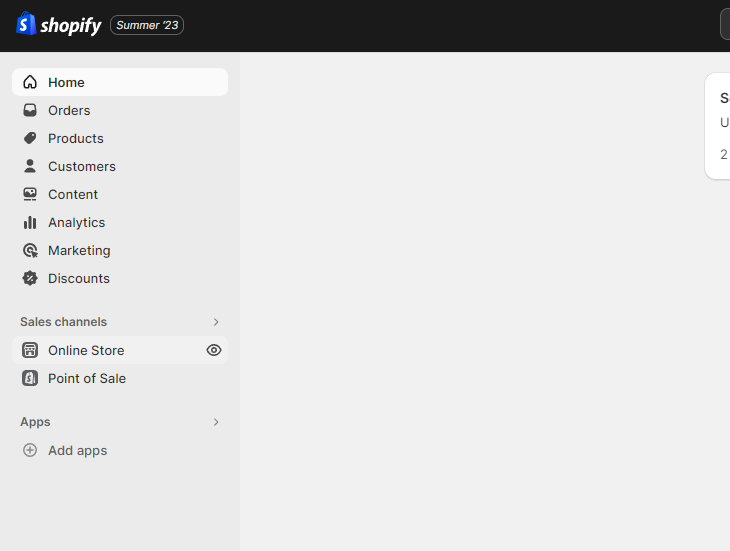
Access your Shopify account and navigate to the “Online Store” section. From there, select “Themes”.
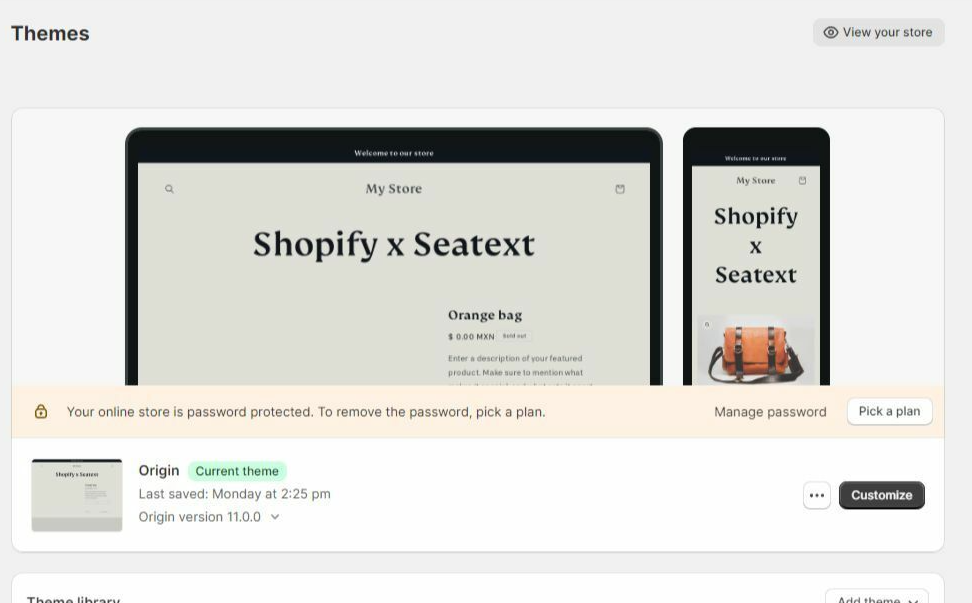
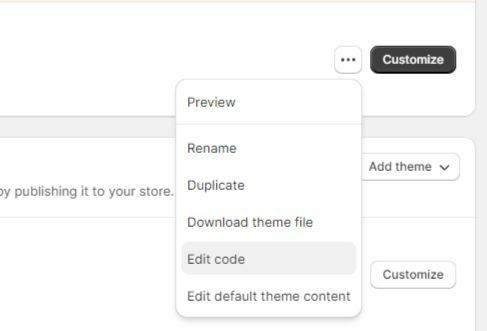
Within the Themes section, locate the theme you wish to translate. Click on the three dots icon located next to the desired theme and select “Edit code”.
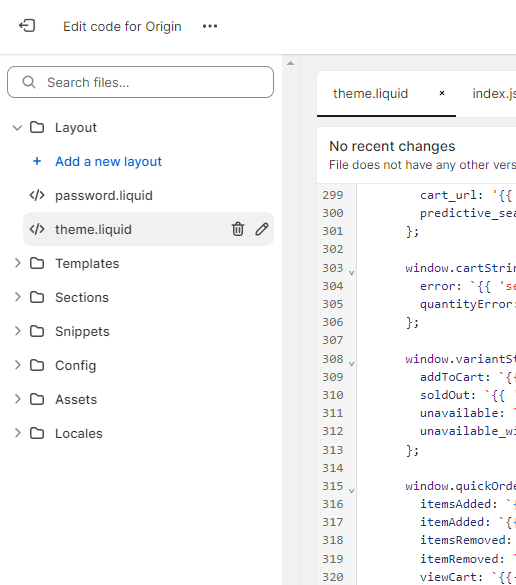
On the Edit Code page, you will be presented with a list of files on the left side of the screen. Navigate to the “Layout” folder and locate the file named “theme.liquid”.
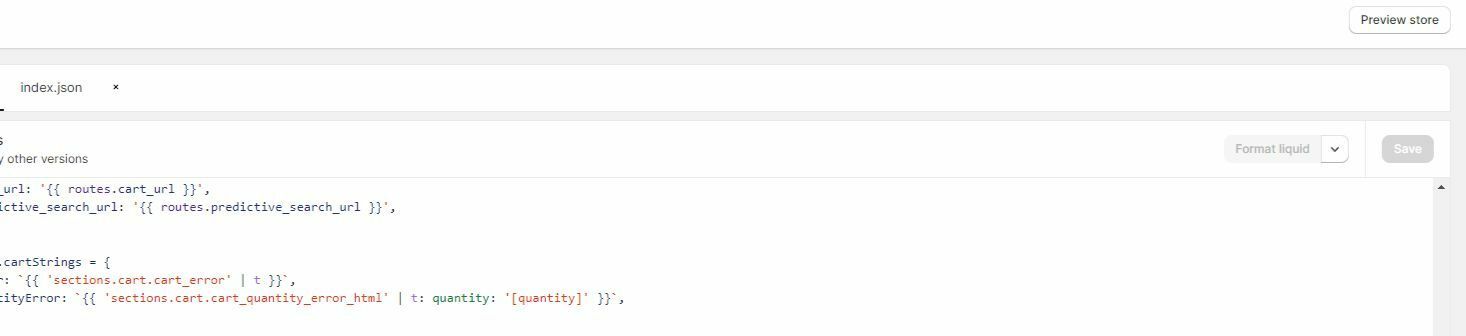
Within the theme.liquid file, scroll down to the bottom of the code. Here, you will find the closing </body> tag. Paste the JavaScript code snippet provided by SEATEXT AI directly above the closing </body> tag.


Once the code snippet has been successfully pasted, click on the “Save” button to preserve your changes.
Meerdere domeinen: als u SEATEXT AI op meerdere domeinen wilt gebruiken (bijv. een ontwikkel‑ en een productiedomein), moet u voor elk domein een apart account aanmaken. Elk SEATEXT AI‑account is gekoppeld aan één primaire URL. Ontwikkel‑URL’s zoals localhost zijn om veiligheidsredenen geblokkeerd; gebruik een geldig, echt domein. Dynamische ontwikkel‑domeinen werken mogelijk niet goed, omdat SEATEXT AI het verkeer niet betrouwbaar kan koppelen aan uw account. SEATEXT AI op meerdere websites: maak voor elke website een eigen account aan.
Belangrijk: bezoek of vernieuw uw website meerdere keren en blijf minimaal 40 seconden op de pagina – dit activeert de AI en koppelt deze aan uw account.
Belangrijk: wacht minimaal vijf minuten tot de naam van uw website naast het SEATEXT‑logo bovenaan deze pagina verschijnt. Dit betekent dat uw site is gekoppeld en klaar voor de volgende stap. Als u dit na tien minuten nog niet ziet, neem dan direct contact op met ons supportteam. Dit kan duiden op een probleem tijdens de installatie op uw platform; wij staan klaar om u te helpen.
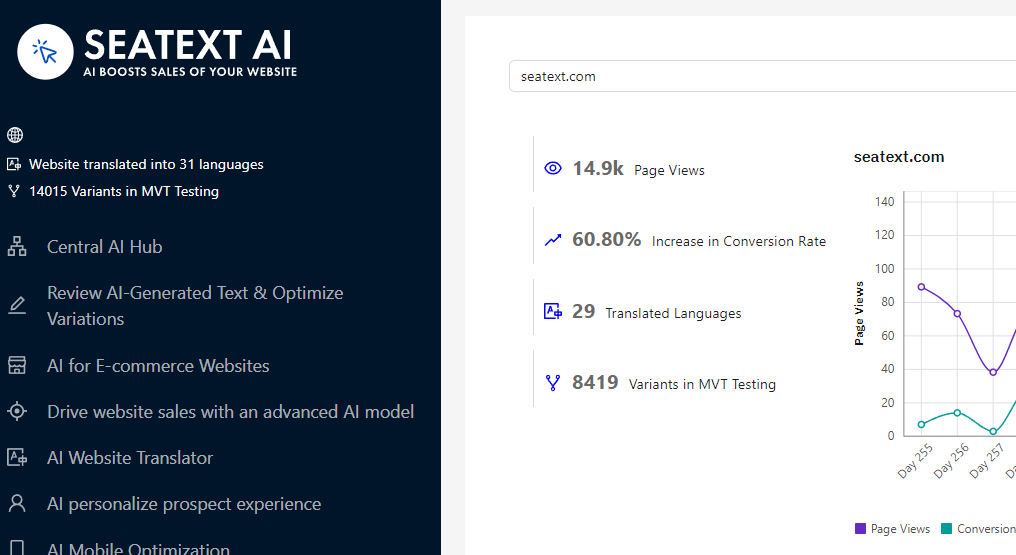
AI activeren Ga naar de Main AI Hub om de benodigde AI op jouw gewenste pagina's te activeren. Klik op "Configuratie" om de AI-parameters aan te passen. Optioneel bewerken: SEATEXT AI voorziet in een eerste reeks automatische vertalingen en varianten om te testen. Log in op je SEATEXT AI-account, ga naar "Varianten bewerken" in het linkerpaneel en selecteer de URL en taal die je wilt bewerken. Hier kun je vertalingen voor je varianten bekijken, aanmaken of handmatig bewerken.
Implement the seatextonly Tag in Your Product Descriptions To optimize your product descriptions effectively, please follow these steps: Step 1: Access Your Shopify Theme Code Log in to your Shopify admin and navigate to Online Store > Themes . Click on Actions > Edit Code for your active theme. Step 2: Locate the Product Template Identify the file that renders the product description (typically named product.liquid or located within product-template.liquid ). Step 3: Wrap the Product Description Find the product description output code, which usually appears as:
{{ product.description }}
Modify this code to wrap it in a <div> with the data-seatextonly attribute as follows:
<div data-seatextonly> {{ product.description | raw }} </div>
Step 4: Test Your Changes Save your changes and preview a product page to ensure the description is displayed correctly. Verify that the data-seatextonly attribute is present in the HTML source (you can inspect this using your browser’s developer tools). For additional details, please refer to our documentation here: https://seatext.com/documentation-ai-scope
