Integração com Odoo
Install Seatext on your website by following the instructions below. The installation process is secure, and the AI remains inert until activated, ensuring the integrity of your website's content. Before you can install the script, you need a SEATEXT AI account. If you don't have an account yet, you can create one HERE
Integração com Odoo
Integração passo a passo
Copie o código Javascript do SEATEXT AI que aparece nesta seção abaixo.
SEATEXTCODEINTEGRATION
Faça login na sua conta Odoo e acesse o módulo "Website" a partir do painel. Dentro do módulo Website, navegue até a página que deseja editar e clique no botão "Editar" para abrir o painel de edição. No painel de edição, role pelo painel "Blocos" até chegar à seção "Conteúdo Dinâmico".
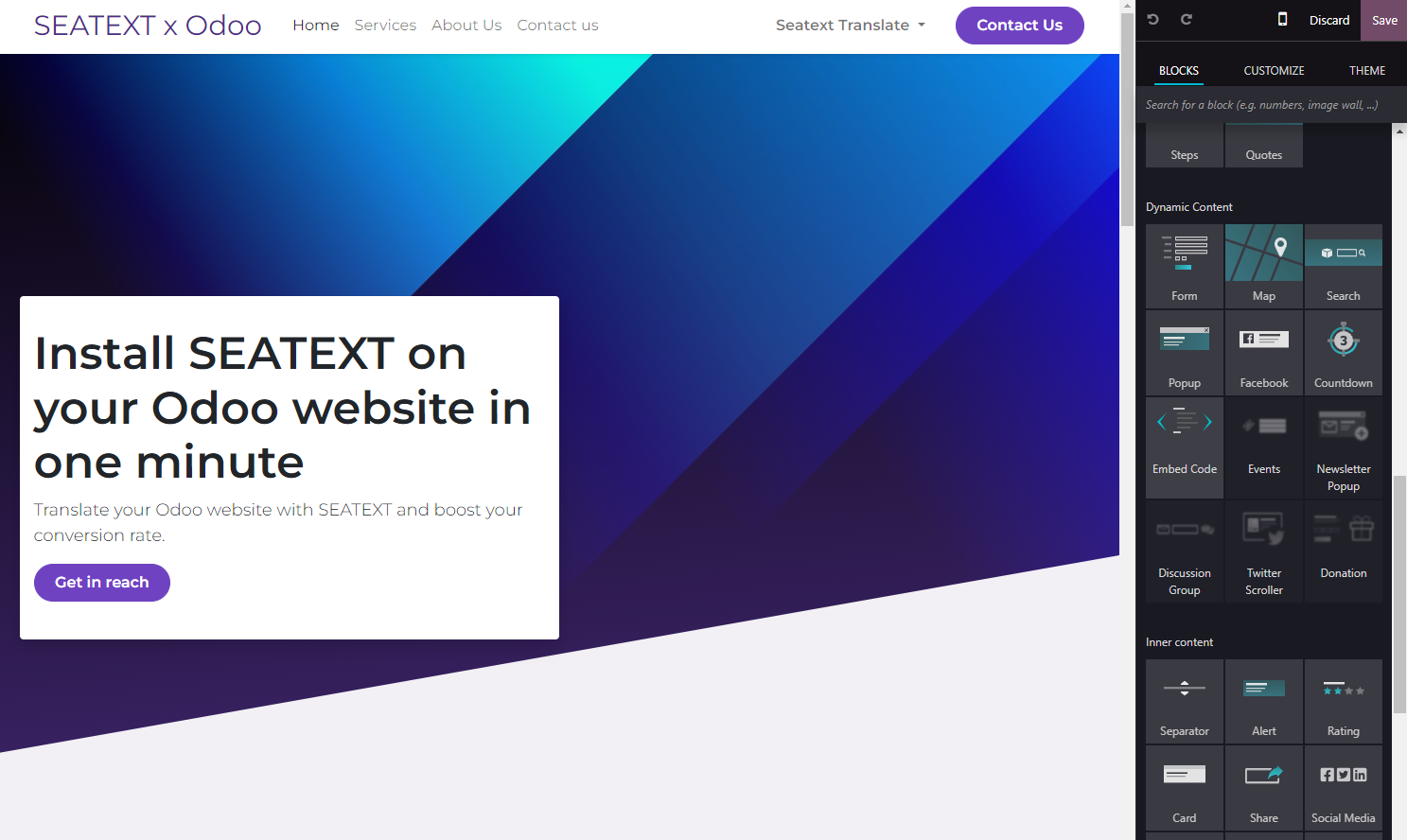
Localize o módulo "Incorporar Código" na seção "Conteúdo Dinâmico" e arraste-o para o local desejado no editor do seu site.
Agora você instalou o SEATEXT AI com sucesso no seu site usando JavaScript.
Step 4: Once the module is placed, click on the "Edit" button located in the right panel to input the code.
Step 5: In the pop-up window that appears, paste the code snippet provided by SEATEXT AI into the designated area, then click "Save" to apply the changes.
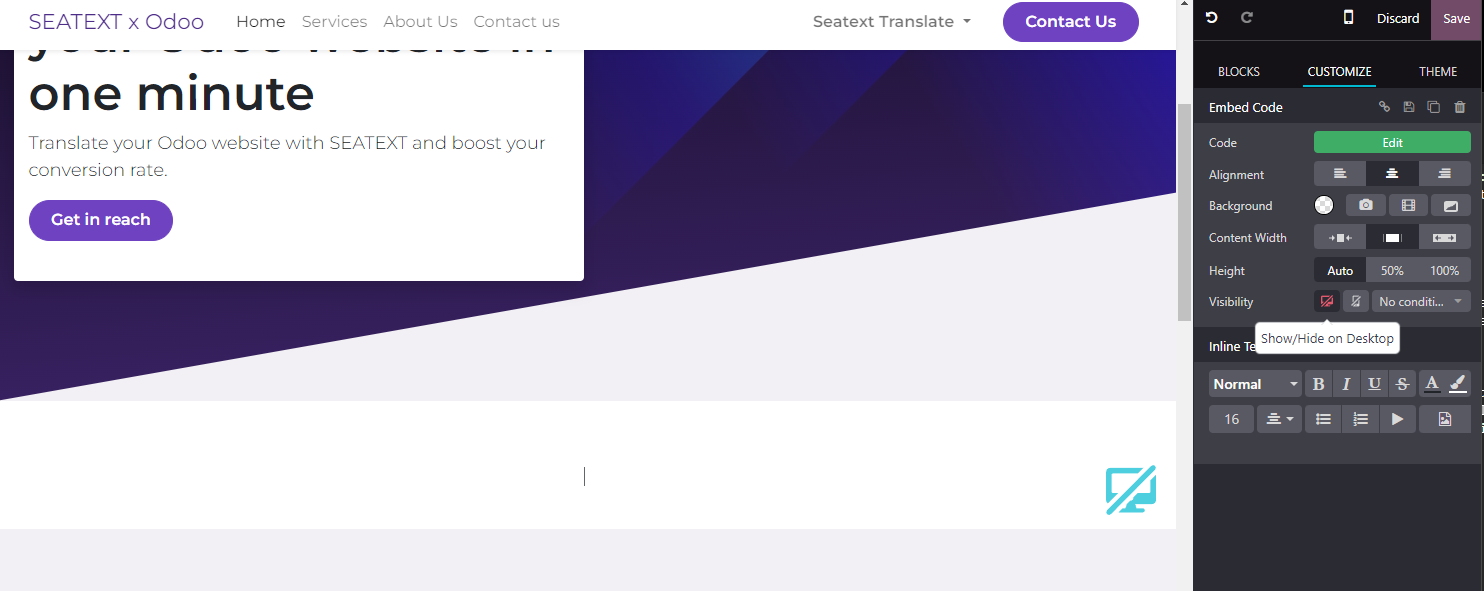
Step 6: To ensure the block is hidden from view on desktop devices, select the "Hide on Desktop" option in the "Visibility" section. After making this adjustment, click on "Save" once more to finalize your changes.
Agora você instalou o SEATEXT AI com sucesso no seu site usando JavaScript.
Step 6: To ensure the block is hidden from view on desktop devices, select the "Hide on Desktop" option in the "Visibility" section. After making this adjustment, click on "Save" once more to finalize your changes.
Step 5: In the pop-up window that appears, paste the code snippet provided by SEATEXT AI into the designated area, then click "Save" to apply the changes.
Step 4: Once the module is placed, click on the "Edit" button located in the right panel to input the code.
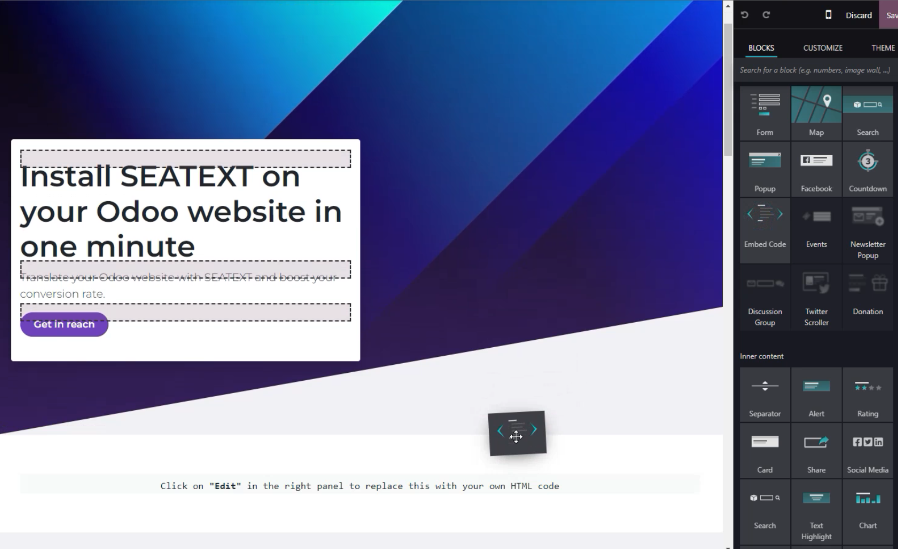
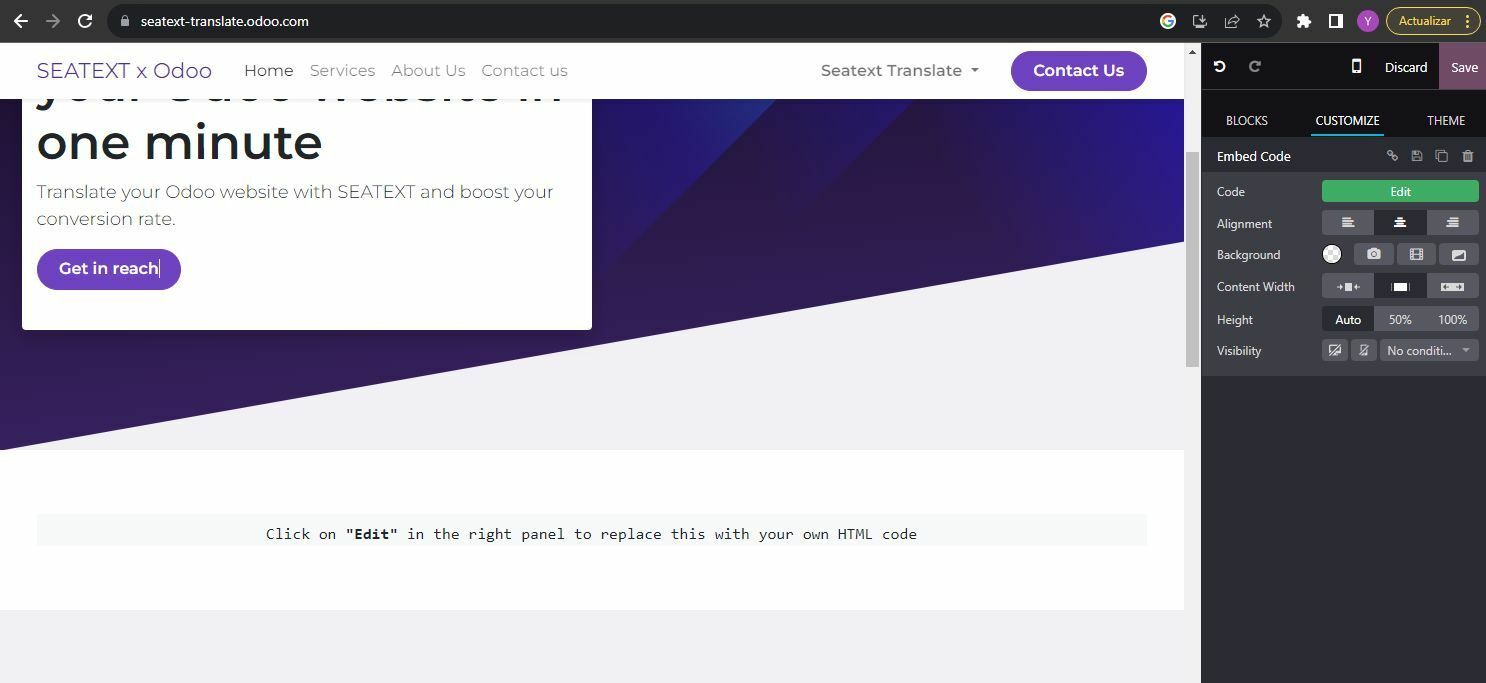
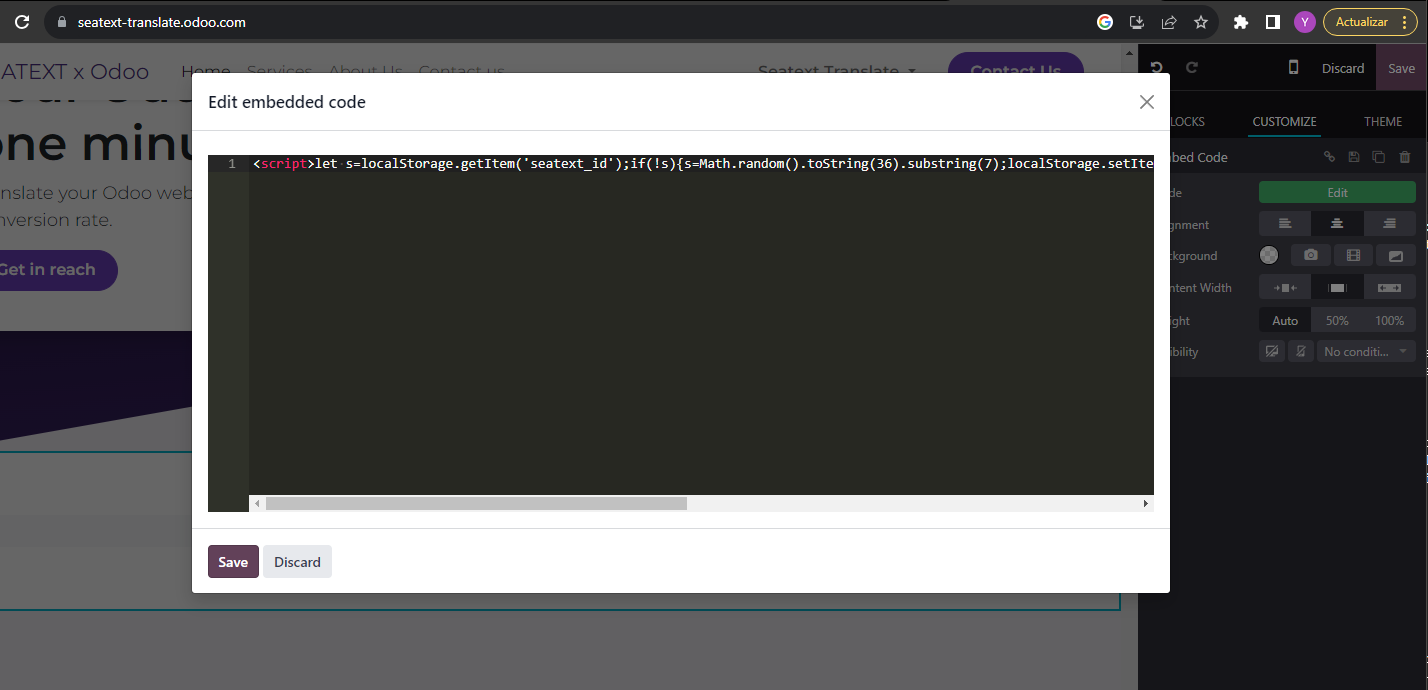
Assim que o módulo for posicionado, clique no botão "Editar" localizado no painel direito para inserir o código.
Na janela pop-up que aparece, cole o trecho de código fornecido pelo SEATEXT AI na área designada e clique em "Salvar" para aplicar as alterações.
Para garantir que o bloco fique oculto na visualização em dispositivos desktop, selecione a opção "Ocultar no Desktop" na seção "Visibilidade". Após fazer esse ajuste, clique em "Salvar" mais uma vez para finalizar suas alterações.
Multiple Domains If you need to use SEATEXT AI on multiple domains (e.g., a development domain and a production domain), you must create separate accounts for each domain. Each SEATEXT AI account is linked to a single primary URL. Restrictions and Security Development URLs, such as localhost, are restricted for security reasons. Ensure you use a valid, real domain for these cases. Dynamic development domains may not function properly, as SEATEXT AI might be unable to reliably associate traffic with your account. Using SEATEXT AI on Multiple Websites To use SEATEXT AI on several websites, create one account for each website.
Important: Visit or refresh your website several times and stay on your page for at least 40 seconds—this will activate the AI and link it to your account.
Important: Wait at least five minutes until you see your website name displayed next to the SEATEXT logo at the top of this page. This indicates that your website is connected and ready to proceed to the next step. If you do not see it at the top of the page after 10 minutes, please contact our support team immediately. This could indicate an issue during the installation on your platform, and you may need our assistance.
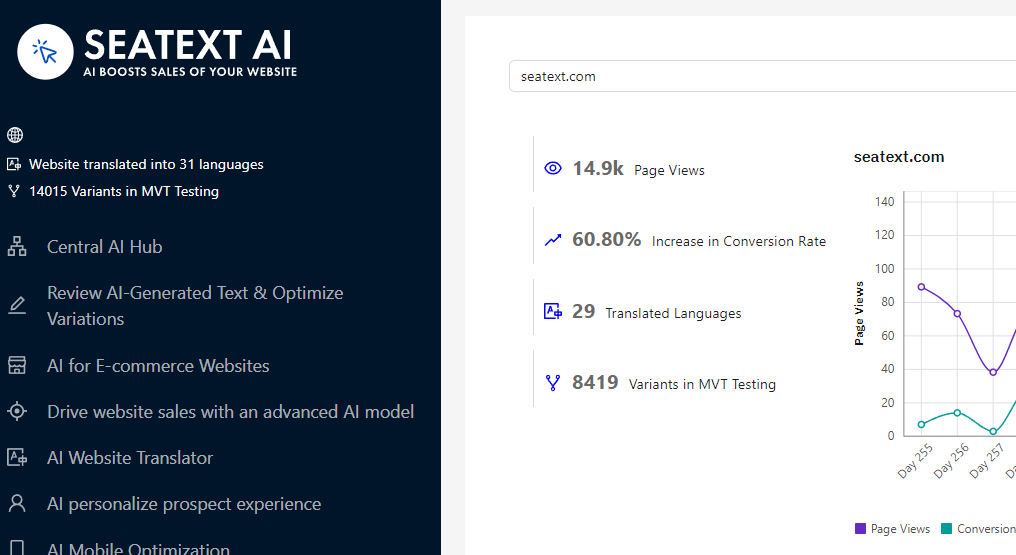
Activating AI Proceed to the Main AI Hub to activate the necessary AI on your preferred pages. Click on "Configuration" to adjust the AI parameters. Optional Editing: SEATEXT AI provides your initial round of automatic translations and variants for testing. Log in to your SEATEXT AI account, navigate to "Variants Edit" in the left panel, and select the URL and language you wish to edit. Here, you can review, create, or manually edit translations for your variants.