Integração com o Simplero
Integração com o Simplero
Integração com o Simplero
Passo 1: Copie o código JavaScript fornecido pela SEATEXT AI, disponível na seção abaixo.
Integração passo a passo
1
Passo 1: Copie o código JavaScript fornecido pela SEATEXT AI, disponível na seção abaixo.
Integração passo a passo
1
SEATEXTCODEINTEGRATION
1) Acesse sua conta Simplero. 2) Selecione seu site: 3) Vá para a seção "Espaços" se estiver a trabalhar com assinaturas ou selecione a área específica (como Páginas de Destino, Produtos ou Cursos) onde deseja adicionar o JavaScript. 4) Edite as configurações da página ou do site: 5) Para uma página específica, procure uma opção para editar as configurações da página onde pode adicionar scripts personalizados. 6) Para JavaScript em todo o site, pode ser necessário aceder às configurações ou opções de personalização do tema. Isso geralmente envolve editar as configurações de HTML/CSS ou encontrar uma seção "Scripts". 7) Insira o código JavaScript (pode obtê-lo clicando em outras plataformas na página de instalação do Seatext). Se estiver num editor de páginas, pode haver um widget HTML ou um bloco de código personalizado onde pode colar o seu código JavaScript. Para scripts em todo o site, procure uma seção chamada "Scripts de cabeçalho" ou "Scripts de rodapé" nas configurações do site. Essas seções são normalmente usadas para adicionar código que deseja executar em todas as páginas. Cole o seu código JavaScript na caixa apropriada — de preferência, logo antes da tag
Saiba mais aqui
Aceda ao seu painel do Simplero:
1) Log into your Simplero account. 2) Select Your Site: 3) Go to the “Spaces” section if you’re working with memberships or select the specific area (like Landing Pages, Products, or Courses) where you want to add the JavaScript. 4) Edit Page or Site Settings: 5) For a specific page, look for an option to edit the page’s settings where you can add custom scripts. 6) For site-wide JavaScript, you might need to access the settings or theme customization options. This often involves editing the HTML/CSS settings or finding a “Scripts” section. 7) Insert JavaScript Code (you can get it clicking on other platforms on Seatext installation page)) If you're on a page editor, there might be an HTML widget or a custom code block where you can paste your JavaScript code. For site-wide scripts, look for a section labeled something like "Header scripts" or "Footer scripts" in your site settings. These sections are typically used to add code that you want to run on every page. Paste your JavaScript code into the appropriate box- better right before </head>tag
Aceda ao seu painel do Simplero:
Saiba mais aqui
Vincular a SEATEXT AI ao seu site
2
Vincular a SEATEXT AI ao seu site
2
a. Use the form below to add your website address in the format (www.example.com). SEATEXTURLPUSH
c. Aguarde pelo menos cinco minutos até ver o nome do seu site exibido ao lado do logotipo SEATEXT no topo desta página. Isso indica que o seu site está conectado e pronto para avançar para o próximo passo. Se não o vir no topo da página após 10 minutos, entre em contacto com a nossa equipa de suporte imediatamente. Isso pode indicar um problema durante a instalação na sua plataforma e pode precisar da nossa assistência.
IMPORTANTE b. Visite o seu site uma vez e permaneça na página por pelo menos 40 segundos — isso ativará a IA e a vinculará à sua conta.
a. Use the form below to add your website address in the format (www.example.com). SEATEXTURLPUSH
IMPORTANTE b. Visite o seu site uma vez e permaneça na página por pelo menos 40 segundos — isso ativará a IA e a vinculará à sua conta.
c. Aguarde pelo menos cinco minutos até ver o nome do seu site exibido ao lado do logotipo SEATEXT no topo desta página. Isso indica que o seu site está conectado e pronto para avançar para o próximo passo. Se não o vir no topo da página após 10 minutos, entre em contacto com a nossa equipa de suporte imediatamente. Isso pode indicar um problema durante a instalação na sua plataforma e pode precisar da nossa assistência.

Ativar a IA
3
Ativar a IA
3
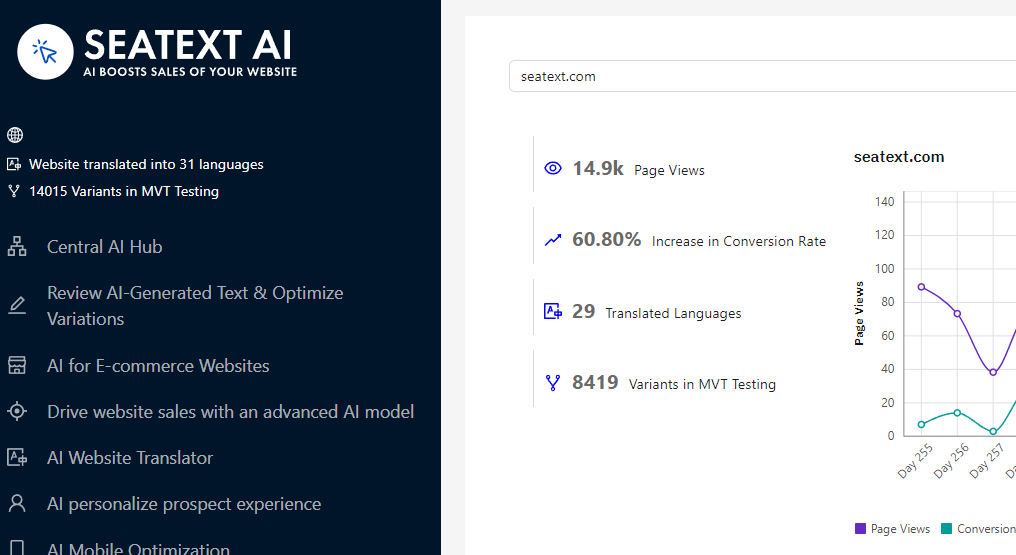
Aceda ao Hub Principal de IA para ativar a IA necessária nas suas páginas preferidas. Clique em "Configuração" para ajustar os parâmetros da IA. Edição Opcional: A SEATEXT AI fornece a sua primeira ronda de traduções automáticas e variantes para teste. Faça login na sua conta SEATEXT AI, navegue até "Editar Variantes" no painel esquerdo e selecione o URL e o idioma que deseja editar. Aqui, pode rever, criar ou editar manualmente as traduções das suas variantes.
Aceda ao Hub Principal de IA para ativar a IA necessária nas suas páginas preferidas. Clique em "Configuração" para ajustar os parâmetros da IA. Edição Opcional: A SEATEXT AI fornece a sua primeira ronda de traduções automáticas e variantes para teste. Faça login na sua conta SEATEXT AI, navegue até "Editar Variantes" no painel esquerdo e selecione o URL e o idioma que deseja editar. Aqui, pode rever, criar ou editar manualmente as traduções das suas variantes.