Интеграция Simplero
Интеграция Simplero
Интеграция Simplero
Step 1: Copy the JavaScript code provided by SEATEXT AI, which can be found in the section below.
Пошаговая интеграция
1
Step 1: Copy the JavaScript code provided by SEATEXT AI, which can be found in the section below.
Пошаговая интеграция
1
SEATEXTCODEINTEGRATION
1) Log into your Simplero account. 2) Select Your Site: 3) Go to the “Spaces” section if you’re working with memberships or select the specific area (like Landing Pages, Products, or Courses) where you want to add the JavaScript. 4) Edit Page or Site Settings: 5) For a specific page, look for an option to edit the page’s settings where you can add custom scripts. 6) For site-wide JavaScript, you might need to access the settings or theme customization options. This often involves editing the HTML/CSS settings or finding a “Scripts” section. 7) Insert JavaScript Code (you can get it clicking on other platforms on Seatext installation page)) If you're on a page editor, there might be an HTML widget or a custom code block where you can paste your JavaScript code. For site-wide scripts, look for a section labeled something like "Header scripts" or "Footer scripts" in your site settings. These sections are typically used to add code that you want to run on every page. Paste your JavaScript code into the appropriate box- better right before tag
Learn more here
Доступ к панели управления Simplero:
1) Log into your Simplero account. 2) Select Your Site: 3) Go to the “Spaces” section if you’re working with memberships or select the specific area (like Landing Pages, Products, or Courses) where you want to add the JavaScript. 4) Edit Page or Site Settings: 5) For a specific page, look for an option to edit the page’s settings where you can add custom scripts. 6) For site-wide JavaScript, you might need to access the settings or theme customization options. This often involves editing the HTML/CSS settings or finding a “Scripts” section. 7) Insert JavaScript Code (you can get it clicking on other platforms on Seatext installation page)) If you're on a page editor, there might be an HTML widget or a custom code block where you can paste your JavaScript code. For site-wide scripts, look for a section labeled something like "Header scripts" or "Footer scripts" in your site settings. These sections are typically used to add code that you want to run on every page. Paste your JavaScript code into the appropriate box- better right before </head>tag
Доступ к панели управления Simplero:
Learn more here
Подключение SEATEXT AI к вашему сайту
2
Подключение SEATEXT AI к вашему сайту
2
a. Use the form below to add your website address in the format (www.example.com). SEATEXTURLPUSH
c. Подождите не менее пяти минут, пока вы не увидите название вашего сайта рядом с логотипом SEATEXT в верхней части этой страницы. Это указывает на то, что ваш сайт подключен и готов к переходу к следующему шагу. Если вы не видите его в верхней части страницы через 10 минут, немедленно обратитесь в нашу службу поддержки. Это может указывать на проблему во время установки на вашей платформе, и вам может потребоваться наша помощь.
IMPORTANT b. Visit your website once and stay on your page for at least 40 seconds—this will activate the AI and link it to your account.
a. Use the form below to add your website address in the format (www.example.com). SEATEXTURLPUSH
IMPORTANT b. Visit your website once and stay on your page for at least 40 seconds—this will activate the AI and link it to your account.
c. Подождите не менее пяти минут, пока вы не увидите название вашего сайта рядом с логотипом SEATEXT в верхней части этой страницы. Это указывает на то, что ваш сайт подключен и готов к переходу к следующему шагу. Если вы не видите его в верхней части страницы через 10 минут, немедленно обратитесь в нашу службу поддержки. Это может указывать на проблему во время установки на вашей платформе, и вам может потребоваться наша помощь.

Активация AI
3
Активация AI
3
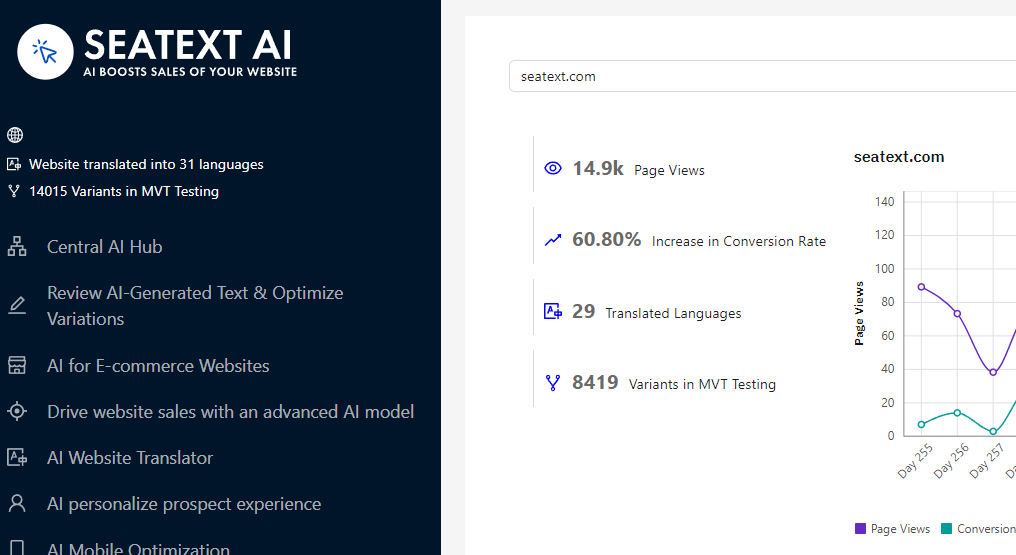
Proceed to the Main AI Hub to activate the necessary AI on your preferred pages. Click on "Configuration" to adjust the AI parameters. Optional Editing: SEATEXT AI provides your initial round of automatic translations and variants for testing. Log in to your SEATEXT AI account, navigate to "Variants Edit" in the left panel, and select the URL and language you wish to edit. Here, you can review, create, or manually edit translations for your variants.
Proceed to the Main AI Hub to activate the necessary AI on your preferred pages. Click on "Configuration" to adjust the AI parameters. Optional Editing: SEATEXT AI provides your initial round of automatic translations and variants for testing. Log in to your SEATEXT AI account, navigate to "Variants Edit" in the left panel, and select the URL and language you wish to edit. Here, you can review, create, or manually edit translations for your variants.