Odoo Integration
Seatext සටත අදහස පරකක අශයක අශය පළනද කළය නවඩය පනවමට නසයමක ඇතය.
Odoo Integration
දවන නසයමක ඇත
SEATEXTCODEINTEGRATION
SEATEXTCODEINTEGRATION
Log in to your Odoo account and access the “Website” module from the dashboard. Within the Website module, navigate to the page you wish to edit and click on the "Edit" button to open the editing panel. In the editing panel, scroll through the "Blocks" panel until you reach the "Dynamic Content" section.
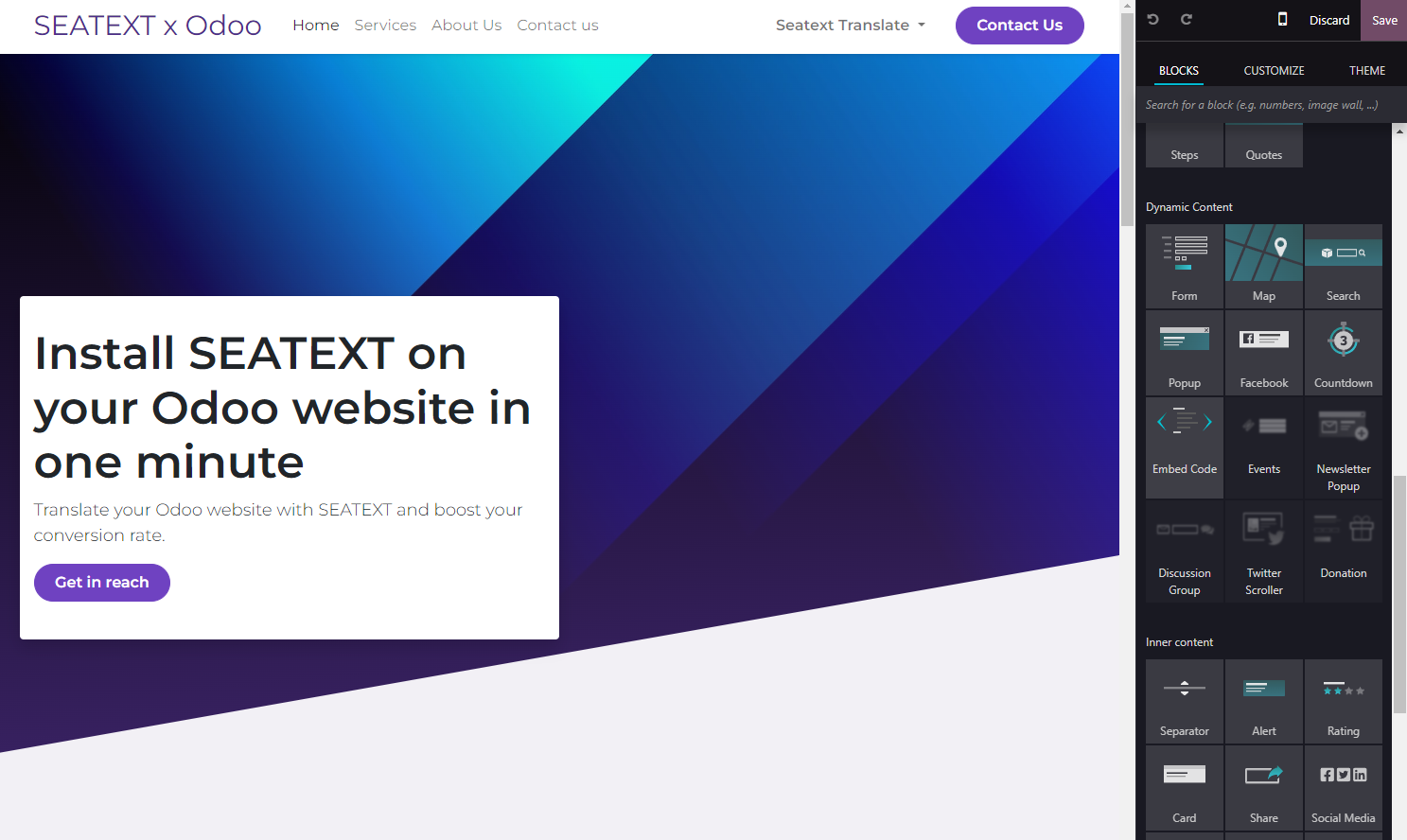
Locate the "Embed Code" module within the "Dynamic Content" section and drag it into the desired location on your website editor.
You have now successfully installed SEATEXT AI on your website using JavaScript.
Step 4: Once the module is placed, click on the "Edit" button located in the right panel to input the code.
Step 5: In the pop-up window that appears, paste the code snippet provided by SEATEXT AI into the designated area, then click "Save" to apply the changes.
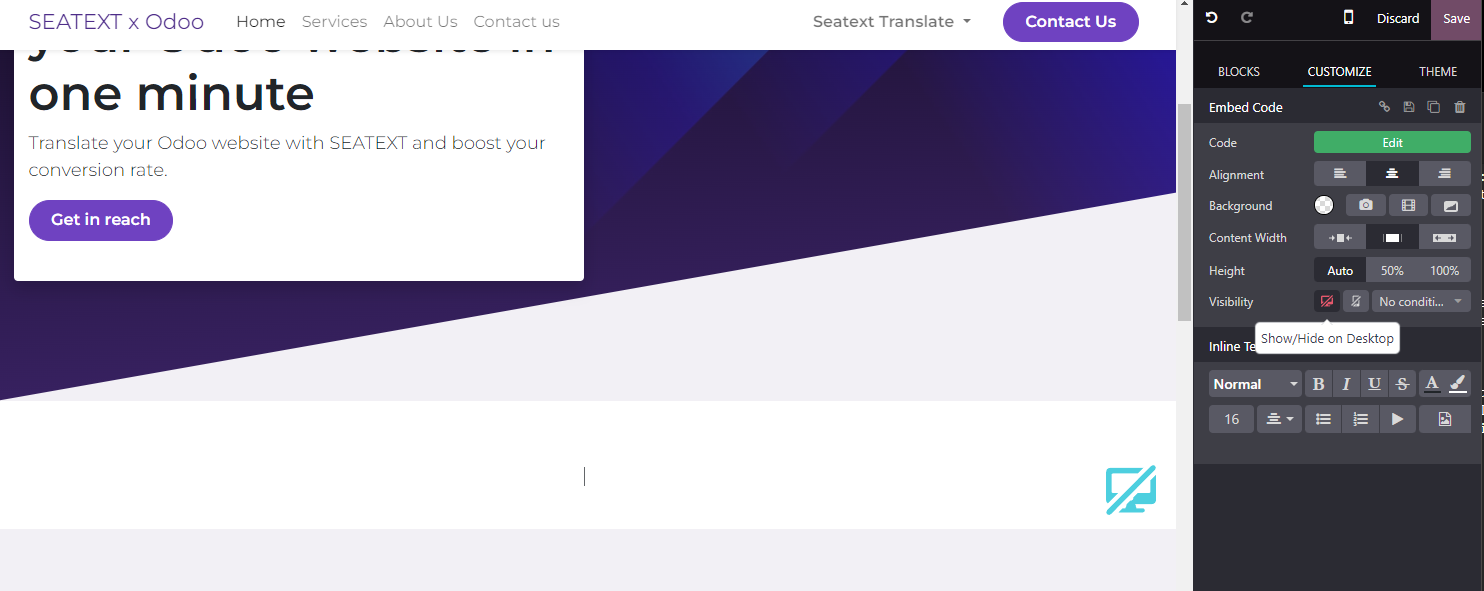
Step 6: To ensure the block is hidden from view on desktop devices, select the "Hide on Desktop" option in the "Visibility" section. After making this adjustment, click on "Save" once more to finalize your changes.
You have now successfully installed SEATEXT AI on your website using JavaScript.
Step 6: To ensure the block is hidden from view on desktop devices, select the "Hide on Desktop" option in the "Visibility" section. After making this adjustment, click on "Save" once more to finalize your changes.
Step 5: In the pop-up window that appears, paste the code snippet provided by SEATEXT AI into the designated area, then click "Save" to apply the changes.
Step 4: Once the module is placed, click on the "Edit" button located in the right panel to input the code.
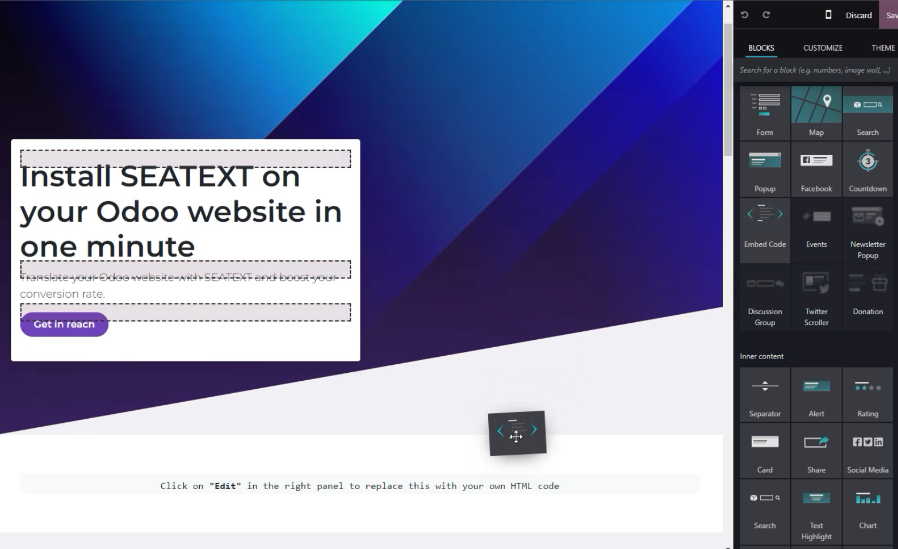
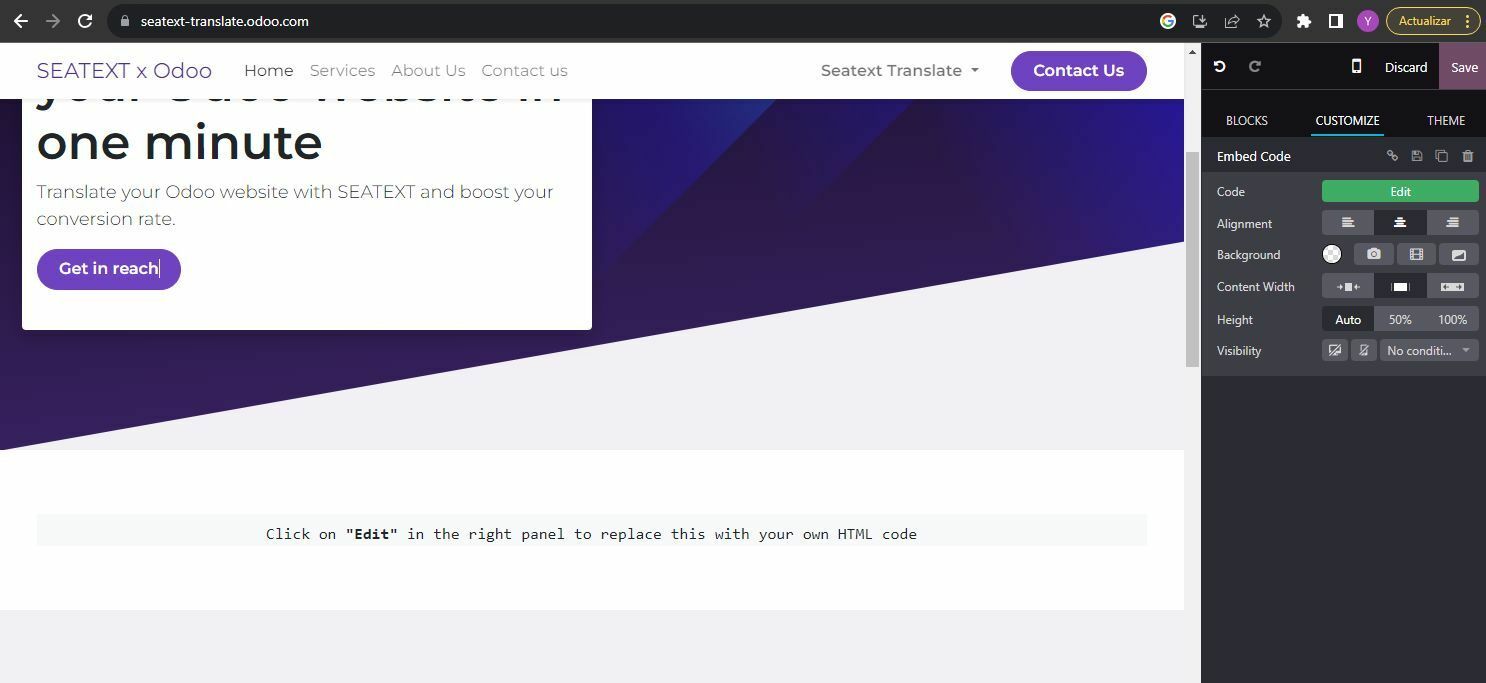
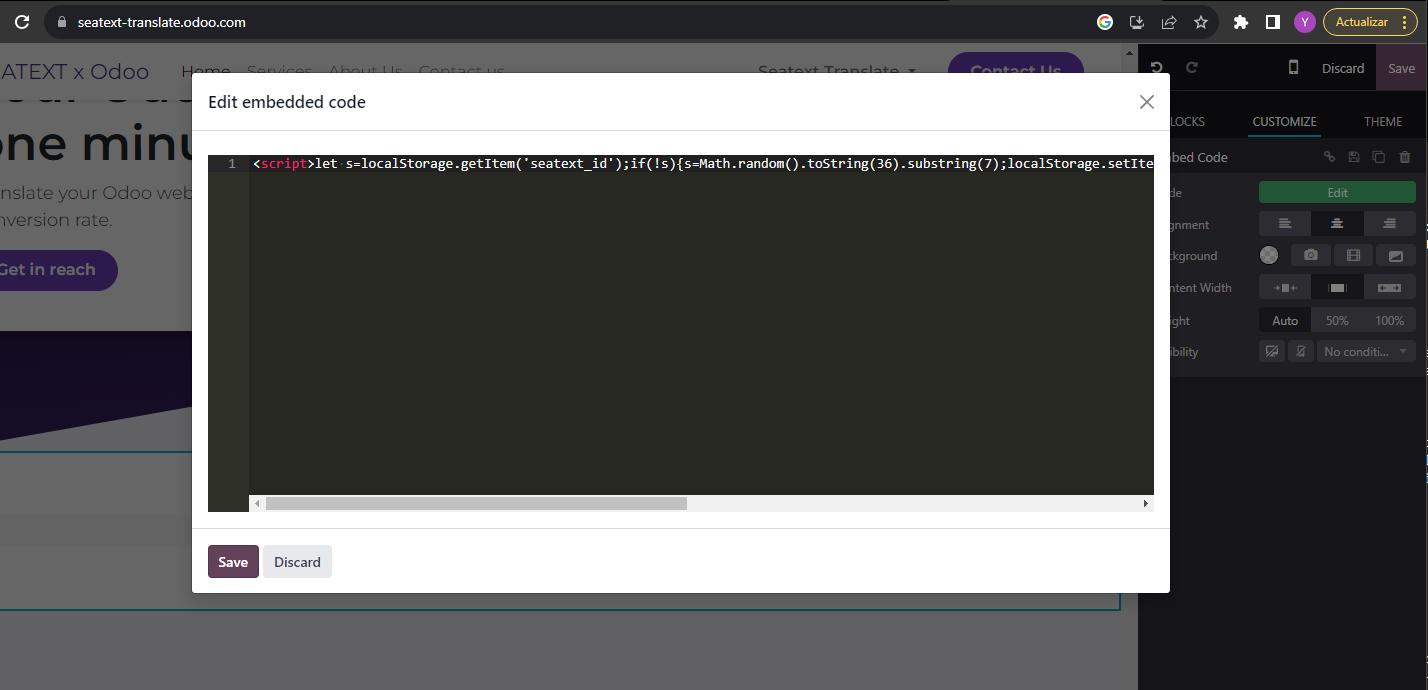
Once the module is placed, click on the "Edit" button located in the right panel to input the code.
In the pop-up window that appears, paste the code snippet provided by SEATEXT AI into the designated area, then click "Save" to apply the changes.
To ensure the block is hidden from view on desktop devices, select the "Hide on Desktop" option in the "Visibility" section. After making this adjustment, click on "Save" once more to finalize your changes.
බහ ඩමන අවශයයක නම: පරකෂණ හ නෂපදන ඩමන වන බහ ඩමනවල SEATEXT AI භවත කරමට පරතයක ඩමනයක සඳහ වනව ගණම හඳනන. පරතයක SEATEXT AI ගණමක පරධන URL එකක සමඟ සමබනධ ව. සමවන හ ආරකෂව: සරකෂ හතවනනන සවරධන URL වශයන localhost වන දශය URL වළකව ඇත. වදගත හ සබ ඩමන භවත කරනන. ගතක සවරධන ඩමන සරථකව කරයතමක නව හක අතර, SEATEXT AI ඔබ ගණම සමඟ පරවහනය සලකය යත ලස සමබනධ කරමට අශකම වය හක. බහ වබ අඩවවල SEATEXT AI භවත කරමට: වබ අඩවයක සඳහ ගණමක හඳනන.
වදගත: ඔබ වබ අඩවය වරක වර සරසම/නවත ලඩ කරම කර අවම වනඩ 40ක සටනන — මය AI කරයතමක කර ඔබ ගණම සමඟ සමබනධ කරය.
වදගත: ඔබ වබ අඩව නම SEATEXT ලග සමඟ පටව ඉහළ දකණ පතත පනවමට වනඩ අවම මනතත පහක රඳ සටනන. මය වබ අඩවය සමබනධ ව අගමන කරමට සදනම බව පනවය. මනතත 10 පසවත එය නපනවණව නම, කරය කලනව අප සහය කණඩයම වත සමබනධ වනන. මය ඔබ වනනදයක පළබඳ සථපනය ගටළවක සඳහ පනව දය.
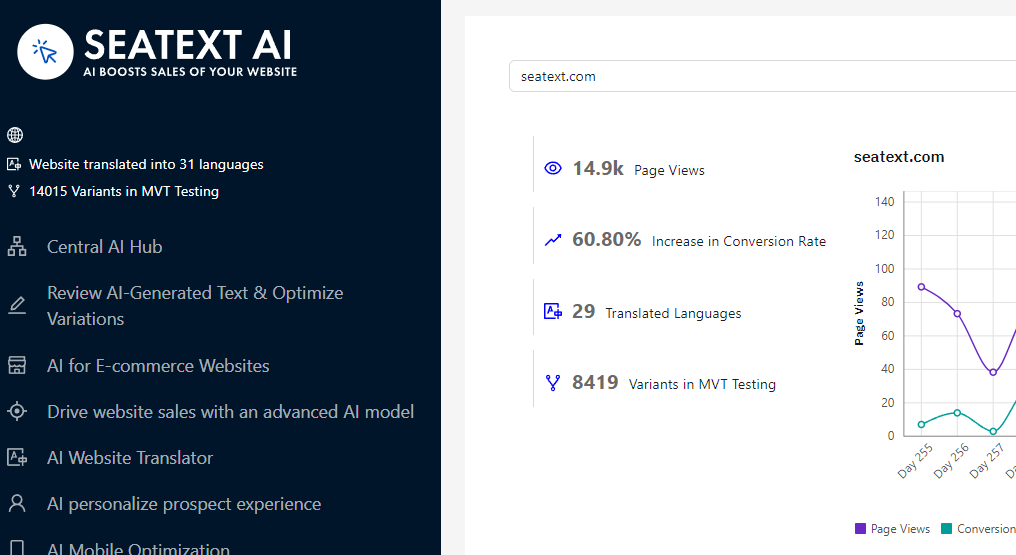
AI කරයතමක කරම: පරධන AI හබ යටත ඔබ කමත පටවල AI කරයතමක කරනන. “වනයසය” කලක කර AI පරමතන සකසනන. වකලප සසකරණය: SEATEXT AI පරරමභක සවයකරය පරවරතන හ වකලප සදහ පරකෂ සලසම සපයය. ඔබ SEATEXT AI ගණමට පවස, වම පනල “වකලප සසකරණය” යටත පමණ, සසකරණය කමත URL හ භෂව තරනන. මහද ඔබට පරවරතන පරකෂ කරමට, නව සදමට, හ පරවරතන සවය සසකරණය කරමට හකය.
