Zendesk integration
Zendesk-integration
Step 1: copy the JavaScript code provided by SEATEXT AI, which can be found in the section below.
Steg-för-steg-integration
1
Zendesk-integration
Step 1: copy the JavaScript code provided by SEATEXT AI, which can be found in the section below.
Steg-för-steg-integration
1
SEATEXTCODEINTEGRATION
Steg 2: Klistra in JavaScript-koden från Seatext på din webbplats
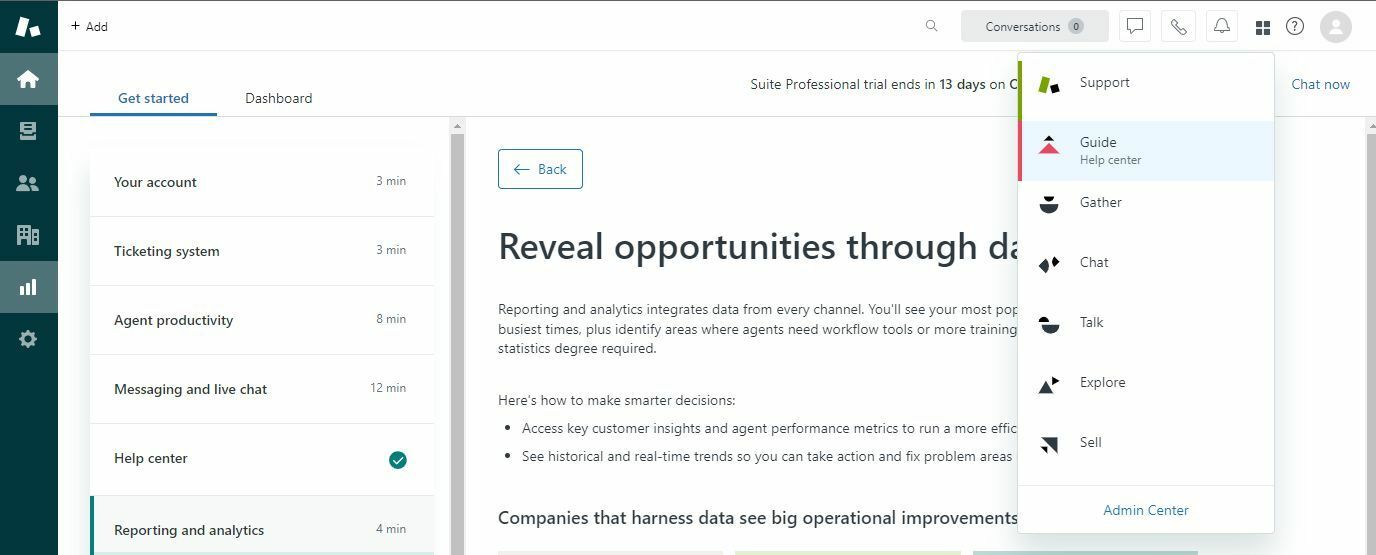
Access the "Guide" section of your Zendesk dashboard. In your Zendesk dashboard, locate and click on the four small square icon, then select "Guide" from the options provided.
Du har nu framgångsrikt installerat SEATEXT AI på din webbplats med hjälp av JavaScript.
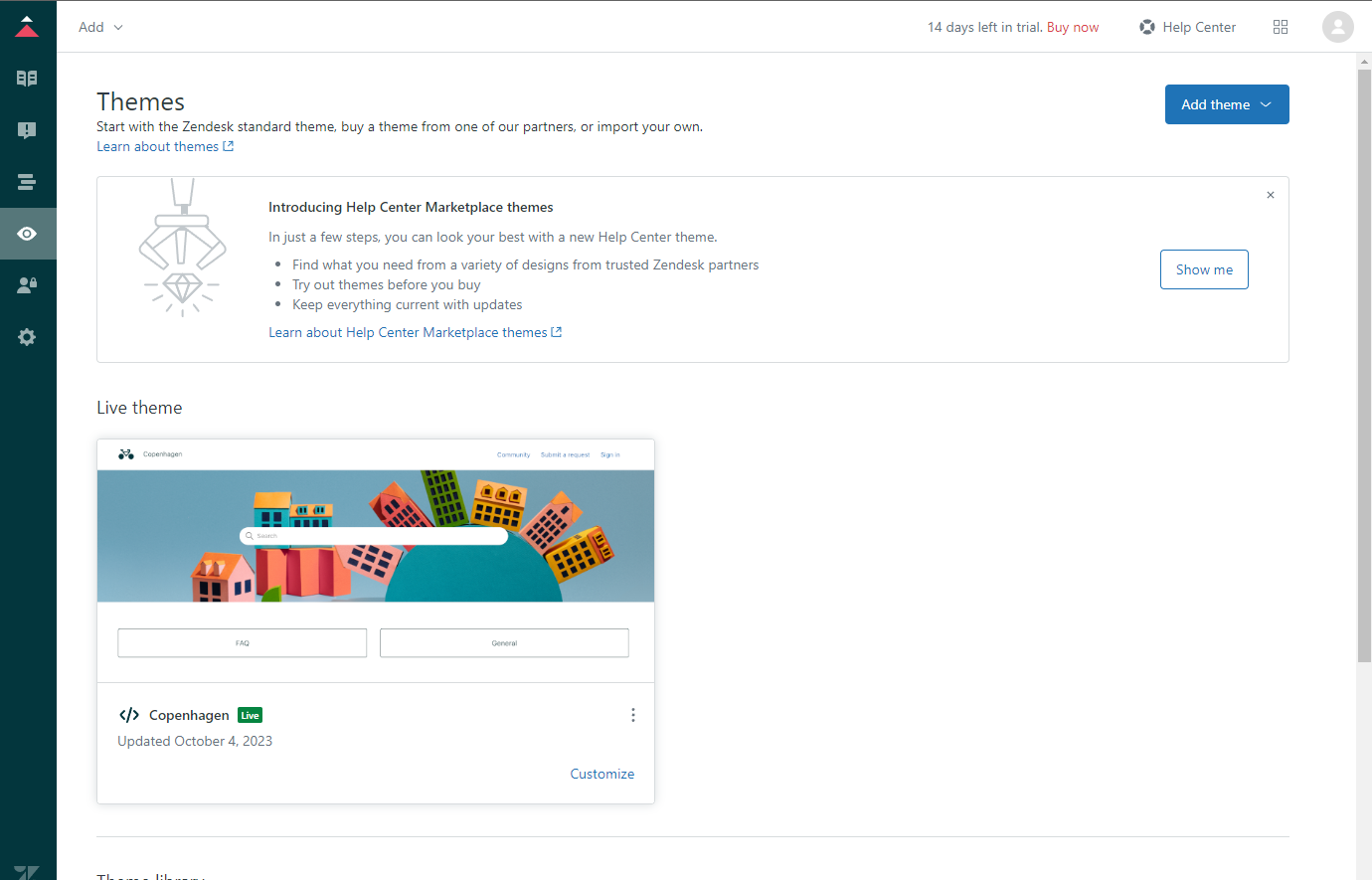
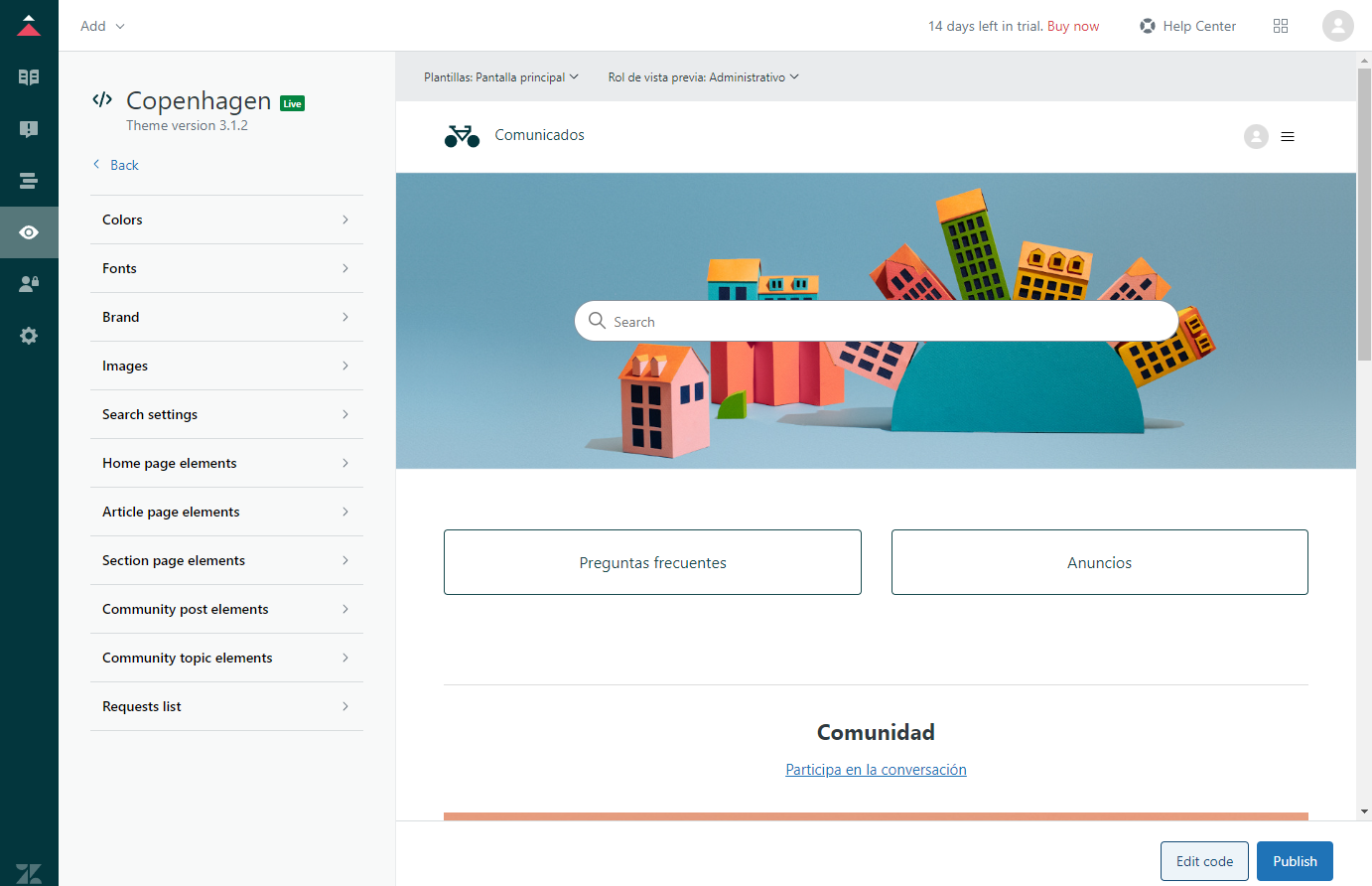
Navigate to the "Custom Design" tab. Click on the "Custom Design" button found in the sidebar, then select "Customize" to access the customization settings.
Välj "Redigera kod" från anpassningsalternativen.
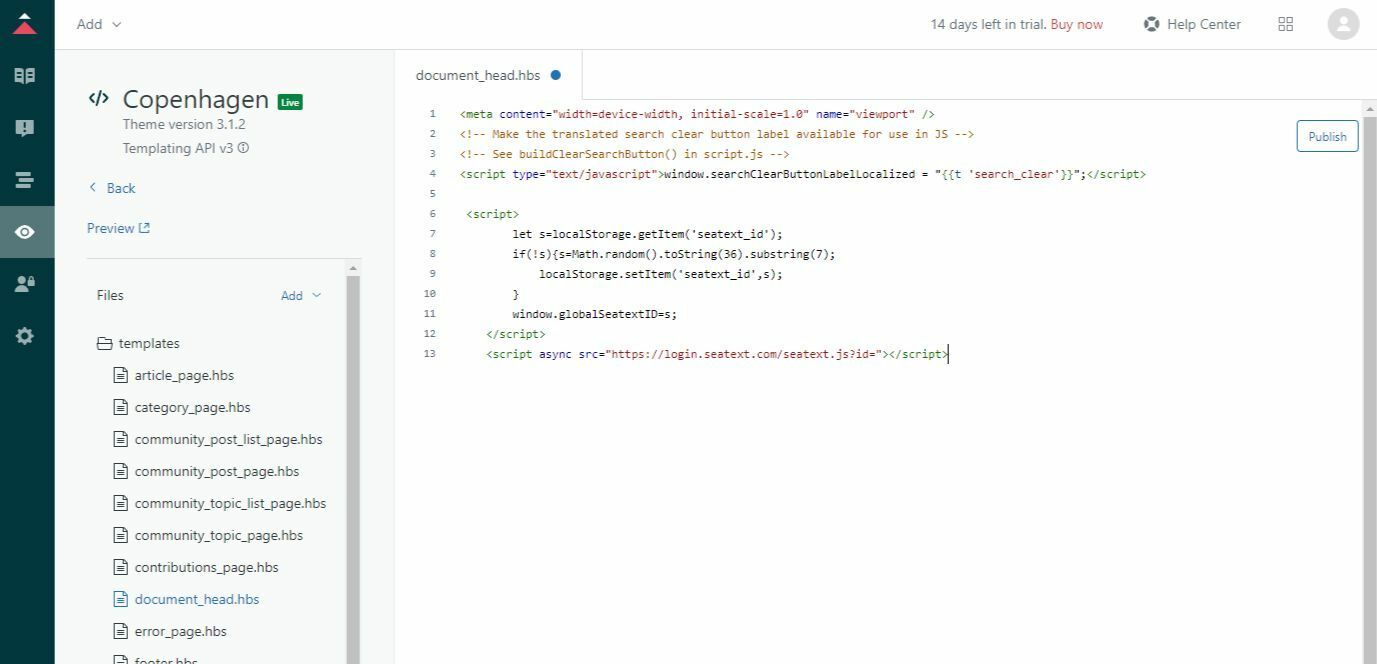
In the left panel, navigate to the Files section and select the "document_head.hbs" file. Paste the code snippet provided by SEATEXT AI into the designated field within the "document_head.hbs" file. Finally, click on "Publish" to apply the changes and integrate SEATEXT AI into your Zendesk platform.
Steg 2: Klistra in JavaScript-koden från Seatext på din webbplats
Access the "Guide" section of your Zendesk dashboard. In your Zendesk dashboard, locate and click on the four small square icon, then select "Guide" from the options provided.
Du har nu framgångsrikt installerat SEATEXT AI på din webbplats med hjälp av JavaScript.
Navigate to the "Custom Design" tab. Click on the "Custom Design" button found in the sidebar, then select "Customize" to access the customization settings.
Välj "Redigera kod" från anpassningsalternativen.
In the left panel, navigate to the Files section and select the "document_head.hbs" file. Paste the code snippet provided by SEATEXT AI into the designated field within the "document_head.hbs" file. Finally, click on "Publish" to apply the changes and integrate SEATEXT AI into your Zendesk platform.
Koppla SEATEXT AI till din webbplats
2
Koppla SEATEXT AI till din webbplats
2
a. Use the form below to add your website address in the format (www.example.com). SEATEXTURLPUSH
c. Vänta i minst fem minuter tills du ser ditt webbplatsnamn visas bredvid SEATEXT-logotypen högst upp på den här sidan. Detta indikerar att din webbplats är ansluten och redo att gå vidare till nästa steg. Om du inte ser det högst upp på sidan efter 10 minuter, kontakta vår supportteam omedelbart. Detta kan tyda på ett problem under installationen på din plattform, och du kan behöva vår hjälp.
IMPORTANT b. Visit your website once and stay on your page for at least 40 seconds—this will activate the AI and link it to your account.
a. Use the form below to add your website address in the format (www.example.com). SEATEXTURLPUSH
IMPORTANT b. Visit your website once and stay on your page for at least 40 seconds—this will activate the AI and link it to your account.
c. Vänta i minst fem minuter tills du ser ditt webbplatsnamn visas bredvid SEATEXT-logotypen högst upp på den här sidan. Detta indikerar att din webbplats är ansluten och redo att gå vidare till nästa steg. Om du inte ser det högst upp på sidan efter 10 minuter, kontakta vår supportteam omedelbart. Detta kan tyda på ett problem under installationen på din plattform, och du kan behöva vår hjälp.

Aktivera AI
3
Aktivera AI
3
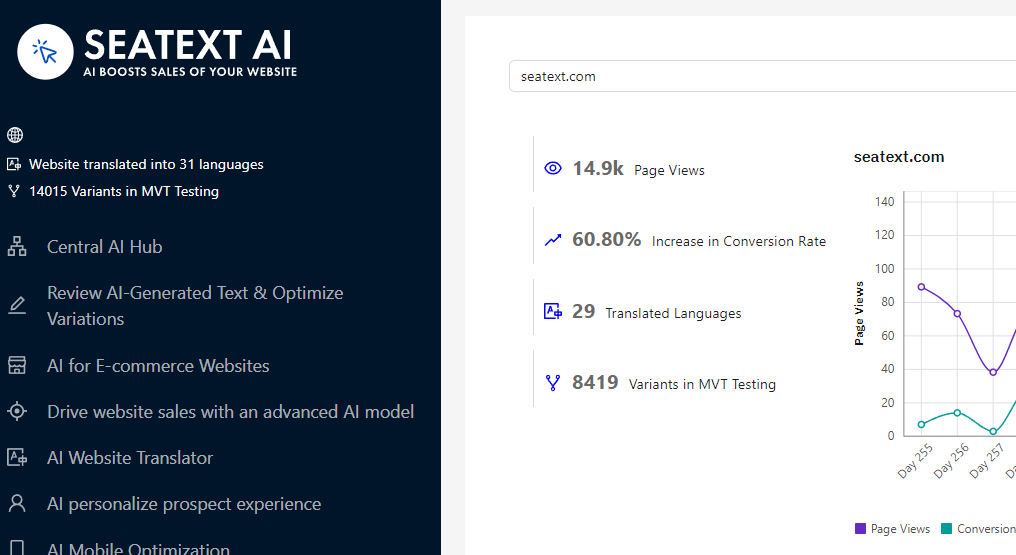
Proceed to the Main AI Hub to activate the necessary AI on your preferred pages. Click on "Configuration" to adjust the AI parameters. Optional Editing: SEATEXT AI provides your initial round of automatic translations and variants for testing. Log in to your SEATEXT AI account, navigate to "Variants Edit" in the left panel, and select the URL and language you wish to edit. Here, you can review, create, or manually edit translations for your variants.
Proceed to the Main AI Hub to activate the necessary AI on your preferred pages. Click on "Configuration" to adjust the AI parameters. Optional Editing: SEATEXT AI provides your initial round of automatic translations and variants for testing. Log in to your SEATEXT AI account, navigate to "Variants Edit" in the left panel, and select the URL and language you wish to edit. Here, you can review, create, or manually edit translations for your variants.