Integrasyon ng GoDaddy
Install Seatext on your website by following the instructions below. The installation process is secure, and the AI remains inert until activated, ensuring the integrity of your website's content. Before you can install the script, you need a SEATEXT AI account. If you don't have an account yet, you can create one HERE
Integrasyon ng GoDaddy
Step by step integration
Copy the Javascript code from SEATEXT AI which appear in this section below.
SEATEXTCODEINTEGRATION
Hakbang 2: Mag‑login sa iyong GoDaddy account gamit ang iyong kredensyal. Hakbang 3: Pumunta sa iyong mga produkto at piliin ang website na nais mong isalin. Hakbang 4: I‑click ang “Edit Site” para buksan ang Website Builder tool. Hakbang 5: Sa loob ng interface ng Website Builder, hanapin ang pahina kung saan mo gustong idagdag ang tampok na pagsasalin. Hakbang 6: I‑click ang “Add Section” para ilagay ang tampok na pagsasalin sa napiling pahina.
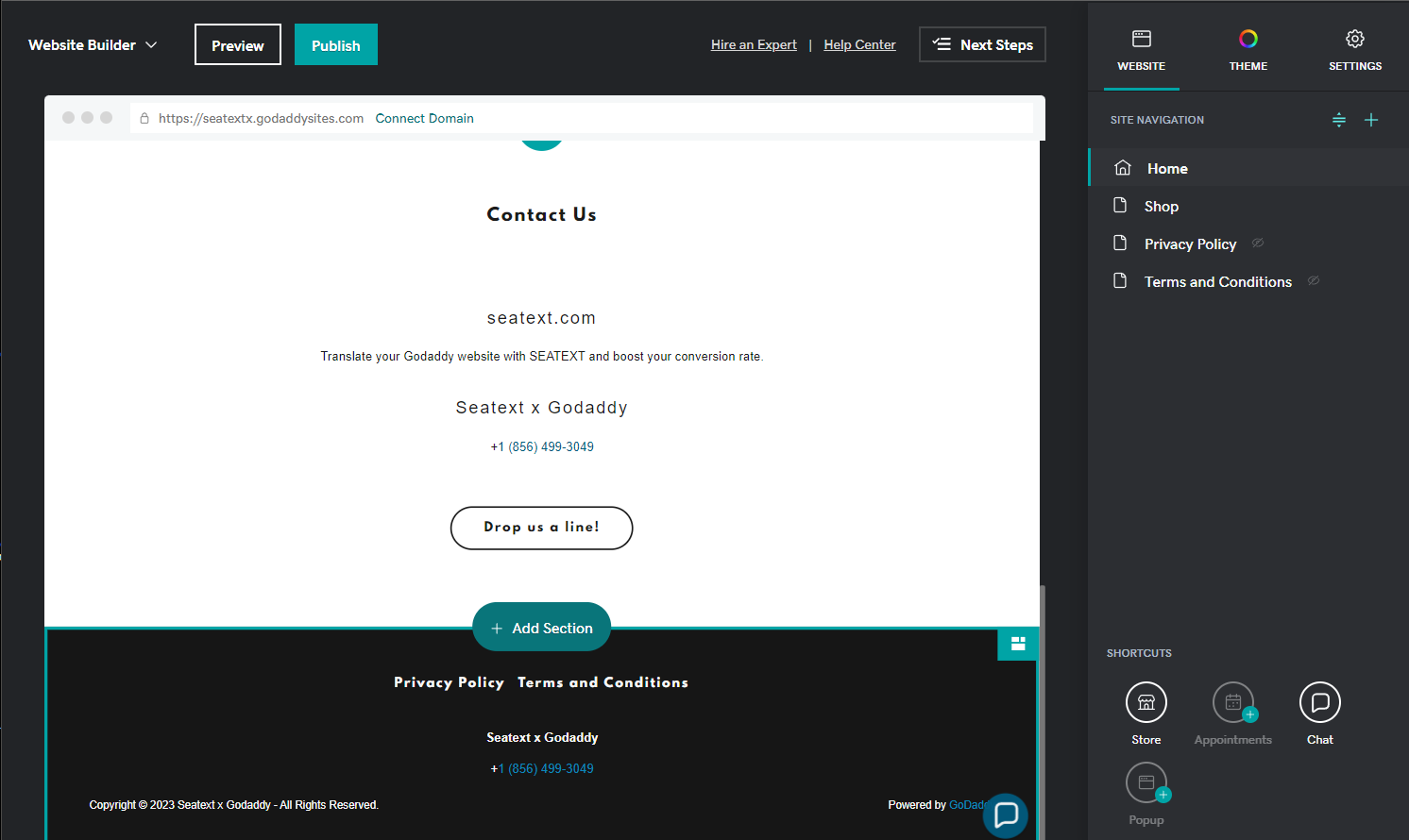
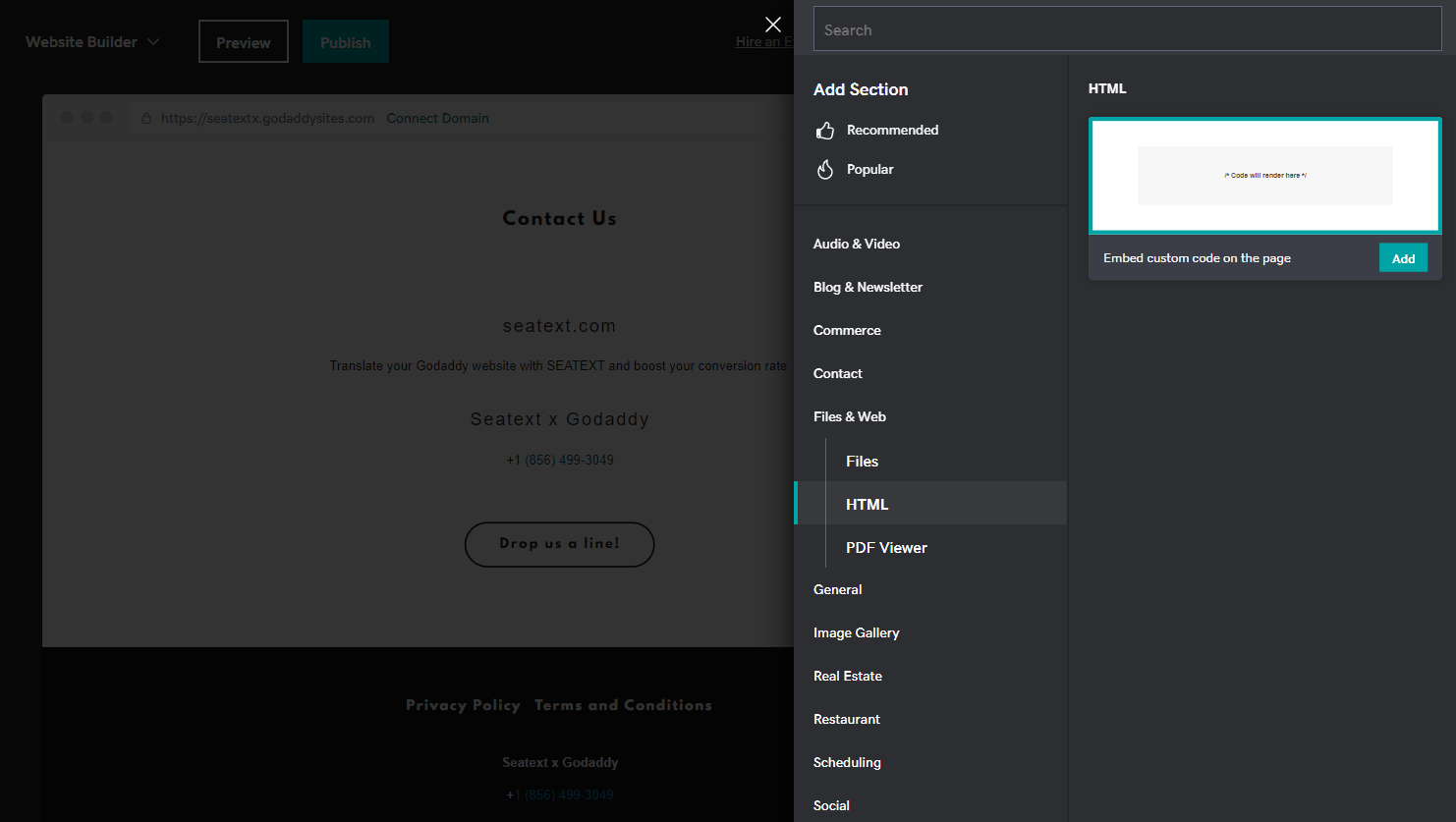
Hakbang 7: Sa kanang panel, i‑click ang “Files & Web”. Hakbang 8: Hanapin ang seksyong “HTML” at idagdag ito sa iyong pahina.
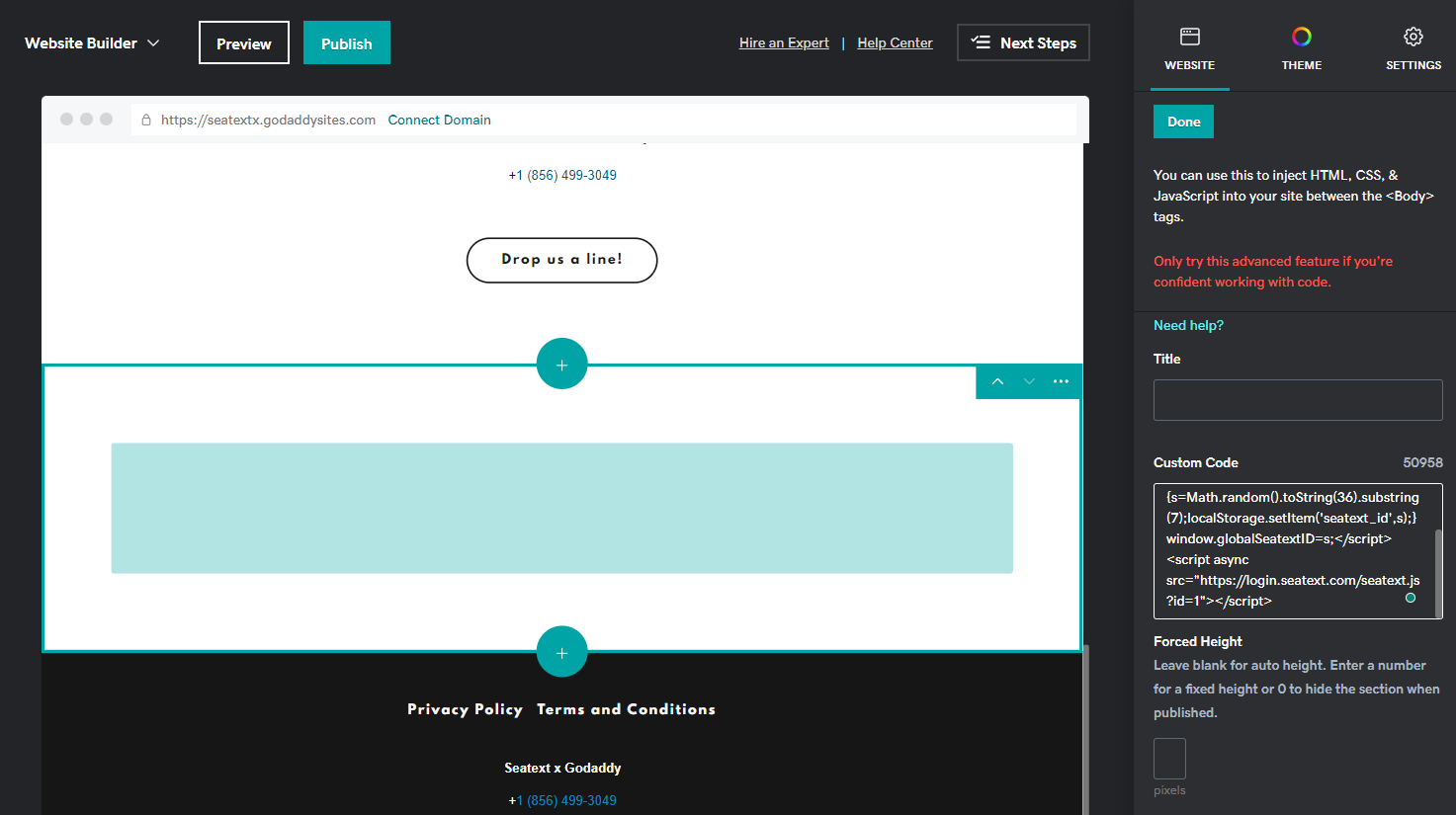
Hakbang 9: I-paste ang code na ibinigay sa seksyong Custom Code sa kanang panel.
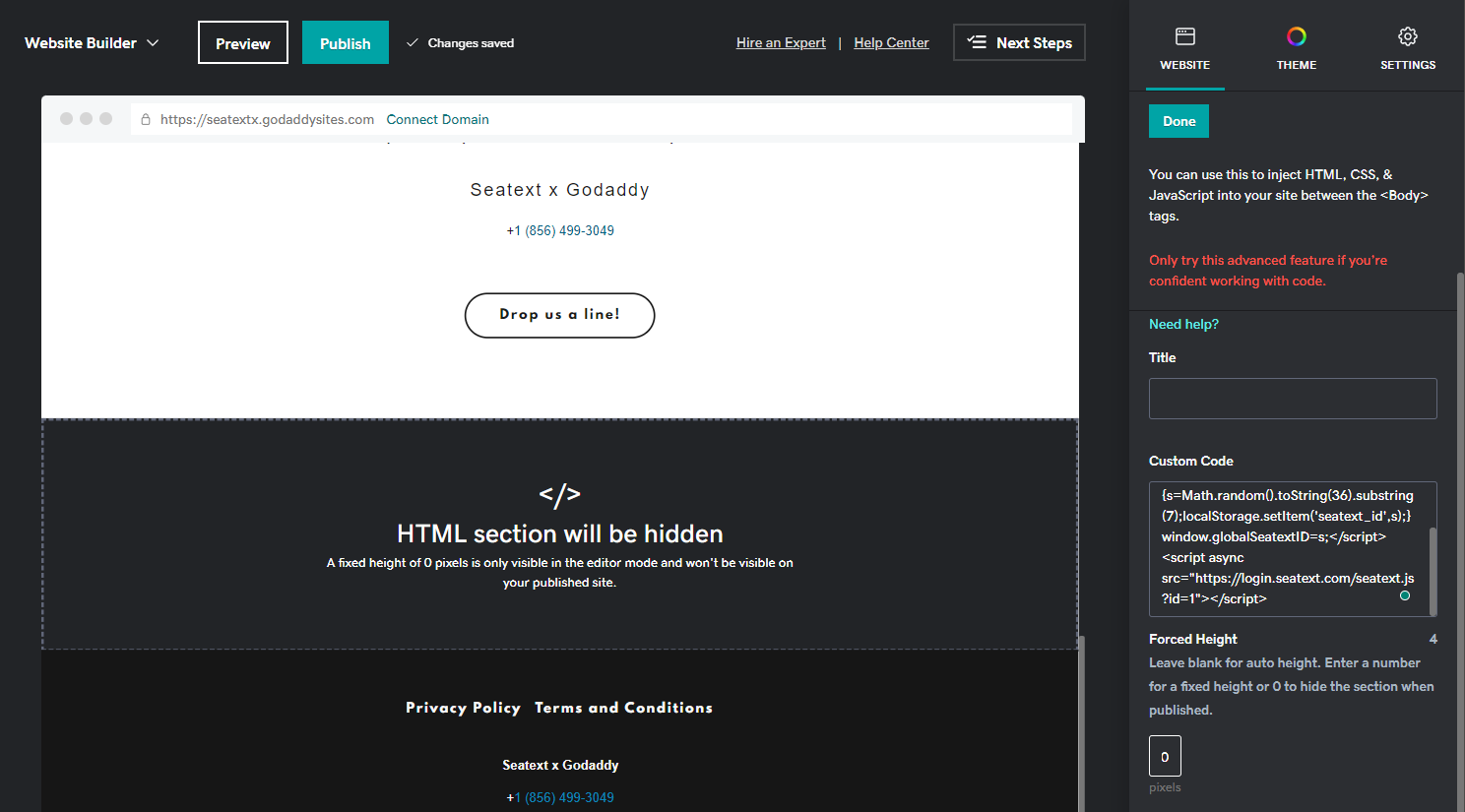
Hakbang 10: Sa seksyong Forced Height, itakda ang halaga sa 0. Pagkatapos, i‑click ang Done at Publish para i‑save ang mga pagbabago.
Mahalaga: Upang idagdag ang SEATEXT AI sa iyong website nang global, sundin ang mga tagubiling ito.
Pagdaragdag ng SEATEXT AI sa header ng iyong site: Buksan ang Header HTML Section. Sa kaliwang panel, i‑click ang Settings. I‑click ang Head HTML. Idagdag ang nilalaman sa field na Content ng head section. Sa Body End HTML, maglagay ng custom HTML/Javascript bago isara ang </body> tag sa bawat pahina ng site. I‑click ang Save.
Multiple Domains If you need to use SEATEXT AI on multiple domains (e.g., a development domain and a production domain), you must create separate accounts for each domain. Each SEATEXT AI account is linked to a single primary URL. Restrictions and Security Development URLs, such as localhost, are restricted for security reasons. Ensure you use a valid, real domain for these cases. Dynamic development domains may not function properly, as SEATEXT AI might be unable to reliably associate traffic with your account. Using SEATEXT AI on Multiple Websites To use SEATEXT AI on several websites, create one account for each website.
Important: Visit or refresh your website several times and stay on your page for at least 40 seconds—this will activate the AI and link it to your account.
Important: Wait at least five minutes until you see your website name displayed next to the SEATEXT logo at the top of this page. This indicates that your website is connected and ready to proceed to the next step. If you do not see it at the top of the page after 10 minutes, please contact our support team immediately. This could indicate an issue during the installation on your platform, and you may need our assistance.
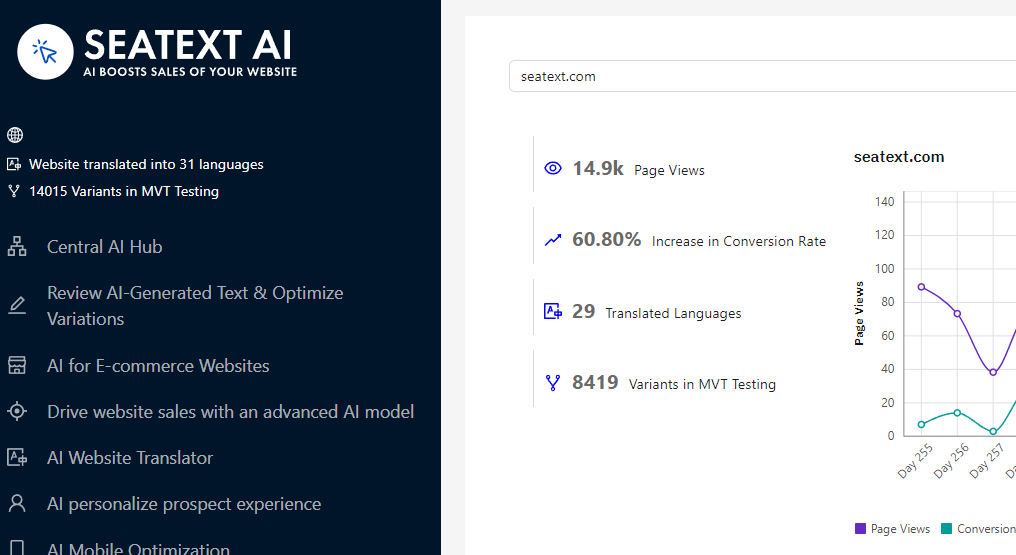
Activating AI Proceed to the Main AI Hub to activate the necessary AI on your preferred pages. Click on "Configuration" to adjust the AI parameters. Optional Editing: SEATEXT AI provides your initial round of automatic translations and variants for testing. Log in to your SEATEXT AI account, navigate to "Variants Edit" in the left panel, and select the URL and language you wish to edit. Here, you can review, create, or manually edit translations for your variants.
