Shopify Integration
Aşağıdaki talimatları izleyerek Seatext'i web sitenize kurun. Kurulum işlemi güvenlidir ve AI, etkinleştirilene kadar pasif kalır, bu da web sitenizin içeriğinin bütünlüğünü sağlar. Betiği kurmadan önce bir SEATEXT AI hesabınız olmalıdır. Henüz hesabınız yoksa, BURADAN oluşturabilirsiniz
Shopify Integration
Adım adım entegrasyon
Aşağıdaki bölümde görünen SEATEXT AI'dan JavaScript kodunu kopyalayın.
SEATEXTCODEINTEGRATION
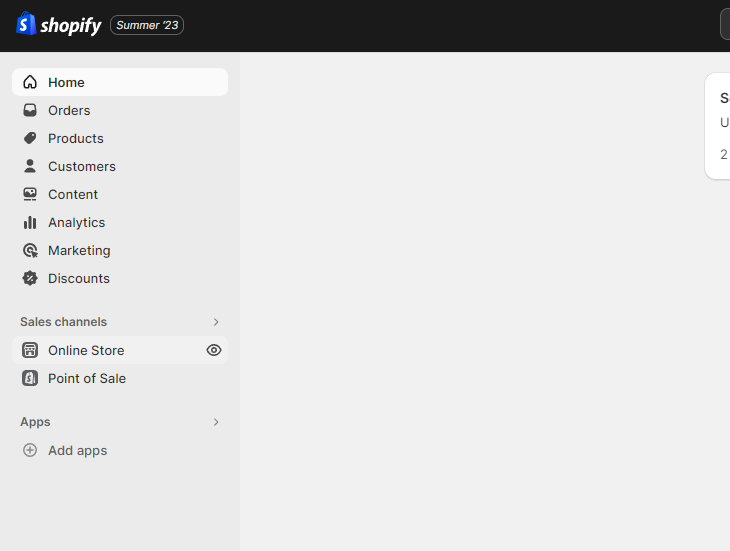
Access your Shopify account and navigate to the “Online Store” section. From there, select “Themes”.
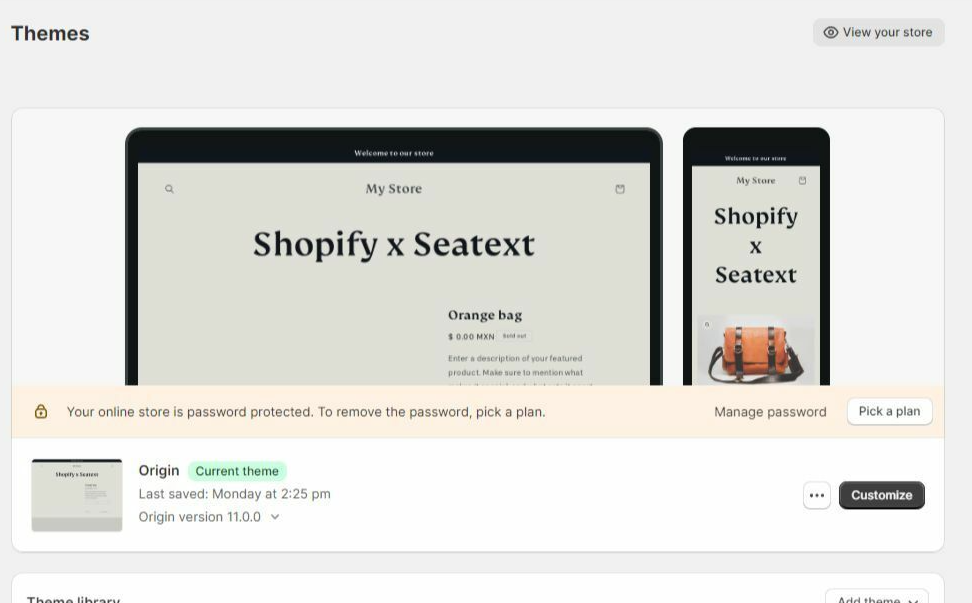
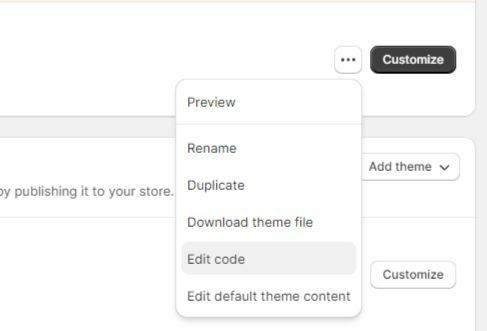
Within the Themes section, locate the theme you wish to translate. Click on the three dots icon located next to the desired theme and select “Edit code”.
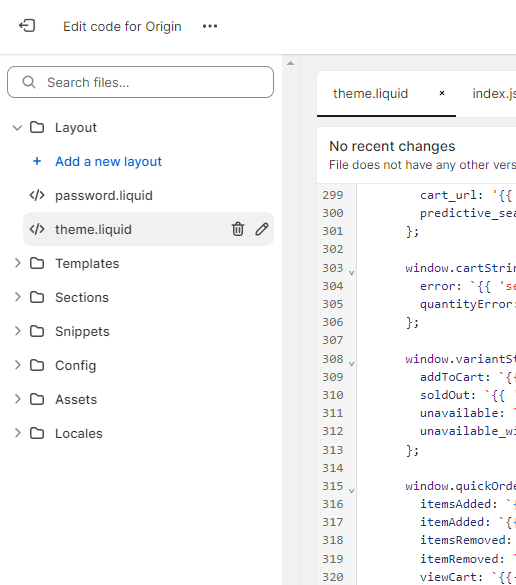
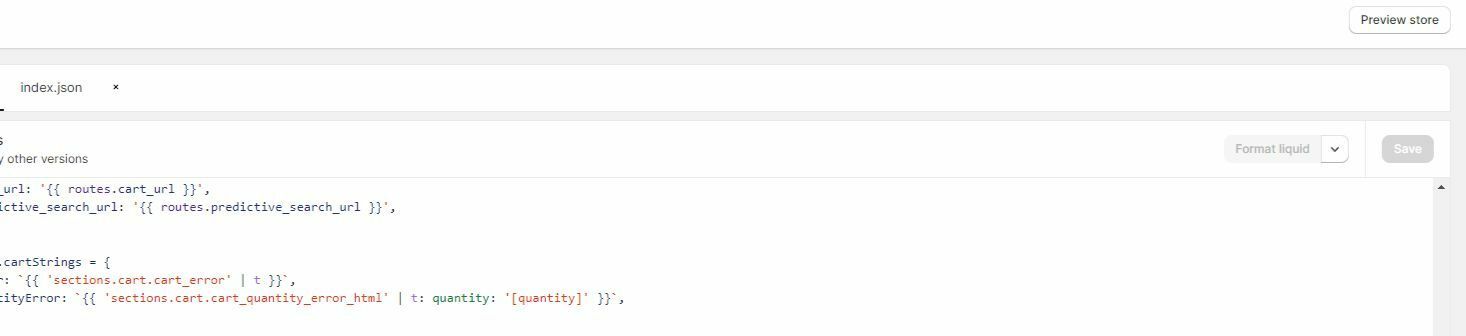
On the Edit Code page, you will be presented with a list of files on the left side of the screen. Navigate to the “Layout” folder and locate the file named “theme.liquid”.
Within the theme.liquid file, scroll down to the bottom of the code. Here, you will find the closing </body> tag. Paste the JavaScript code snippet provided by SEATEXT AI directly above the closing </body> tag.


Once the code snippet has been successfully pasted, click on the “Save” button to preserve your changes.
Çoklu Alan Adları SEATEXT AI'yi birden fazla alan adında kullanmanız gerekiyorsa (örneğin, bir geliştirme alanı ve bir üretim alanı), her alan adı için ayrı hesaplar oluşturmalısınız. Her SEATEXT AI hesabı tek bir birincil URL'ye bağlıdır. Kısıtlamalar ve Güvenlik Geliştirme URL'leri (localhost gibi) güvenlik nedeniyle kısıtlanmıştır. Bu durumlar için geçerli, gerçek bir alan adı kullandığınızdan emin olun. Dinamik geliştirme alan adları düzgün çalışmayabilir, çünkü SEATEXT AI trafiği hesabınızla güvenilir bir şekilde ilişkilendiremeyebilir. SEATEXT AI'yi Birden Fazla Web Sitesi Üzerinde Kullanma SEATEXT AI'yi birkaç web sitesinde kullanmak için, her web sitesi için bir hesap oluşturun.
Önemli: Web sitenizi birkaç kez ziyaret edin veya yenileyin ve sayfanızda en az 40 saniye kalın—bu, AI'yi etkinleştirecek ve hesabınıza bağlayacaktır.
Önemli: Bu sayfanın üst kısmında SEATEXT logosu yanında web sitenizin adının görüntülenene kadar en az beş dakika bekleyin. Bu, web sitenizin bağlı olduğunu ve bir sonraki adıma geçmeye hazır olduğunu gösterir. 10 dakika sonra sayfanın üst kısmında görmüyorsanız, lütfen hemen destek ekibimizle iletişime geçin. Bu, platformunuzdaki kurulum sırasında bir sorun olduğunu gösterebilir ve yardıma ihtiyacınız olabilir.
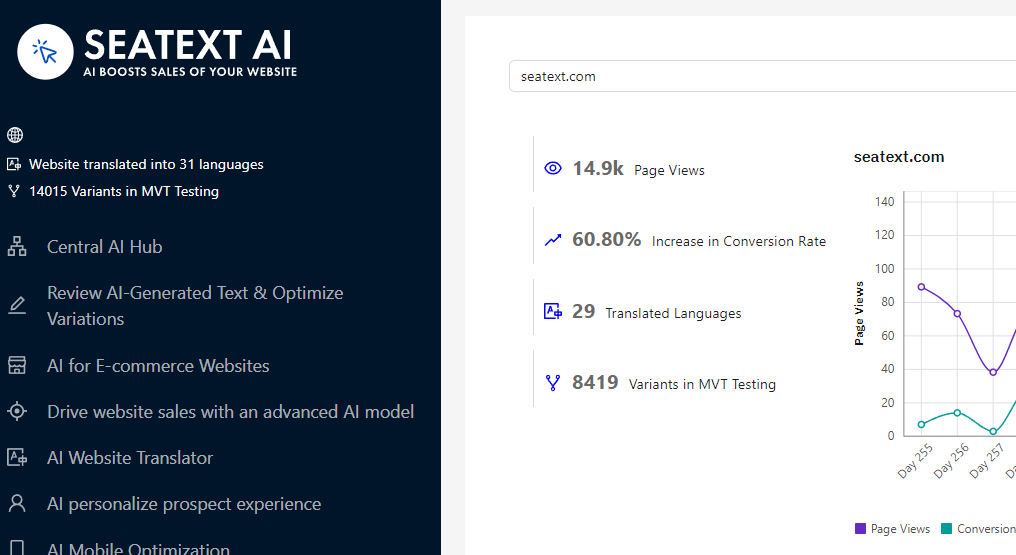
AI'yi Etkinleştir. Gerekli AI'yi tercih ettiğiniz sayfalarda etkinleştirmek için Ana AI Hub'ına gidin. AI parametrelerini ayarlamak için "Configuration"a tıklayın. İsteğe Bağlı Düzenleme: SEATEXT AI, test için ilk otomatik çeviri ve varyantları sağlar. SEATEXT AI hesabınıza giriş yapın, sol panelde "Variants Edit"e gidin ve düzenlemek istediğiniz URL'yi ve dili seçin. Burada varyantlarınız için çevirileri inceleyebilir, oluşturabilir veya manuel olarak düzenleyebilirsiniz.
Implement the seatextonly Tag in Your Product Descriptions To optimize your product descriptions effectively, please follow these steps: Step 1: Access Your Shopify Theme Code Log in to your Shopify admin and navigate to Online Store > Themes . Click on Actions > Edit Code for your active theme. Step 2: Locate the Product Template Identify the file that renders the product description (typically named product.liquid or located within product-template.liquid ). Step 3: Wrap the Product Description Find the product description output code, which usually appears as:
{{ product.description }}
Modify this code to wrap it in a <div> with the data-seatextonly attribute as follows:
<div data-seatextonly> {{ product.description | raw }} </div>
Step 4: Test Your Changes Save your changes and preview a product page to ensure the description is displayed correctly. Verify that the data-seatextonly attribute is present in the HTML source (you can inspect this using your browser’s developer tools). For additional details, please refer to our documentation here: https://seatext.com/documentation-ai-scope
