Thinkific integration
Інтеграція з Thinkific
Step 1: Copy the JavaScript code provided by SEATEXT AI, which can be found in the section below.
Послідовна інтеграція крок за кроком
1
Інтеграція з Thinkific
Step 1: Copy the JavaScript code provided by SEATEXT AI, which can be found in the section below.
Послідовна інтеграція крок за кроком
1
SEATEXTCODEINTEGRATION
Крок 2: Вставте JavaScript‑код від Seatext на вашому сайті
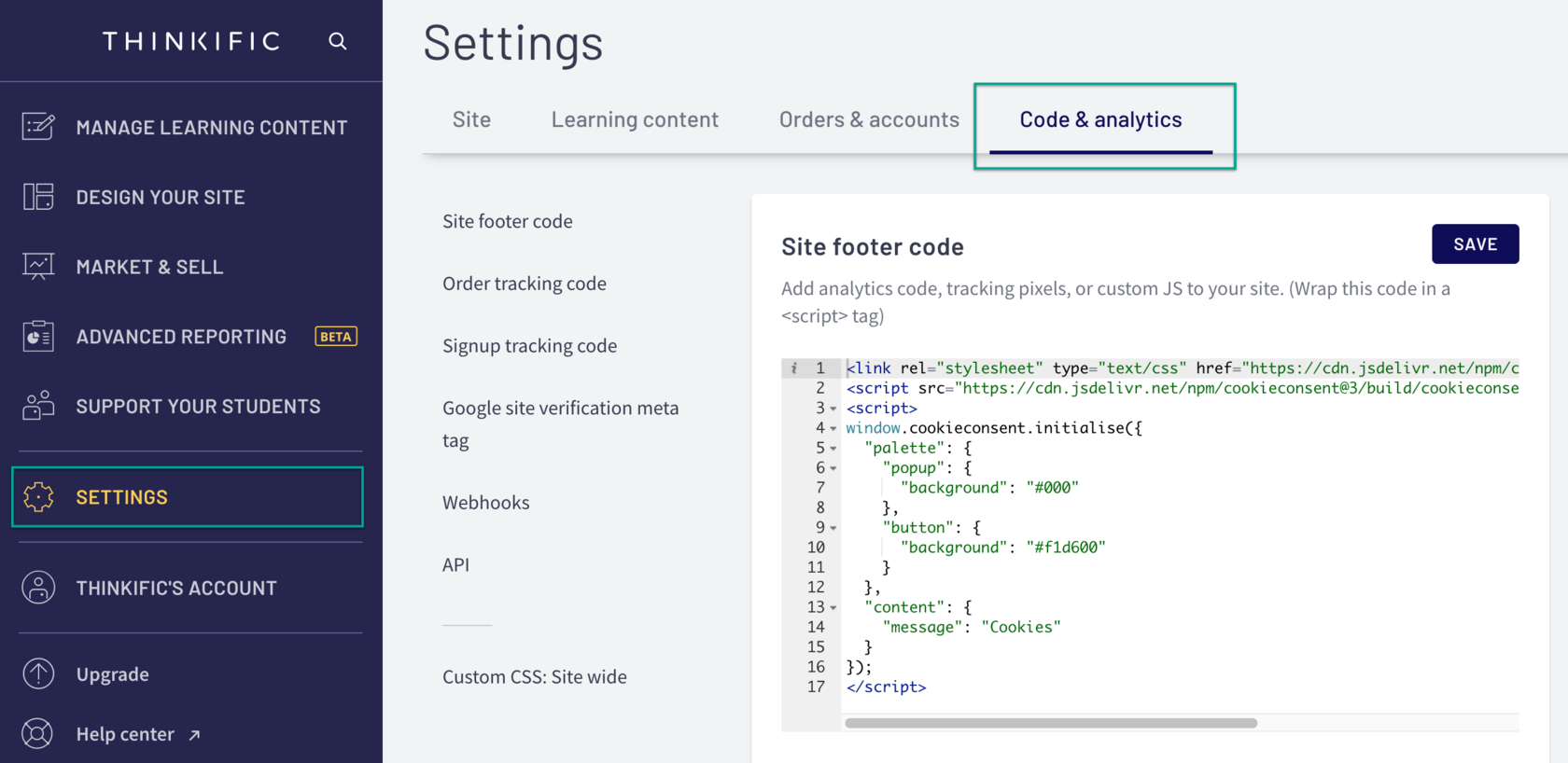
Go to your Admin Dashboard: Select Settings Then select the Code & Analytics tab In the Site Footer Code field, paste the code Click Save
Тепер ви успішно встановили SEATEXT AI на вашому сайті за допомогою JavaScript.
Крок 2: Вставте JavaScript‑код від Seatext на вашому сайті
Go to your Admin Dashboard: Select Settings Then select the Code & Analytics tab In the Site Footer Code field, paste the code Click Save
Тепер ви успішно встановили SEATEXT AI на вашому сайті за допомогою JavaScript.
Пов’язування SEATEXT AI з вашим сайтом
2
Пов’язування SEATEXT AI з вашим сайтом
2
a. Use the form below to add your website address in the format (www.example.com). SEATEXTURLPUSH
c. Зачекайте щонайменше п'ять хвилин, доки не побачите назву вашого сайту поруч із логотипом SEATEXT у верхній частині цієї сторінки. Це означає, що ваш сайт підключено і готово до наступного кроку. Якщо ви не побачите його протягом 10 хвилин, негайно зв'яжіться з нашою службою підтримки. Це може свідчити про проблему під час встановлення на вашій платформі, і вам може знадобитися наша допомога.
IMPORTANT b. Visit your website once and stay on your page for at least 40 seconds—this will activate the AI and link it to your account.
a. Use the form below to add your website address in the format (www.example.com). SEATEXTURLPUSH
IMPORTANT b. Visit your website once and stay on your page for at least 40 seconds—this will activate the AI and link it to your account.
c. Зачекайте щонайменше п'ять хвилин, доки не побачите назву вашого сайту поруч із логотипом SEATEXT у верхній частині цієї сторінки. Це означає, що ваш сайт підключено і готово до наступного кроку. Якщо ви не побачите його протягом 10 хвилин, негайно зв'яжіться з нашою службою підтримки. Це може свідчити про проблему під час встановлення на вашій платформі, і вам може знадобитися наша допомога.

Активація ШІ
3
Активація ШІ
3
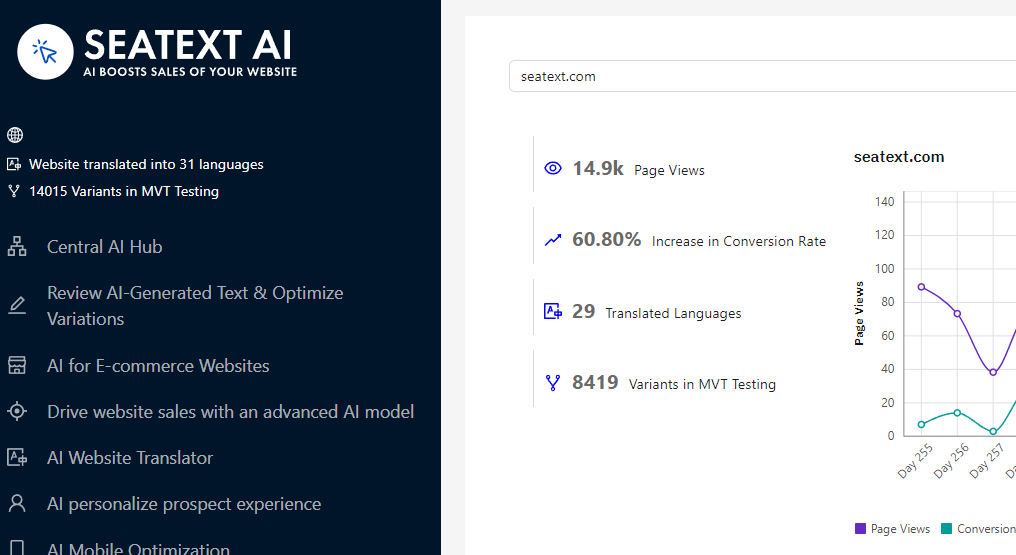
Proceed to the Main AI Hub to activate the necessary AI on your preferred pages. Click on "Configuration" to adjust the AI parameters. Optional Editing: SEATEXT AI provides your initial round of automatic translations and variants for testing. Log in to your SEATEXT AI account, navigate to "Variants Edit" in the left panel, and select the URL and language you wish to edit. Here, you can review, create, or manually edit translations for your variants.
Proceed to the Main AI Hub to activate the necessary AI on your preferred pages. Click on "Configuration" to adjust the AI parameters. Optional Editing: SEATEXT AI provides your initial round of automatic translations and variants for testing. Log in to your SEATEXT AI account, navigate to "Variants Edit" in the left panel, and select the URL and language you wish to edit. Here, you can review, create, or manually edit translations for your variants.