Tilda integration
Fi Seatext sori oju opo wẹẹbu rẹ nipa titẹle awọn ilana ni isalẹ. Ilana fifi sori jẹ ailewu, ati AI ko ṣiṣẹ titi ti a o fi mu ṣiṣẹ, nitorina akoonu oju opo wẹẹbu rẹ wa lailewu. Ṣaaju ki o to le fi koodu sii, o nilo akanti SEATEXT AI. Ti o ko ba ti ni akanti, o le ṣẹda ọkan NIBI
Tilda integration
Isopọpọ igbesẹ‑igbesẹ
Daakọ koodu Javascript lati SEATEXT AI ti o han ninu apakan yii ni isalẹ.
SEATEXTCODEINTEGRATION
Paste the Javascript code from Seatext on your website To insert code in the head of all website pages, go to the Site Settings.
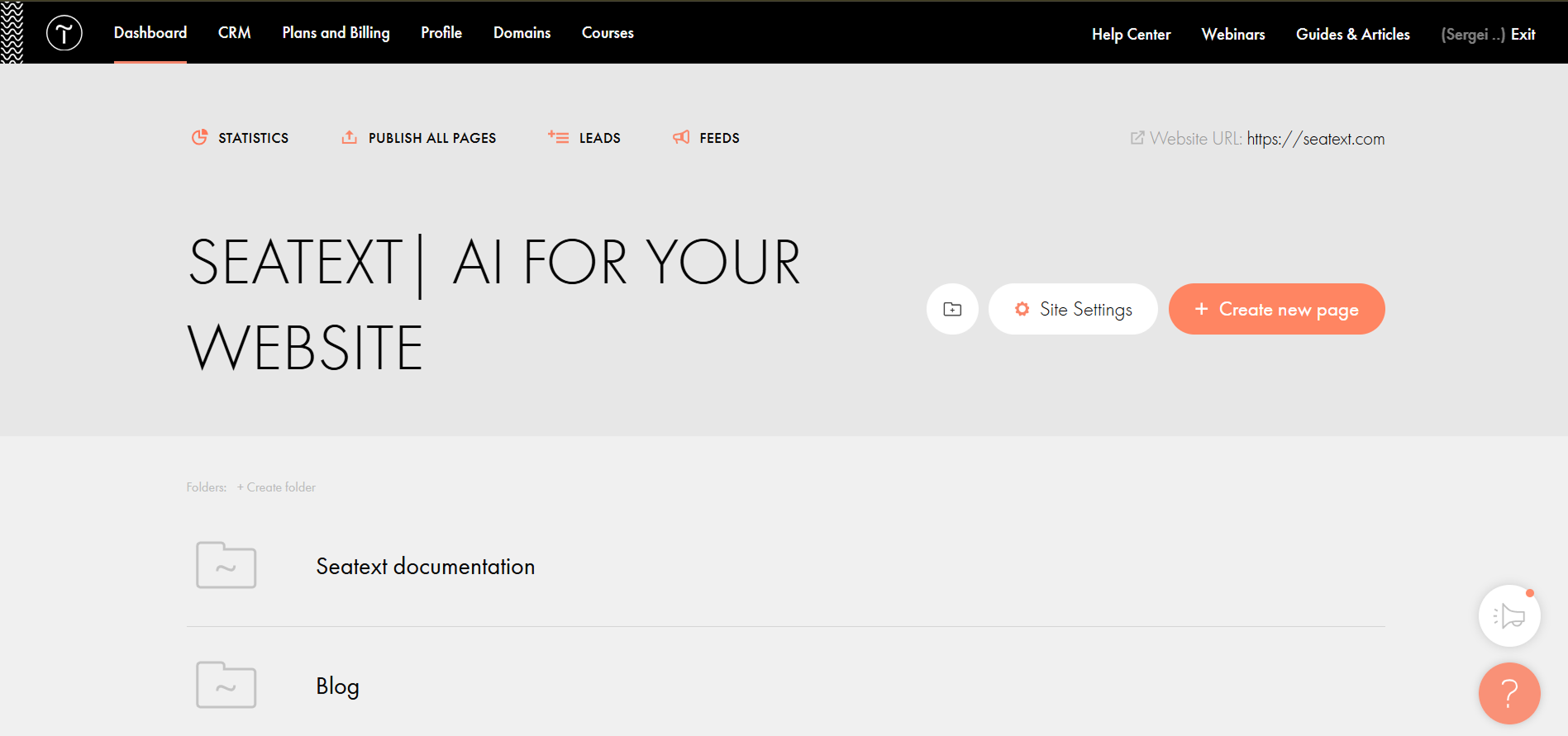
Click on More → HTML code for the head section → Edit code.
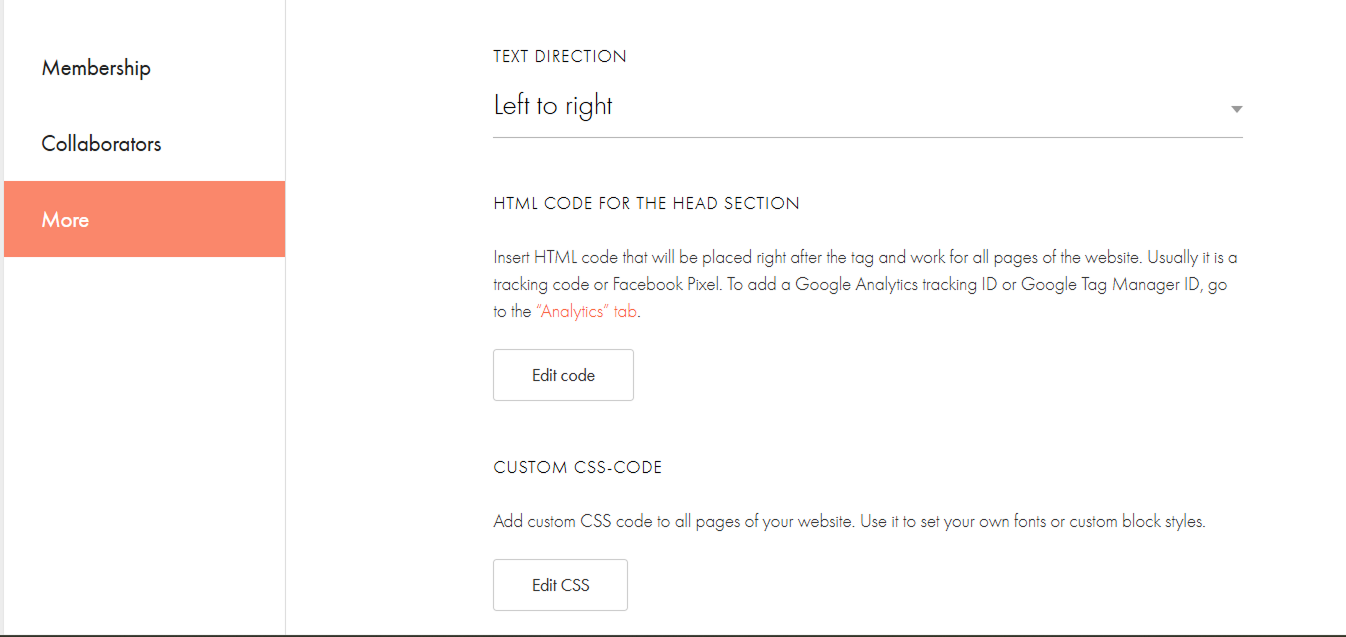
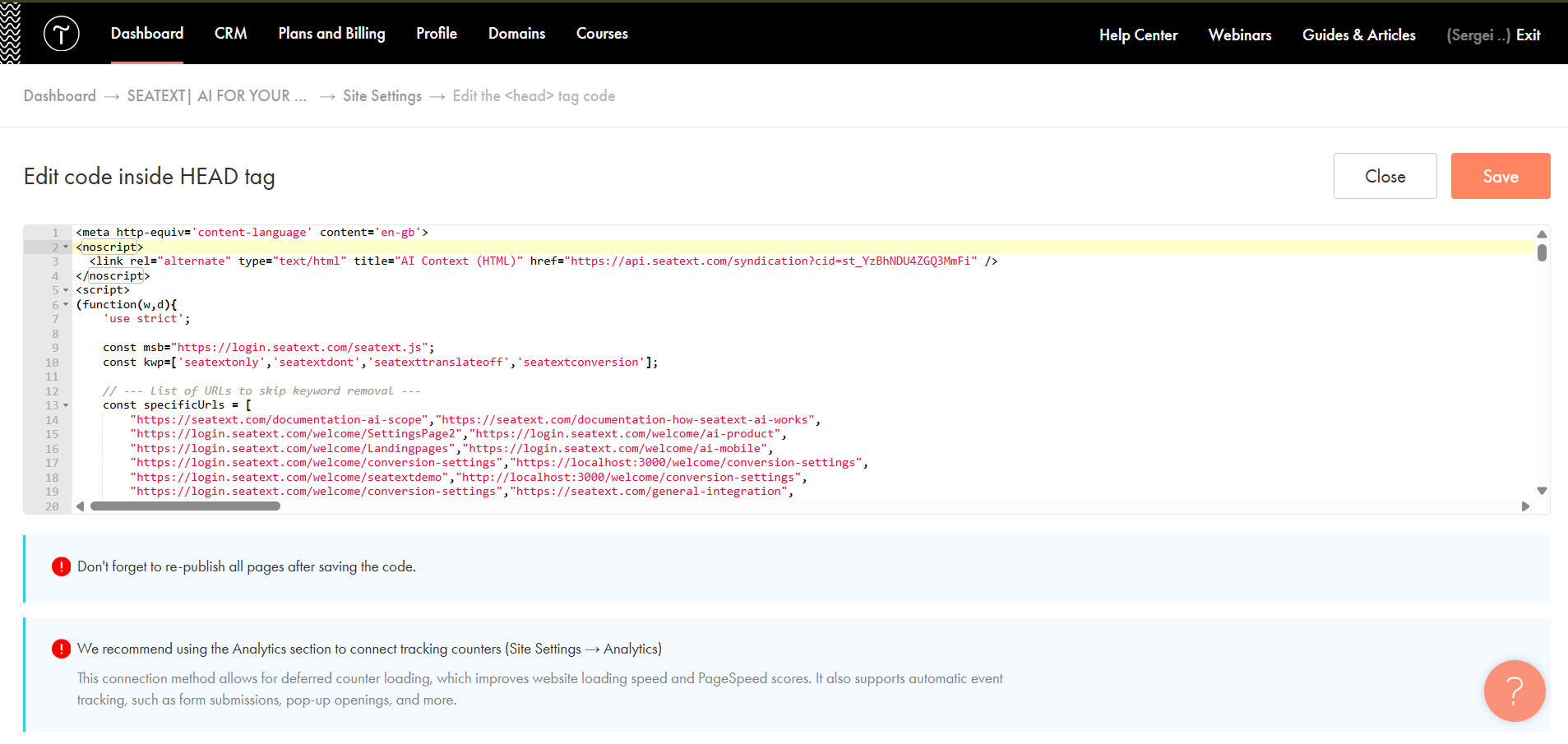
Paste the code into the field labeled 'Edit code inside HEAD tag' , then save and publish your site.
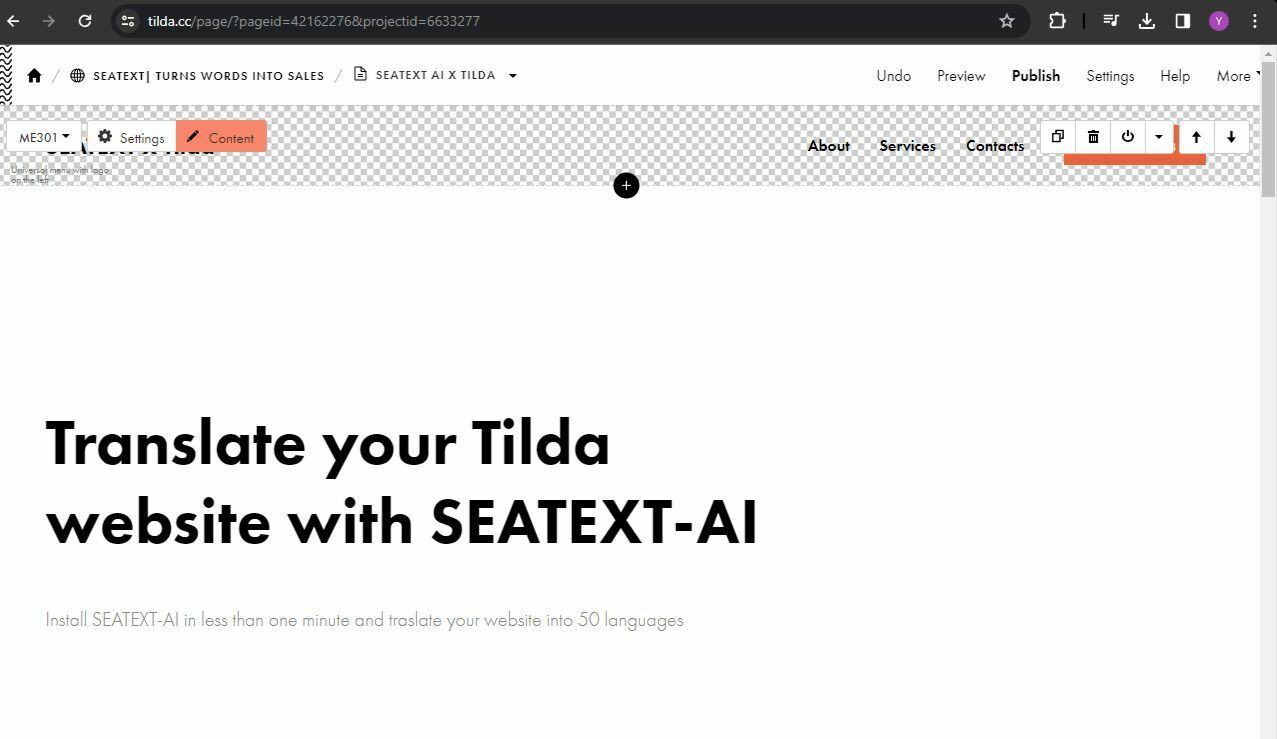
If you want to insert code in the head of a particular page: Access your Tilda dashboard and navigate to the page that you wish to translate.

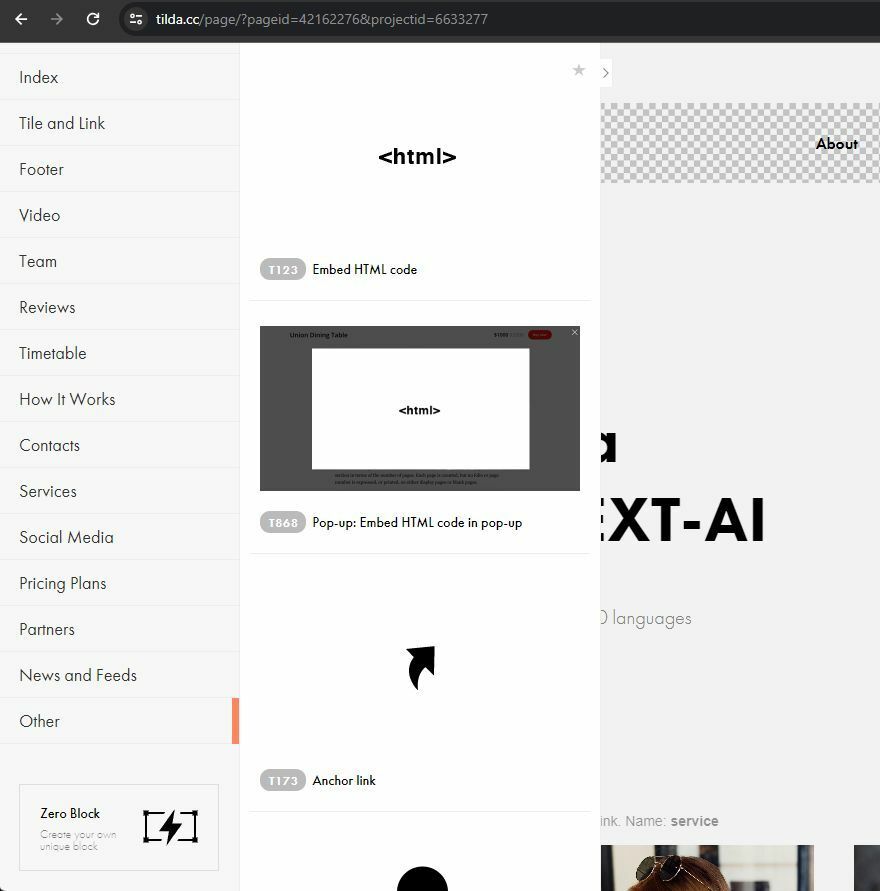
Click on the "+" icon to add a new block to the page. Choose the block named T123 from the options provided.
Scroll down and select "Other" from the block options.
O ti fi SEATEXT AI sori oju opo wẹẹbu rẹ ni aṣeyọri nipa lilo JavaScript.
Locate and select the block named T123, which enables the addition of embedded HTML code.
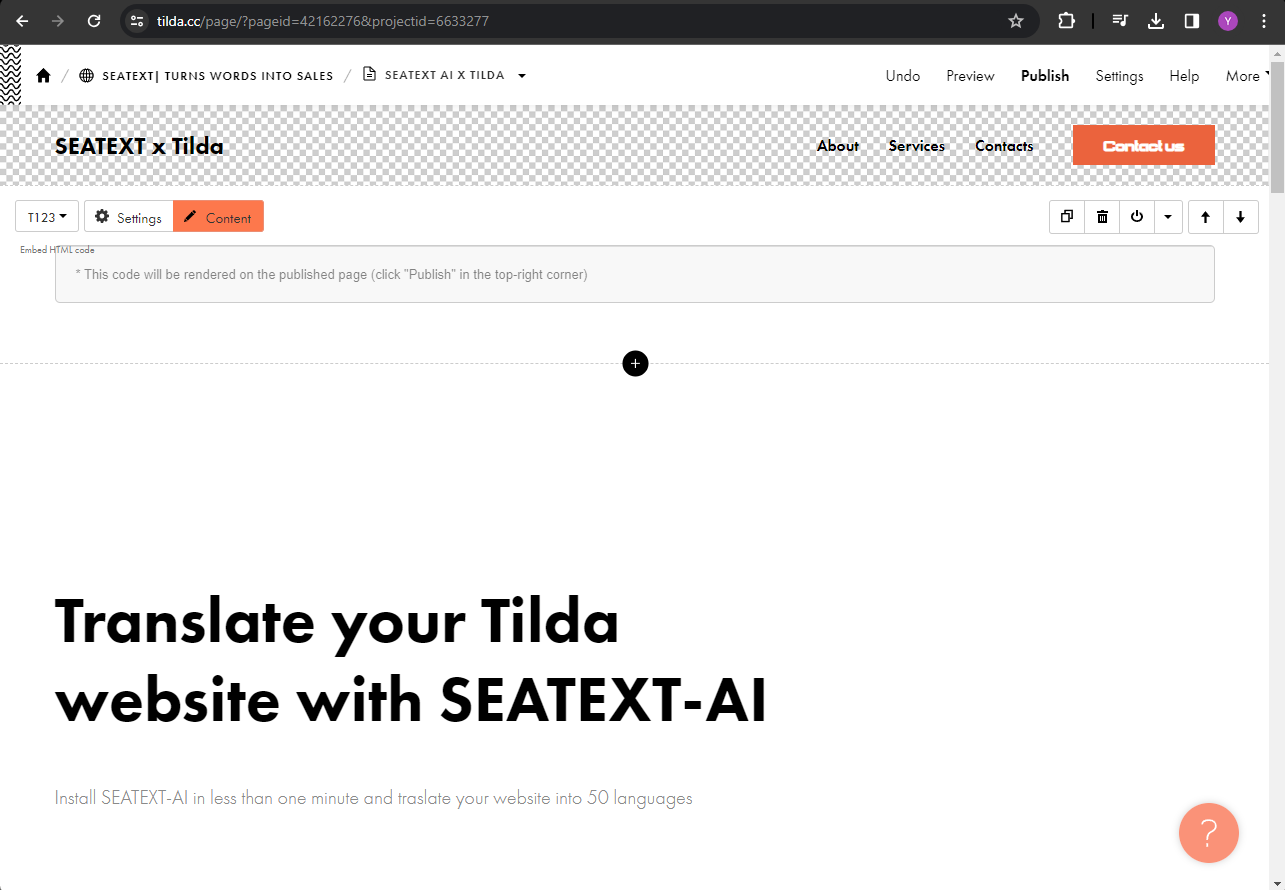
Once the block is added to the page, click on "Content" to access the HTML editor.
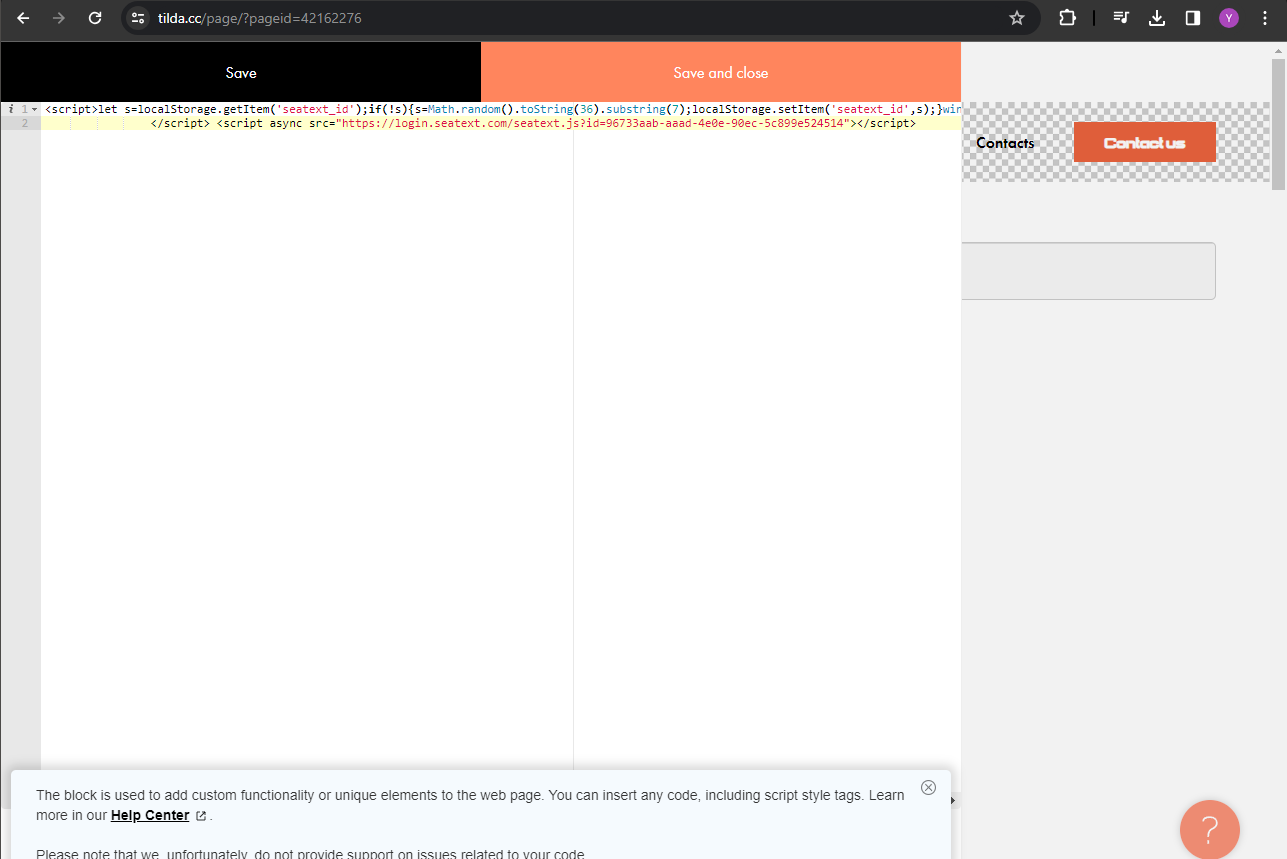
Paste the code snippet provided by SEATEXT AI into the HTML editor. Then, click on "Save and Close" to apply the changes.
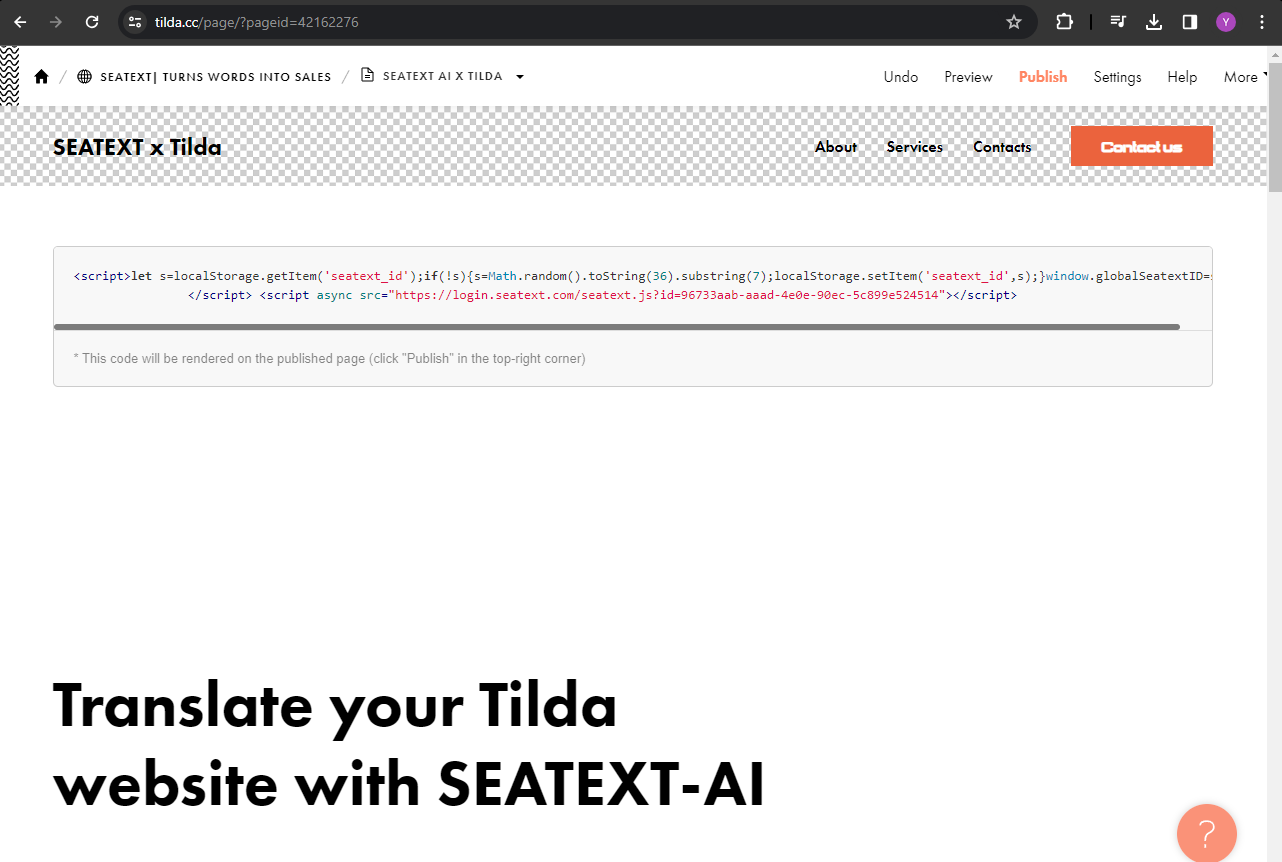
You will see the code successfully added to the page. Finally, click on "Publish" to make the changes live on your website.
O ti fi SEATEXT AI sori oju opo wẹẹbu rẹ ni aṣeyọri nipa lilo JavaScript.
You will see the code successfully added to the page. Finally, click on "Publish" to make the changes live on your website.
Paste the code snippet provided by SEATEXT AI into the HTML editor. Then, click on "Save and Close" to apply the changes.
Once the block is added to the page, click on "Content" to access the HTML editor.
Locate and select the block named T123, which enables the addition of embedded HTML code.

Locate and select the block named T123, which enables the addition of embedded HTML code.
Once the block is added to the page, click on "Content" to access the HTML editor.
Paste the code snippet provided by SEATEXT AI into the HTML editor. Then, click on "Save and Close" to apply the changes.
You will see the code successfully added to the page. Finally, click on "Publish" to make the changes live on your website.
Ọpọ àkóónú: Ti o ba nilo lati lo SEATEXT AI lori ọpọlọpọ àkóónú (bí àkóónú ìdàgbàsókè àti àkóónú ìgbésẹ), o gbọdọ ṣẹda àkọọlẹ tó yàtọ fún ọkọọkan. Gbogbo àkọọlẹ SEATEXT AI kan wà ní asopọ pẹlú URL àkọkọ kan ṣoṣo. Àwọn URL ìdàgbàsókè bí localhost jẹ àìmọọkan fún ààbò, nítorí náà lo àkóónú tó wúlò, gidi. Àkóónú ìdàgbàsókè tó ń yípadà lè má ṣiṣẹ dáadáa, nítorí SEATEXT AI lè má lè so ijabọ pọ mọ àkọọlẹ rẹ. Lati lo SEATEXT AI lórí ọpọ ojú‑ọrọ, ṣẹda àkọọlẹ kan fún ọkọọkan.
Pataki: Ṣàbẹwò tàbí tún ojú‑ọrọ rẹ ṣe ní igba mẹta, kí o sì wà lórí ojú‑ewé rẹ fún o kere ju iṣẹju-aaya 40 lọ—ẹyí yóò mu AI ṣiṣẹ kí o sì so mọ àkọọlẹ rẹ.
Pataki: Dúró fún o kere ju iṣẹju márùn-ún lọ títí tí orúkọ ojú‑ọrọ rẹ yóò ṣe hàn lẹgbẹẹ ààmì SEATEXT ní apá òkè ojú‑ewé yìí. Èyí túmọ sí i pé ojú‑ọrọ rẹ ti ṣopọ, ó sì ṣètò láti tẹsíwájú sí ìgbésẹ tó tẹle. Bí o kò bá rí i lẹgbẹẹ ààmì ní apá òkè lẹyìn iṣẹju mẹwàá, jọwọ kan ẹgbẹ àtìlẹyìn wa lẹsẹkẹsẹ. Ó lè jẹ àfihàn ìṣòro kan nígbà fifi sori pẹpẹ rẹ, ó sì lè nílò ìrànlọwọ wa.
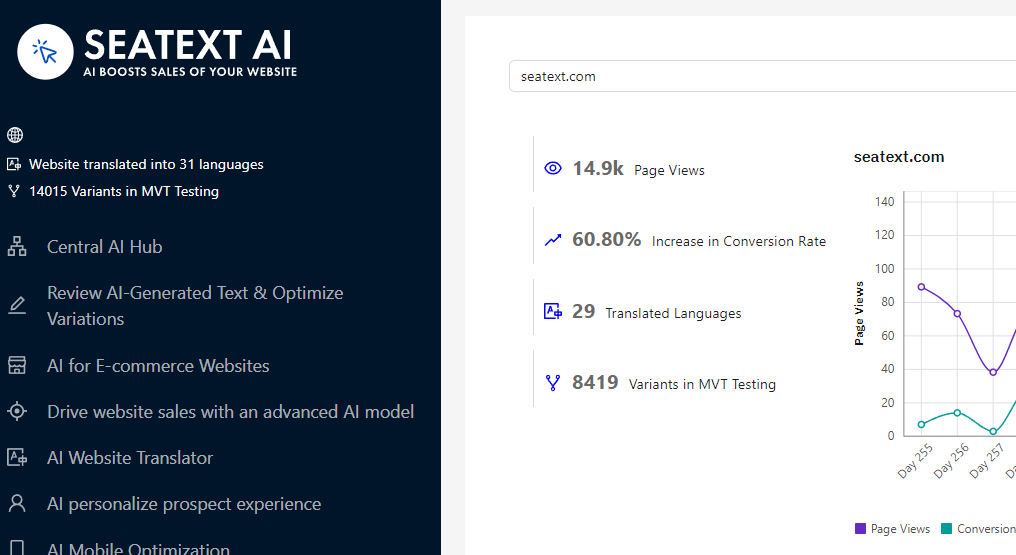
Mú AI ṣiṣẹ Lọ sí Ilé‑iṣẹ AI àkọkọ láti mu AI tó wúlò ṣiṣẹ lórí àwọn ojú‑ewé tí o fẹ. Tẹ “Ìtòlẹsẹ” láti ṣètò àwọn àyípadà AI. Àṣàyàn àtúnṣe: SEATEXT AI ń pèsè àtúnṣe àkọkọ ti ìtumọ aládáṣiṣẹ àti àwọn onírúurú fún ìdánwò. Wọlé sí àkọọlẹ SEATEXT AI rẹ, lọ sí “Ṣatúnṣe Onírúurú” ní apá òsì, yan URL àti èdè tí o fẹ ṣatúnṣe. Níbí, o lè ṣàyẹwò, dá, tàbí ṣe àtúnṣe ọwọ fún àwọn ìtumọ onírúurú rẹ.
