HubSpot 集成

Install Seatext on your website by following the instructions below. The installation process is secure, and the AI remains inert until activated, ensuring the integrity of your website's content. Before you can install the script, you need a SEATEXT AI account. If you don't have an account yet, you can create one HERE

HubSpot 集成

分步集成指南

从下面本节中显示的 SEATEXT AI 复制 Javascript 代码。

SEATEXTCODEINTEGRATION

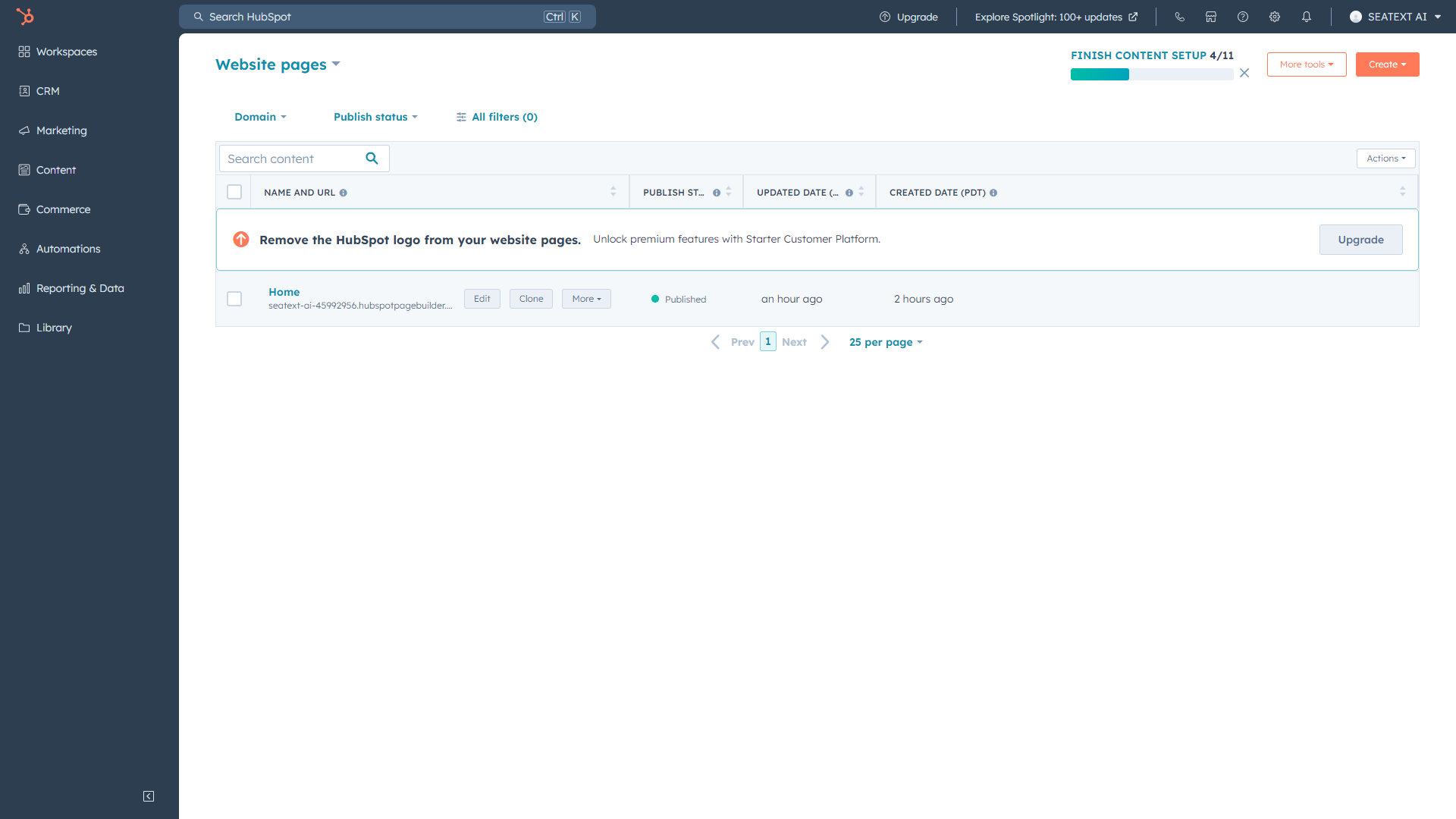
打开您的 HubSpot 帐户并选择您想要添加 SEATEXT AI 的页面,点击“编辑”

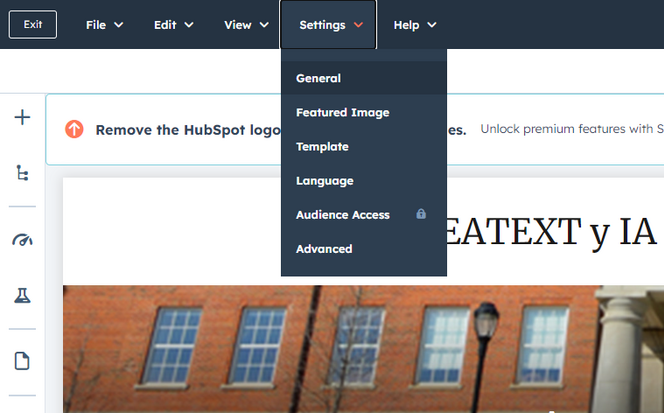
进入您的 HubSpot 网站,点击“设置” > “常规”

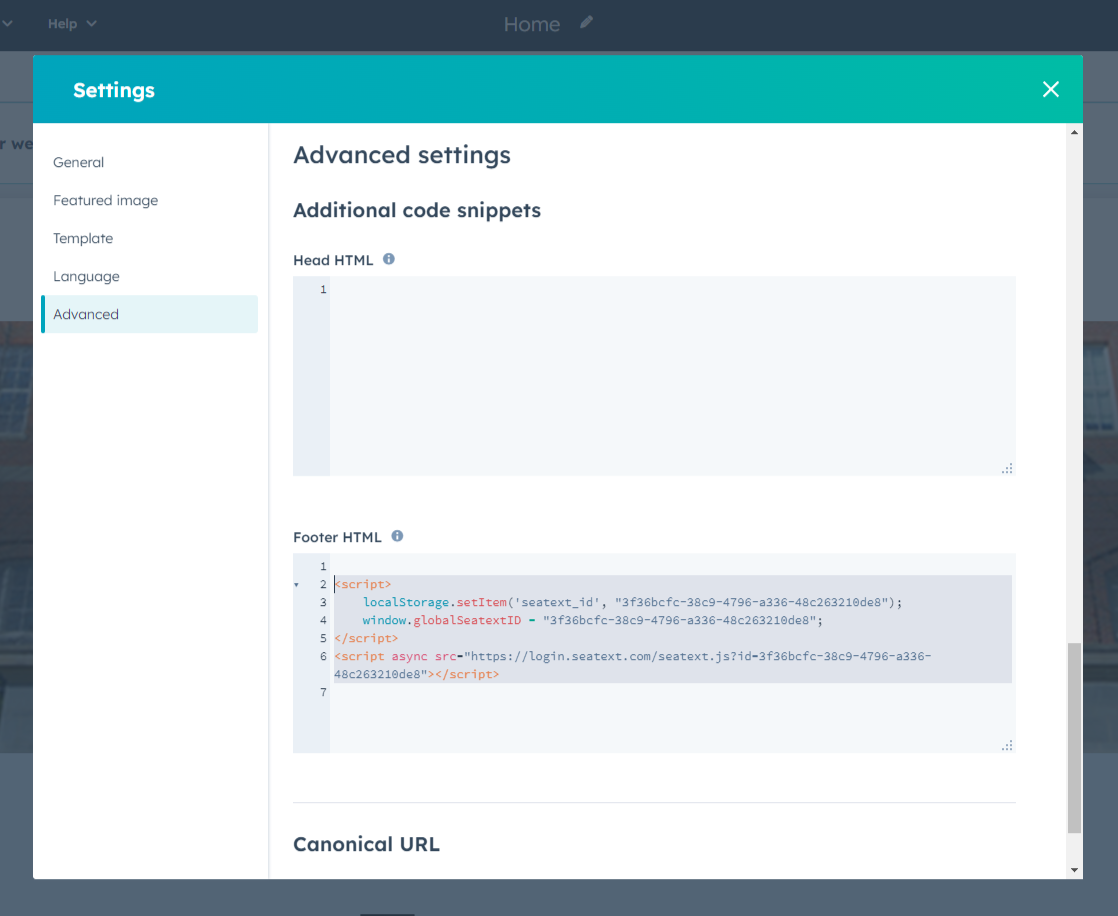
转到“高级”选项卡,您应该会看到一个标题为“页脚 HTML”的字段。复制并粘贴提供的 JavaScript 代码片段。它将类似于以下内容。

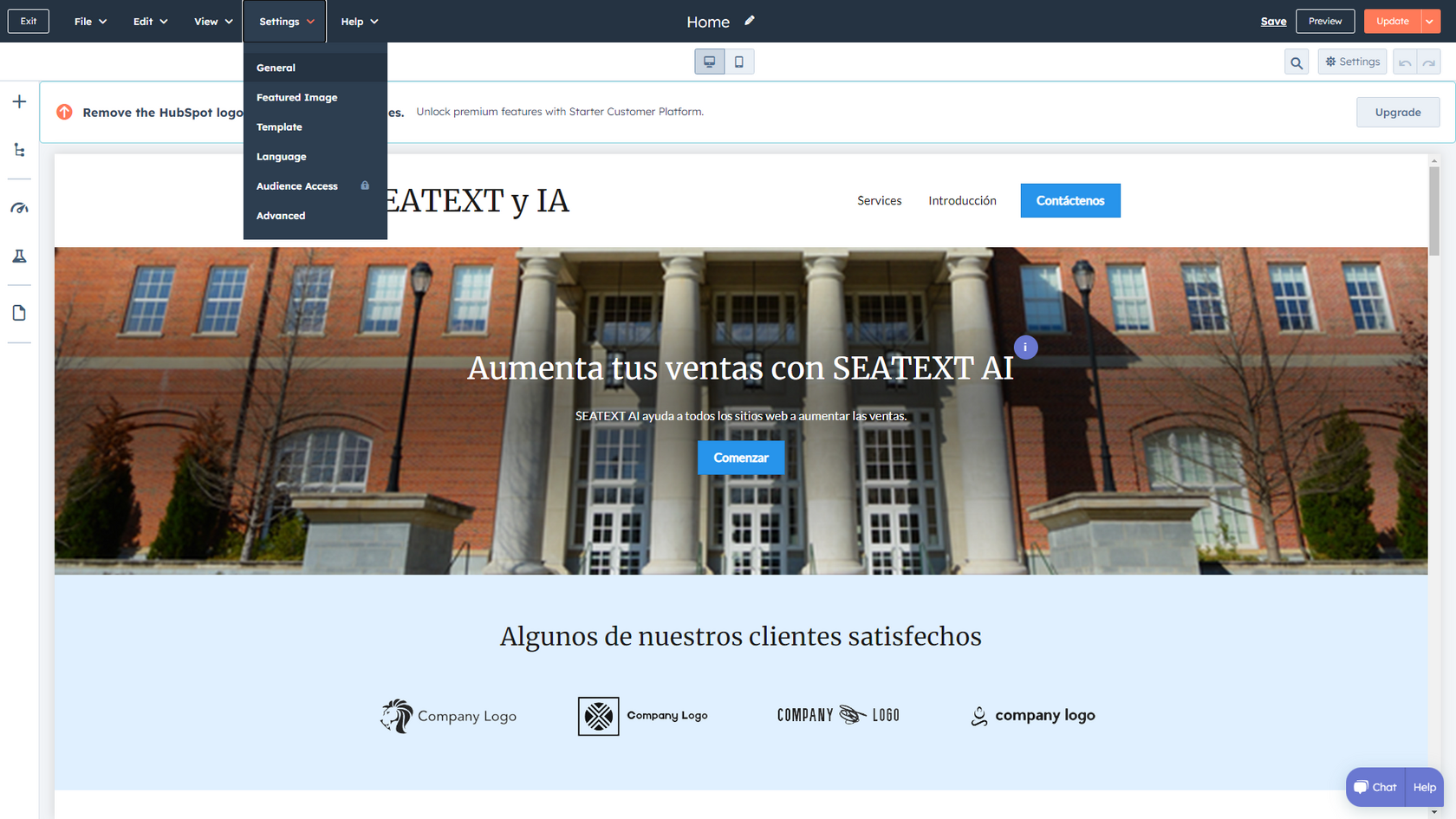
点击最右上角的橙色按钮发布您的更改。

Multiple Domains If you need to use SEATEXT AI on multiple domains (e.g., a development domain and a production domain), you must create separate accounts for each domain. Each SEATEXT AI account is linked to a single primary URL. Restrictions and Security Development URLs, such as localhost, are restricted for security reasons. Ensure you use a valid, real domain for these cases. Dynamic development domains may not function properly, as SEATEXT AI might be unable to reliably associate traffic with your account. Using SEATEXT AI on Multiple Websites To use SEATEXT AI on several websites, create one account for each website.

Important: Visit or refresh your website several times and stay on your page for at least 40 seconds—this will activate the AI and link it to your account.

Important: Wait at least five minutes until you see your website name displayed next to the SEATEXT logo at the top of this page. This indicates that your website is connected and ready to proceed to the next step. If you do not see it at the top of the page after 10 minutes, please contact our support team immediately. This could indicate an issue during the installation on your platform, and you may need our assistance.

Activating AI Proceed to the Main AI Hub to activate the necessary AI on your preferred pages. Click on "Configuration" to adjust the AI parameters. Optional Editing: SEATEXT AI provides your initial round of automatic translations and variants for testing. Log in to your SEATEXT AI account, navigate to "Variants Edit" in the left panel, and select the URL and language you wish to edit. Here, you can review, create, or manually edit translations for your variants.