Odoo Integration
请按照以下步骤在您的网站上安装 Seatext。安装过程安全可靠,AI 在激活前保持静止,确保网站内容的完整性。安装脚本前,您需要先拥有 SEATEXT AI 账户。如果尚未注册,可在此创建。
Odoo Integration
分步集成
复制本节中出现的 SEATEXT AI Javascript 代码。
SEATEXTCODEINTEGRATION
Log in to your Odoo account and access the “Website” module from the dashboard. Within the Website module, navigate to the page you wish to edit and click on the "Edit" button to open the editing panel. In the editing panel, scroll through the "Blocks" panel until you reach the "Dynamic Content" section.
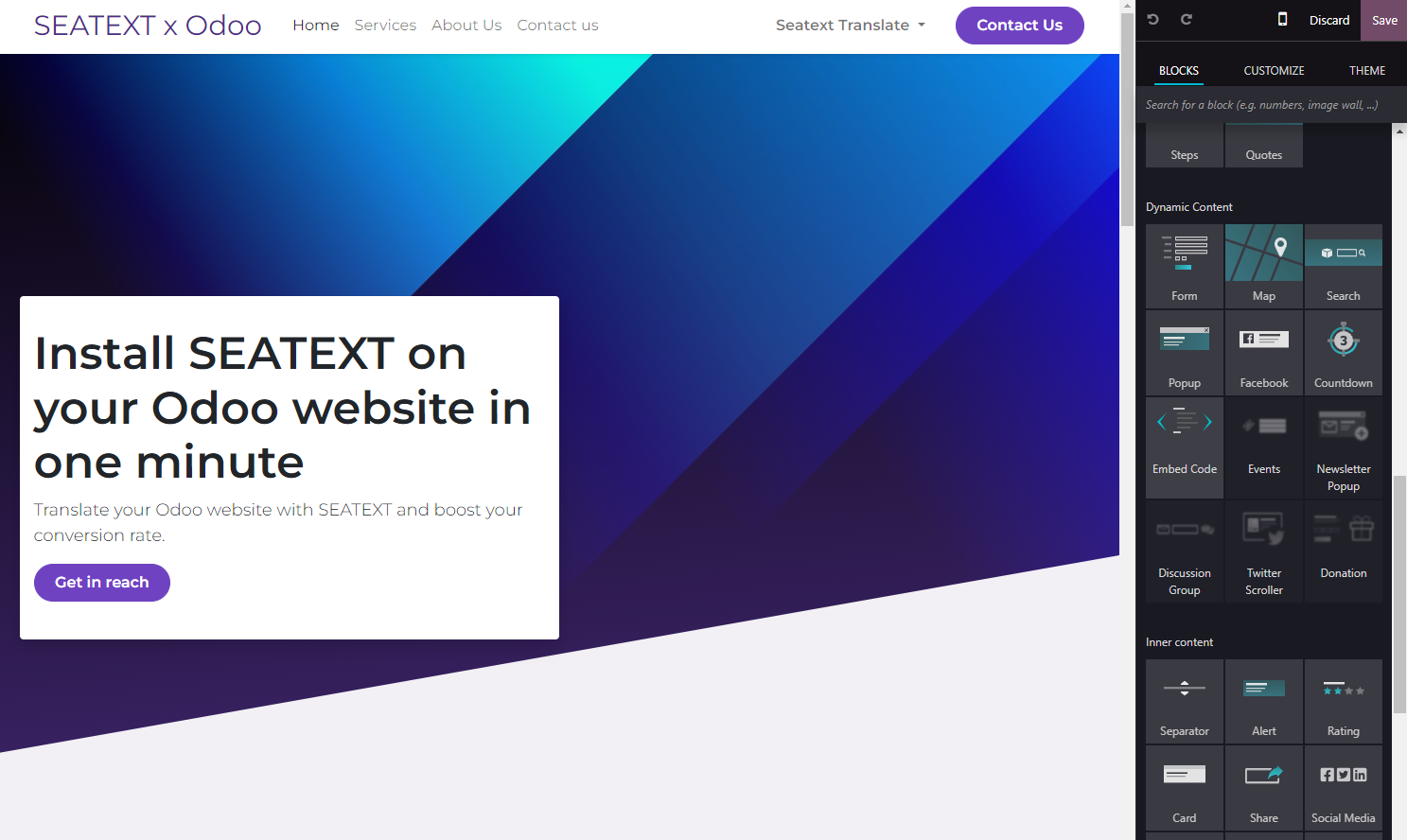
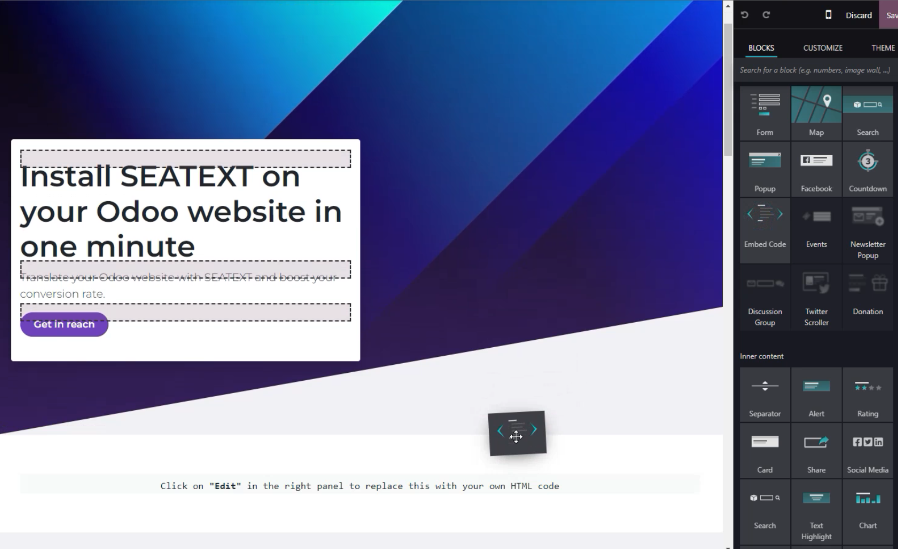
Locate the "Embed Code" module within the "Dynamic Content" section and drag it into the desired location on your website editor.
您已成功使用 JavaScript 在网站上安装了 SEATEXT AI。
Step 4: Once the module is placed, click on the "Edit" button located in the right panel to input the code.
Step 5: In the pop-up window that appears, paste the code snippet provided by SEATEXT AI into the designated area, then click "Save" to apply the changes.
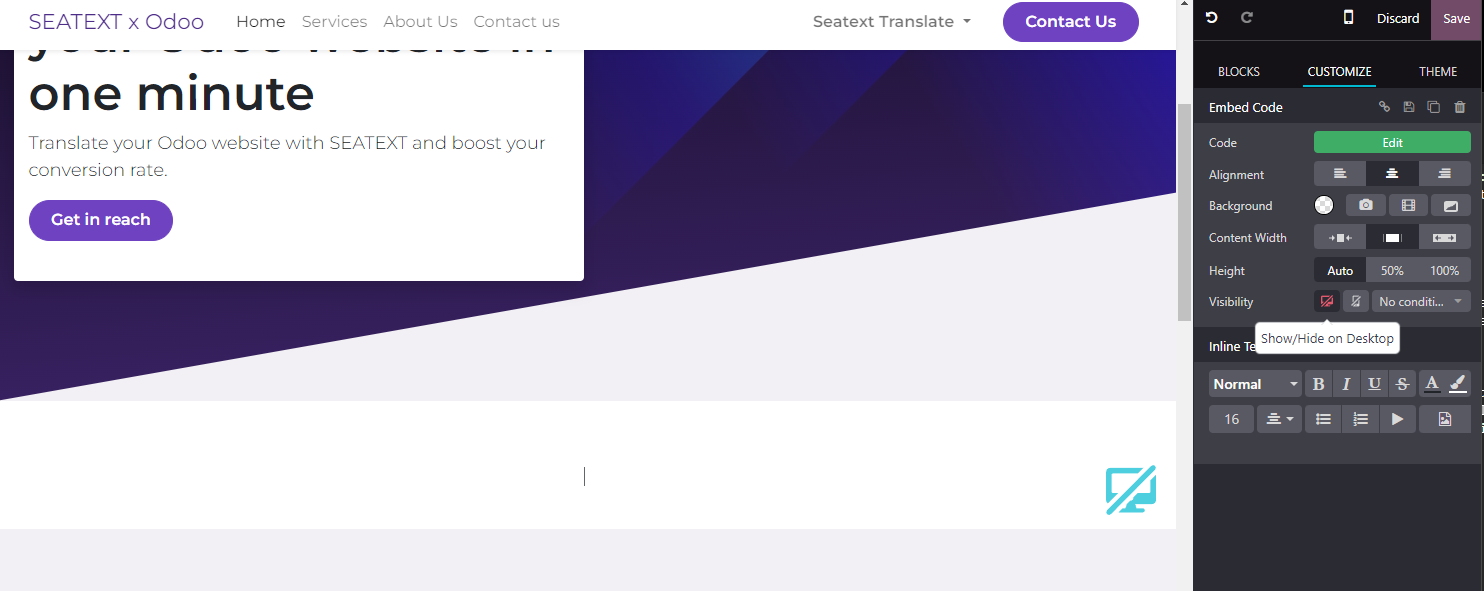
Step 6: To ensure the block is hidden from view on desktop devices, select the "Hide on Desktop" option in the "Visibility" section. After making this adjustment, click on "Save" once more to finalize your changes.
您已成功使用 JavaScript 在网站上安装了 SEATEXT AI。
Step 6: To ensure the block is hidden from view on desktop devices, select the "Hide on Desktop" option in the "Visibility" section. After making this adjustment, click on "Save" once more to finalize your changes.
Step 5: In the pop-up window that appears, paste the code snippet provided by SEATEXT AI into the designated area, then click "Save" to apply the changes.
Step 4: Once the module is placed, click on the "Edit" button located in the right panel to input the code.
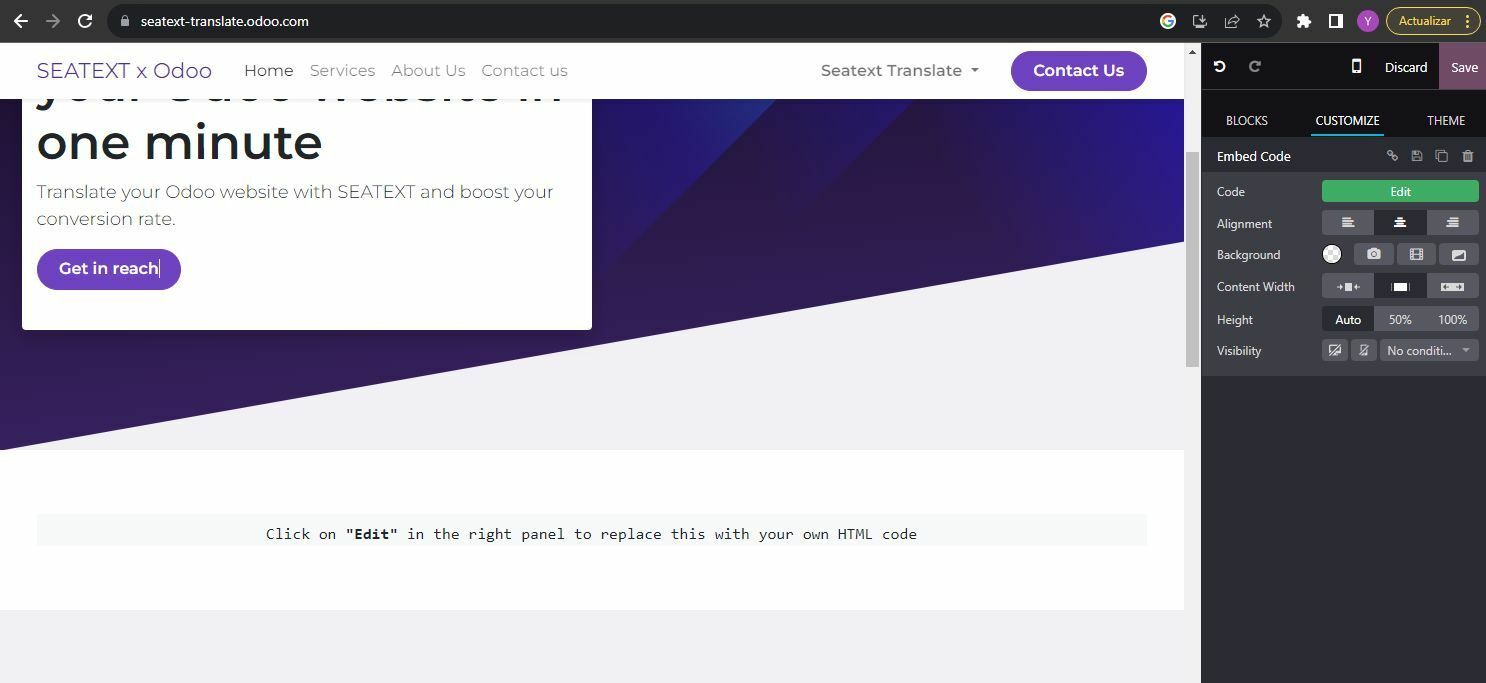
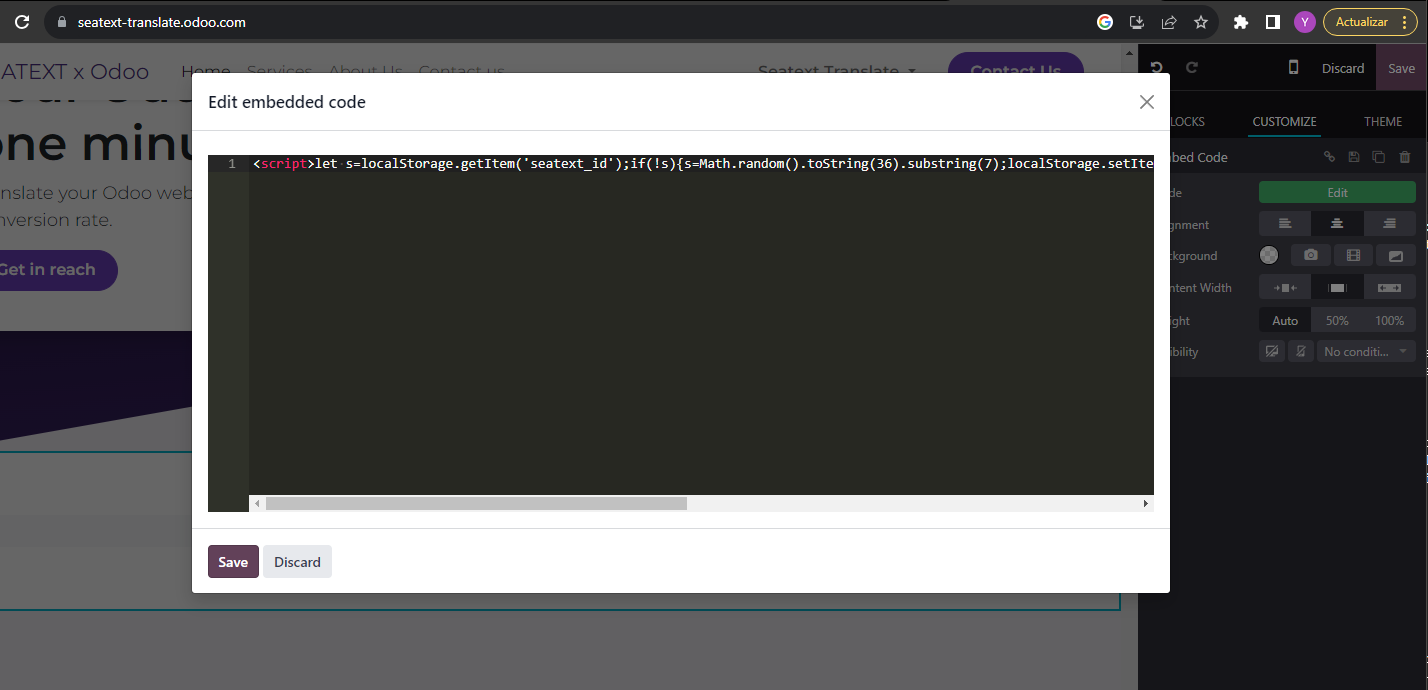
Once the module is placed, click on the "Edit" button located in the right panel to input the code.
In the pop-up window that appears, paste the code snippet provided by SEATEXT AI into the designated area, then click "Save" to apply the changes.
To ensure the block is hidden from view on desktop devices, select the "Hide on Desktop" option in the "Visibility" section. After making this adjustment, click on "Save" once more to finalize your changes.
多域名 如果您需要在多个域名上使用 SEATEXT AI(例如开发域名和生产域名),必须为每个域名创建单独的账户。每个 SEATEXT AI 账户仅关联一个主 URL。出于安全考虑,开发 URL(如 localhost)受到限制。请务必使用有效的真实域名。动态开发域名可能无法正常工作,因为 SEATEXT AI 可能无法可靠地将流量关联到您的账户。使用 SEATEXT AI 在多个网站上时,请为每个网站创建一个账户。
重要提示:请多次访问或刷新您的网站,并在页面停留至少 40 秒——这将激活 AI 并将其关联到您的账户。
重要提示:请等待至少 5 分钟,直至在本页顶部的 SEATEXT 标志旁看到您的网站名称。这表明网站已成功连接,可进入下一步。如果 10 分钟后仍未显示,请立即联系支持团队。这可能是平台安装过程中出现的问题,您可能需要我们的帮助。
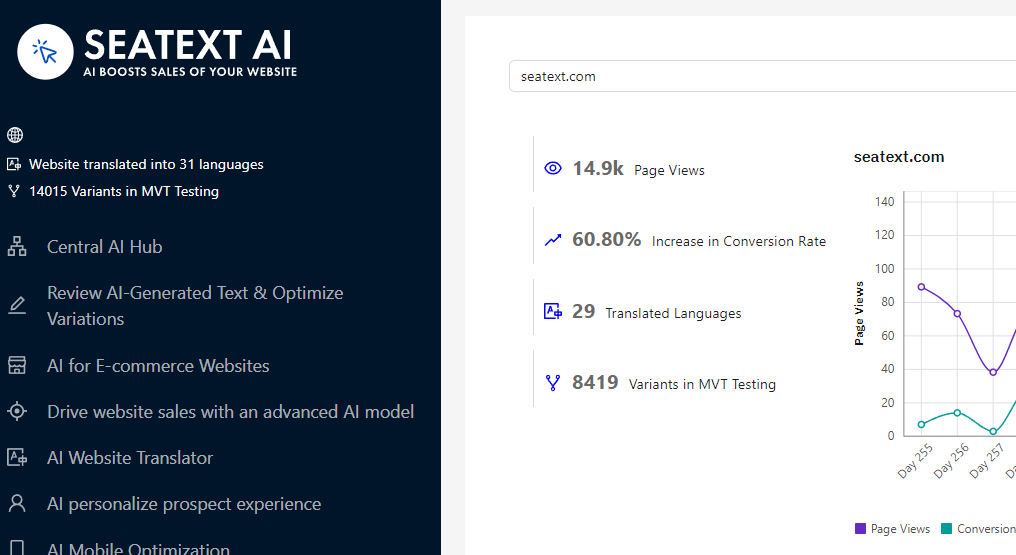
激活 AI:前往主 AI 中心,在您选择的页面上激活所需的 AI。点击“配置”以调整 AI 参数。可选编辑:SEATEXT AI 为您提供首轮自动翻译和变体供测试。登录 SEATEXT AI 账户,在左侧面板选择“变体编辑”,挑选要编辑的 URL 和语言。在此您可以查看、创建或手动编辑变体的翻译。