Zendesk 集成
Zendesk 集成
步骤1:复制SEATEXT AI提供的JavaScript代码,该代码可在下方部分找到。
分步集成
1
Zendesk 集成
步骤1:复制SEATEXT AI提供的JavaScript代码,该代码可在下方部分找到。
分步集成
1
SEATEXTCODEINTEGRATION
步骤 2:将 Seatext 的 JavaScript 代码粘贴到您的网站上
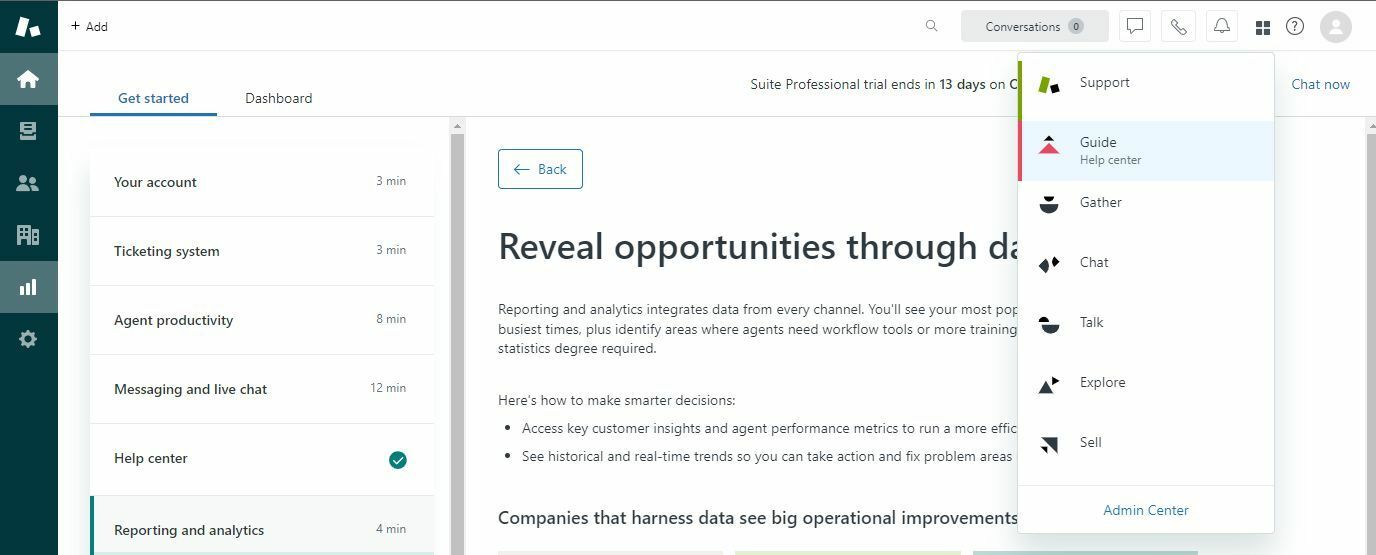
访问Zendesk仪表板的“Guide”部分。在Zendesk仪表板中,找到并点击四个小方块图标,然后从提供的选项中选择“Guide”。
您已成功使用 JavaScript 在网站上安装了 SEATEXT AI。
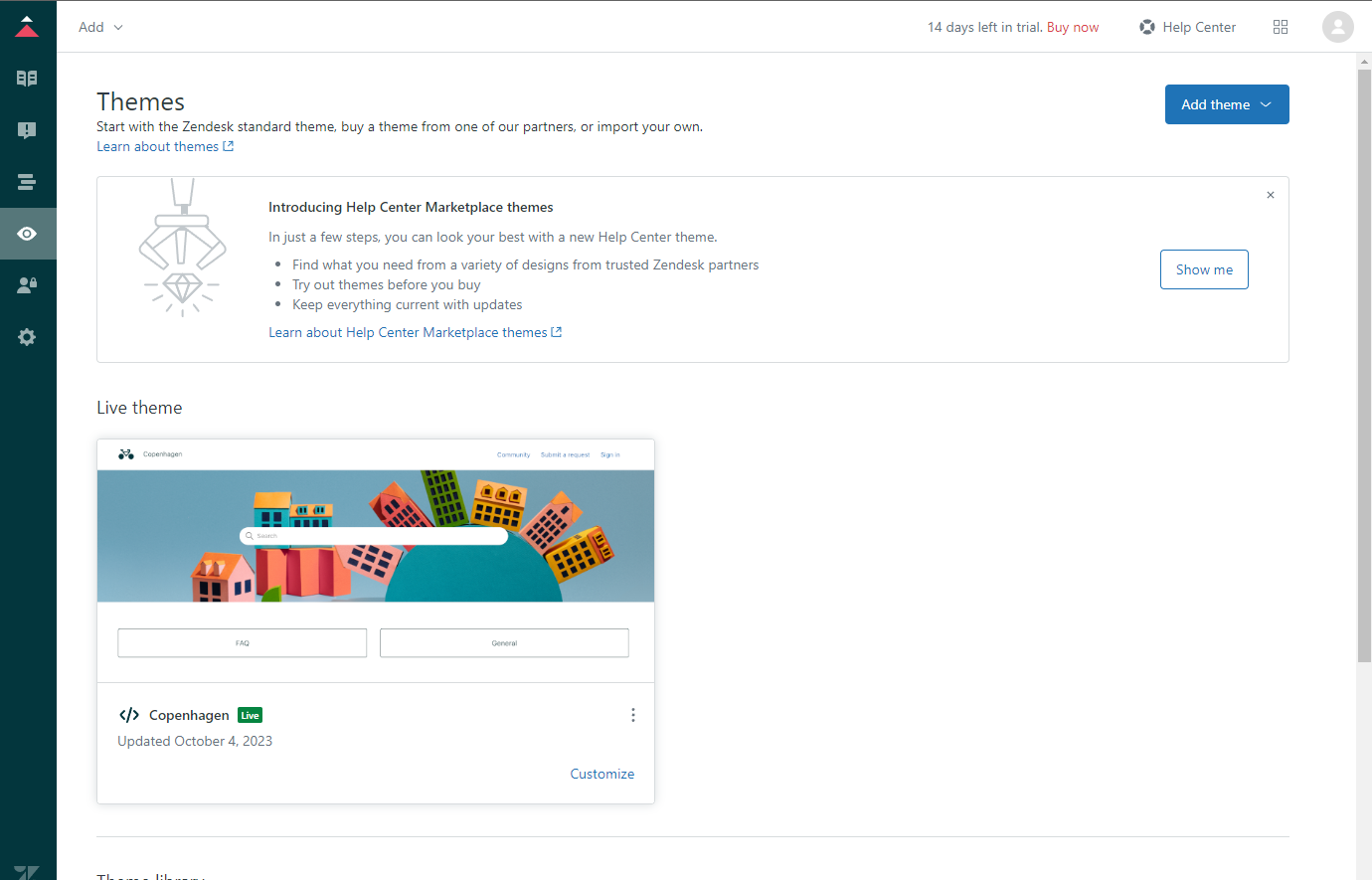
导航到“Custom Design”选项卡。点击侧边栏中的“Custom Design”按钮,然后选择“Customize”以访问自定义设置。
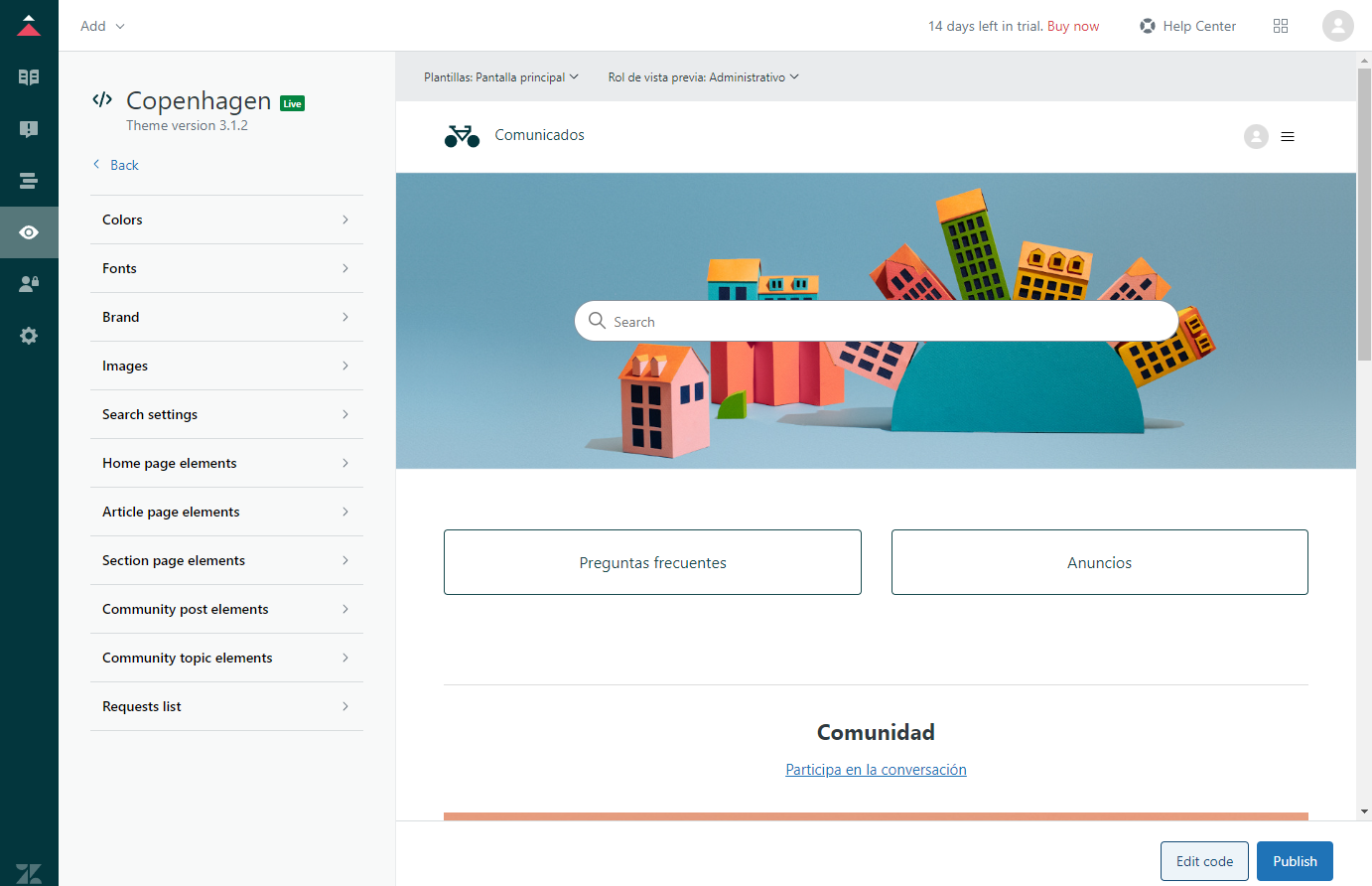
Select "Edit code" from the customization options.
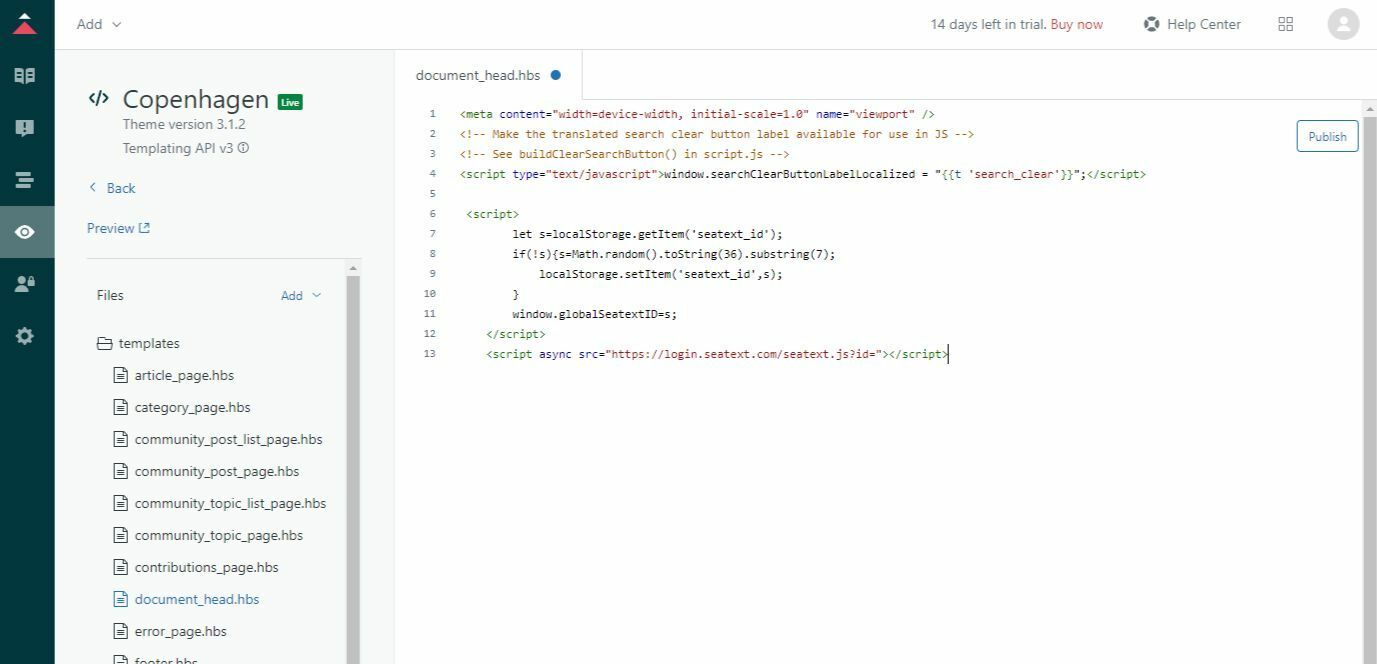
在左侧面板中,导航到“Files”部分并选择“document_head.hbs”文件。将SEATEXT AI提供的代码片段粘贴到“document_head.hbs”文件中的指定字段。最后,点击“Publish”以应用更改并将SEATEXT AI集成到您的Zendesk平台。
步骤 2:将 Seatext 的 JavaScript 代码粘贴到您的网站上
访问Zendesk仪表板的“Guide”部分。在Zendesk仪表板中,找到并点击四个小方块图标,然后从提供的选项中选择“Guide”。
您已成功使用 JavaScript 在网站上安装了 SEATEXT AI。
导航到“Custom Design”选项卡。点击侧边栏中的“Custom Design”按钮,然后选择“Customize”以访问自定义设置。
Select "Edit code" from the customization options.
在左侧面板中,导航到“Files”部分并选择“document_head.hbs”文件。将SEATEXT AI提供的代码片段粘贴到“document_head.hbs”文件中的指定字段。最后,点击“Publish”以应用更改并将SEATEXT AI集成到您的Zendesk平台。
将 SEATEXT AI 关联到您的网站
2
将 SEATEXT AI 关联到您的网站
2
a. 使用下方表单填写您网站的地址,格式为 (www.example.com)。 SEATEXTURLPUSH
c. 请等待至少五分钟,直至在本页顶部 SEATEXT 标志旁看到您网站的名称。这表明您的网站已成功关联,可进入下一步。如果十分钟后仍未显示,请立即联系客户支持团队。这可能是平台安装过程中出现的问题,您可能需要我们的帮助。
重要提示 b. 访问您网站一次,并在页面停留至少 40 秒——即可激活 AI 并将其关联到您的账户。
a. 使用下方表单填写您网站的地址,格式为 (www.example.com)。 SEATEXTURLPUSH
重要提示 b. 访问您网站一次,并在页面停留至少 40 秒——即可激活 AI 并将其关联到您的账户。
c. 请等待至少五分钟,直至在本页顶部 SEATEXT 标志旁看到您网站的名称。这表明您的网站已成功关联,可进入下一步。如果十分钟后仍未显示,请立即联系客户支持团队。这可能是平台安装过程中出现的问题,您可能需要我们的帮助。

激活 AI
3
激活 AI
3
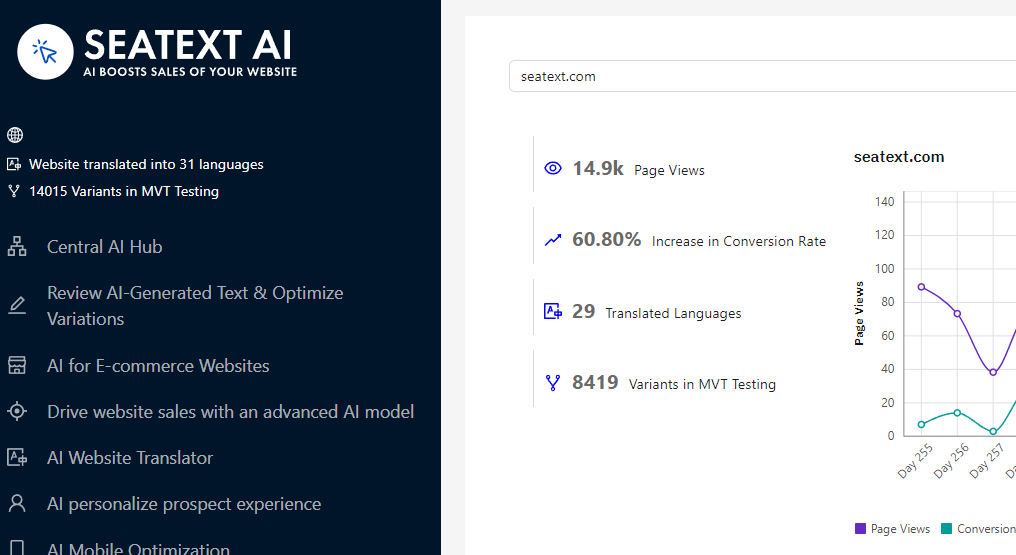
前往主 AI 中心,在您选择的页面上激活所需的 AI。点击 “Configuration” 调整 AI 参数。可选编辑:SEATEXT AI 为您提供首轮自动翻译和变体供测试。登录 SEATEXT AI 账户,在左侧面板进入 “Variants Edit”,选择要编辑的 URL 和语言。您可以在此查看、创建或手动编辑这些变体的翻译。
前往主 AI 中心,在您选择的页面上激活所需的 AI。点击 “Configuration” 调整 AI 参数。可选编辑:SEATEXT AI 为您提供首轮自动翻译和变体供测试。登录 SEATEXT AI 账户,在左侧面板进入 “Variants Edit”,选择要编辑的 URL 和语言。您可以在此查看、创建或手动编辑这些变体的翻译。
