GoDaddy 整合
請按照下方說明在您的網站安裝 Seatext。安裝過程安全可靠,AI 在啟用前會保持靜止狀態,確保您網站內容的完整性。安裝腳本前,您需要一個 SEATEXT AI 帳戶。若尚無帳戶,可點此 建立一個
GoDaddy 整合
逐步整合指南
複製下方此區域顯示的 SEATEXT AI JavaScript 代碼。
SEATEXTCODEINTEGRATION
步驟 2:使用您的憑證登入 GoDaddy 帳戶。步驟 3:前往您的產品,並選取您要翻譯的網站。步驟 4:點擊「編輯網站」以存取網站建置工具。步驟 5:在網站建置工具介面中,找到您要新增翻譯功能所在的頁面。步驟 6:點擊「新增區段」,將翻譯功能插入到目標頁面。
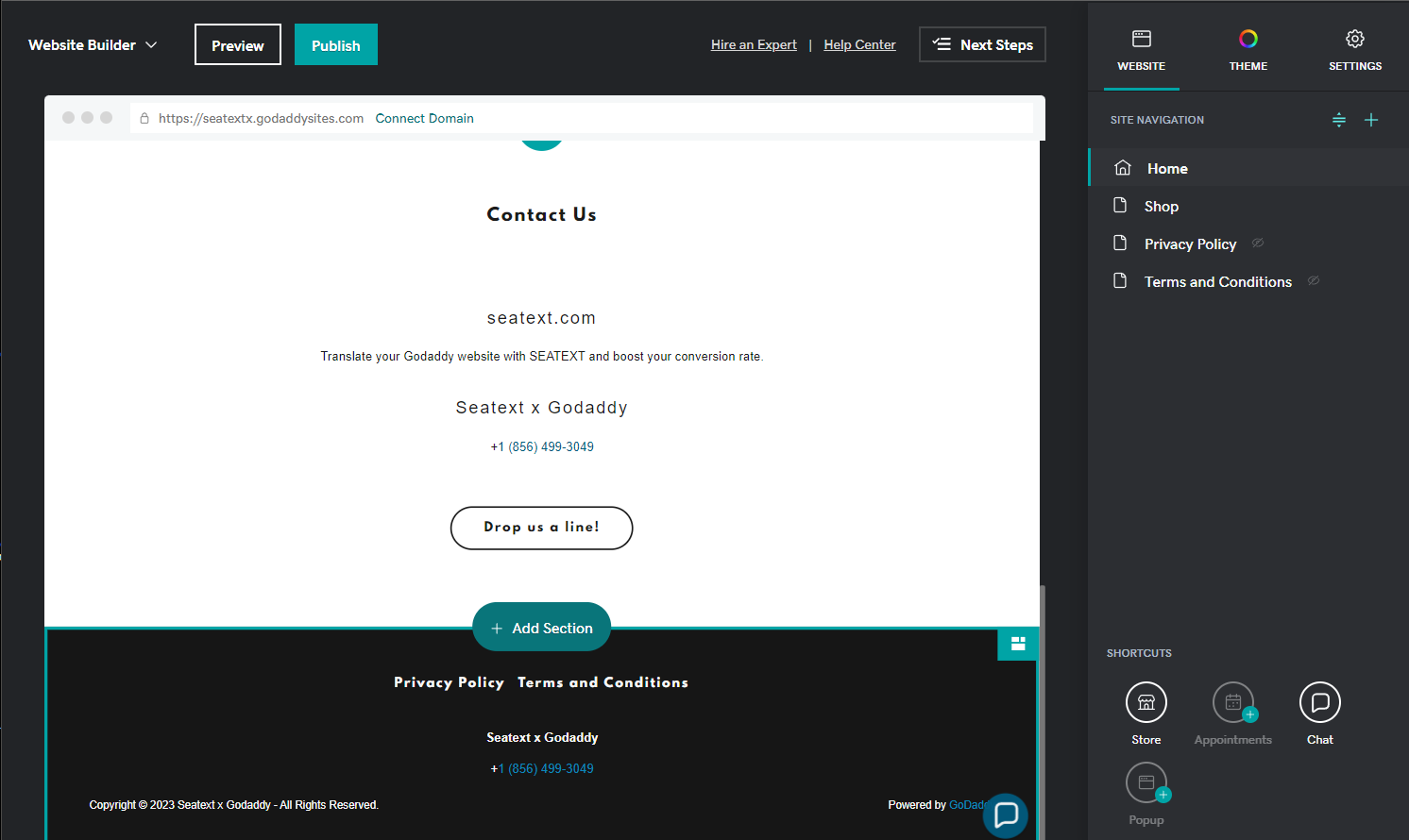
步驟 7:在右側面板中,點擊「檔案與網頁」。步驟 8:尋找「HTML」區段,並將其新增至您的頁面。
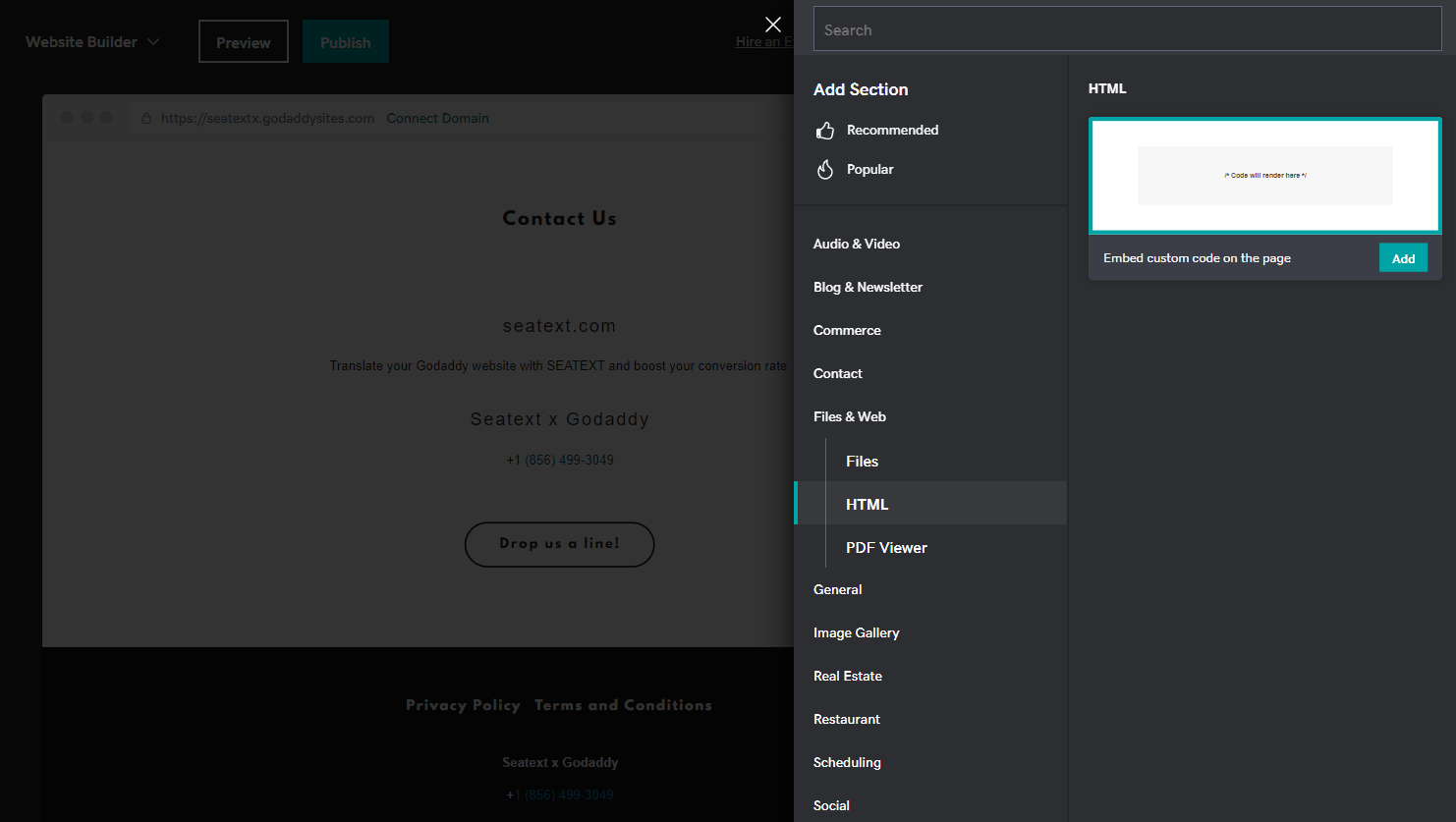
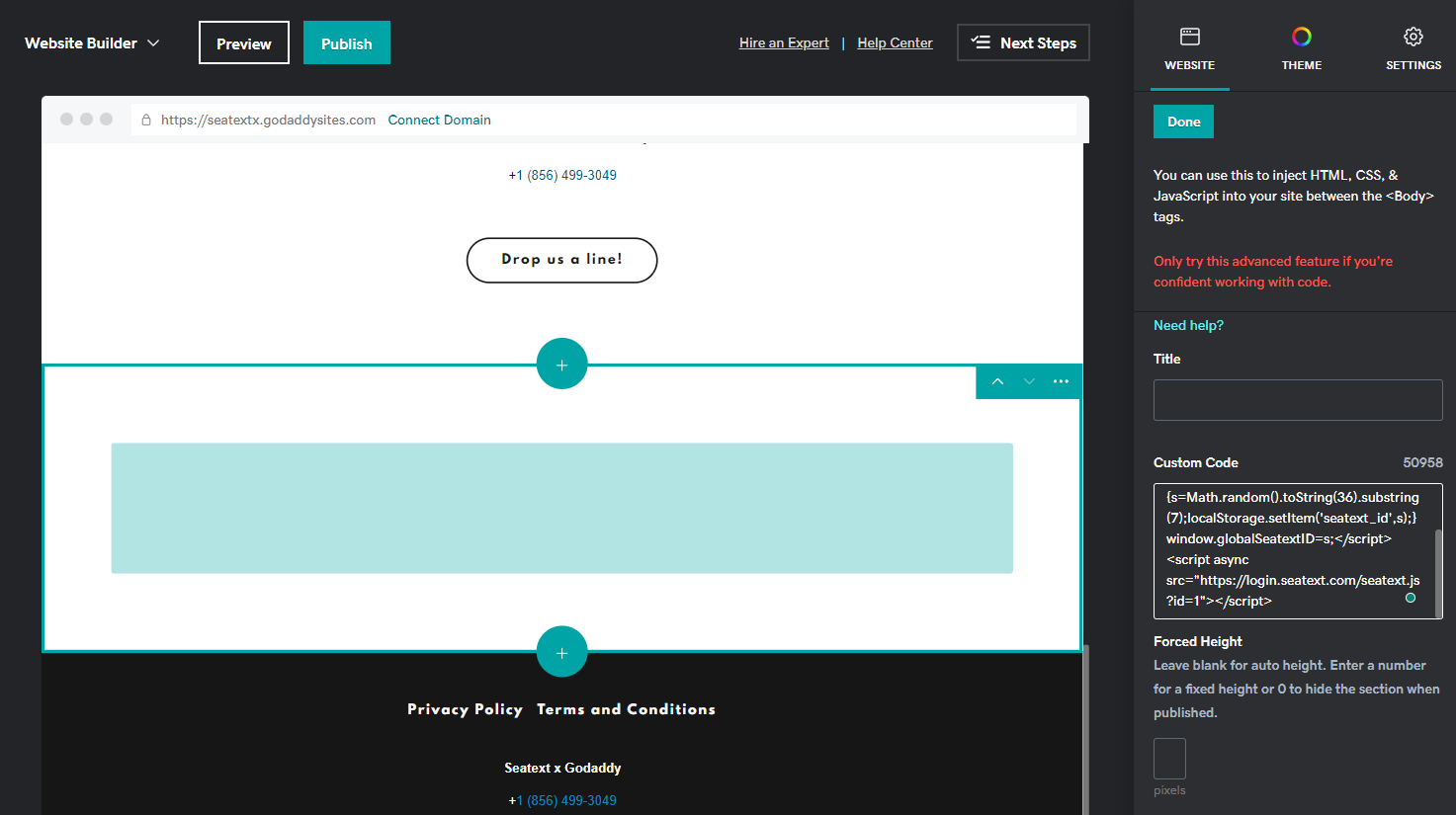
步驟 9:在右側面板的「自訂程式碼」區段中,貼上所提供的程式碼。
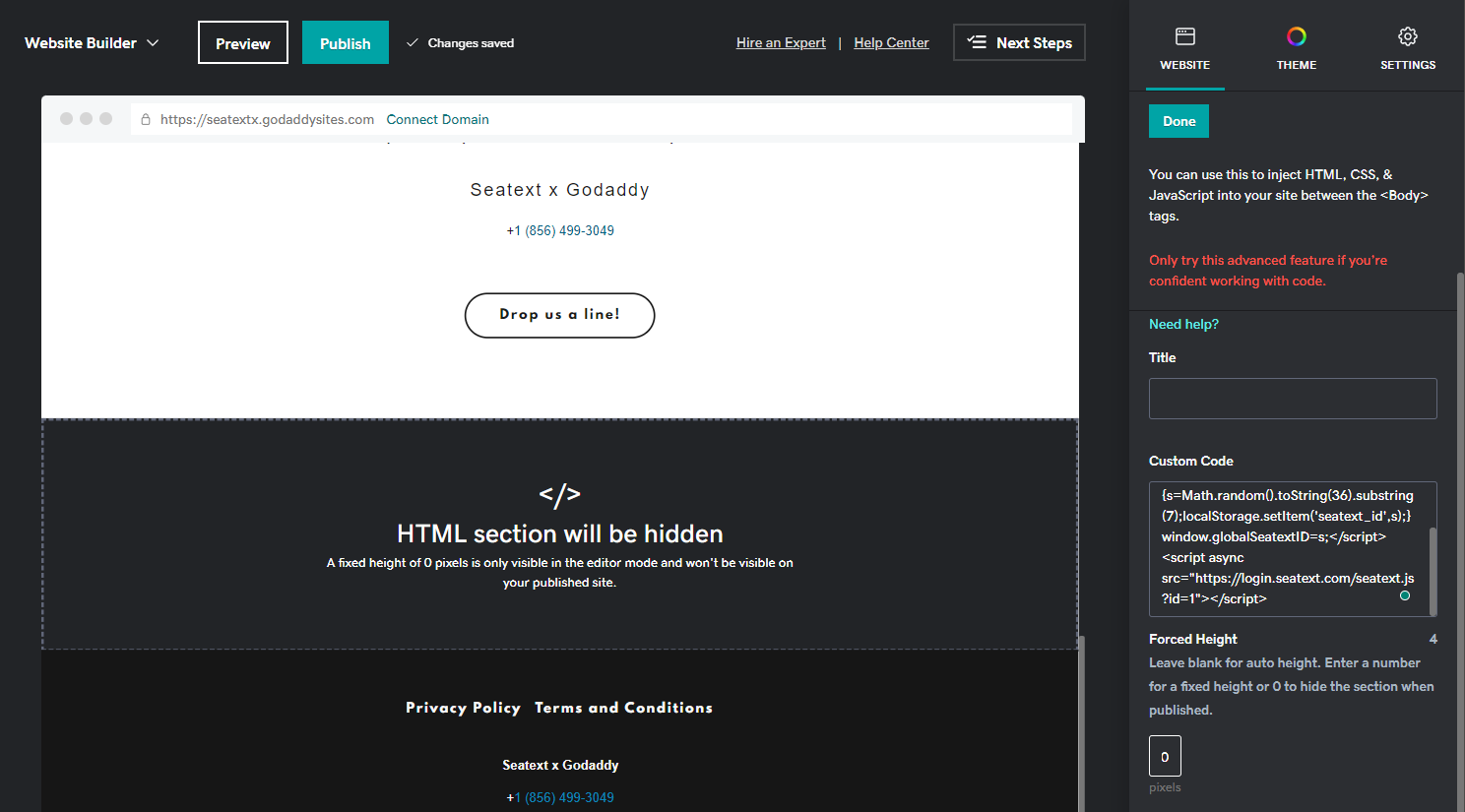
步驟 10:在「強制高度」區段中,將值設為 0。最後點擊「完成」和「發佈」以儲存變更。
重要事項:若要將 SEATEXT AI 全域新增至您的網站,請依照以下指示操作。
Adding SEATEXT AI to the header section of your site: Access the Header HTML Section In the left panel, click Settings . Click Head HTML . Head HTML . Add content to the head section Content Field. Body End HTML . Add custom HTML/Javascript just before the closing tag of the </body> element for each page in the site. Click Save .
多網域:若需在多個網域使用 SEATEXT AI(例如開發網域與正式網域),必須為每個網域建立獨立帳戶。每個 SEATEXT AI 帳戶僅連結單一主要網址。限制與安全性:為安全起見,開發用網址(如 localhost)受到限制。請確保使用有效的真實網域。動態開發網域可能無法正常運作,因 SEATEXT AI 可能無法可靠地將流量關聯至您的帳戶。在多個網站使用 SEATEXT AI:若要在多個網站使用 SEATEXT AI,請為每個網站建立一個帳戶。
重要:請多次造訪或重新整理您的網站,並在頁面停留至少 40 秒——這將啟用 AI 並將其連結至您的帳戶。
重要:請至少等待五分鐘,直到您在本頁頂端的 SEATEXT 標誌旁看到您的網站名稱。這表示您的網站已連線並可進行下一步驟。若 10 分鐘後仍未出現在頁面頂端,請立即聯繫我們的支援團隊。這可能表示您平台上的安裝過程出現問題,您可能需要我們的協助。
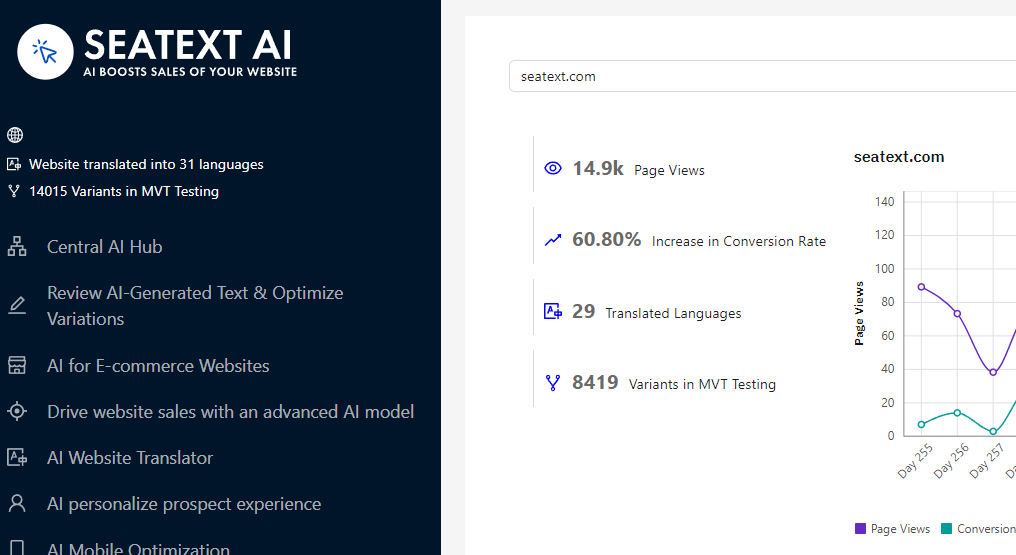
啟用 AI:前往主 AI 中心,在您偏好的頁面啟用所需的 AI。點擊「設定」以調整 AI 參數。可選編輯:SEATEXT AI 提供首輪自動翻譯與變體供測試。登入您的 SEATEXT AI 帳戶,前往左側面板的「變體編輯」,選擇您想編輯的網址與語言。您可以在這裡審查、建立或手動編輯變體的翻譯。
