Thinkific integration
Thinkific Integration
Step 1: Copy the JavaScript code provided by SEATEXT AI, which can be found in the section below.
Step by step integration
1
Thinkific Integration
Step 1: Copy the JavaScript code provided by SEATEXT AI, which can be found in the section below.
Step by step integration
1
SEATEXTCODEINTEGRATION
步驟 2:將 Seatext 的 Javascript 程式碼貼到您的網站上
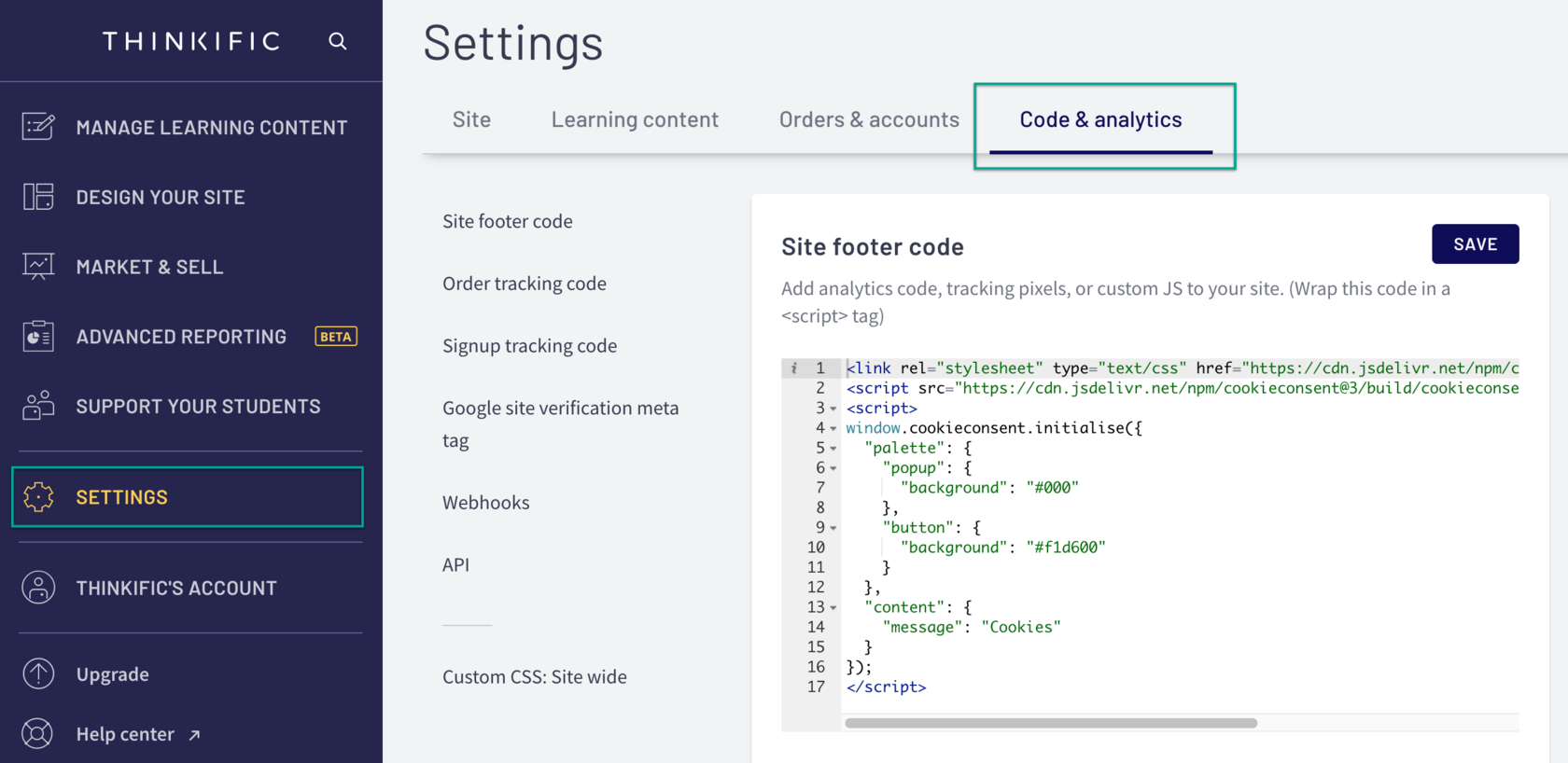
Go to your Admin Dashboard: Select Settings Then select the Code & Analytics tab In the Site Footer Code field, paste the code Click Save
您已成功使用 JavaScript 在網站上安裝 SEATEXT AI。
步驟 2:將 Seatext 的 Javascript 程式碼貼到您的網站上
Go to your Admin Dashboard: Select Settings Then select the Code & Analytics tab In the Site Footer Code field, paste the code Click Save
您已成功使用 JavaScript 在網站上安裝 SEATEXT AI。
將 SEATEXT AI 連結至您的網站
2
將 SEATEXT AI 連結至您的網站
2
a. 請使用以下表單,以 (www.example.com) 格式輸入您的網站位址。 SEATEXTURLPUSH
c. 請至少等待五分鐘,直至在本頁頂部的 SEATEXT 標誌旁看到您的網站名稱顯示。這表示您的網站已連線,且可進入下一步。若 10 分鐘後仍未在頁面頂部看到,請立即聯絡我們的支援團隊。這可能是平台安裝過程中出現問題,您可能需要我們的協助。
IMPORTANT b. Visit your website once and stay on your page for at least 40 seconds—this will activate the AI and link it to your account.
a. 請使用以下表單,以 (www.example.com) 格式輸入您的網站位址。 SEATEXTURLPUSH
IMPORTANT b. Visit your website once and stay on your page for at least 40 seconds—this will activate the AI and link it to your account.
c. 請至少等待五分鐘,直至在本頁頂部的 SEATEXT 標誌旁看到您的網站名稱顯示。這表示您的網站已連線,且可進入下一步。若 10 分鐘後仍未在頁面頂部看到,請立即聯絡我們的支援團隊。這可能是平台安裝過程中出現問題,您可能需要我們的協助。

啟用 AI
3
啟用 AI
3
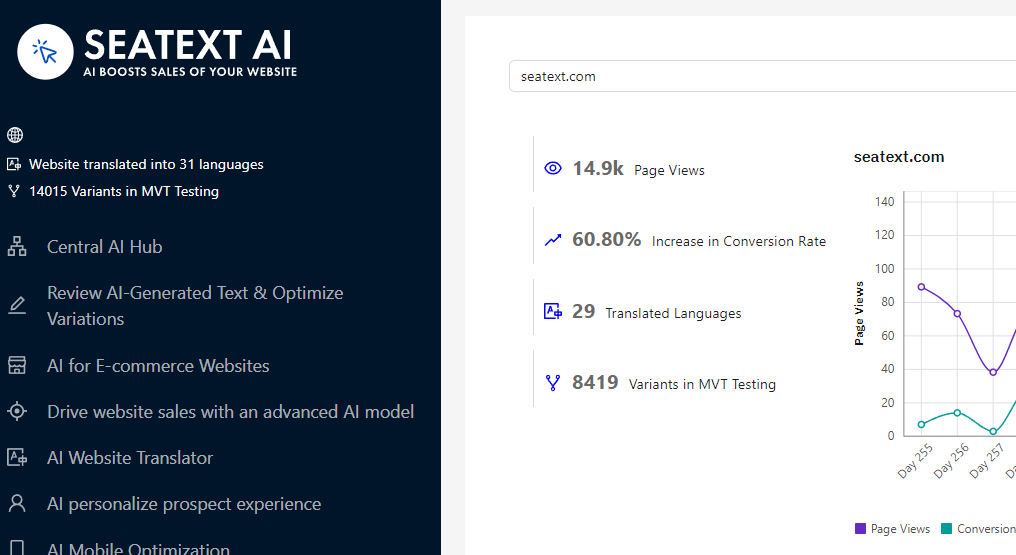
前往主 AI 中樞,在您選擇的頁面上啟用所需的 AI。點擊「Configuration」以調整 AI 參數。可選編輯:SEATEXT AI 會提供初始的自動翻譯與變體供測試。登入您的 SEATEXT AI 帳號,於左側面板選取「Variants Edit」,然後選擇要編輯的 URL 與語言。在此您可以檢視、建立或手動編輯變體的翻譯。
前往主 AI 中樞,在您選擇的頁面上啟用所需的 AI。點擊「Configuration」以調整 AI 參數。可選編輯:SEATEXT AI 會提供初始的自動翻譯與變體供測試。登入您的 SEATEXT AI 帳號,於左側面板選取「Variants Edit」,然後選擇要編輯的 URL 與語言。在此您可以檢視、建立或手動編輯變體的翻譯。