Tilda 整合
Install Seatext on your website by following the instructions below. The installation process is secure, and the AI remains inert until activated, ensuring the integrity of your website's content. Before you can install the script, you need a SEATEXT AI account. If you don't have an account yet, you can create one HERE
Tilda 整合
逐步整合
Copy the Javascript code from SEATEXT AI which appear in this section below.
SEATEXTCODEINTEGRATION
將 Seatext 的 JavaScript 程式碼貼到您的網站上。若要在所有網站頁面的 head 中插入程式碼,請前往「網站設定」。
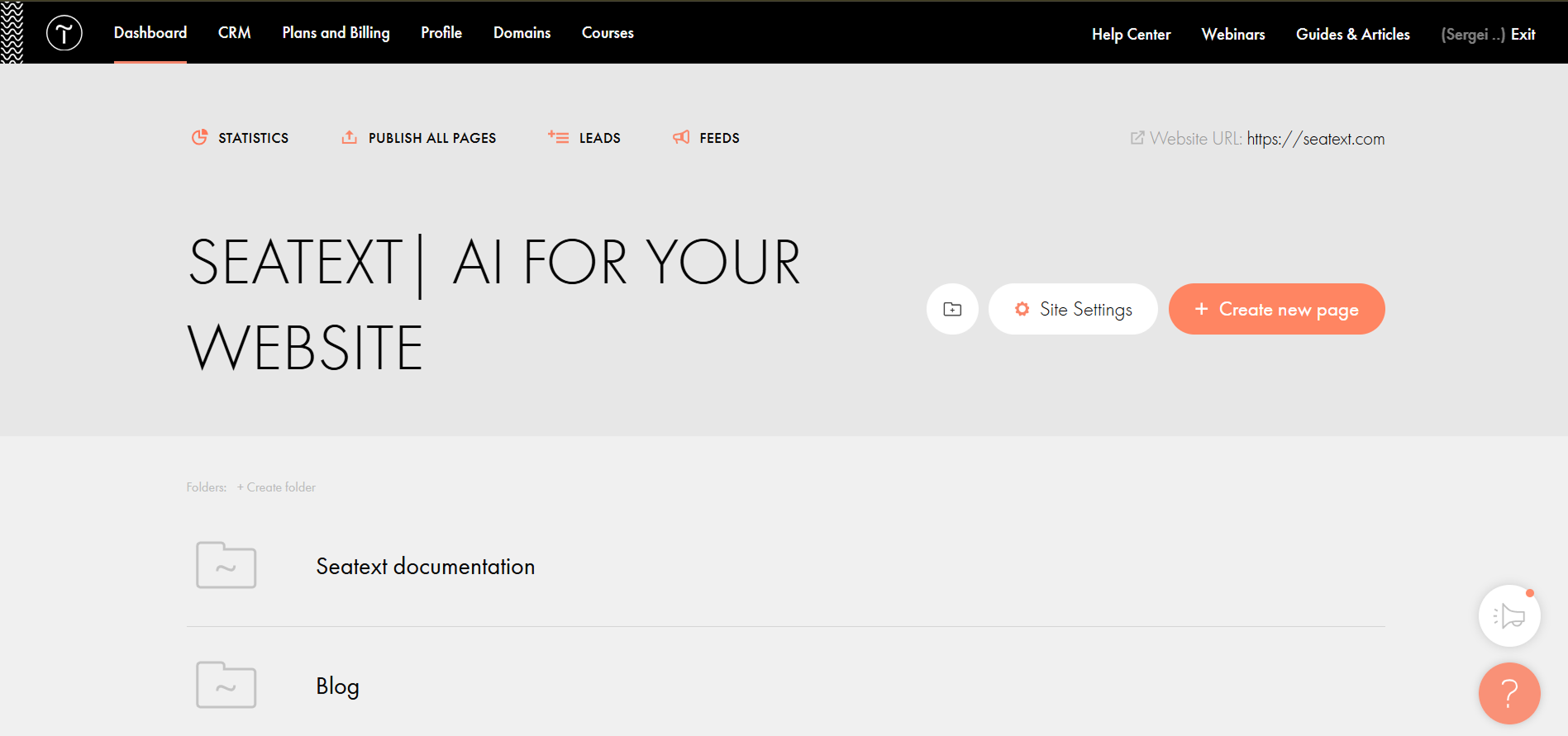
點擊「更多」→「head 區段的 HTML 程式碼」→「編輯程式碼」
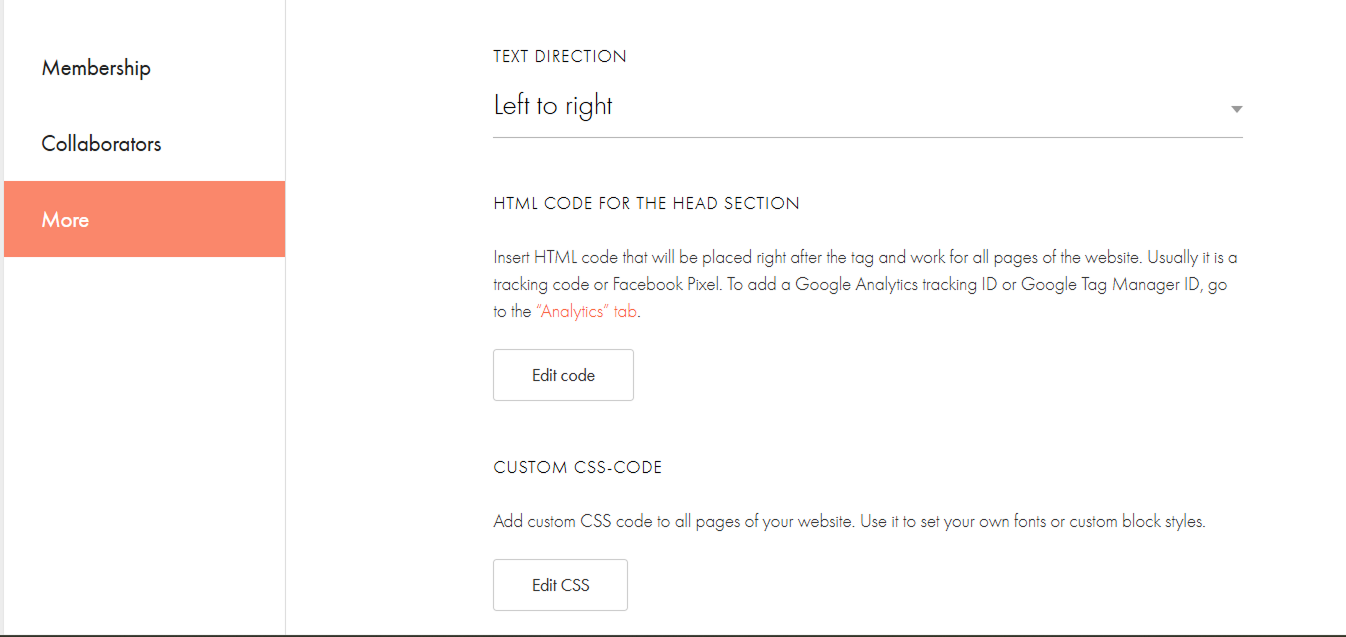
將程式碼貼入標示為「在 HEAD 標籤內編輯程式碼」的欄位,然後儲存並發布您的網站。
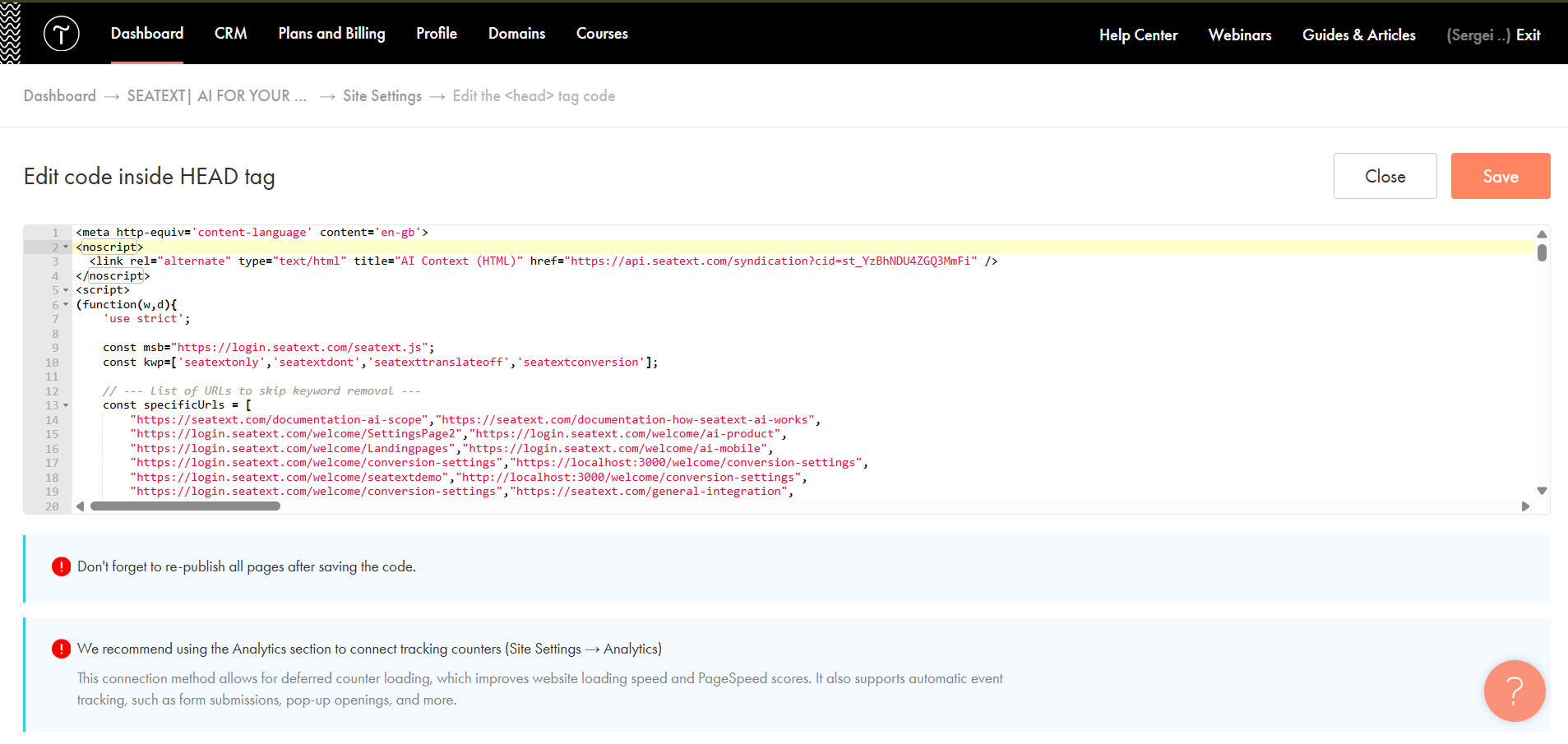
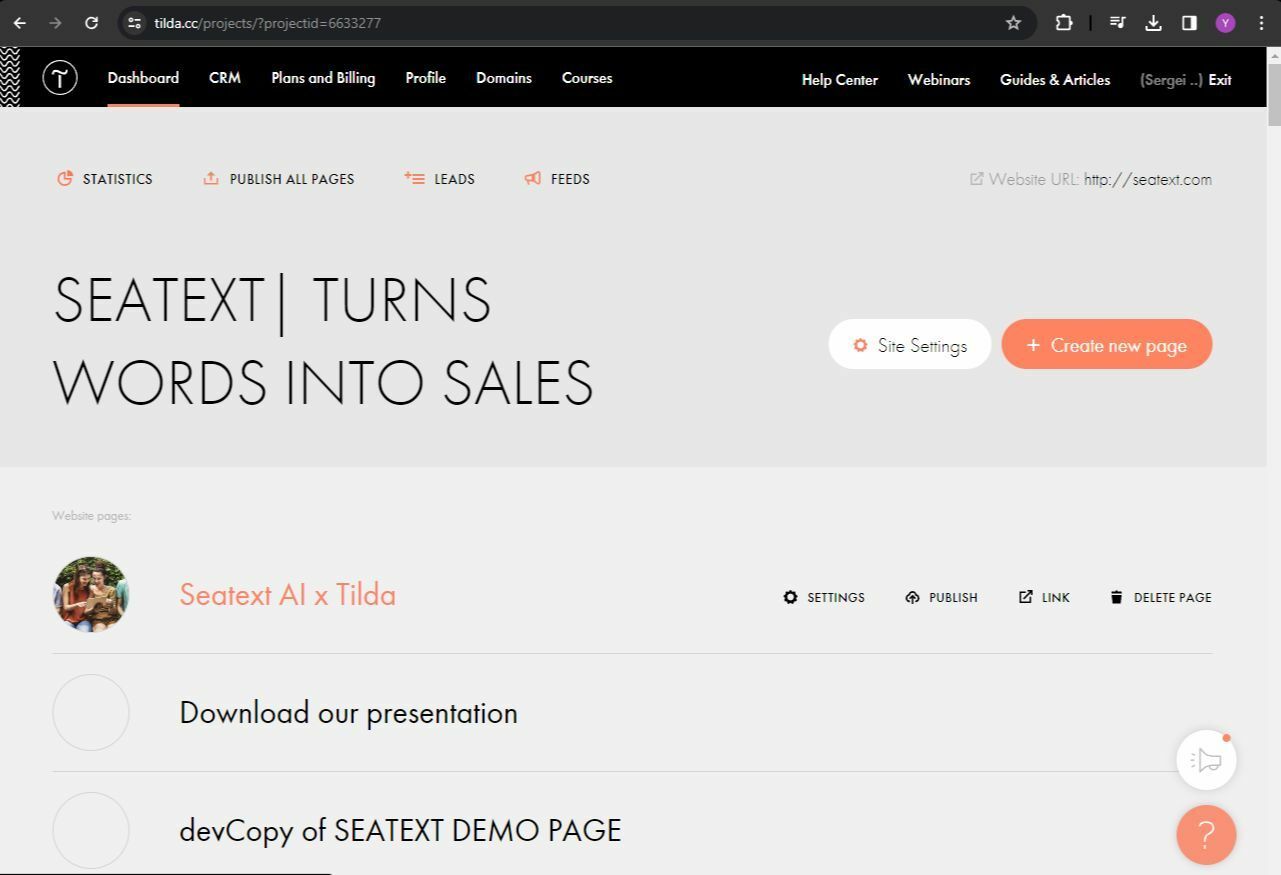
如果您想在特定頁面的 head 中插入程式碼:請進入您的 Tilda 後台,並前往您想要翻譯的頁面。
點擊「+」圖示以在頁面新增區塊,然後從提供的選項中選擇名為 T123 的區塊。
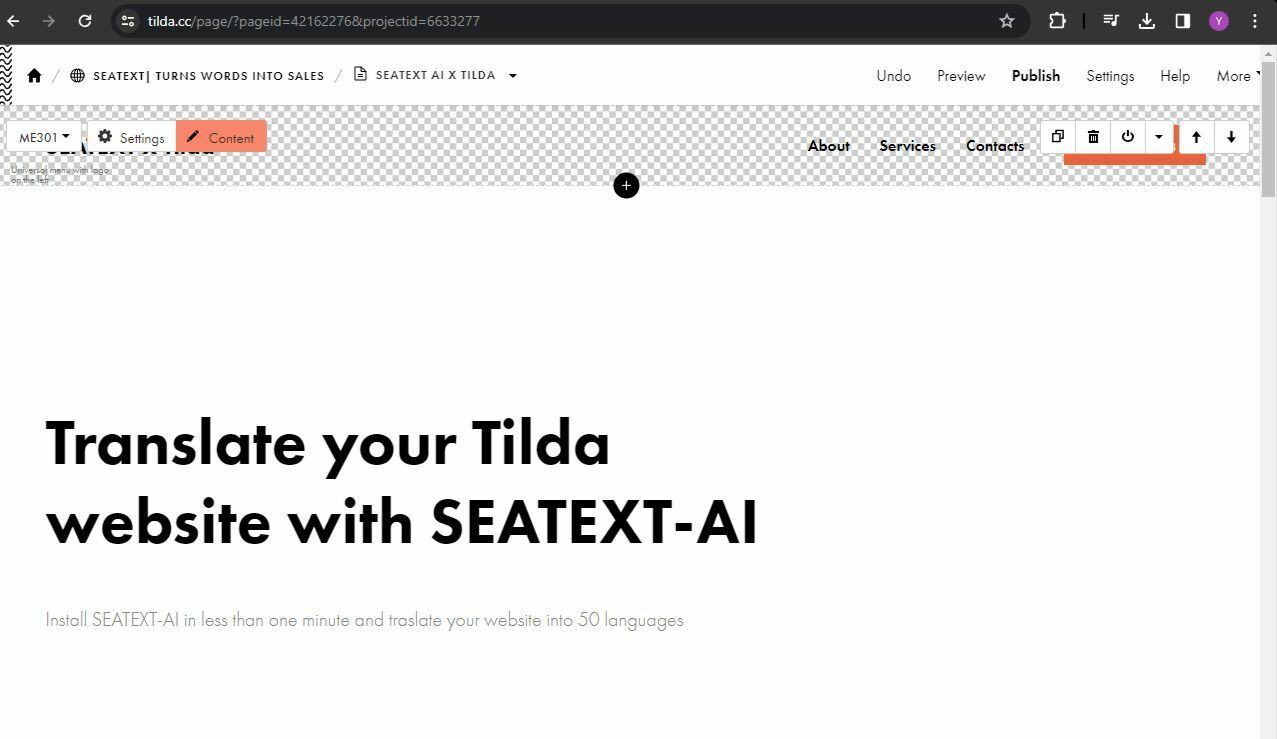
向下捲動,並在區塊選項中選取「Other」。
You have now successfully installed SEATEXT AI on your website using JavaScript.
找到並選取名為 T123 的區塊,該區塊可新增嵌入式 HTML 程式碼。
區塊加入頁面後,點擊「Content」以開啟 HTML 編輯器。
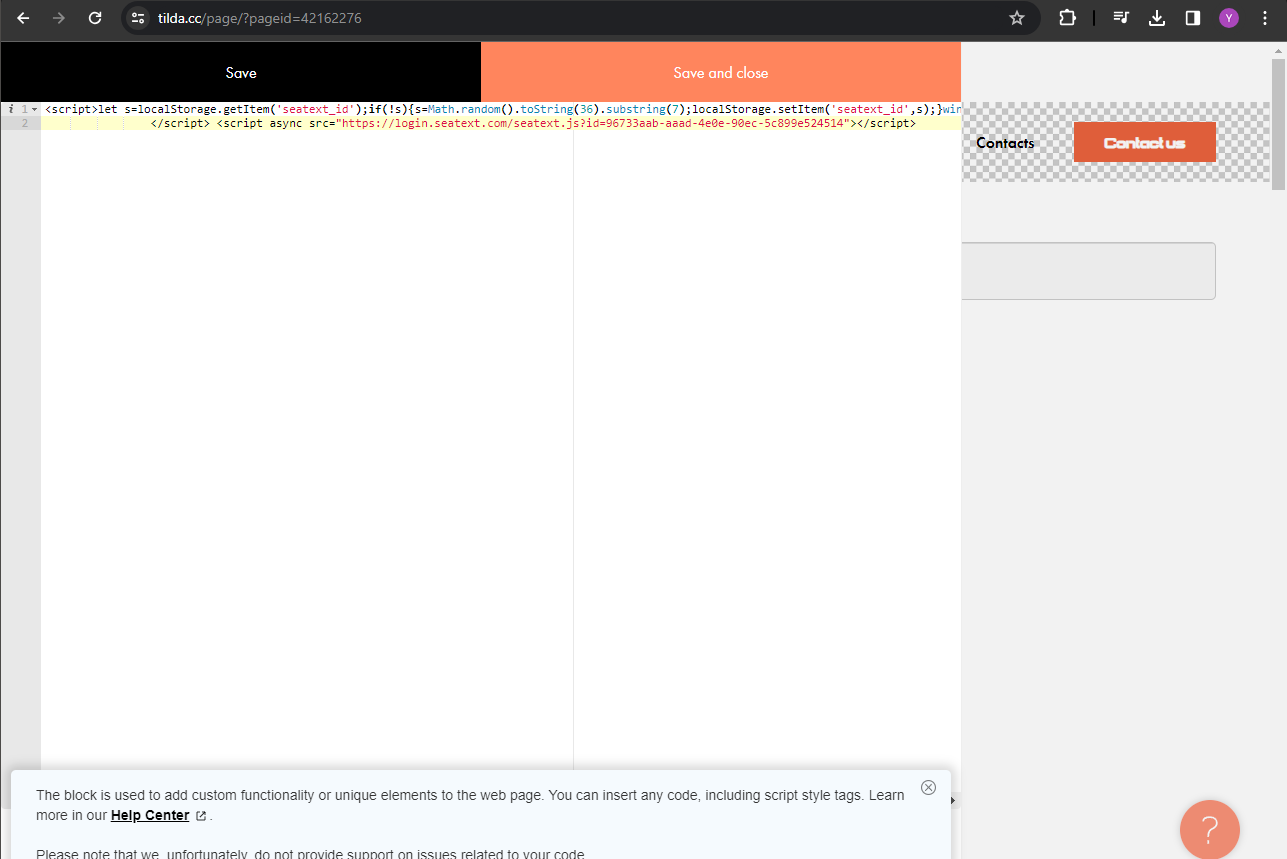
將 SEATEXT AI 提供的程式碼片段貼入 HTML 編輯器,然後點擊「Save and Close」以套用變更。
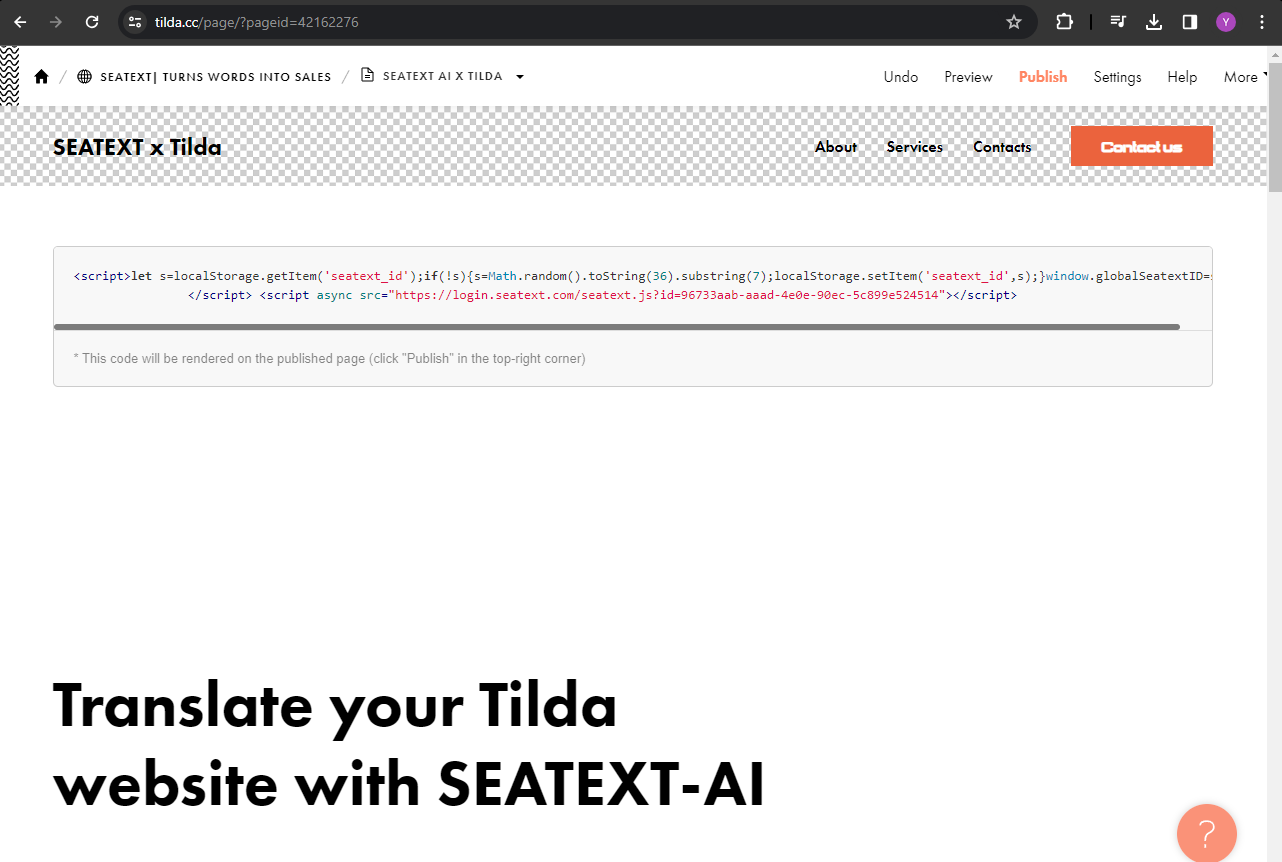
您會看到程式碼已成功加入頁面。最後,點擊「Publish」使變更在您的網站上線。
You have now successfully installed SEATEXT AI on your website using JavaScript.
您會看到程式碼已成功加入頁面。最後,點擊「Publish」使變更在您的網站上線。
將 SEATEXT AI 提供的程式碼片段貼入 HTML 編輯器,然後點擊「Save and Close」以套用變更。
區塊加入頁面後,點擊「Content」以開啟 HTML 編輯器。
找到並選取名為 T123 的區塊,該區塊可新增嵌入式 HTML 程式碼。
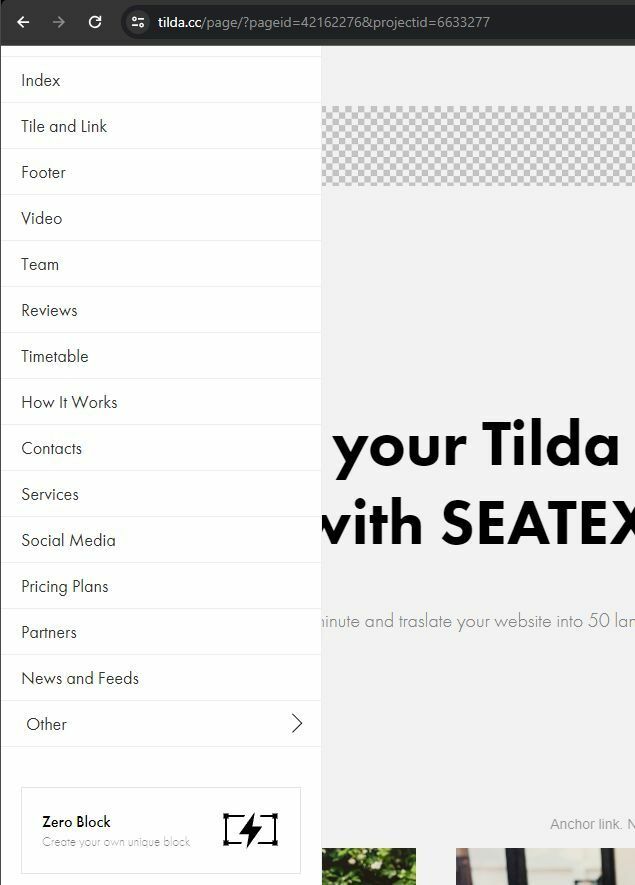
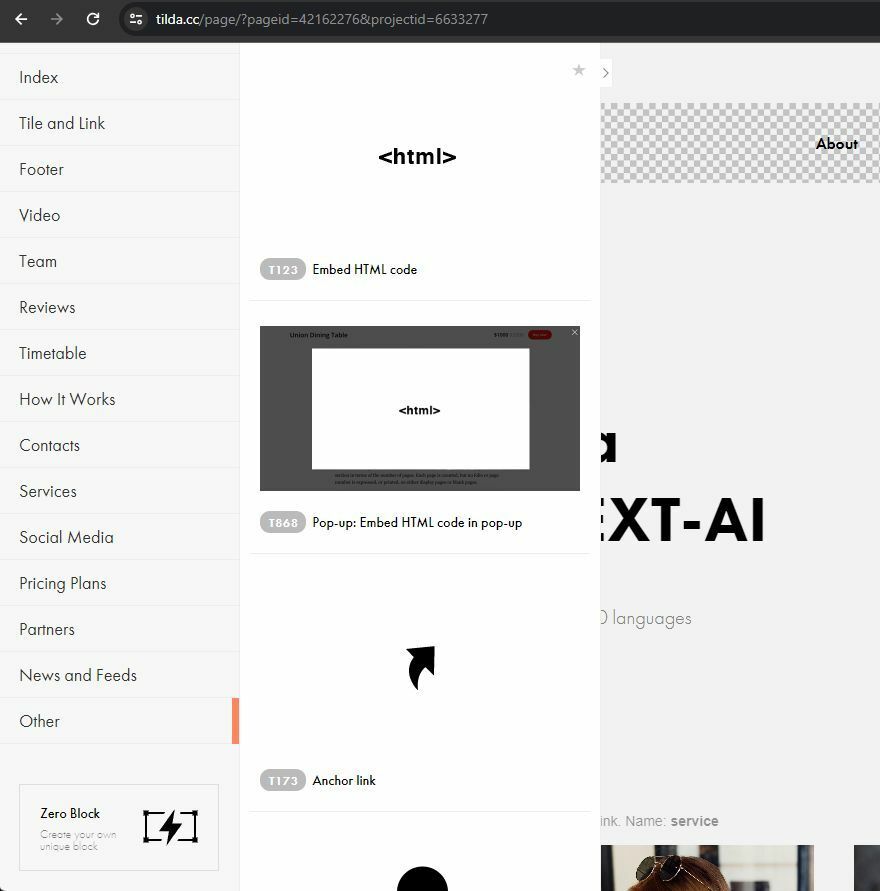
找到並選取名為 T123 的區塊,該區塊可新增嵌入式 HTML 程式碼。
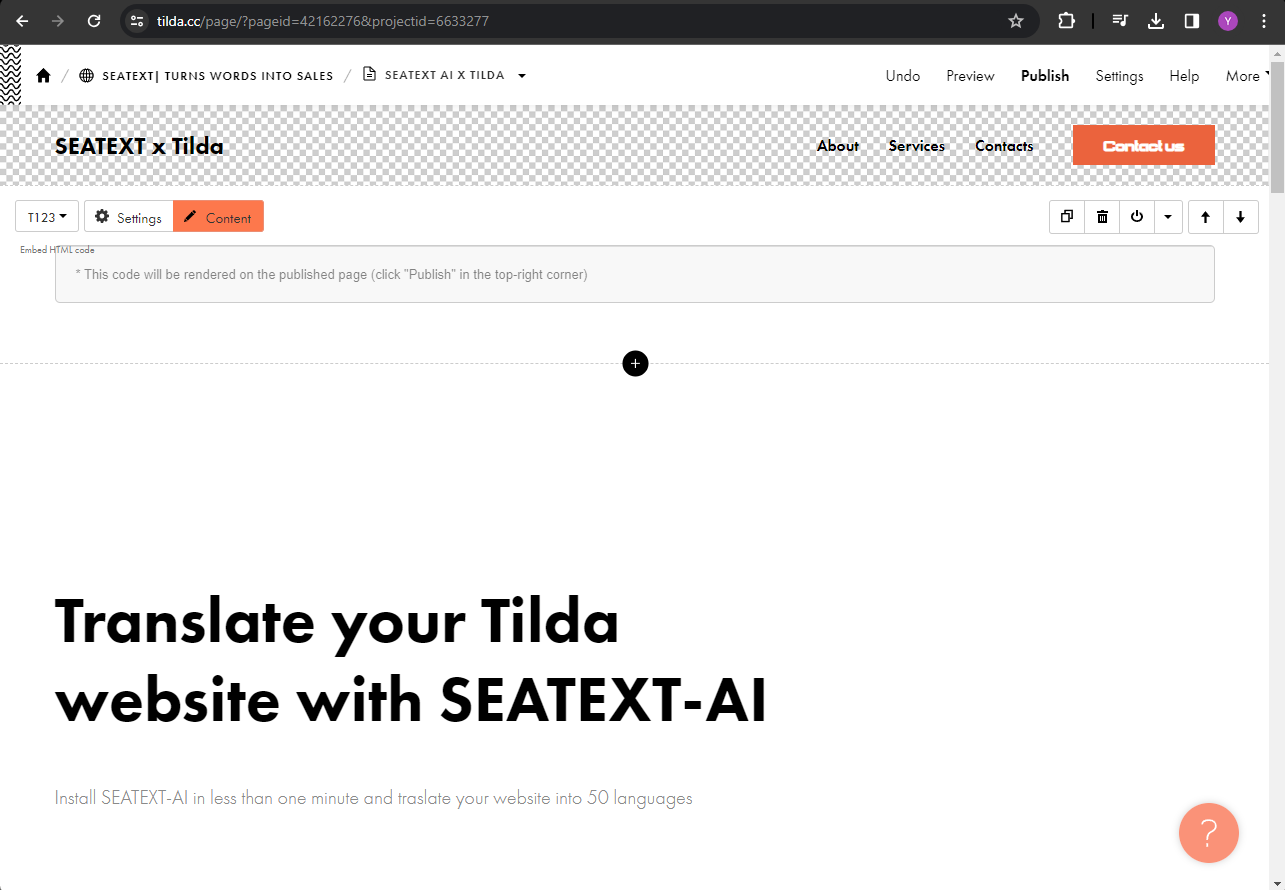
區塊加入頁面後,點擊「Content」以開啟 HTML 編輯器。
將 SEATEXT AI 提供的程式碼片段貼入 HTML 編輯器,然後點擊「Save and Close」以套用變更。
您會看到程式碼已成功加入頁面。最後,點擊「Publish」使變更在您的網站上線。
Multiple Domains If you need to use SEATEXT AI on multiple domains (e.g., a development domain and a production domain), you must create separate accounts for each domain. Each SEATEXT AI account is linked to a single primary URL. Restrictions and Security Development URLs, such as localhost, are restricted for security reasons. Ensure you use a valid, real domain for these cases. Dynamic development domains may not function properly, as SEATEXT AI might be unable to reliably associate traffic with your account. Using SEATEXT AI on Multiple Websites To use SEATEXT AI on several websites, create one account for each website.
Important: Visit or refresh your website several times and stay on your page for at least 40 seconds—this will activate the AI and link it to your account.
Important: Wait at least five minutes until you see your website name displayed next to the SEATEXT logo at the top of this page. This indicates that your website is connected and ready to proceed to the next step. If you do not see it at the top of the page after 10 minutes, please contact our support team immediately. This could indicate an issue during the installation on your platform, and you may need our assistance.
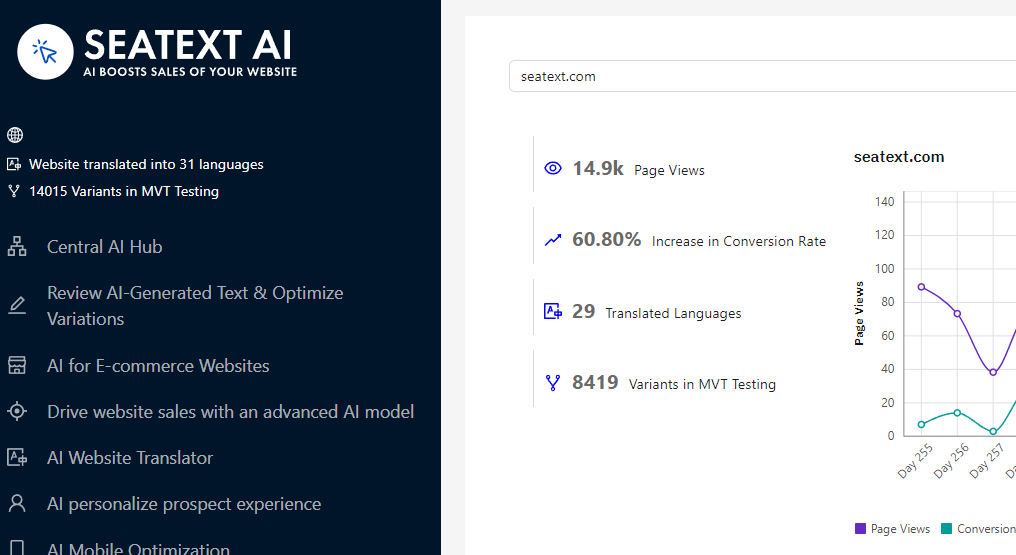
Activating AI Proceed to the Main AI Hub to activate the necessary AI on your preferred pages. Click on "Configuration" to adjust the AI parameters. Optional Editing: SEATEXT AI provides your initial round of automatic translations and variants for testing. Log in to your SEATEXT AI account, navigate to "Variants Edit" in the left panel, and select the URL and language you wish to edit. Here, you can review, create, or manually edit translations for your variants.